> ## Documentation Index
> Fetch the complete documentation index at: https://promptwatch.com/docs/llms.txt
> Use this file to discover all available pages before exploring further.
# How to add additional prompts to track in Promptwatch
> Tracking the right prompts is what will make or break your AI Visibility strategy. Being able to efficiently track more in your Promptwatch account is easy.
**Importance of tracking the right prompts**
Tracking the right prompts is what will make or break your AI Visibility strategy. For more information on tracking the right prompts, [click here.](/docs/academy/right-prompts-to-track)
**How to add an additional prompts to track**
**Step 1:** On the side bar select Prompts
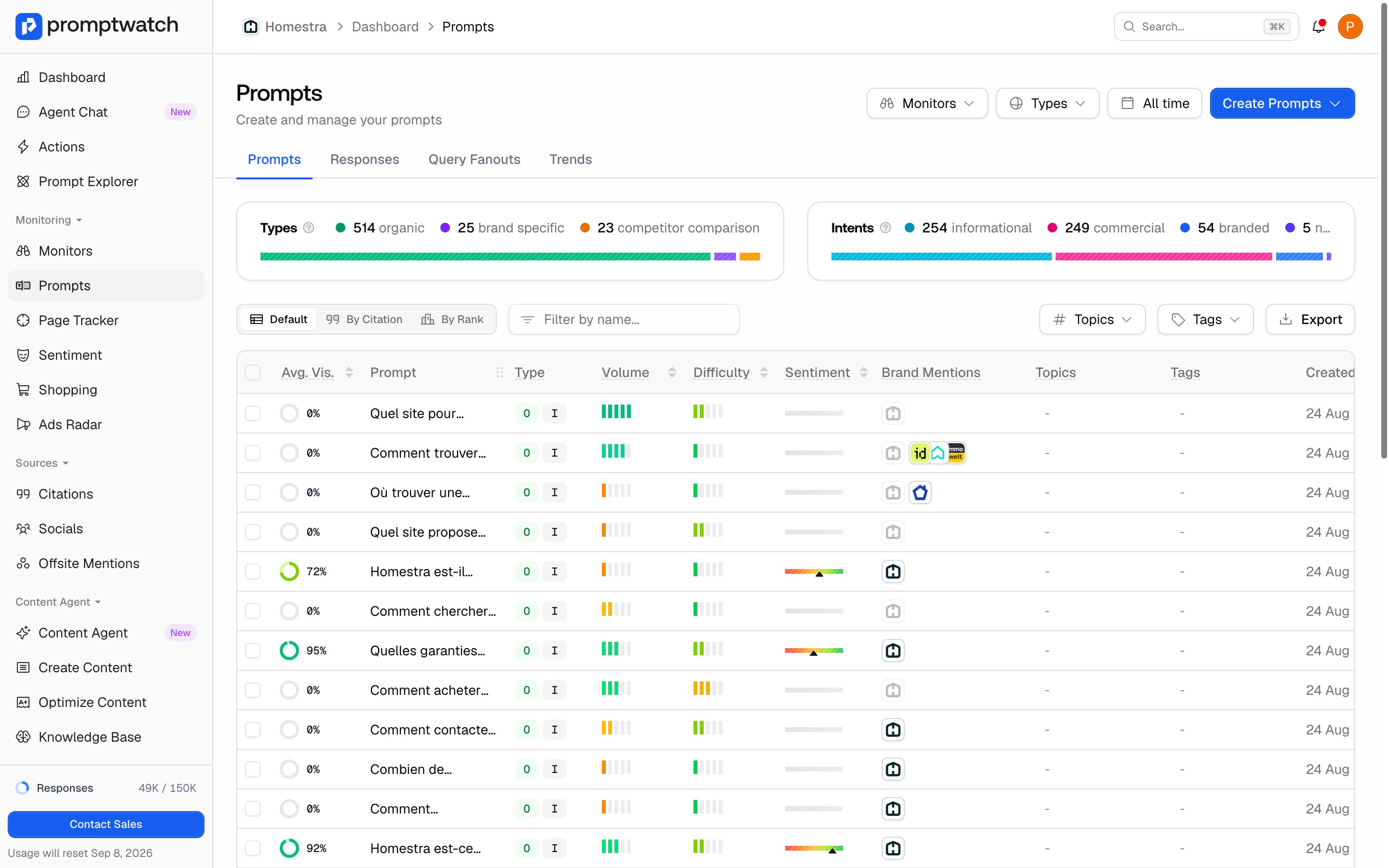 **Step 2:** On the left side of the screen select “Create Prompts”. You can add prompts using the following options:
* Write Prompts manually
* Batch upload them
* Generate with AI
* Generate from Keywords
* Use the Prompt Explorer
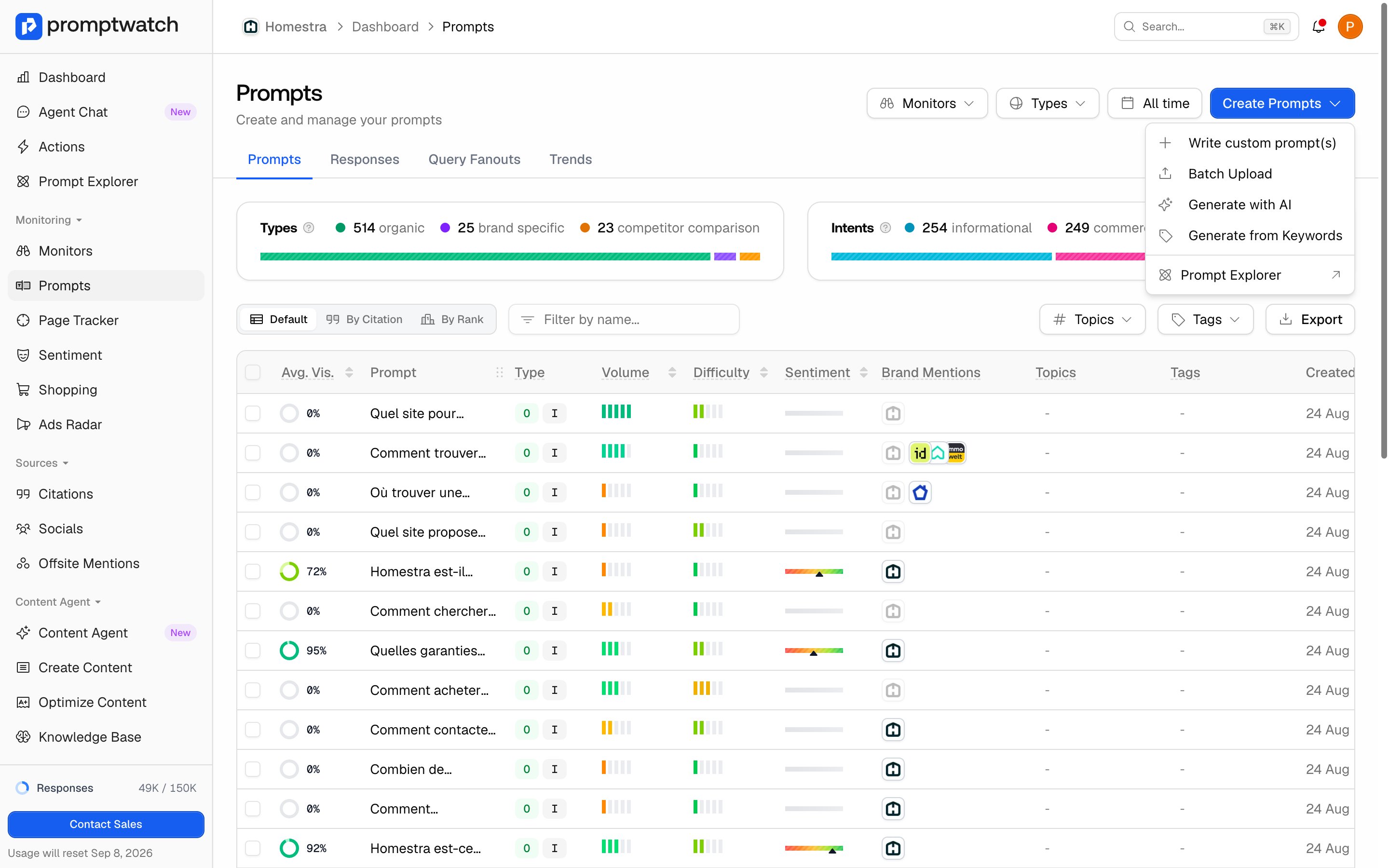
**Step 2:** On the left side of the screen select “Create Prompts”. You can add prompts using the following options:
* Write Prompts manually
* Batch upload them
* Generate with AI
* Generate from Keywords
* Use the Prompt Explorer
 **Step 3:** After you choose an option, connect the prompts to a monitor. Make sure the monitor is active so you can start getting responses right away.
**Step 4:** Enter your prompt, choose the classifications, and select the language of the prompt and the language you want to track responses in.
**Step 3:** After you choose an option, connect the prompts to a monitor. Make sure the monitor is active so you can start getting responses right away.
**Step 4:** Enter your prompt, choose the classifications, and select the language of the prompt and the language you want to track responses in.