> ## Documentation Index
> Fetch the complete documentation index at: https://promptwatch.com/docs/llms.txt
> Use this file to discover all available pages before exploring further.
# Bing Webmaster
> Connecting Bing Webmaster Tools syncs your Bing search queries, page performance, and daily traffic into the Search insights tab of 360 Insights.
The Bing Webmaster connection gives Promptwatch read access to how your site performs in Bing, and puts that data next to your AI crawls and citations in [360 Insights](/docs/academy/360-insights). It is the Bing counterpart of the [Google Search Console](/docs/academy/google-search-console) connection and follows the same two-level setup. It is optional and independent: you can connect both, either, or neither, and the [sitemap or GSC connection](/docs/academy/sitemap-or-gsc-connection) that feeds your page inventory works the same regardless. For the full list of connections, see the [integrations overview](/docs/academy/integrations).
### What the connection feeds
Bing Webmaster data has one destination: the **Search insights** tab of [360 Insights](/docs/academy/360-insights). That tab overlays Google and Bing clicks and impressions against AI crawls and citations on the same pages, so you can see whether the pages winning in AI answers are the same ones winning in classic search.
This is narrower than the Google connection, so it is worth being explicit about what Bing Webmaster does not do:
* It does not add URLs to your sitemap inventory. Page discovery stays with your sitemap and, if connected, Google Search Console.
* It does not feed the Prompt Explorer's search-demand suggestions. Those come from Google Search Console queries only.
If you want Bing performance next to your AI data, connect Bing Webmaster. If you want prompt suggestions or URL discovery, that is the Google Search Console connection.
### What data is synced
* **Query stats**: weekly buckets per search query with impressions, clicks, and average impression position, so Search insights can rank your top Bing queries.
* **Page stats**: weekly buckets per URL with the same three measures, so the Pages table in Search insights can join Bing performance to AI activity by URL path.
* **Daily traffic**: site-wide impressions and clicks per day. The daily Bing totals include Copilot, news, image, and video alongside classic web results, so the chart doubles as a read on one more AI surface. The Pages and top-queries tables are a separate weekly, web-only feed.
One detail is fetched on demand rather than synced: which queries drove clicks to a specific page. Bing's API has no bulk page-to-query export, so Promptwatch loads that breakdown live when you open a page's detail sheet in Search insights, then caches it.
The connection only requests read access to Bing Webmaster data. Promptwatch cannot change anything in your Bing Webmaster Tools account.
### How to connect
The setup has two steps at two levels, for the same reason as the Google connection: a Bing account is authorized once for your whole organization, then each project attaches its own verified site. An agency can serve many client sites from one authorization, and a project can use a site from any connected account.
#### Step 1: connect your Bing account (organization level)
1. Go to **Settings → Bing Webmaster**.
2. Click **Connect Bing Account** and sign in with the account that has access to your Bing Webmaster Tools sites.
3. Authorize Promptwatch.
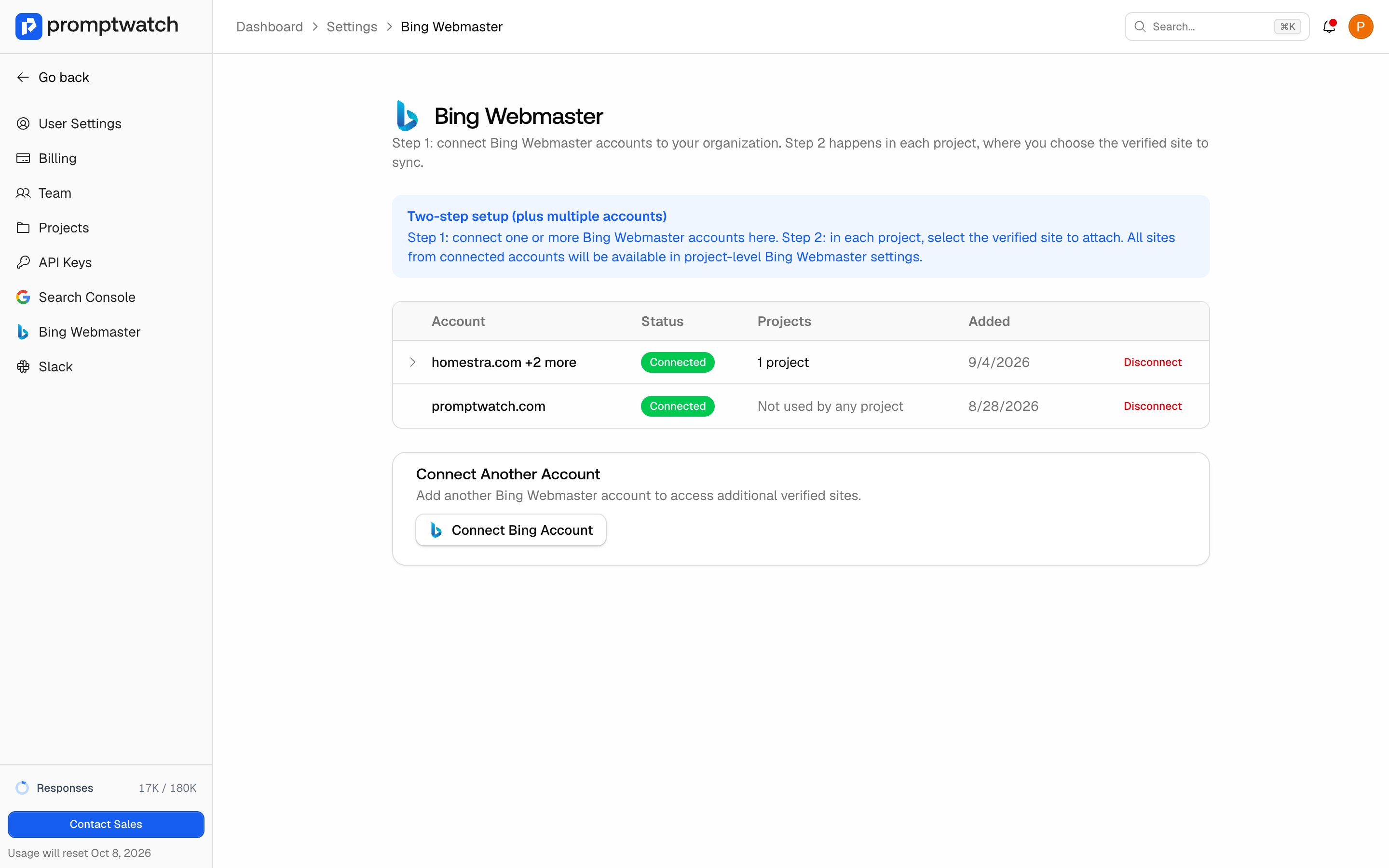 To add sites from a different account, click **Connect Another Account**. Every verified site across all connected accounts becomes available to your projects in the next step.
You can also start this step from a project: if no account is connected yet, the project's Bing Webmaster page shows a **Connect Bing Webmaster** card with the same **Connect Bing Account** button. Either entry point creates the same organization-level connection.
#### Step 2: attach a verified site (project level)
1. Open the user menu, then **Project Settings → Bing Webmaster**.
2. In the **Site configuration** card, open the **Verified site** selector and pick the Bing property that matches this project's website.
3. Click **Save site**.
4. Click **Sync now** to pull the first batch of data.
To add sites from a different account, click **Connect Another Account**. Every verified site across all connected accounts becomes available to your projects in the next step.
You can also start this step from a project: if no account is connected yet, the project's Bing Webmaster page shows a **Connect Bing Webmaster** card with the same **Connect Bing Account** button. Either entry point creates the same organization-level connection.
#### Step 2: attach a verified site (project level)
1. Open the user menu, then **Project Settings → Bing Webmaster**.
2. In the **Site configuration** card, open the **Verified site** selector and pick the Bing property that matches this project's website.
3. Click **Save site**.
4. Click **Sync now** to pull the first batch of data.
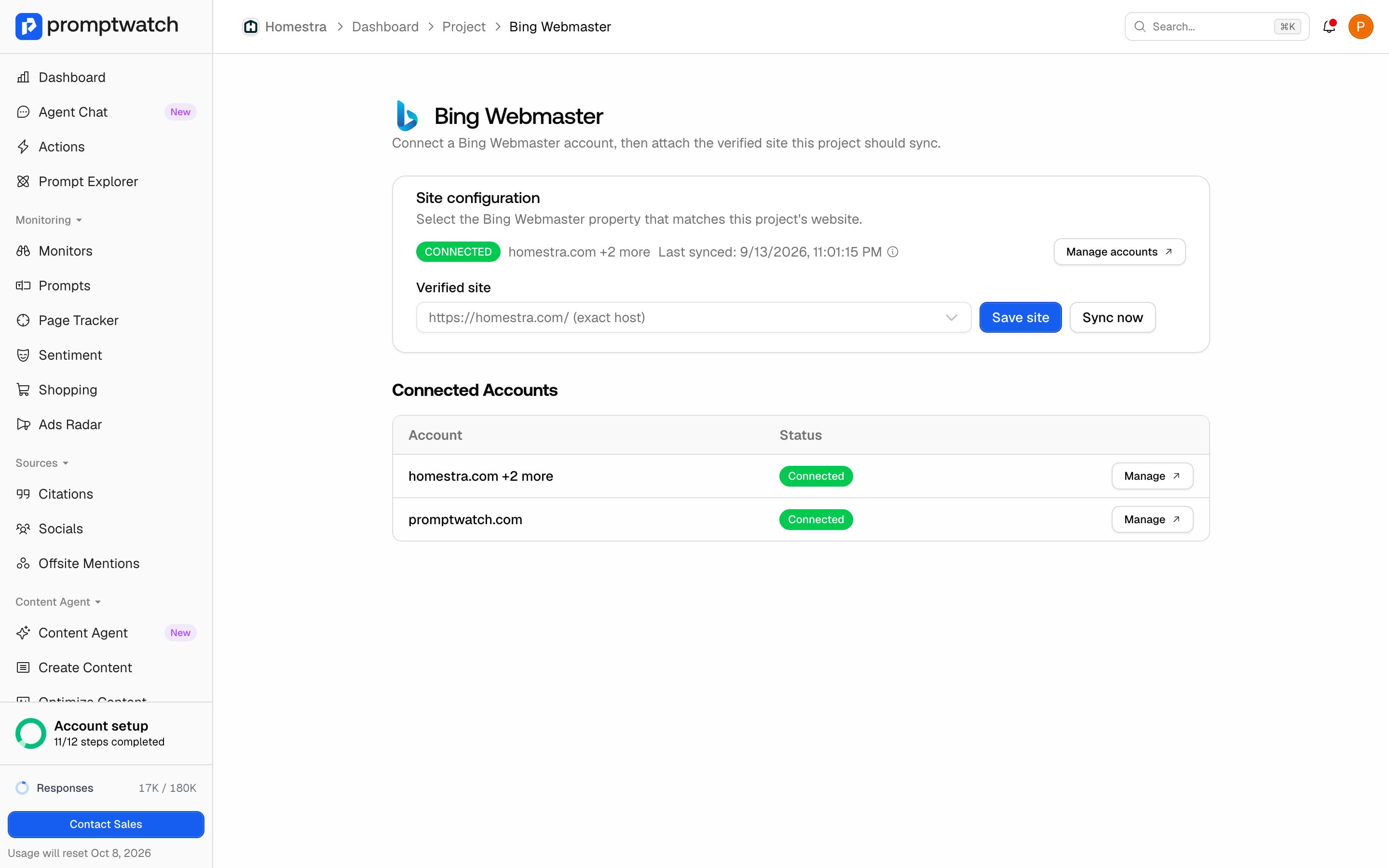 There is no separate historical import button on the Bing side. **Save site** attaches the property, **Sync now** runs the first sync, and after that the connection syncs daily on its own. The **Last synced** line on the same card shows when the most recent sync ran.
The card can show three alerts while you pick a site:
* **No sites on the connected Bing accounts**: Bing returned zero properties. Sign in to Bing Webmaster Tools and add and verify this project's website, or use **Manage accounts** to connect another Bing account that already has it.
* **Root-domain property**: the selected property covers the same root domain as the project's website but is not an exact host match. You can attach it; site-level stats inherit that property's scope.
* **Domain mismatch**: the selected property does not match the project's website at all. Attaching it is still allowed, but query and traffic stats cannot be filtered down to this project's host, so the numbers will describe the wrong site.
Changing the attached site later resets the project's sync position, so the next sync backfills from the start of the sync window instead of continuing from where the previous site left off.
### After you connect
The first sync runs as a background job, so the Search insights tab fills in after a short delay rather than instantly. From there:
* Open [360 Insights](/docs/academy/360-insights) and switch to the **Search insights** tab to see Bing clicks and impressions overlaid on AI crawls and citations. Plan requirements for 360 Insights are covered in that article.
* Use **Sync now** on the project's Bing Webmaster page whenever you want fresh numbers before the daily sync runs.
* Keep the account healthy: if Bing's authorization is revoked or expires, **Settings → Bing Webmaster** shows an error for that account with a **Reconnect** action.
* To remove an account, click **Disconnect** on the same page and confirm in the **Disconnect Bing Webmaster** dialog. Disconnecting removes the Bing configuration from every project that used a site from that account and stops future syncs, but the data already synced is kept.
There is no separate historical import button on the Bing side. **Save site** attaches the property, **Sync now** runs the first sync, and after that the connection syncs daily on its own. The **Last synced** line on the same card shows when the most recent sync ran.
The card can show three alerts while you pick a site:
* **No sites on the connected Bing accounts**: Bing returned zero properties. Sign in to Bing Webmaster Tools and add and verify this project's website, or use **Manage accounts** to connect another Bing account that already has it.
* **Root-domain property**: the selected property covers the same root domain as the project's website but is not an exact host match. You can attach it; site-level stats inherit that property's scope.
* **Domain mismatch**: the selected property does not match the project's website at all. Attaching it is still allowed, but query and traffic stats cannot be filtered down to this project's host, so the numbers will describe the wrong site.
Changing the attached site later resets the project's sync position, so the next sync backfills from the start of the sync window instead of continuing from where the previous site left off.
### After you connect
The first sync runs as a background job, so the Search insights tab fills in after a short delay rather than instantly. From there:
* Open [360 Insights](/docs/academy/360-insights) and switch to the **Search insights** tab to see Bing clicks and impressions overlaid on AI crawls and citations. Plan requirements for 360 Insights are covered in that article.
* Use **Sync now** on the project's Bing Webmaster page whenever you want fresh numbers before the daily sync runs.
* Keep the account healthy: if Bing's authorization is revoked or expires, **Settings → Bing Webmaster** shows an error for that account with a **Reconnect** action.
* To remove an account, click **Disconnect** on the same page and confirm in the **Disconnect Bing Webmaster** dialog. Disconnecting removes the Bing configuration from every project that used a site from that account and stops future syncs, but the data already synced is kept.