> ## Documentation Index
> Fetch the complete documentation index at: https://promptwatch.com/docs/llms.txt
> Use this file to discover all available pages before exploring further.
# The content schedule
> How Content Agent pieces move from planned to published, what each status means, and how to read the schedule as a list or calendar.
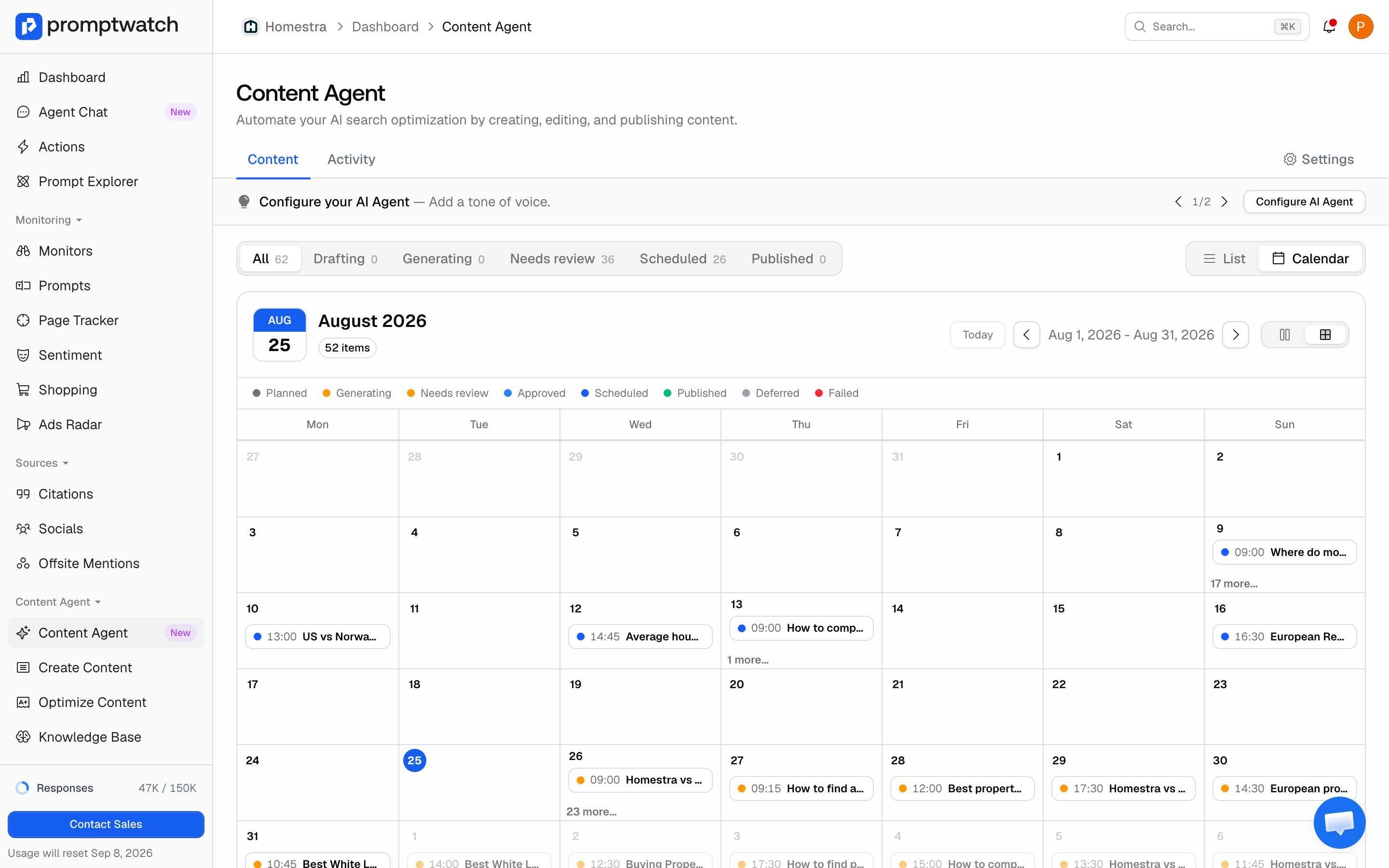
The content schedule is the Content tab of the Content Agent: every piece the agent has planned, is writing, or has published, shown as a list or a calendar. Each piece is a slot with two dates: a generate-by date (when the draft is written) and a publish date (when it goes out). Generation starts as soon as a piece is planned; the publish date sits later on your calendar, so Review first mode usually has time to accept or decline before the slot, while Auto-publish skips that inbox when quality checks pass.
### The slot lifecycle
A piece moves through these statuses, shown as badges on the schedule:
* **Planned**: scheduled by the planning agent, not yet written. The planner sets persona, type, and tone when it books the slot.
* **Generating**: the writer is producing the draft.
* **Needs review**: the draft is ready and waiting for your accept or decline. In Review first mode every piece stops here; in Auto-publish mode only pieces that failed a quality check do.
* **Scheduled**: cleared to publish at its slot time, by your accept or by Auto-publish after quality checks.
* **Approved**: used when a piece publishes immediately instead of waiting for its slot.
* **Published**: live, or pushed to your CMS as a draft, depending on your publish state setting.
Three statuses cover the exceptions:
* **Deferred**: rolled to a later cycle, usually because budget ran out this period. The planner reconsiders it when capacity returns.
* **Suppressed**: declined. It leaves the schedule, will not be generated or published, and the decline reason is stored on the piece.
* **Failed**: generation or publishing failed; the piece shows the reason. CMS publish failures retry every 15 minutes, up to 5 attempts, before the piece is marked failed, so a transient CMS hiccup self-heals.
### Reading the schedule
The filter tabs above the schedule group statuses the way you triage them: **All**, **Drafting** (planned), **Generating**, **Needs review**, **Scheduled** (approved and scheduled), and **Published**, each with a live count. "Needs review" is the tab to check daily; the rest mostly run themselves.
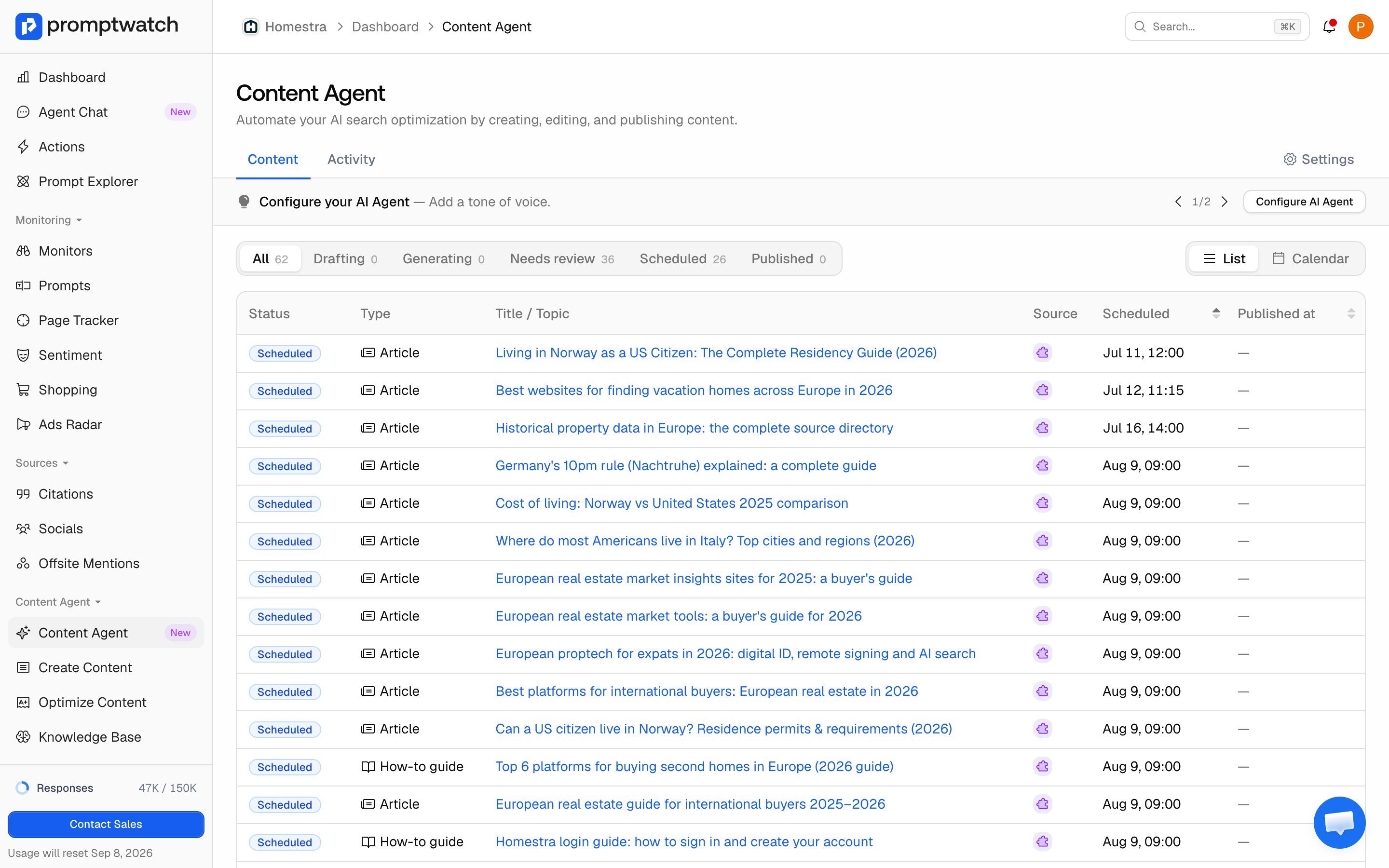 Switch between **List** (sortable by publish date, best for triage) and **Calendar** (best for seeing cadence and gaps) at the top right. Click any piece to open its detail sheet: status, publish and generate-by times, priority, the agent's "why this was prioritized" explanation, and a full draft preview once it's generated.
 ### How pieces get on the schedule
You don't add pieces by hand. The planning agent pulls from your [content gap](/docs/academy/content-gap) backlog, ranks ideas by expected impact, and schedules as many as your budget share and calendar allow, spacing them across your publish windows and respecting the max-per-day cap. It re-plans when new gap recommendations arrive or budget frees up, and each run's reasoning appears in the **Activity** tab.
Two things pace the schedule: your [settings](/docs/academy/content-agent-settings) (publish days and hours, max per day, budget share) and your remaining generation budget. When budget runs out, planned pieces wait, and the page shows a notice with the reset date, so a paused schedule is a budget signal, not a bug.
### What happens next
When a draft finishes generating, it lands in Needs review and you get an in-app notification; in Auto-publish mode, pieces that pass the quality check skip review and queue for their slot without a notification. From there, the review flow takes over: see [Reviewing, approving and declining drafts](/docs/academy/reviewing-drafts). After a piece publishes, its slot shows a **Track performance** link into the [Page Tracker](/docs/academy/page-tracker).
### How pieces get on the schedule
You don't add pieces by hand. The planning agent pulls from your [content gap](/docs/academy/content-gap) backlog, ranks ideas by expected impact, and schedules as many as your budget share and calendar allow, spacing them across your publish windows and respecting the max-per-day cap. It re-plans when new gap recommendations arrive or budget frees up, and each run's reasoning appears in the **Activity** tab.
Two things pace the schedule: your [settings](/docs/academy/content-agent-settings) (publish days and hours, max per day, budget share) and your remaining generation budget. When budget runs out, planned pieces wait, and the page shows a notice with the reset date, so a paused schedule is a budget signal, not a bug.
### What happens next
When a draft finishes generating, it lands in Needs review and you get an in-app notification; in Auto-publish mode, pieces that pass the quality check skip review and queue for their slot without a notification. From there, the review flow takes over: see [Reviewing, approving and declining drafts](/docs/academy/reviewing-drafts). After a piece publishes, its slot shows a **Track performance** link into the [Page Tracker](/docs/academy/page-tracker).