> ## Documentation Index
> Fetch the complete documentation index at: https://promptwatch.com/docs/llms.txt
> Use this file to discover all available pages before exploring further.
# How to add a new monitor in Promptwatch
> Monitors are the foundation of your AI Visibility optimization. Having them set up correctly and having enough of them can help you improve your visibility more effeciently.
**Importance of monitors in tracking your AI Visibility**
Monitors allow you to group prompts that you want to track based on any or all of these factors:
* Language & Region
* Intent level
* Branded or Non-Branded
Once your monitors are set up properly, you can see a clear overview for your visibility based on what you are tracking
Promptwatch allows you to track up to 50 prompts in a single monitor
**How to add an additional monitor to your account**
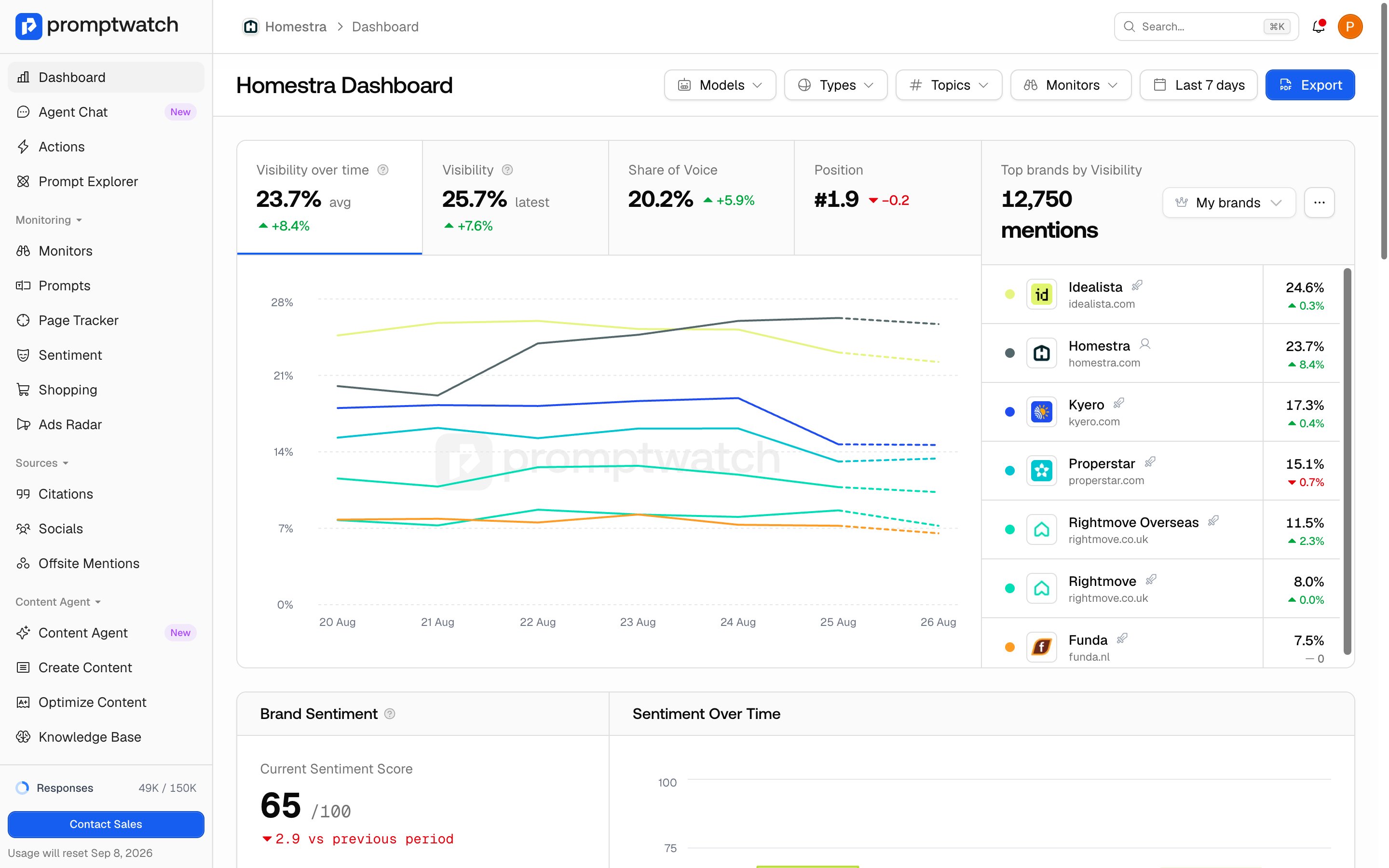
**Step 1:** On the side bar, select Monitors
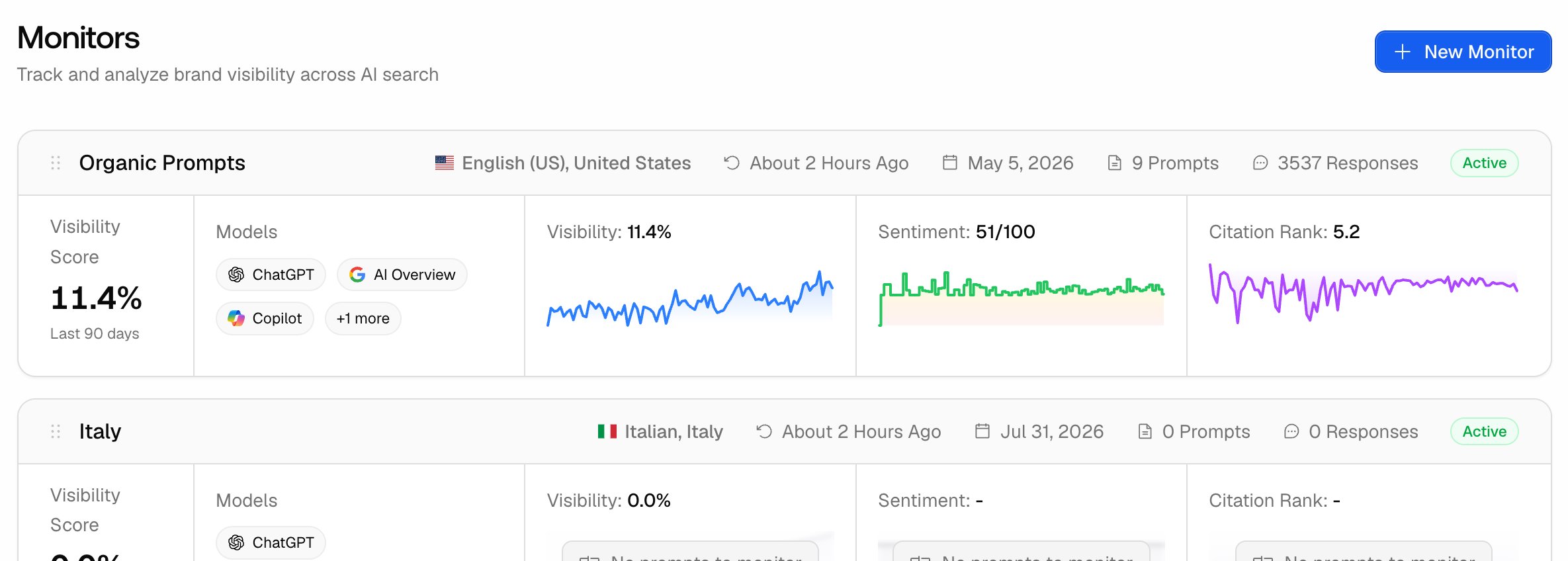
 **Step 2:** Go to the top right corner and click on New Monitor
 **Step 3:** Once you click on **New Monitor**, a pop-up template will appear with the fields listed below. Please fill in all sections with the correct information.
 Monitor Name: Give your monitor a descriptive name.
Language: Select the language for the Prompts.
Country: Select the country you want to monitor.
State & City (Optional): Add if needed.
Persona: Add the persona you want to track.
Models: Select the top models you want to monitor.
**Step 4:** Once you have your monitor set up, select “Next” and add the prompts you would like to track.
Monitor Name: Give your monitor a descriptive name.
Language: Select the language for the Prompts.
Country: Select the country you want to monitor.
State & City (Optional): Add if needed.
Persona: Add the persona you want to track.
Models: Select the top models you want to monitor.
**Step 4:** Once you have your monitor set up, select “Next” and add the prompts you would like to track.