> ## Documentation Index
> Fetch the complete documentation index at: https://promptwatch.com/docs/llms.txt
> Use this file to discover all available pages before exploring further.
# Moving and deleting prompts
> How to move prompts between monitors without losing their history, how to delete prompts, and what each action does to your charts.
Prompt lists need pruning: a prompt lands in the wrong monitor, a topic stops mattering, or a batch upload brings in duplicates. Promptwatch gives you two tools with very different consequences. Moving reassigns a prompt to another monitor and keeps its history; deleting removes the prompt and its history from your analytics for good.
Both actions start the same way: open the **Prompts** page in the sidebar (or the **Prompts** tab inside a monitor) and select prompts with the checkboxes. Shift-click a second checkbox to select the whole range between the two. The action buttons appear above the table once something is selected.
### Moving prompts to another monitor
A prompt belongs to exactly one monitor at a time, so moving is how you reorganize without re-creating anything:
1. Select the prompts and click **Move**.
2. In the "Move Prompts" dialog, pick the **Target Monitor** from the dropdown.
3. Click the confirm button, which shows the count, for example **Move 3 prompts**.
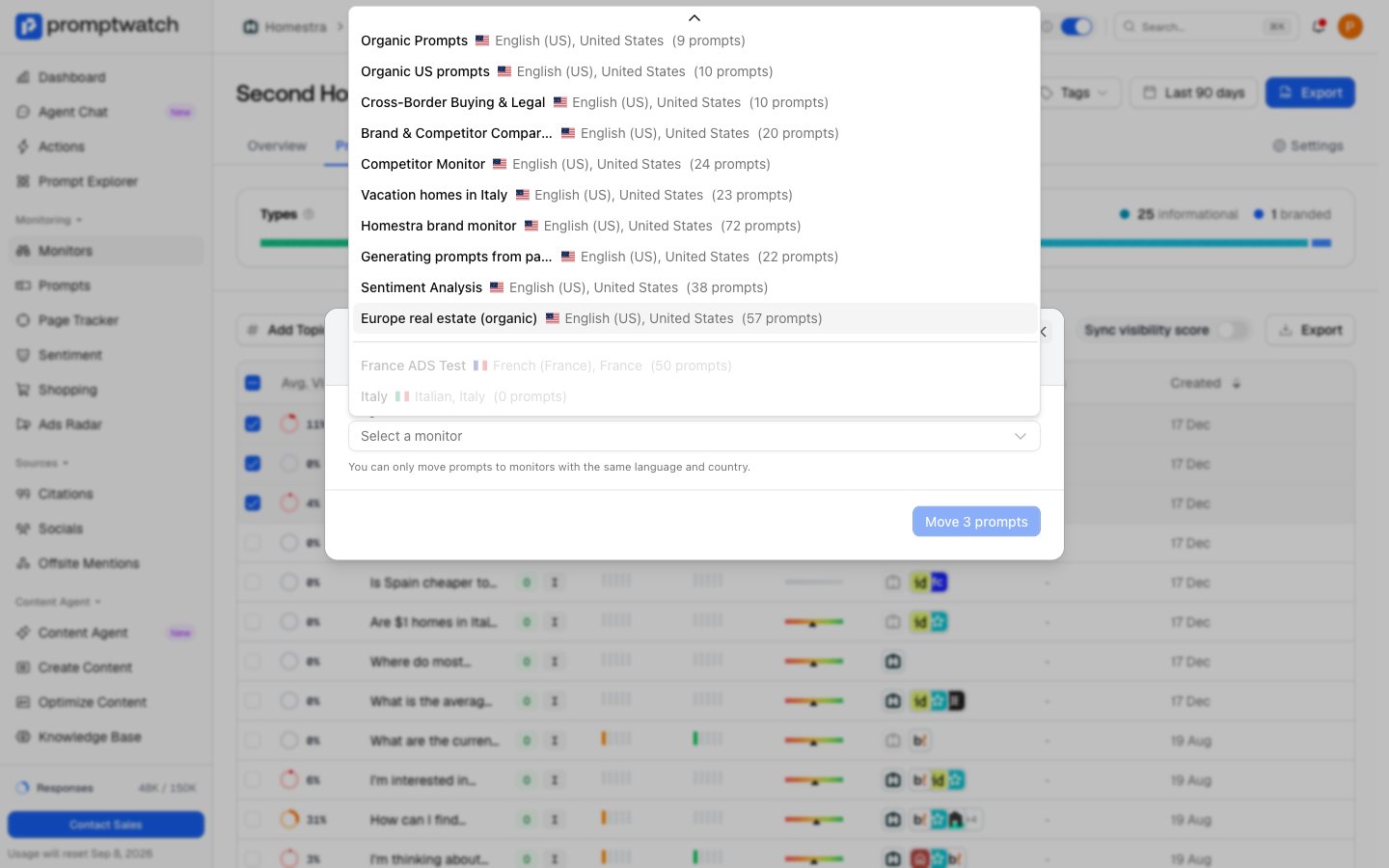 The prompt's response history travels with it: past responses now count under the target monitor, so its charts include the data the prompt collected before the move. That's the point of moving instead of deleting and re-adding, which would start the prompt's history from zero.
Three rules to know before you reach for it:
* **Same language and country only**: the target monitor must match the source monitor's language and country, because a prompt's responses are only comparable within one locale. Monitors that don't match appear grayed out in the dropdown with the reason.
* **Active targets only**: inactive monitors are not offered as targets.
* **One source monitor per move**: if your selection spans multiple monitors, the Move button is disabled ("Cannot move prompts from different monitors at once"). Filter or reselect per monitor.
If no compatible monitor exists yet, [create one](/docs/academy/creating-a-monitor) with the same language and country first.
### Deleting prompts
1. Select the prompts and click **Delete**.
2. Confirm in the "Are you absolutely sure?" dialog.
The prompt's response history travels with it: past responses now count under the target monitor, so its charts include the data the prompt collected before the move. That's the point of moving instead of deleting and re-adding, which would start the prompt's history from zero.
Three rules to know before you reach for it:
* **Same language and country only**: the target monitor must match the source monitor's language and country, because a prompt's responses are only comparable within one locale. Monitors that don't match appear grayed out in the dropdown with the reason.
* **Active targets only**: inactive monitors are not offered as targets.
* **One source monitor per move**: if your selection spans multiple monitors, the Move button is disabled ("Cannot move prompts from different monitors at once"). Filter or reselect per monitor.
If no compatible monitor exists yet, [create one](/docs/academy/creating-a-monitor) with the same language and country first.
### Deleting prompts
1. Select the prompts and click **Delete**.
2. Confirm in the "Are you absolutely sure?" dialog.
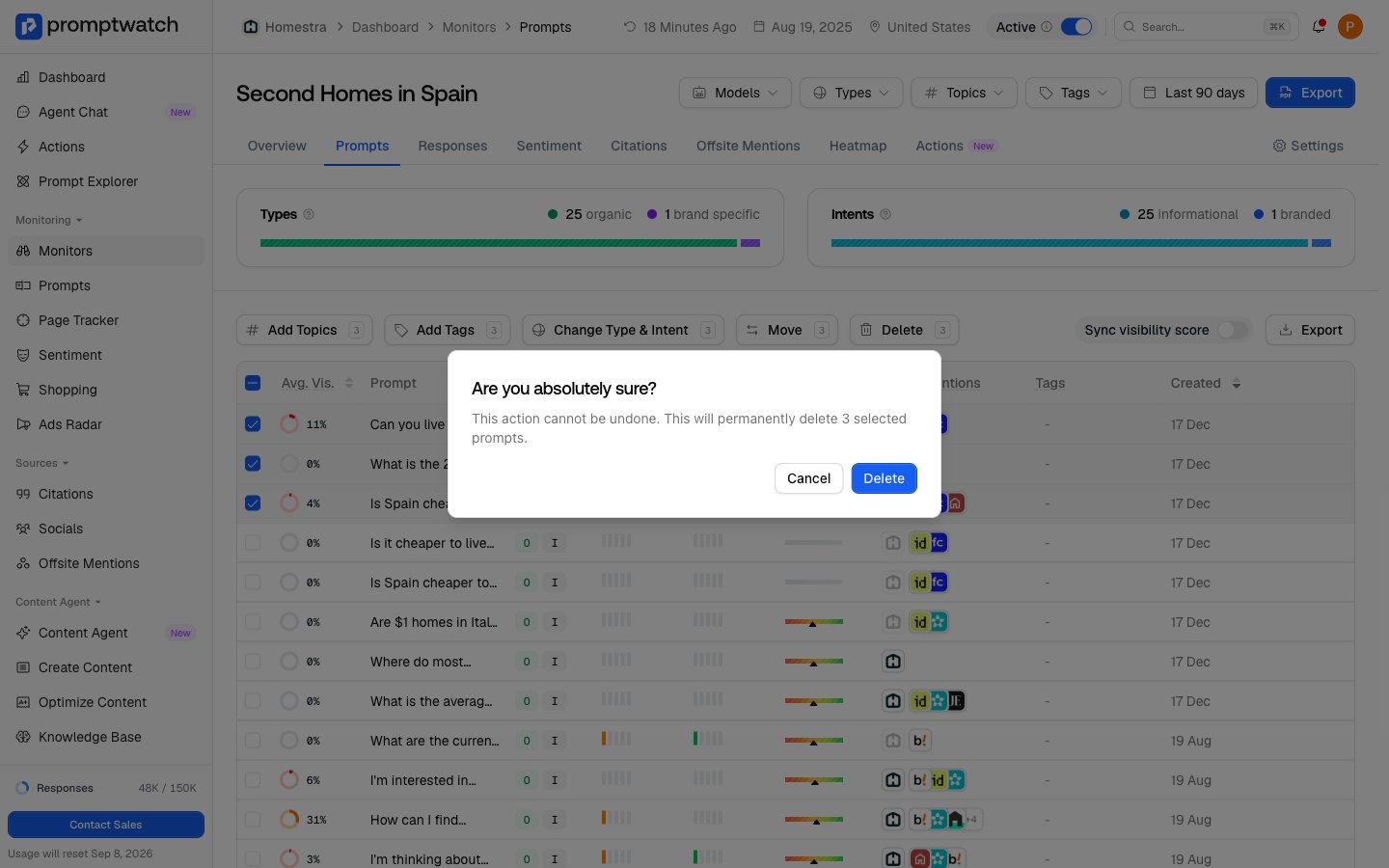 Deleting removes the prompt and all of its historical responses from your analytics, and it cannot be undone from the app. The deleted prompts also stop counting against your plan's active prompt limit, so deleting is how you free quota for prompts that matter more.
Because history is lost, check the alternatives first:
* **Wrong monitor?** Move it instead; history survives.
* **Wrong label?** Fix the type or intent, or retag it; see [working with prompts](/docs/academy/working-with-prompts).
* **Pausing a whole market or campaign?** Pause the monitor instead of deleting its prompts; the data stays and comes back when you reactivate. See [managing monitors](/docs/academy/managing-monitors).
Delete is the right call for duplicates, test prompts, and questions your audience has genuinely stopped asking.
### What happens next
Moved prompts run on their new monitor's schedule and models from the next cycle, and their history is already visible in the target monitor's charts. Deleted prompts disappear from tables and charts immediately, and the freed quota shows up when you next add prompts. For deciding what deserves the freed slots, see [finding the right prompts to track](/docs/academy/right-prompts-to-track).
Deleting removes the prompt and all of its historical responses from your analytics, and it cannot be undone from the app. The deleted prompts also stop counting against your plan's active prompt limit, so deleting is how you free quota for prompts that matter more.
Because history is lost, check the alternatives first:
* **Wrong monitor?** Move it instead; history survives.
* **Wrong label?** Fix the type or intent, or retag it; see [working with prompts](/docs/academy/working-with-prompts).
* **Pausing a whole market or campaign?** Pause the monitor instead of deleting its prompts; the data stays and comes back when you reactivate. See [managing monitors](/docs/academy/managing-monitors).
Delete is the right call for duplicates, test prompts, and questions your audience has genuinely stopped asking.
### What happens next
Moved prompts run on their new monitor's schedule and models from the next cycle, and their history is already visible in the target monitor's charts. Deleted prompts disappear from tables and charts immediately, and the freed quota shows up when you next add prompts. For deciding what deserves the freed slots, see [finding the right prompts to track](/docs/academy/right-prompts-to-track).