> ## Documentation Index
> Fetch the complete documentation index at: https://promptwatch.com/docs/llms.txt
> Use this file to discover all available pages before exploring further.
# Optimize Content
> The optimization agent rewrites an existing page for stronger AI search visibility, targeting a specific prompt and learning from the competitor pages that win it.
Optimize Content improves a page you already have instead of writing a new one. You point the agent at one of your URLs and the prompt you want it to win, and it produces a rewritten version of the page, informed by the competitor pages AI models actually cite for that prompt. It's the "Optimize" counterpart to [Create Content](/docs/academy/create-content): same editor, same publishing flow, different starting point.
Use it when a [content gap report](/docs/academy/content-gap) says a page exists but doesn't cover the topic well, when a page loses citations it used to earn, or when a competitor's page consistently outranks yours in AI answers.
### How to run the optimization agent
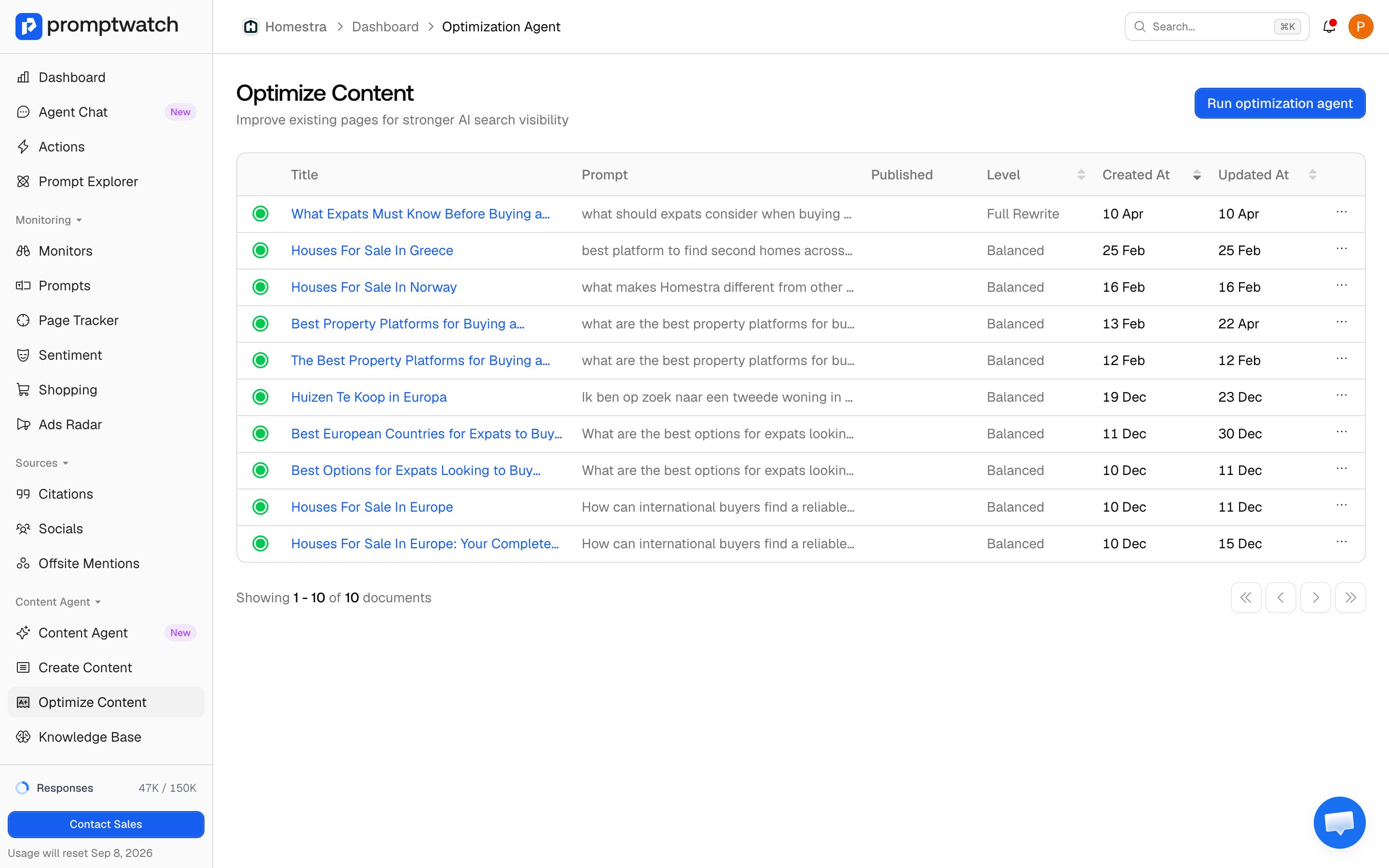
Open **Content Agent → Optimize Content** in the sidebar and click **Run optimization agent**. The dialog walks you through the setup:
 #### Prompt
Pick the tracked prompt you want the page to perform on. This anchors everything else: the competitor references come from this prompt's responses, and the rewrite targets what AI models look for when answering it.
#### Page to optimize
Pick the page from your crawled sitemap, or enter a URL directly if the page isn't in it yet (Promptwatch fetches and adds it). If your sitemap has no crawled pages at all, set up your [sitemap](/docs/academy/sitemap) first or use the direct URL path.
#### Optimization level
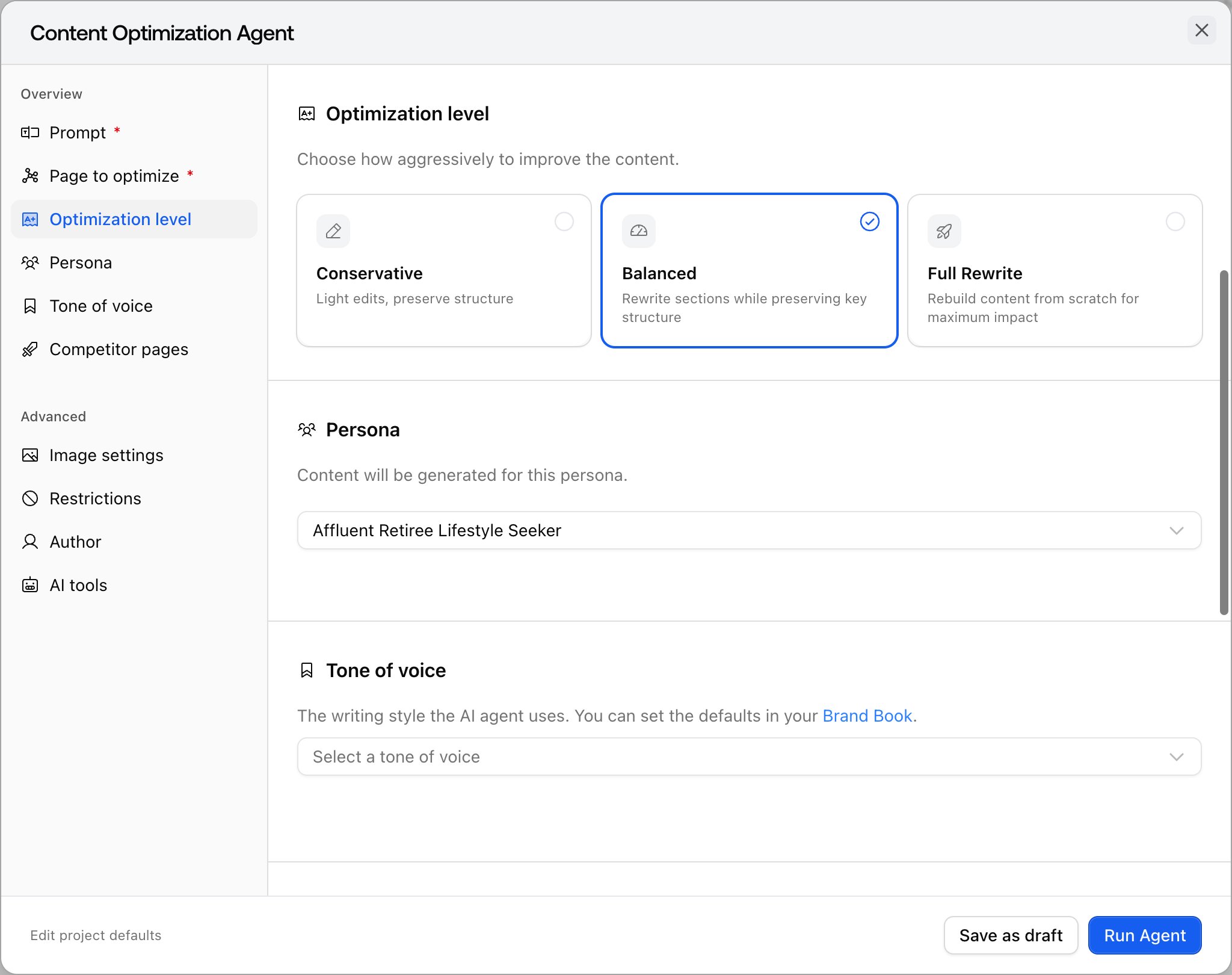
How aggressively the agent may change the page:
* **Conservative**: light edits, preserve structure.
* **Balanced**: rewrites sections while keeping the key structure. The default.
* **Full Rewrite**: rebuild content from scratch for maximum impact.
#### Prompt
Pick the tracked prompt you want the page to perform on. This anchors everything else: the competitor references come from this prompt's responses, and the rewrite targets what AI models look for when answering it.
#### Page to optimize
Pick the page from your crawled sitemap, or enter a URL directly if the page isn't in it yet (Promptwatch fetches and adds it). If your sitemap has no crawled pages at all, set up your [sitemap](/docs/academy/sitemap) first or use the direct URL path.
#### Optimization level
How aggressively the agent may change the page:
* **Conservative**: light edits, preserve structure.
* **Balanced**: rewrites sections while keeping the key structure. The default.
* **Full Rewrite**: rebuild content from scratch for maximum impact.
 #### Persona and tone
Choose the persona the page should speak to and the tone of voice. Both default from your prompt's persona and your Brand Book AI Agent settings, so you usually confirm rather than configure.
#### Competitor pages
Select up to 5 competitor pages from the prompt's cited sources. The agent studies why those pages get cited and folds their strengths into your rewrite, so pick the pages that beat you, not just any competitor URL.
#### Advanced options
Image settings (style, creativity, whether images carry text), restrictions (blocked words), the author shown on CMS publish, and the AI tools the agent may use (web search, competitor page analysis, internal link finding, [Knowledge Base](/docs/academy/knowledge-base) search, and more). All default from your project settings.
You can also **save as draft** instead of running, which keeps the configuration to finish later.
### Other ways in
You rarely start from the blank dialog. Content gap recommendations with an **Optimize page** button open this dialog with the target URL and gap context prefilled; see [Turning a gap into a content brief](/docs/academy/gap-to-brief). Sitemap page detail has **Run optimization agent** with the URL filled in, and some action items open the dialog too, with a label and prefill that depend on the action type.
### What happens next
After you click **Run Agent**, Promptwatch opens the editor for that document while the agent works in the background; you can leave and come back. Use the **Differences** toggle to compare the rewrite with the original, and adjust. The document also appears in the Optimize Content list. From there, publishing works exactly like any other document: push it to your CMS or update the page yourself and record the URL, per [Publishing and tracking results](/docs/academy/publishing-and-tracking). Since the page is already in the [Page Tracker](/docs/academy/page-tracker) or can be added there, you'll see whether the rewrite wins the citations you targeted.
#### Persona and tone
Choose the persona the page should speak to and the tone of voice. Both default from your prompt's persona and your Brand Book AI Agent settings, so you usually confirm rather than configure.
#### Competitor pages
Select up to 5 competitor pages from the prompt's cited sources. The agent studies why those pages get cited and folds their strengths into your rewrite, so pick the pages that beat you, not just any competitor URL.
#### Advanced options
Image settings (style, creativity, whether images carry text), restrictions (blocked words), the author shown on CMS publish, and the AI tools the agent may use (web search, competitor page analysis, internal link finding, [Knowledge Base](/docs/academy/knowledge-base) search, and more). All default from your project settings.
You can also **save as draft** instead of running, which keeps the configuration to finish later.
### Other ways in
You rarely start from the blank dialog. Content gap recommendations with an **Optimize page** button open this dialog with the target URL and gap context prefilled; see [Turning a gap into a content brief](/docs/academy/gap-to-brief). Sitemap page detail has **Run optimization agent** with the URL filled in, and some action items open the dialog too, with a label and prefill that depend on the action type.
### What happens next
After you click **Run Agent**, Promptwatch opens the editor for that document while the agent works in the background; you can leave and come back. Use the **Differences** toggle to compare the rewrite with the original, and adjust. The document also appears in the Optimize Content list. From there, publishing works exactly like any other document: push it to your CMS or update the page yourself and record the URL, per [Publishing and tracking results](/docs/academy/publishing-and-tracking). Since the page is already in the [Page Tracker](/docs/academy/page-tracker) or can be added there, you'll see whether the rewrite wins the citations you targeted.