> ## Documentation Index
> Fetch the complete documentation index at: https://promptwatch.com/docs/llms.txt
> Use this file to discover all available pages before exploring further.
# Organizing with Monitors, Tags and Topics
> When to split prompts into monitors, when a tag is the right label, and when a topic is: the three tools for keeping a growing prompt set analyzable.
### Three tools, three jobs
As your prompt set grows past the first dozen, you need structure, and Promptwatch gives you three tools that are easy to mix up:
* **Monitors** define where and how prompts run: the market, language, persona, schedule, and models.
* **Tags** are free-form labels for slicing results across monitors: campaigns, funnel stages, owners.
* **Topics** are subject labels on prompts: what the prompt is about.
The short rule: split into a new monitor when the run context changes, use a tag when you want a reusable filter, use a topic when you're grouping by subject. The rest of this page is that rule with reasons.
### Monitors: when the context changes
A [monitor](/docs/academy/what-is-a-monitor) carries the settings its prompts run with: language, country (down to state and city), an optional persona, tracking frequency, and the AI models to query. One context per monitor is a deliberate design: it keeps your time series clean, because every response in a monitor was collected the same way and the numbers stay comparable over time.
So create a new monitor when any of those change: a new market ("US - English" and "DE - German" as separate monitors), a different audience via a [persona](/docs/academy/personas), or a different model set or schedule. Don't create monitors as a labeling device, "pricing prompts" and "comparison prompts" running in the same market and language belong in one monitor with topics telling them apart. If a prompt landed in the wrong place, you can [move it to a different monitor](/docs/academy/moving-and-deleting-prompts), and [three monitors to set up](/docs/academy/three-monitors-to-set-up) covers a solid starting structure.
### Tags: reusable filters that cross monitors
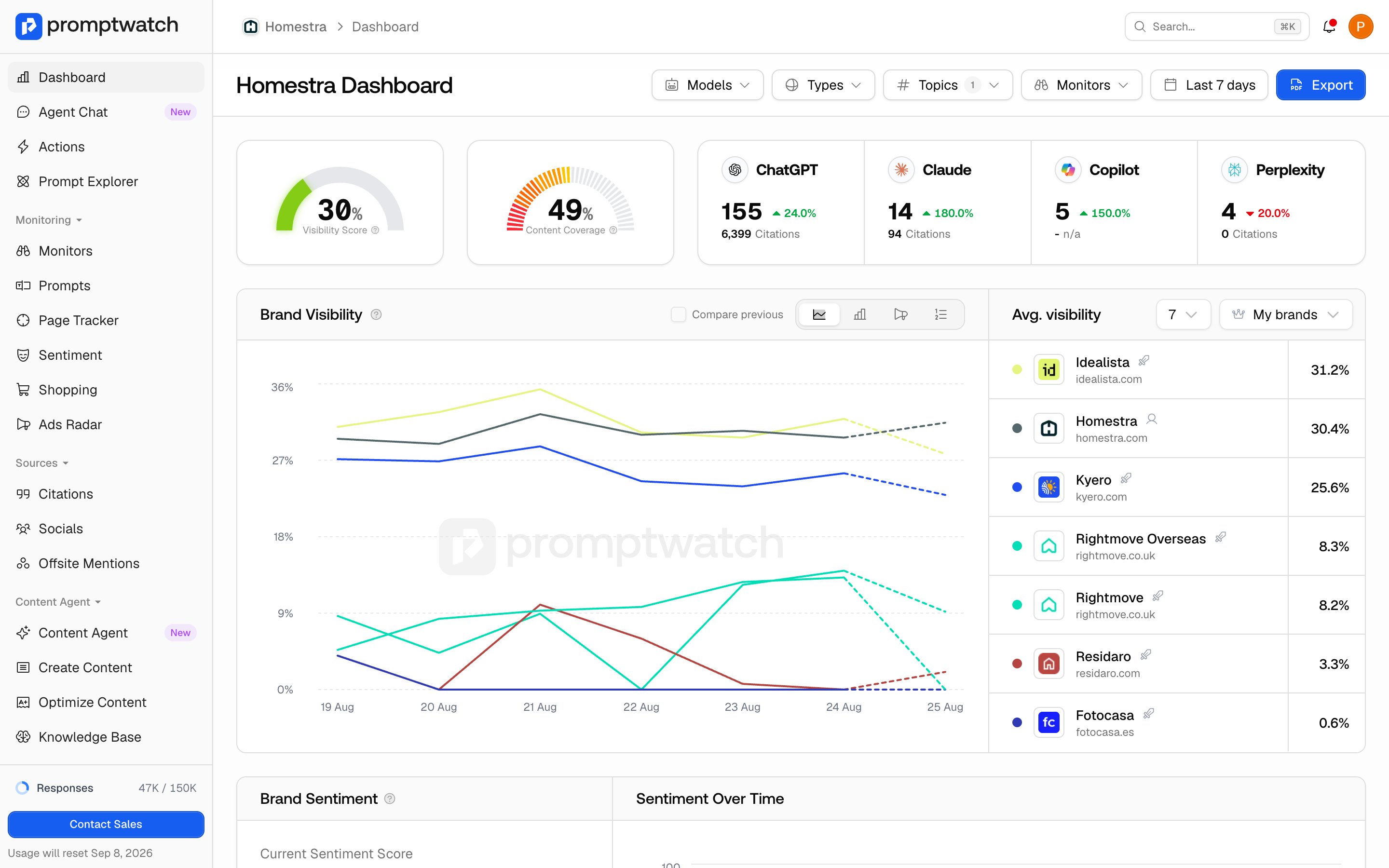
Tags are project-level labels, and they attach to two things: prompts and competitor brands. That reach is what makes them the workflow tool. A "Q3 campaign" tag can group prompts from three different monitors, and an "enterprise" tag can group the competitors in that segment. Tag and topic filters show on monitor views, the Prompts table, citations, content gap, and most prompt-related exports; the project dashboard slices by monitor and topic, not by tag.
 Use tags for groupings that are yours rather than the market's: campaigns, content initiatives, funnel stage, team ownership, "watchlist". They're free-form, cheap to create (you can add them inline wherever you assign them), and safe to prune: deleting a tag removes it from prompts, and the prompts stay. If the tag is still on a competitor brand, detach it there first or the delete will fail.
### Topics: what the prompt is about
Topics are project-level subject labels that attach only to prompts, and names are stored lowercase, so "Pricing" and "pricing" are one topic. Use them as a stable subject taxonomy: "pricing", "integrations", "alternatives". Where a tag answers "which of my initiatives does this belong to", a topic answers "what is this prompt about", and because the taxonomy is stable it makes long-lived comparisons possible: visibility on pricing questions vs. integration questions, across every monitor and market at once.
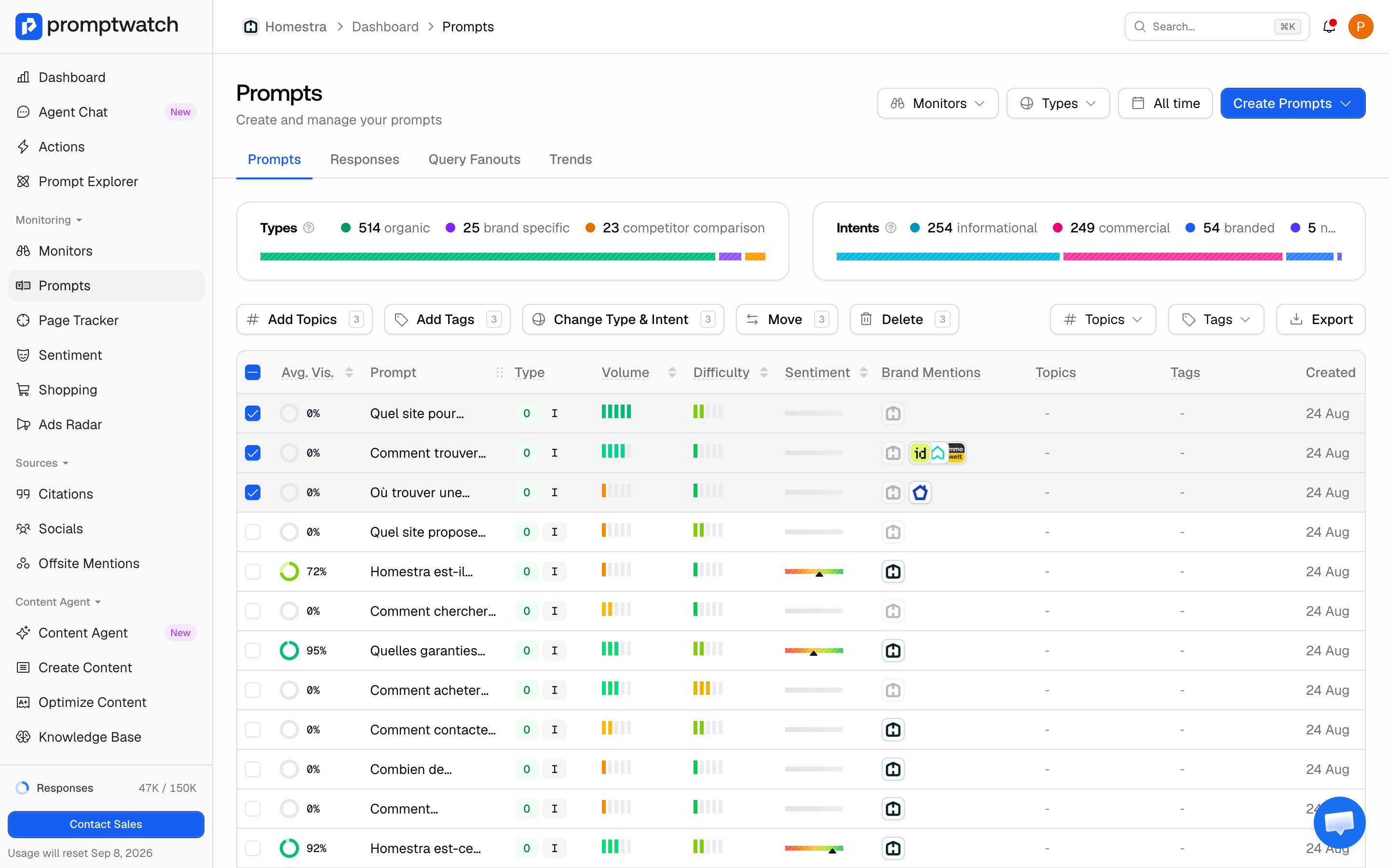
Topics appear alongside tags as filters on charts and exports. Assign both from the Prompts table: select prompts, then use the tag and topic buttons that appear.
Use tags for groupings that are yours rather than the market's: campaigns, content initiatives, funnel stage, team ownership, "watchlist". They're free-form, cheap to create (you can add them inline wherever you assign them), and safe to prune: deleting a tag removes it from prompts, and the prompts stay. If the tag is still on a competitor brand, detach it there first or the delete will fail.
### Topics: what the prompt is about
Topics are project-level subject labels that attach only to prompts, and names are stored lowercase, so "Pricing" and "pricing" are one topic. Use them as a stable subject taxonomy: "pricing", "integrations", "alternatives". Where a tag answers "which of my initiatives does this belong to", a topic answers "what is this prompt about", and because the taxonomy is stable it makes long-lived comparisons possible: visibility on pricing questions vs. integration questions, across every monitor and market at once.
Topics appear alongside tags as filters on charts and exports. Assign both from the Prompts table: select prompts, then use the tag and topic buttons that appear.
 One naming collision to be aware of: Topic insights in 360 Insights (not shown in the production nav today) is a different feature. It maps topics extracted from your website's pages and ranks them by crawls, citations, and clicks. Those topics describe your content; the topics on this page are labels you put on prompts.
### What happens next
Once the structure is in place, it pays off in the filters: monitor views, the Prompts table, citations, and content gap can all be sliced by tag and topic, so questions like "how visible are we on pricing prompts in Germany" become one filter combination instead of a spreadsheet session. Set the structure early, while renaming and re-tagging is still cheap.
One naming collision to be aware of: Topic insights in 360 Insights (not shown in the production nav today) is a different feature. It maps topics extracted from your website's pages and ranks them by crawls, citations, and clicks. Those topics describe your content; the topics on this page are labels you put on prompts.
### What happens next
Once the structure is in place, it pays off in the filters: monitor views, the Prompts table, citations, and content gap can all be sliced by tag and topic, so questions like "how visible are we on pricing prompts in Germany" become one filter combination instead of a spreadsheet session. Set the structure early, while renaming and re-tagging is still cheap.