> ## Documentation Index
> Fetch the complete documentation index at: https://promptwatch.com/docs/llms.txt
> Use this file to discover all available pages before exploring further.
# Prompt Explorer
> The Prompt Explorer generates suggested prompts from Google Search Console, People also asked, a seed query, or one of your pages, so you can grow your tracked prompt set from real search data instead of guessing.
### What is the Prompt Explorer?
The Prompt Explorer is a workbench for finding new prompts to track, built on real search data instead of brainstorming. You pick a source, Promptwatch generates a batch of suggested prompts from it, and each suggestion lands in a review table with search volume and difficulty attached. From there you decide: track it in a monitor, or dismiss it.
This matters because your metrics are only as good as the prompts behind them. A monitor full of prompts nobody asks produces clean charts about questions that don't exist. The Explorer anchors every suggestion to something observable: a query you rank for, a question Google surfaces, or a page you published. See [choosing the right prompts to track](/docs/academy/right-prompts-to-track) for the strategy side.
You'll find it in the sidebar as **Prompt Explorer**.
### The four sources
Each source is a tab at the top of the page:
* **Google Search Console**: generates prompts from queries your site already ranks for, so you extend proven search demand into AI answers. Requires a [Search Console connection](/docs/academy/google-search-console), and the project must be linked to a property.
* **Manual Search**: you enter a seed query, like "best crm software", and Promptwatch expands it into natural-language prompts around that topic.
* **People also asked**: you enter a Google query and Promptwatch turns the "People also asked" questions for it into prompts, including follow-up questions one level deeper. These are questions real users ask, phrased the way they ask them.
* **From website page**: you paste one of your URLs, Promptwatch crawls its title, description, and content, then generates the prompts that page could be the answer to. Useful right after publishing something new.
Every tab lets you set the target country (it defaults to your project's country), and most let you set the prompt type and intent for the generated suggestions. The country drives search volume and People also asked results. Google Search Console and Manual Search write suggestions in your project's language; People also asked and From website page write them in the primary language of the country you picked.
### Reading the suggestions table
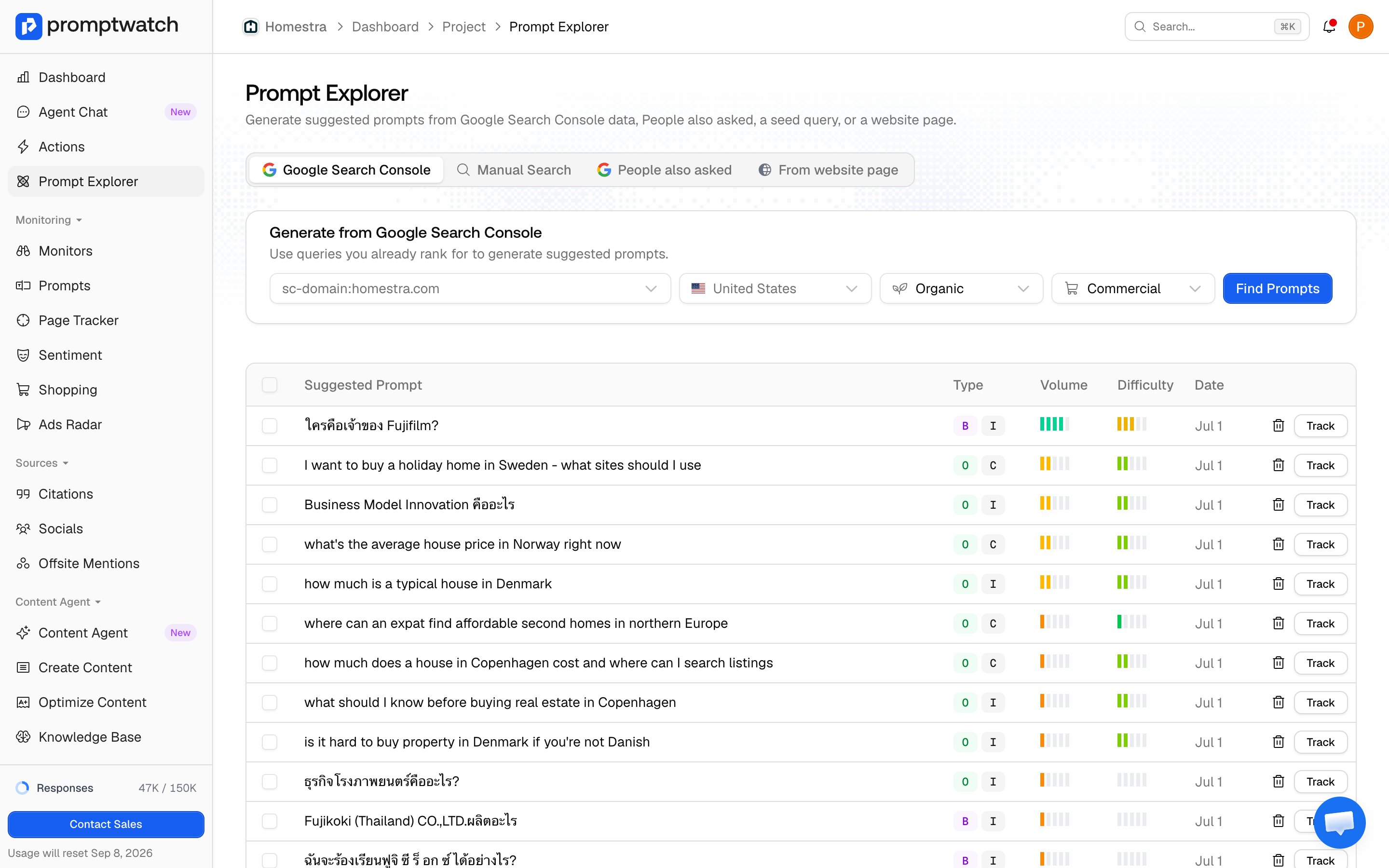
Suggestions from all sources collect in one table below the tabs, sorted by search volume so the biggest opportunities sit on top. Each row shows:
* **Suggested Prompt**: the generated prompt text.
* **Type**: the prompt type and intent badges the suggestion will carry into tracking.
* **Volume**: the search volume of the suggestion's primary keyword, so you can judge how much demand sits behind it.
* **Difficulty**: how competitive that keyword is in search.
 Prompts you already track are filtered out automatically, so the table never suggests duplicates of your existing setup. The review list holds up to 50 active suggestions per project; dismiss or import suggestions to make room for new batches.
### How to turn a suggestion into a tracked prompt
1. Click **Track** on a single row, or select several rows with the checkboxes and click **Add to Monitor**.
2. In the dialog, pick the monitor that should own the prompts. Review the list and remove any you don't want.
Prompts you already track are filtered out automatically, so the table never suggests duplicates of your existing setup. The review list holds up to 50 active suggestions per project; dismiss or import suggestions to make room for new batches.
### How to turn a suggestion into a tracked prompt
1. Click **Track** on a single row, or select several rows with the checkboxes and click **Add to Monitor**.
2. In the dialog, pick the monitor that should own the prompts. Review the list and remove any you don't want.
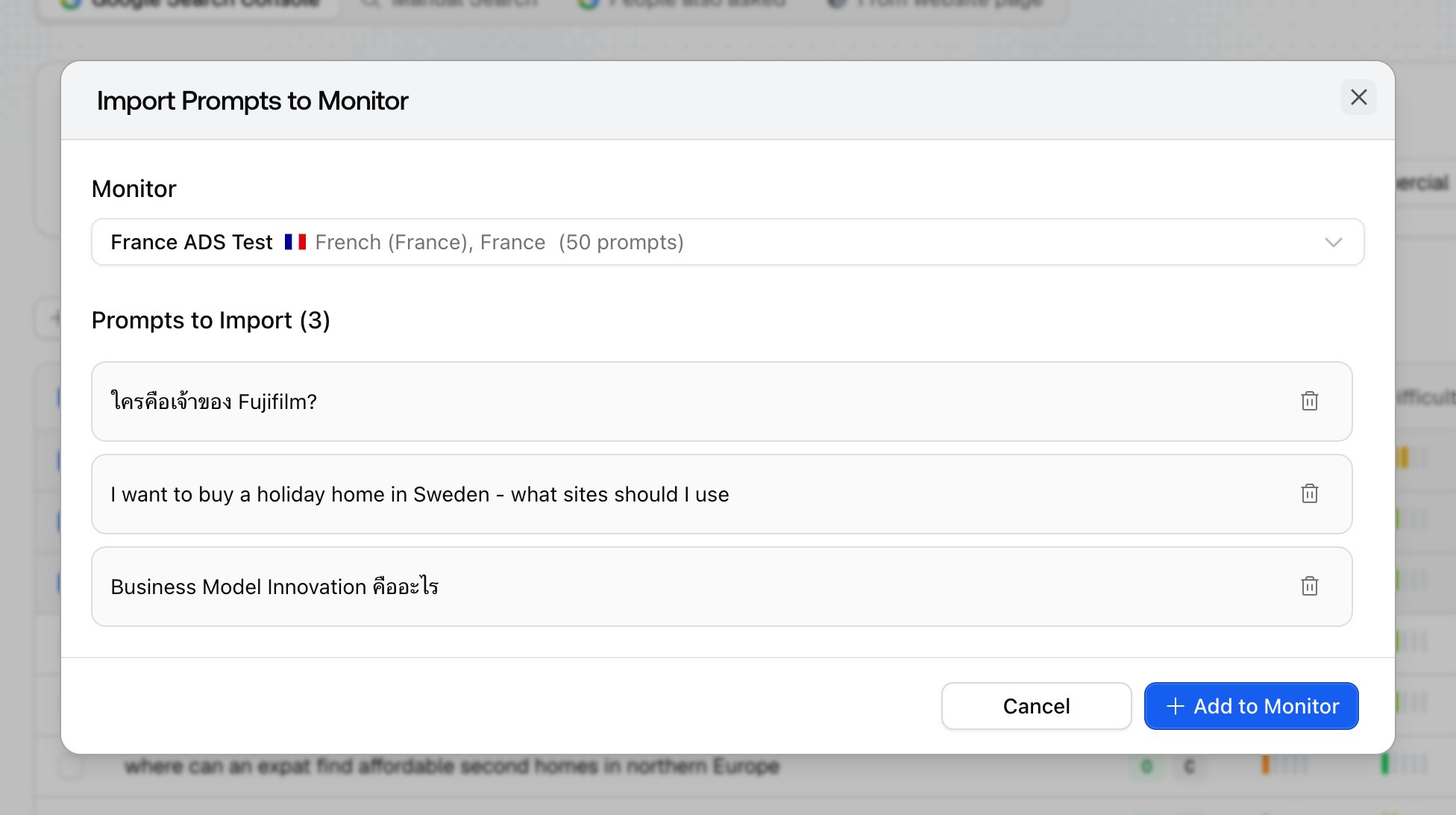 3. Click **Add to Monitor**.
Not sure which monitor? See [what is a monitor](/docs/academy/what-is-a-monitor) and [organizing your setup](/docs/academy/organizing-your-setup): the short version is that a prompt should join the monitor matching its market and language.
Suggestions you don't want, dismiss with the trash icon. Dismissing keeps the table focused and tells the generator not to resurface them.
### After you import
The new prompts are created inside the monitor you picked, take over that monitor's language, keep their suggested type and intent, and are queued to run immediately rather than waiting for the next daily cycle. First responses typically show up shortly after, and the prompts count against your plan's active prompt limit like any other prompt. From there they behave exactly like prompts you [added by hand](/docs/academy/adding-prompts).
3. Click **Add to Monitor**.
Not sure which monitor? See [what is a monitor](/docs/academy/what-is-a-monitor) and [organizing your setup](/docs/academy/organizing-your-setup): the short version is that a prompt should join the monitor matching its market and language.
Suggestions you don't want, dismiss with the trash icon. Dismissing keeps the table focused and tells the generator not to resurface them.
### After you import
The new prompts are created inside the monitor you picked, take over that monitor's language, keep their suggested type and intent, and are queued to run immediately rather than waiting for the next daily cycle. First responses typically show up shortly after, and the prompts count against your plan's active prompt limit like any other prompt. From there they behave exactly like prompts you [added by hand](/docs/academy/adding-prompts).