> ## Documentation Index
> Fetch the complete documentation index at: https://promptwatch.com/docs/llms.txt
> Use this file to discover all available pages before exploring further.
# Scheduling and sharing reports
> Report schedules deliver a fresh PDF report to your team by email every week, so recurring reporting runs itself instead of living on your to-do list.
A report schedule is a weekly, recurring version of a [PDF report](/docs/academy/pdf-reports): you pick a delivery day, a lookback window, and recipients, and Promptwatch generates and emails the report automatically. Schedules exist because most reporting is recurring: if you send a client the same dashboard PDF every Monday, the schedule should do it, not you.
### How to create a schedule
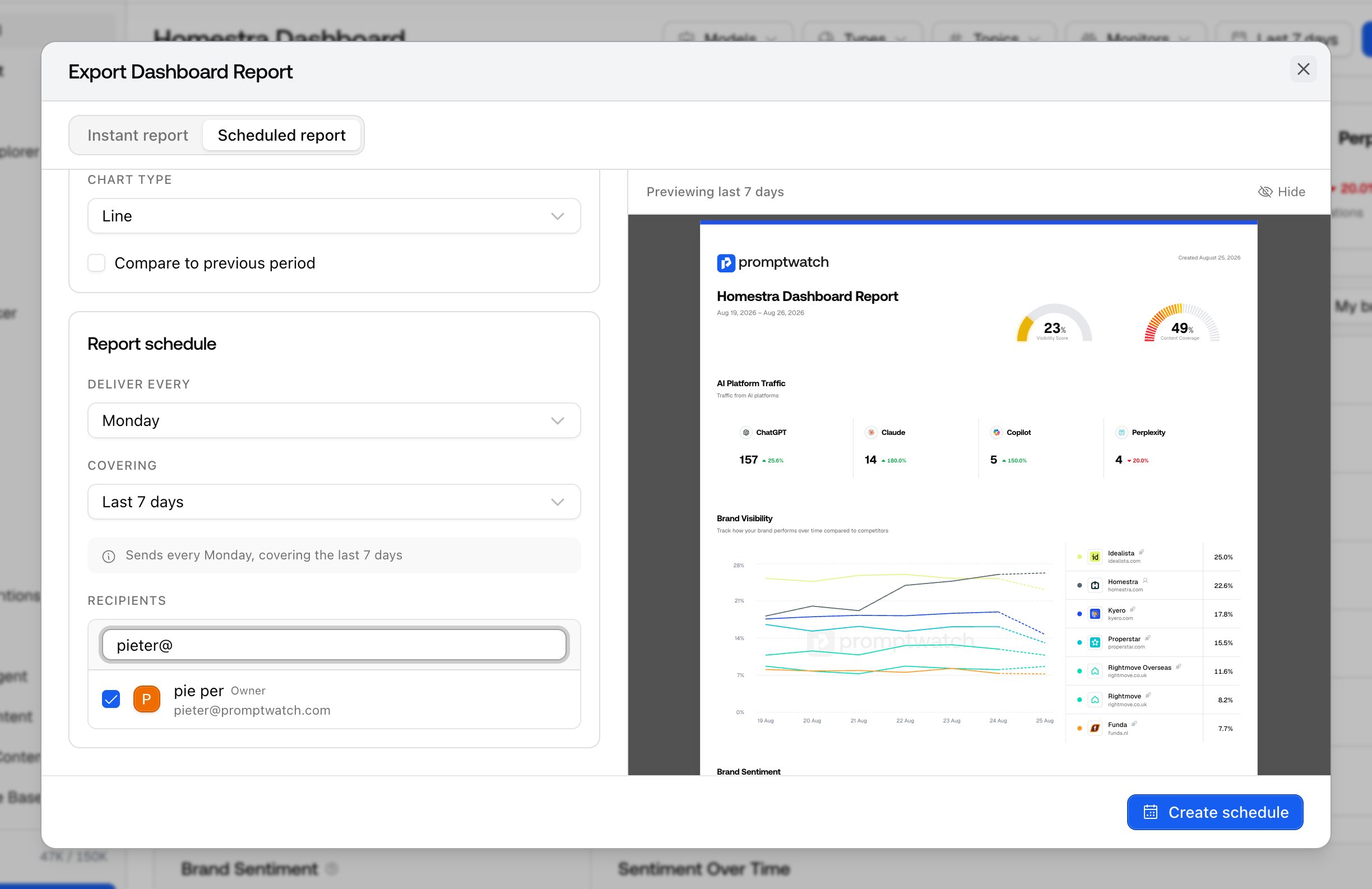
Schedules are created from the same export modal as instant reports:
1. Open your project dashboard, or a monitor page for a monitor report.
2. Click **Export**.
3. Switch to the **Scheduled report** tab.
4. Configure the schedule and click **Create schedule**.
#### Schedule options
* **Deliver every**: the day of the week the report goes out, Monday through Sunday.
* **Covering**: the lookback window, the last 7, 14, or 30 days. The report always covers the window ending on the delivery day, so every edition is fresh rather than a fixed date range going stale.
* **Recipients**: which team members receive the email. You can only add organization owners and members who have access to the project; viewers can see the data in the app but can't receive scheduled emails.
* **Filters**: the same model, prompt type, topic, and tag filters as instant reports carry over to every delivery, so a schedule can be as narrow as "ChatGPT only, organic prompts, last 7 days". Monitor reports can also filter by intent type, for example commercial.
 Reports are delivered by email in the early morning (06:00 UTC) on your chosen day, with the PDF attached. Each generated report also appears on the **Reports** page under **PDF Reports**, so there's always a downloadable copy in the app.
### Managing your schedules
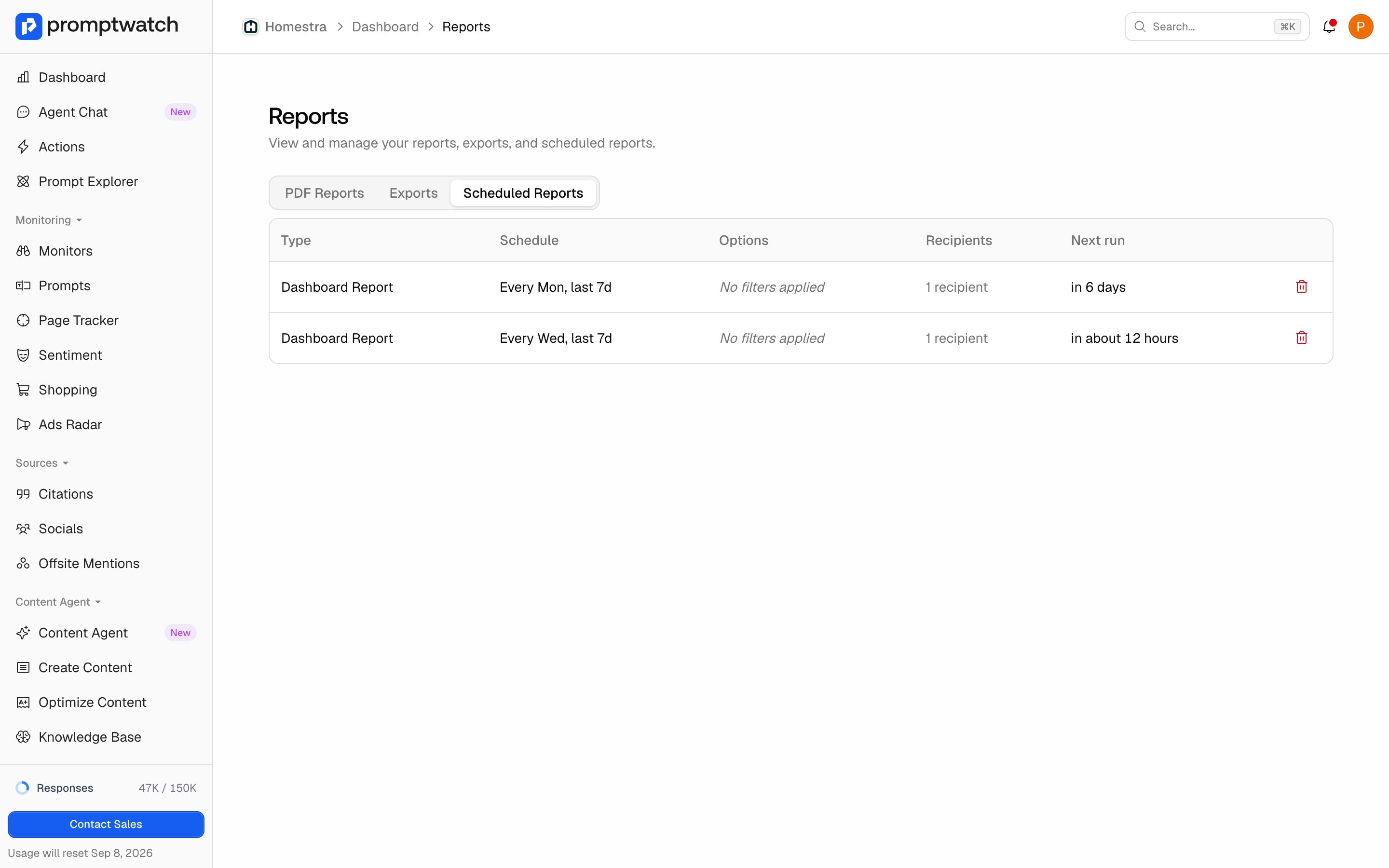
Go to **Reports** and open the **Scheduled Reports** tab. Each row shows the schedule type, cadence, filters, recipients, and the next run date. Deleting a schedule stops future deliveries; reports it already produced stay available.
Reports are delivered by email in the early morning (06:00 UTC) on your chosen day, with the PDF attached. Each generated report also appears on the **Reports** page under **PDF Reports**, so there's always a downloadable copy in the app.
### Managing your schedules
Go to **Reports** and open the **Scheduled Reports** tab. Each row shows the schedule type, cadence, filters, recipients, and the next run date. Deleting a schedule stops future deliveries; reports it already produced stay available.
 Two access rules to know:
* **Viewers can't schedule**: creating and managing schedules requires a member or owner role, since schedules push data out of the app.
* **Plan limits**: the number of active schedules per organization depends on your plan. At the limit, creating another fails with a "schedule limit reached" message; delete an unused schedule to free a slot. If your plan doesn't include custom reports at all, creating a schedule opens the upgrade prompt instead.
### How sharing works
Sharing in Promptwatch is file-based: there are no public share links for reports. To share outside your team, download the PDF and send it, or add the stakeholder to your organization and put them on a schedule. Two options cover the common cases:
* **One-off sharing**: create an instant report and check "Email me the PDF report once generated", then forward it. See [Creating a PDF report](/docs/academy/pdf-reports).
* **Recurring sharing**: add the person as a recipient on a schedule, so they get every edition without you in the loop. See [Team and roles](/docs/academy/team-and-roles) for inviting people with the right access level.
For raw data instead of a formatted PDF, use CSV exports: see [Can we export responses?](/docs/academy/exporting-your-data).
After you create your first schedule, check the **Next run** column to confirm the timing, and expect the first email on your chosen delivery day.
Two access rules to know:
* **Viewers can't schedule**: creating and managing schedules requires a member or owner role, since schedules push data out of the app.
* **Plan limits**: the number of active schedules per organization depends on your plan. At the limit, creating another fails with a "schedule limit reached" message; delete an unused schedule to free a slot. If your plan doesn't include custom reports at all, creating a schedule opens the upgrade prompt instead.
### How sharing works
Sharing in Promptwatch is file-based: there are no public share links for reports. To share outside your team, download the PDF and send it, or add the stakeholder to your organization and put them on a schedule. Two options cover the common cases:
* **One-off sharing**: create an instant report and check "Email me the PDF report once generated", then forward it. See [Creating a PDF report](/docs/academy/pdf-reports).
* **Recurring sharing**: add the person as a recipient on a schedule, so they get every edition without you in the loop. See [Team and roles](/docs/academy/team-and-roles) for inviting people with the right access level.
For raw data instead of a formatted PDF, use CSV exports: see [Can we export responses?](/docs/academy/exporting-your-data).
After you create your first schedule, check the **Next run** column to confirm the timing, and expect the first email on your chosen delivery day.