> ## Documentation Index
> Fetch the complete documentation index at: https://promptwatch.com/docs/llms.txt
> Use this file to discover all available pages before exploring further.
# What is a monitor
> In this article the use of monitor inside the Promptwatch platform is explained.
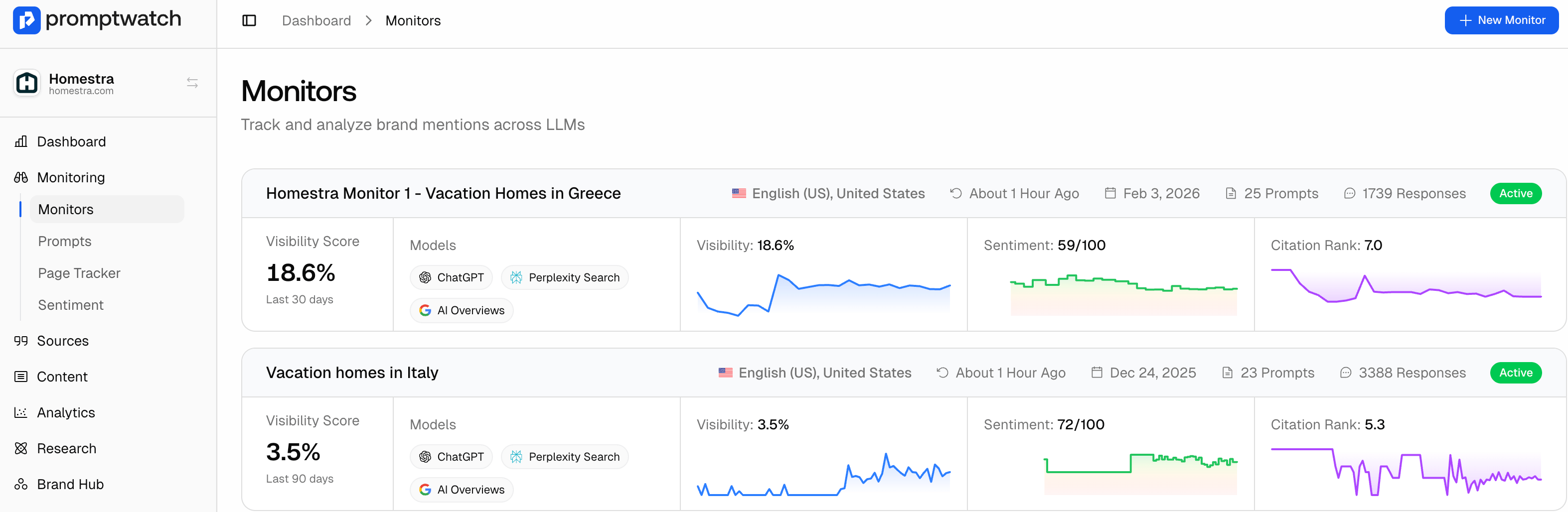
**Monitors** are a core feature in the Promptwatch platform, designed to track a list of prompts related to a specific topic, language, geographical location, or marketing persona. They allow you to monitor how AI models respond to queries relevant to your brand and market. You can access Monitors by navigating to the Monitors tab in your dashboard.
 ## How to create a monitor?
You can refer to this [article](/docs/academy/adding-a-new-monitor), it provides a step-by-step guide to help you.
**Select Models to Track**
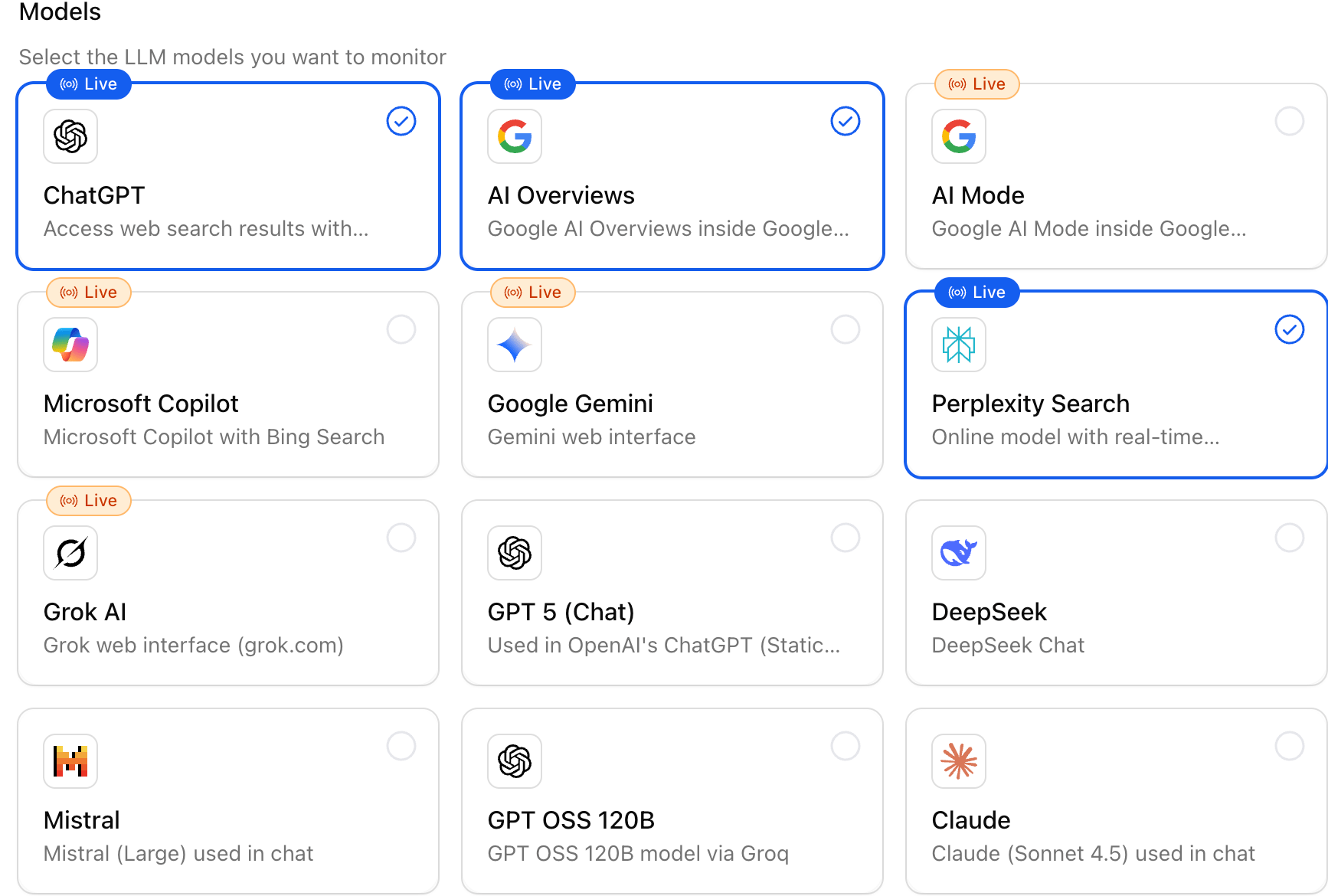
You can track an unlimited amount of models in Promptwatch. However, the amount of models you track
* Recommended core models: **ChatGPT**, **Perplexity**, **Google AI Overviews**.
* Optional, depending on your market: **Google AI Mode**, **Microsoft Copilot**.
## How to create a monitor?
You can refer to this [article](/docs/academy/adding-a-new-monitor), it provides a step-by-step guide to help you.
**Select Models to Track**
You can track an unlimited amount of models in Promptwatch. However, the amount of models you track
* Recommended core models: **ChatGPT**, **Perplexity**, **Google AI Overviews**.
* Optional, depending on your market: **Google AI Mode**, **Microsoft Copilot**.
 ## Best Practices
* Create separate monitors for different **topics**, **languages**, or **target markets**.
* Use **personas** to tailor prompts to different audience segments.
* Review and update monitors regularly as your campaigns or market focus change.
## Best Practices
* Create separate monitors for different **topics**, **languages**, or **target markets**.
* Use **personas** to tailor prompts to different audience segments.
* Review and update monitors regularly as your campaigns or market focus change.