> ## Documentation Index
> Fetch the complete documentation index at: https://promptwatch.com/docs/llms.txt
> Use this file to discover all available pages before exploring further.
# Working with prompts: types, intent, bulk edits
> What prompt types and intent types mean, where they come from, and how to correct the classification for one prompt or hundreds at once.
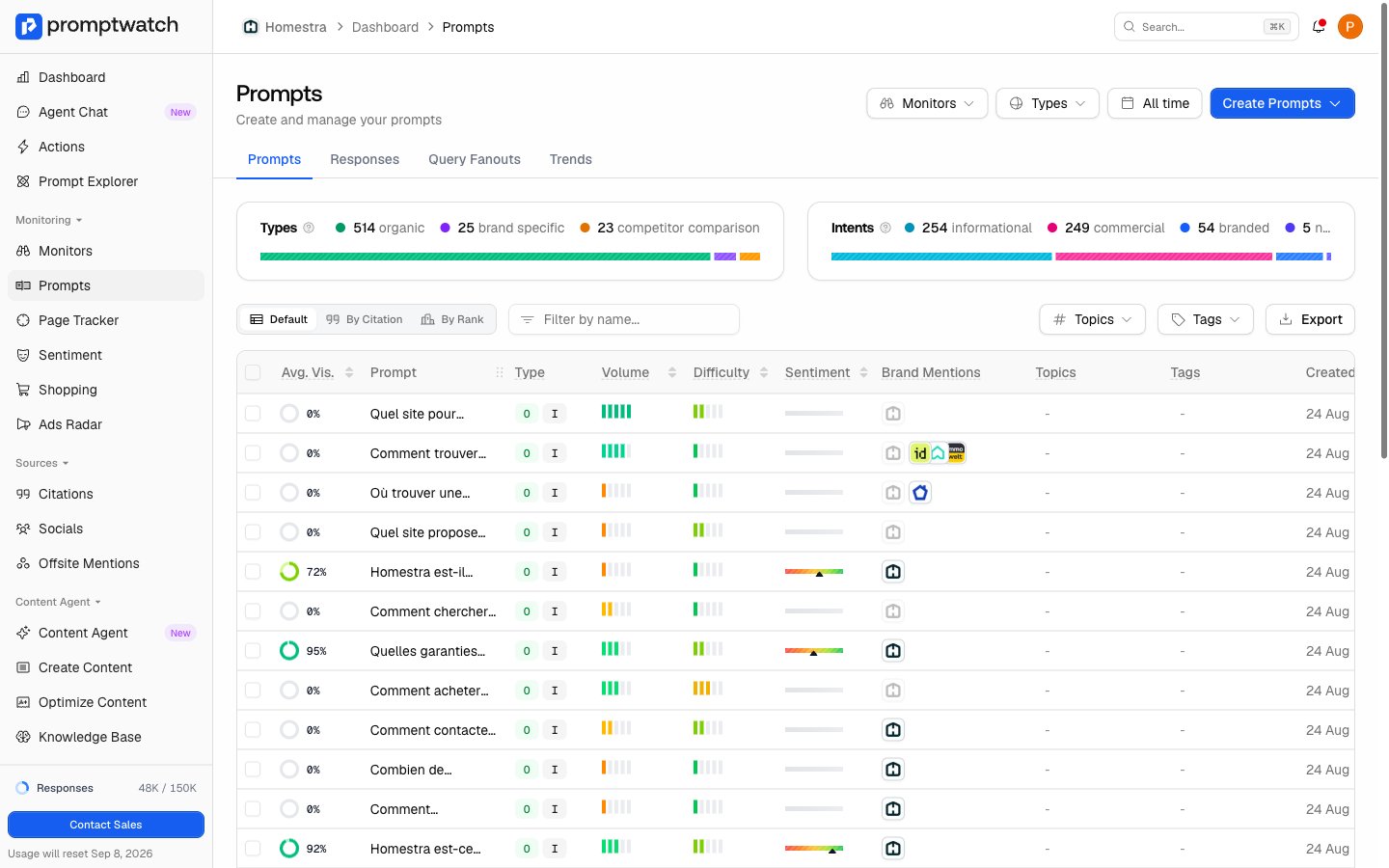
Every prompt in Promptwatch carries two classifications: a type, which describes its relationship to brands, and an intent, which describes what the user is trying to accomplish. You pick both when creating prompts manually; prompts imported by CSV without a type or intent are classified automatically. They power the Types and Intents breakdown bars at the top of the Prompts page and the type and intent filters across your charts, so a wrong label quietly skews every view that filters by it. This page explains the categories and how to correct them, one prompt at a time or in bulk.
 ### The three prompt types
Prompt types categorize questions by their relationship to brands, so you can see how users are discovering and comparing you:
* **Organic**: general questions with no specific brand focus, like "What are the top project management tools for remote teams?" These are discovery-focused prompts where users are exploring options.
* **Brand Specific**: questions that mention your brand, like "Does Notion have offline support?" The user already knows you and is seeking more information.
* **Competitor Comparison**: head-to-head questions like "Slack vs Microsoft Teams: which is better for small startups?" These are high-intent queries where positioning matters most.
A healthy mix of all three indicates broad discoverability. If you only appear in brand-specific queries, organic prompts are your opportunity; see [finding the right prompts to track](/docs/academy/right-prompts-to-track) for how to build that list.
### The five intent types
Intent types map to stages of the buyer journey, and each stage rewards a different content strategy:
* **Branded**: searching for a specific brand by name, like "What integrations does Zapier support?" High intent; the user knows what they're looking for.
* **Informational**: trying to learn or understand something, like "How does AI-powered analytics work?" Early stage, where educational content works best.
* **Navigational**: trying to reach a specific page or destination, like "Where can I find Figma's pricing page?"
* **Commercial**: researching before a purchase decision, like "What's the best email marketing tool for e-commerce?" Mid-funnel, where comparison content and reviews matter.
* **Transactional**: ready to act, like "How do I start a free trial with HubSpot?" Highest intent, with clear purchase signals.
Strong presence in commercial and transactional prompts tends to correlate with conversion potential, so watch which intents drive your visibility, not just the total.
### Correcting one prompt
A misfiled prompt distorts every intent breakdown it appears in, whether it was mislabeled at creation or by the CSV-import classifier.
1. Click the prompt in any prompts table to open its detail sheet, then click **Open Prompt** for the full page.
2. Click the pencil icon next to the **Type** label.
3. Pick the correct **Type** and **Intent** (both are required in this dialog) and click **Save**.
Older prompts can show intent as "Not set"; assigning one the same way fills the gap.
### Bulk edits
For anything beyond a couple of prompts, use the bulk actions. The same table with the same bulk actions appears in several places: the **Prompts** page in the sidebar (prompts across all monitors), a monitor's **Overview** and **Prompts** tabs, and the per-page prompt lists under Sitemap.
1. Select prompts with the checkboxes. Shift-click a second checkbox to select the whole range between the two.
2. Action buttons appear above the table. Click **Change Type & Intent**.
3. Set **Type**, **Intent**, or both. A field left on "Keep current" is not touched, so you can fix intent across prompts of mixed types without flattening them.
4. Click **Update**.
### The three prompt types
Prompt types categorize questions by their relationship to brands, so you can see how users are discovering and comparing you:
* **Organic**: general questions with no specific brand focus, like "What are the top project management tools for remote teams?" These are discovery-focused prompts where users are exploring options.
* **Brand Specific**: questions that mention your brand, like "Does Notion have offline support?" The user already knows you and is seeking more information.
* **Competitor Comparison**: head-to-head questions like "Slack vs Microsoft Teams: which is better for small startups?" These are high-intent queries where positioning matters most.
A healthy mix of all three indicates broad discoverability. If you only appear in brand-specific queries, organic prompts are your opportunity; see [finding the right prompts to track](/docs/academy/right-prompts-to-track) for how to build that list.
### The five intent types
Intent types map to stages of the buyer journey, and each stage rewards a different content strategy:
* **Branded**: searching for a specific brand by name, like "What integrations does Zapier support?" High intent; the user knows what they're looking for.
* **Informational**: trying to learn or understand something, like "How does AI-powered analytics work?" Early stage, where educational content works best.
* **Navigational**: trying to reach a specific page or destination, like "Where can I find Figma's pricing page?"
* **Commercial**: researching before a purchase decision, like "What's the best email marketing tool for e-commerce?" Mid-funnel, where comparison content and reviews matter.
* **Transactional**: ready to act, like "How do I start a free trial with HubSpot?" Highest intent, with clear purchase signals.
Strong presence in commercial and transactional prompts tends to correlate with conversion potential, so watch which intents drive your visibility, not just the total.
### Correcting one prompt
A misfiled prompt distorts every intent breakdown it appears in, whether it was mislabeled at creation or by the CSV-import classifier.
1. Click the prompt in any prompts table to open its detail sheet, then click **Open Prompt** for the full page.
2. Click the pencil icon next to the **Type** label.
3. Pick the correct **Type** and **Intent** (both are required in this dialog) and click **Save**.
Older prompts can show intent as "Not set"; assigning one the same way fills the gap.
### Bulk edits
For anything beyond a couple of prompts, use the bulk actions. The same table with the same bulk actions appears in several places: the **Prompts** page in the sidebar (prompts across all monitors), a monitor's **Overview** and **Prompts** tabs, and the per-page prompt lists under Sitemap.
1. Select prompts with the checkboxes. Shift-click a second checkbox to select the whole range between the two.
2. Action buttons appear above the table. Click **Change Type & Intent**.
3. Set **Type**, **Intent**, or both. A field left on "Keep current" is not touched, so you can fix intent across prompts of mixed types without flattening them.
4. Click **Update**.
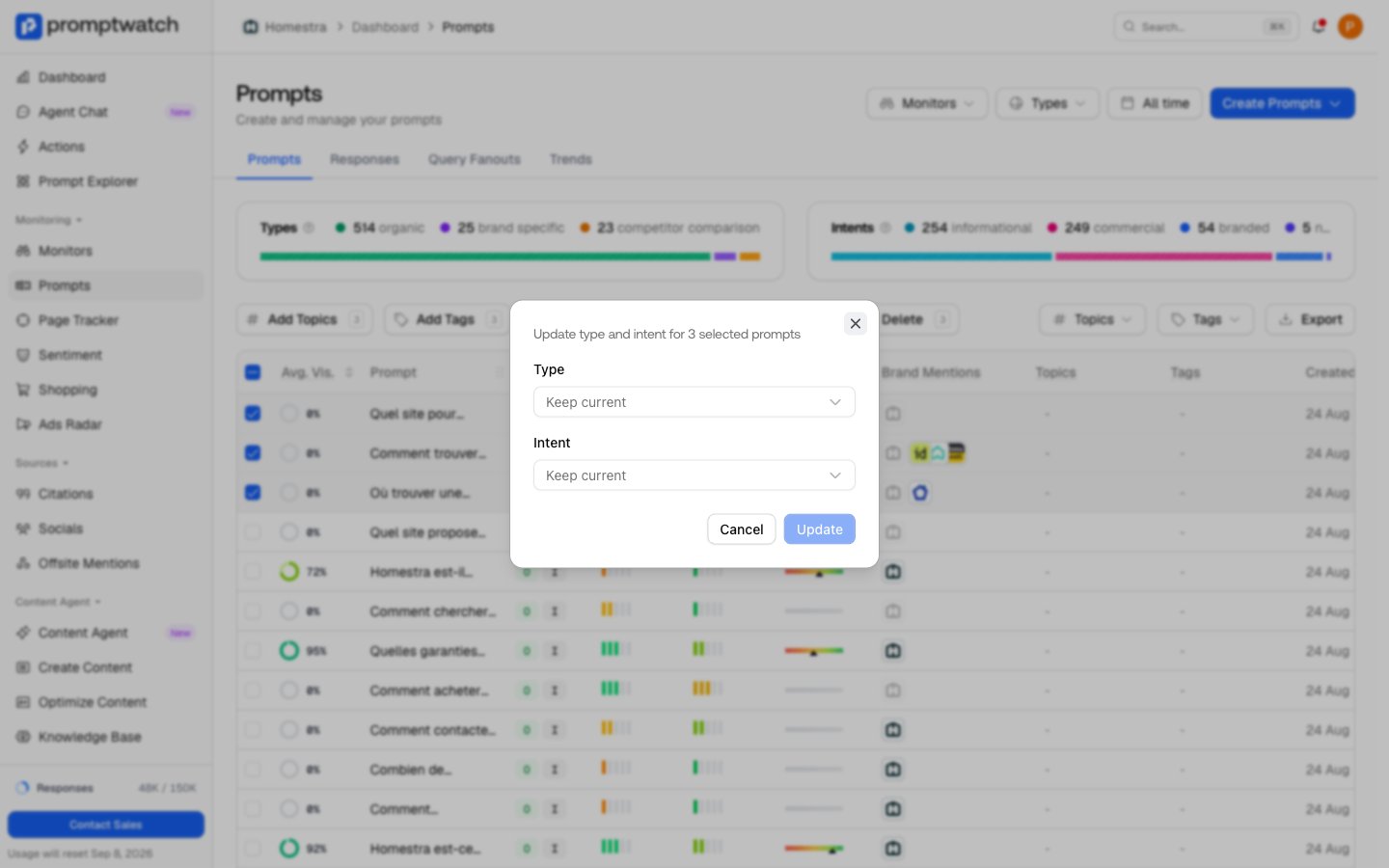 The same selection also exposes **Add Topics** and **Add Tags** (labeled **Manage Topics** and **Manage Tags** when the selection already carries labels) for organizing (see [organizing with monitors, tags and topics](/docs/academy/organizing-your-setup)), plus **Move** and **Delete**, which are covered in [moving and deleting prompts](/docs/academy/moving-and-deleting-prompts).
### What happens next
Classification is a property of the prompt, not of individual responses, so a change applies everywhere at once: every past and future response of that prompt follows the new label in filters and in the breakdown bars. Once your labels are trustworthy, the Types and Intents bars at the top of the Prompts page become a real map of where your visibility comes from. To grow the list itself, see [adding prompts to track](/docs/academy/adding-prompts).
The same selection also exposes **Add Topics** and **Add Tags** (labeled **Manage Topics** and **Manage Tags** when the selection already carries labels) for organizing (see [organizing with monitors, tags and topics](/docs/academy/organizing-your-setup)), plus **Move** and **Delete**, which are covered in [moving and deleting prompts](/docs/academy/moving-and-deleting-prompts).
### What happens next
Classification is a property of the prompt, not of individual responses, so a change applies everywhere at once: every past and future response of that prompt follows the new label in filters and in the breakdown bars. Once your labels are trustworthy, the Types and Intents bars at the top of the Prompts page become a real map of where your visibility comes from. To grow the list itself, see [adding prompts to track](/docs/academy/adding-prompts).