


Deploy a Worker to analyze your traffic
- Auto Deploy
- Manual
Create an access token so Promptwatch can deploy the crawler log Worker for you
We’ll automatically discover your Cloudflare zone, upload the script, and configure the route.
The token is only used for this deployment and is never stored.
Step 1: Create an API token on Cloudflare
Go to dash.cloudflare.com → My Profile → API Tokens and create a new Custom Token.
Enable the following permissions:
- Account / Workers Scripts / Edit — Upload the crawler-log Worker script
- Zone / Zone / Read — Locate your Cloudflare zone by domain name
- Zone / Workers Routes / Edit — Attach the script to your domain route
Step 2: Paste the token and deploy
We’ll take it from here — the rest is automatic.
Auto-deploy is only available inside the Promptwatch app. Open Crawler Logs → Settings, select Cloudflare Workers, switch to the Auto Deploy tab, paste your Cloudflare API token, and click Deploy Worker.
Step 1: Create an API Key
Create an API key in Promptwatch. Go to Settings → API Keys in your Promptwatch dashboard.Step 2: Create an Application
Create a new application in your Cloudflare account:- Go to your Cloudflare dashboard → Workers & Pages
- Click Create application
- Click Start with Hello World!
- Give it a name (e.g.,
promptwatch-analytics) - Click Deploy
Step 3: Paste the Worker Script
On the Worker page, click Edit in the top right corner and paste in the code below:/**
* Cloudflare Worker - stream page views to analytics server
*
* Sends JSON in the expected crawler logs schema.
* Content type filtering is handled server-side.
*/
const ANALYTICS_ENDPOINT = "https://logs.promptwatch.com/event";
export default {
async fetch(request, env, ctx) {
const { pathname, search } = new URL(request.url);
// 1. Make the upstream request (cache/origin)
const response = await fetch(request);
const contentType = response.headers.get("content-type")?.split(";")[0];
const queryString = search.startsWith("?") && search.length > 1 ? search.slice(1) : null;
// 2. Build the log object
const log = {
timestamp: new Date().toISOString(),
status_code: response.status,
request_method: request.method,
request_path: pathname,
query_string: queryString,
content_type: contentType,
client_ip: request.headers.get("CF-Connecting-IP") || null,
hostname: request.headers.get("Host") || null,
user_agent: request.headers.get("User-Agent") || null,
referrer: request.headers.get("Referer") || null,
};
// 3. Fire-and-forget upload - never delays the visitor
ctx.waitUntil(
fetch(ANALYTICS_ENDPOINT, {
method: "POST",
headers: {
"Content-Type": "application/json",
"X-API-Key": env.ANALYTICS_KEY,
},
body: JSON.stringify(log),
}).catch(() => {}), // swallow network errors
);
return response;
},
};
OpenAI (4)
OpenAI (4)
| Name | User Agent | Full User Agent | Description |
|---|---|---|---|
| GPT Bot | GPTBot | Mozilla/5.0 AppleWebKit/537.36 (KHTML, like Gecko); compatible; GPTBot/1.3; +https://openai.com/gptbot | Used to crawl content for training OpenAI’s generative AI foundation models. |
| SearchBot | OAI-SearchBot | Mozilla/5.0 (Macintosh; Intel Mac OS X 10_15_7) AppleWebKit/537.36 (KHTML, like Gecko) Chrome/131.0.0.0 Safari/537.36; compatible; OAI-SearchBot/1.3; +https://openai.com/searchbot | Used by ChatGPT search to surface websites in search results. |
| ChatGPT Citations | ChatGPT-User | Mozilla/5.0 AppleWebKit/537.36 (KHTML, like Gecko); compatible; ChatGPT-User/1.0; +https://openai.com/bot | Used for user actions in ChatGPT when visiting web pages. |
| Ads Bot | OAI-AdsBot | Mozilla/5.0 AppleWebKit/537.36 (KHTML, like Gecko); compatible; OAI-AdsBot/1.0; +https://openai.com/adsbot | Used to validate the safety of web pages submitted as ads on ChatGPT. |
Anthropic (4)
Anthropic (4)
| Name | User Agent | Full User Agent | Description |
|---|---|---|---|
| Claude Bot | ClaudeBot | Mozilla/5.0 AppleWebKit/537.36 (KHTML, like Gecko); compatible; ClaudeBot/1.0; +claudebot@anthropic.com) | Used to crawl content for training Anthropic’s generative AI models. |
| Claude Citations | Claude-User | Mozilla/5.0 AppleWebKit/537.36 (KHTML, like Gecko); compatible; Claude-User/1.0; +claudebot@anthropic.com) | When individuals ask questions to Claude or use Claude Code, it may access websites using a Claude-User agent. |
| Claude Search Bot | Claude-SearchBot | Mozilla/5.0 AppleWebKit/537.36 (KHTML, like Gecko; compatible; Claude-SearchBot/1.0; +searchbot@anthropic.com) | Navigates the web to improve search result quality for users. |
| Claude Web | claude-web | Mozilla/5.0 (compatible; claude-web/1.0; +http://www.anthropic.com/bot.html) | Targeted crawler for recent web content, feeding the Claude browser agent with updated site data. |
Google (3)
Google (3)
| Name | User Agent | Full User Agent | Description |
|---|---|---|---|
| Gemini | Google-Extended | Mozilla/5.0 (compatible; Google-Extended/1.0; +http://www.google.com/bot.html) | Controls whether content can be used for training Gemini AI models. |
| Google Mobile Agent | Google-Agent | Mozilla/5.0 (Linux; Android 6.0.1; Nexus 5X Build/MMB29P) AppleWebKit/537.36 (KHTML, like Gecko) Chrome/W.X.Y.Z Mobile Safari/537.36 (compatible; Google-Agent; +https://developers.google.com/crawling/docs/crawlers-fetchers/google-agent) | Used by Google AI agents to autonomously browse the web and complete tasks on behalf of users (mobile). |
| Google Desktop Agent | Google-Agent | Mozilla/5.0 AppleWebKit/537.36 (KHTML, like Gecko; compatible; Google-Agent; +https://developers.google.com/crawling/docs/crawlers-fetchers/google-agent) Chrome/W.X.Y.Z Safari/537.36 | Used by Google AI agents to autonomously browse the web and complete tasks on behalf of users (desktop). |
Perplexity (2)
Perplexity (2)
| Name | User Agent | Full User Agent | Description |
|---|---|---|---|
| Perplexity Bot | PerplexityBot | Mozilla/5.0 AppleWebKit/537.36 (KHTML, like Gecko; compatible; PerplexityBot/1.0; +https://perplexity.ai/perplexitybot) | Used to surface and link websites in Perplexity search results. |
| Perplexity Citations | Perplexity-User | Mozilla/5.0 AppleWebKit/537.36 (KHTML, like Gecko; compatible; Perplexity-User/1.0; +https://perplexity.ai/perplexity-user) | Used for user actions in Perplexity when visiting web pages to answer questions. |
Cohere (1)
Cohere (1)
| Name | User Agent | Full User Agent | Description |
|---|---|---|---|
| Cohere AI | cohere-ai | Mozilla/5.0 (compatible; cohere-ai/1.0; +http://www.cohere.ai/bot.html) | Collects textual data for Cohere’s language models, helping refine large-scale text generation. |
Mistral (2)
Mistral (2)
| Name | User Agent | Full User Agent | Description |
|---|---|---|---|
| Mistral AI Citations | MistralAI-User | Mozilla/5.0 AppleWebKit/537.36 (KHTML, like Gecko; compatible; MistralAI-User/1.0; +https://docs.mistral.ai/robots) | Used for user actions in LeChat when visiting web pages to answer questions. |
| Mistral AI Index | MistralAI-Index | Mozilla/5.0 AppleWebKit/537.36 (KHTML, like Gecko; compatible; MistralAI-Index/1.0; +https://docs.mistral.ai/robots) | Used to index content for Mistral AI’s search engine, which helps answer user questions in Le Chat. |
DeepSeek (1)
DeepSeek (1)
| Name | User Agent | Full User Agent | Description |
|---|---|---|---|
| DeepSeek | DeepSeekBot | Mozilla/5.0 (compatible; DeepSeekBot/1.0; +http://www.deepseek.com/bot.html) | Used to crawl content for training DeepSeek’s generative AI models. |
xAI / Grok (3)
xAI / Grok (3)
| Name | User Agent | Full User Agent | Description |
|---|---|---|---|
| Grok Bot | GrokBot | GrokBot/1.0 (+https://x.ai) | Used for training Grok AI. |
| Grok Search | xAI-Grok | xAI-Grok/1.0 (+https://grok.com) | Used for Grok’s search capabilities. |
| Grok Deep Search | Grok-DeepSearch | Grok-DeepSearch/1.0 (+https://x.ai) | Used for Grok’s advanced search capabilities. |
Step 4: Environment Variables
In your Worker settings, add a secret for your API key:- Open the Settings tab for your Worker
- Under Variables and secrets, click Add
- Select Secret
- Set the name to
ANALYTICS_KEY - Set the value to the API key you created in Step 1
Step 5: Deploy to a Route
Deploy your Worker to a route:- Navigate to Domains
- Select the domain you’re setting up
- In the left-hand navigation, click Worker Routes
- Add a new route:
yourdomain.com/* - Select your Worker from the dropdown
- Save and deploy
The Worker will intercept all requests to your domain. It transparently passes through all traffic while logging HTML page views to Promptwatch.
Step 6: Verify Cloudflare Proxy is Enabled
Verify your domain’s DNS records have the Cloudflare proxy enabled (orange cloud icon). Workers Routes only intercept traffic that flows through the Cloudflare network. If the proxy is off (gray cloud / “DNS only”), requests go directly to your origin and bypass the Worker entirely.Go to your Cloudflare dashboard → DNS → Records and make sure the Proxy status shows the orange cloud (“Proxied”) for your domain’s A/AAAA/CNAME records.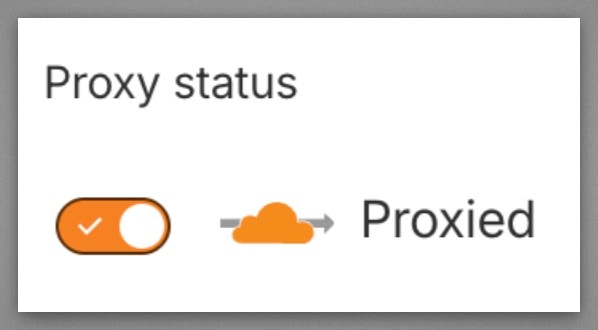
Step 7: Finish
Once deployed, your Worker will automatically send crawler logs to Promptwatch.For a full list of API response codes, see API Response Codes.