


Stream logs from CloudFront via Firehose
This integration uses Amazon Kinesis Data Firehose and CloudFront Logging v2 to forward CloudFront logs to the Promptwatch ingestion endpoint.Prerequisites
- You have a CloudFront distribution with Standard Logging v2 enabled or available
- You have access to the AWS Console with permissions to create Kinesis Firehose delivery streams
Step 1: Create an API Key
Create an API key in Promptwatch. Go to Settings → API Keys in your Promptwatch dashboard.Step 2: Create Firehose Delivery Stream
In the AWS Console, navigate to Amazon Data Firehose and create a new delivery stream.
- Go to Firehose in the AWS Console
- Click Create Firehose stream
Step 3: Configure Delivery Stream
Configure the delivery stream to send logs to Promptwatch via HTTP endpoint.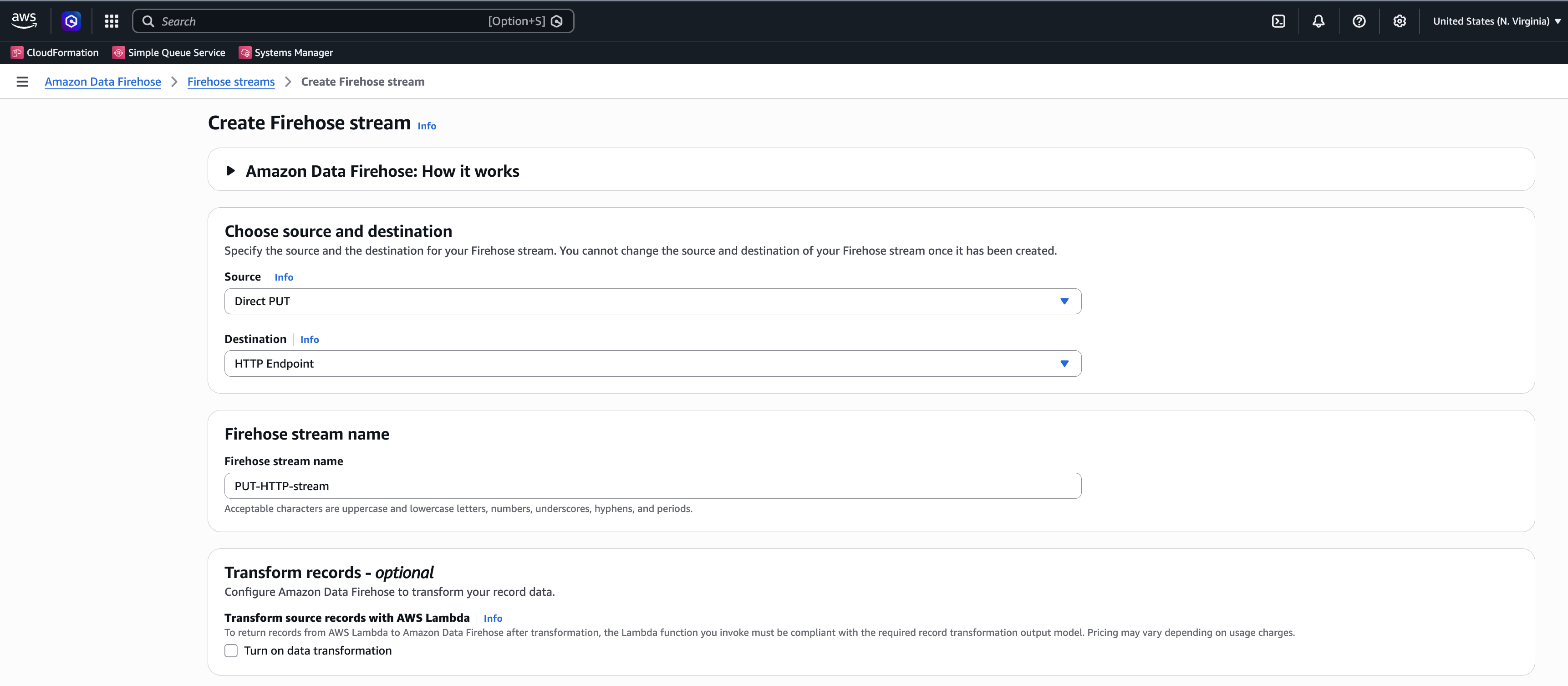
- Set Source to Direct PUT
- Set Destination to HTTP endpoint delivery
- Optional: Name the stream something descriptive
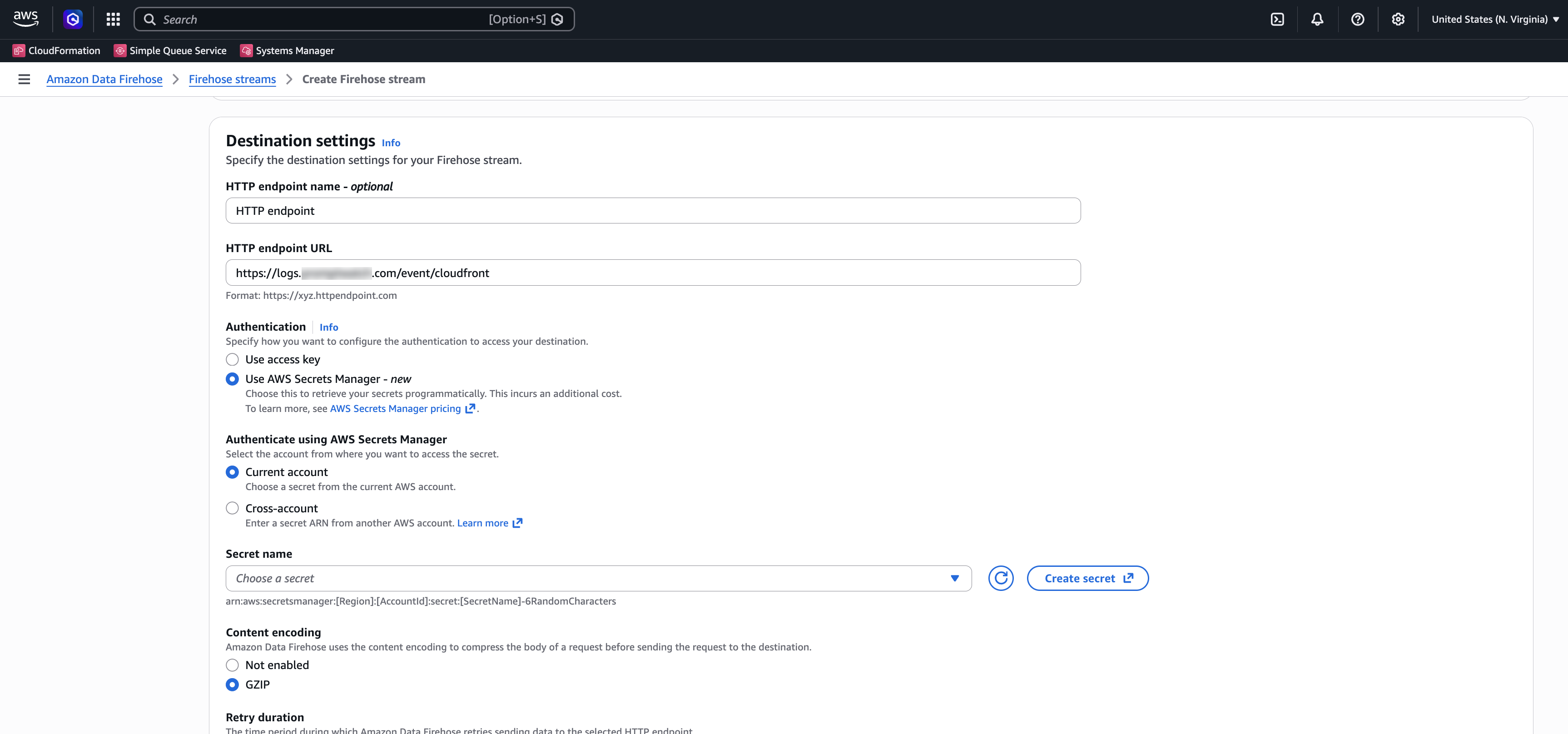
- Set the access key: Enter your API key from Step 1
We recommend storing your API key in AWS Secrets Manager.
- Set Content Encoding to GZIP
Step 4: Create S3 Bucket for Failed Logs
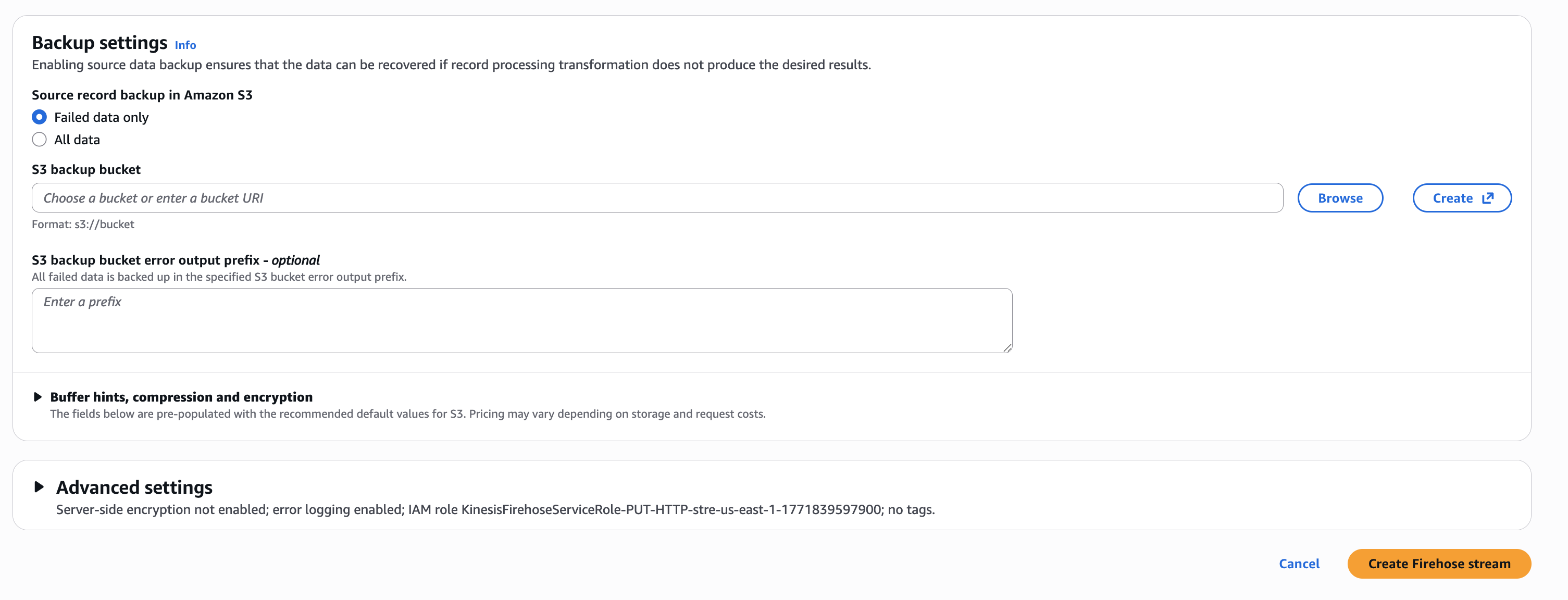
- Create or select an S3 bucket to store failed delivery logs (required by AWS)
Step 5: Attach Firehose to CloudFront
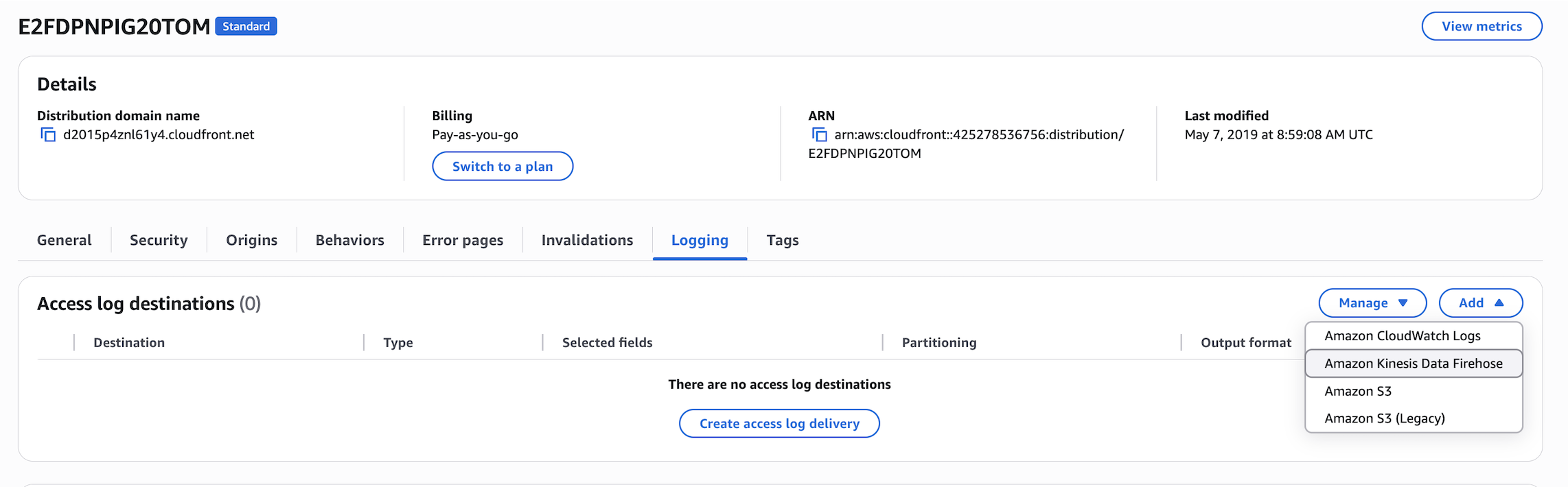
Now attach the Firehose delivery stream to your distribution.- Navigate to your CloudFront distribution → Logging tab → Add → Amazon Kinesis Data Firehose
Step 6: Select Delivery Stream
Select the Firehose delivery stream you created in Step 2.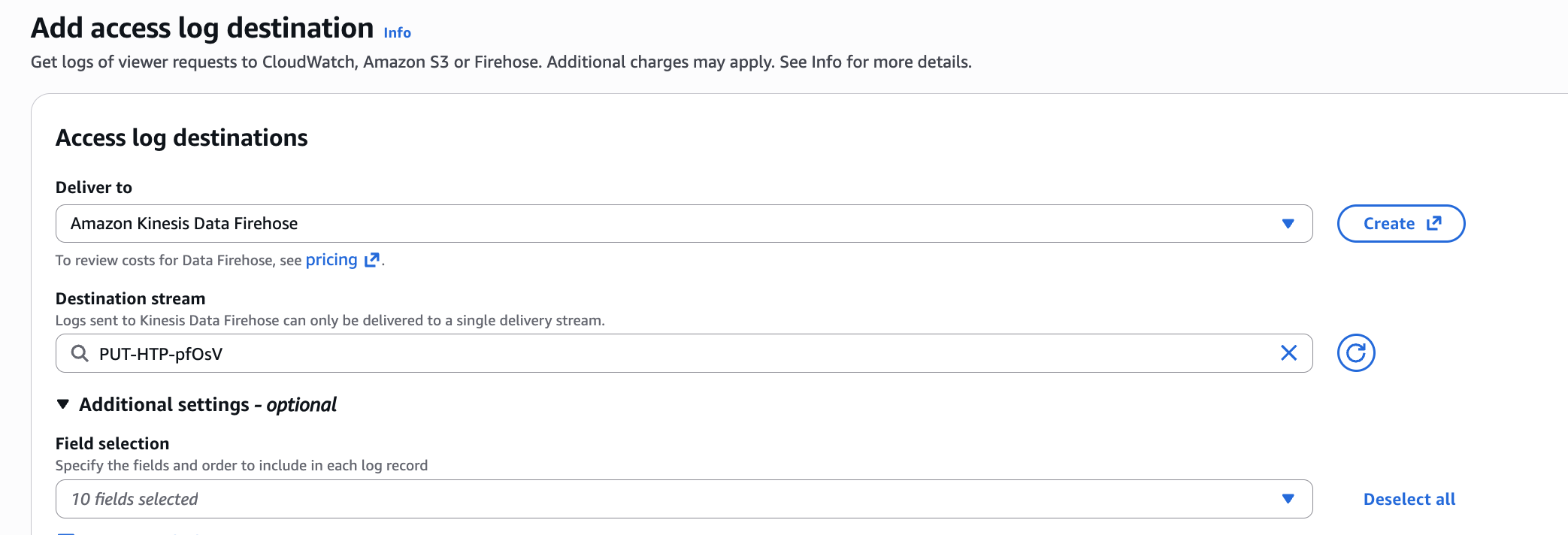
Step 7: Configure Log Format
Configure the log format and field selection in CloudFront.- Select Additional settings
- For Field selection, select exactly these 10 fields:
timestampc-ipsc-statuscs-methodcs-uri-stemcs-uri-querycs(Host)cs(User-Agent)cs(Referer)sc-content-type
Optional: Filter on known AI Crawler user agents
Promptwatch identifies AI crawlers automatically and only stores AI crawler visits, all other traffic is discarded. You can safely send all your server logs without worrying about non-crawler data being retained. If you prefer to only forward AI crawler traffic, you can use the user agents listed below to pre-filter on your side. Keep in mind that you’ll need to maintain this list yourself as new crawlers emerge.OpenAI (4)
OpenAI (4)
Anthropic (4)
Anthropic (4)
Google (3)
Google (3)
Perplexity (2)
Perplexity (2)
Cohere (1)
Cohere (1)
Mistral (2)
Mistral (2)
DeepSeek (1)
DeepSeek (1)
xAI / Grok (3)
xAI / Grok (3)
Step 8: Finish
Set Output format toJSON.
Setup is now complete. CloudFront will stream access logs to your Firehose delivery stream, which delivers them to Promptwatch. Crawler logs will usually appear within a few minutes.
For a full list of API response codes, see API Response Codes.