


Stream logs from Google Cloud CDN via Pub/Sub
This integration ingests Google Cloud CDN (HTTP Load Balancer) request logs into Promptwatch using a Pub/Sub topic, push subscription, and a Log Router sink. Make sure to only route logs from your project’s website.Prerequisites
- You are using Google Cloud CDN / HTTP(S) Load Balancer
- You have access to the GCP project and permissions to create Pub/Sub resources and Log Router sinks
Step 1: Service Account (Verification)
If you already know the service account email you’ll use to authorize this setup, note it down. You’ll need it when creating the push subscription in Step 3. In Promptwatch, navigate to Crawler Logs → Settings, click the Google Cloud button, and enter the service account email you select when creating the push subscription. This lets Promptwatch validate incoming requests.The service account email is used for verification. During the creation of the Pub/Sub push subscription, you’ll select a service account for authentication.
Step 2: Create Pub/Sub Topic
In Google Cloud Console, create a Pub/Sub topic for your Cloud CDN logs.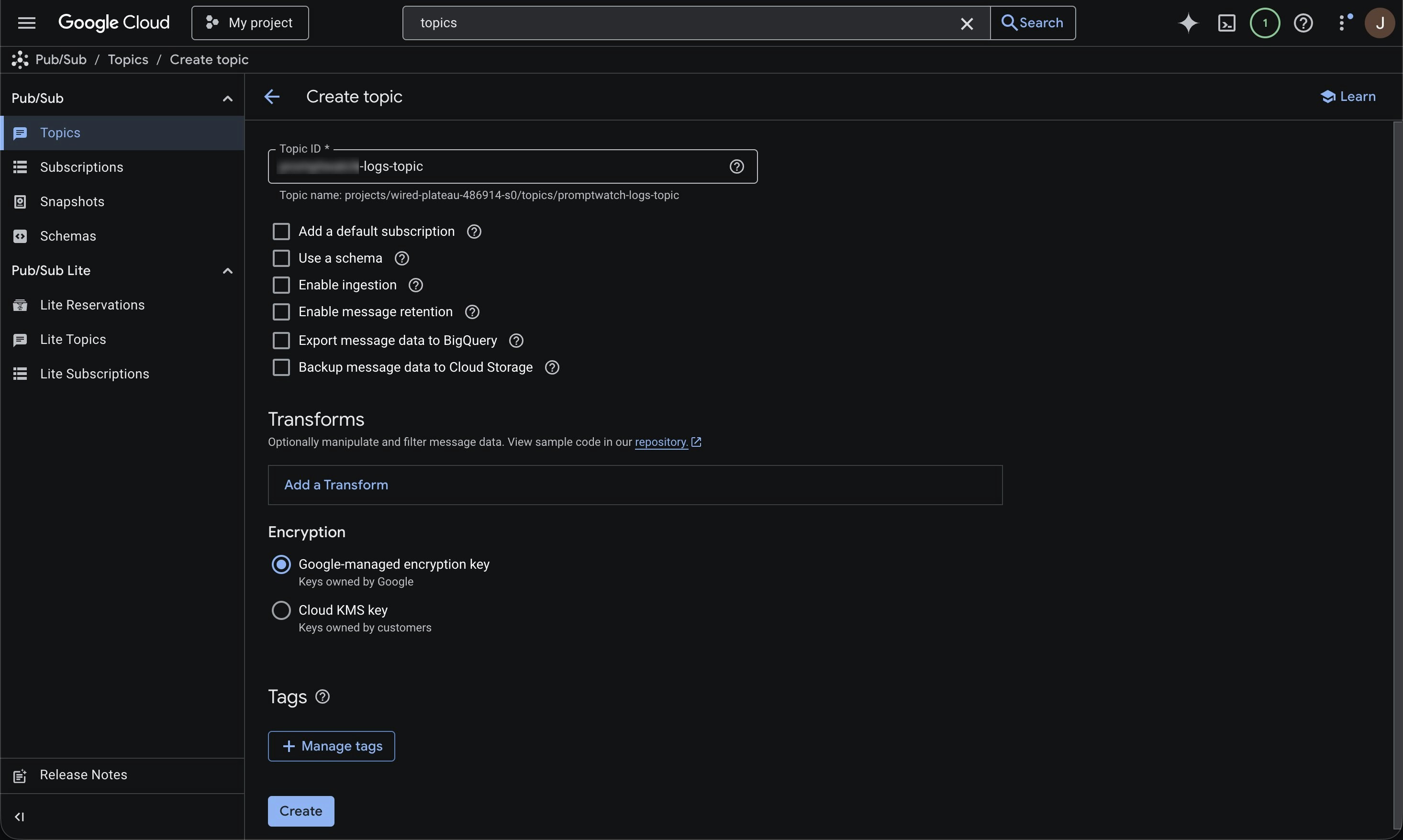
- Navigate to Pub/Sub → Topics
- Click Create topic, name it, and create it
Step 3: Create Push Subscription
Create a push subscription for the topic you created.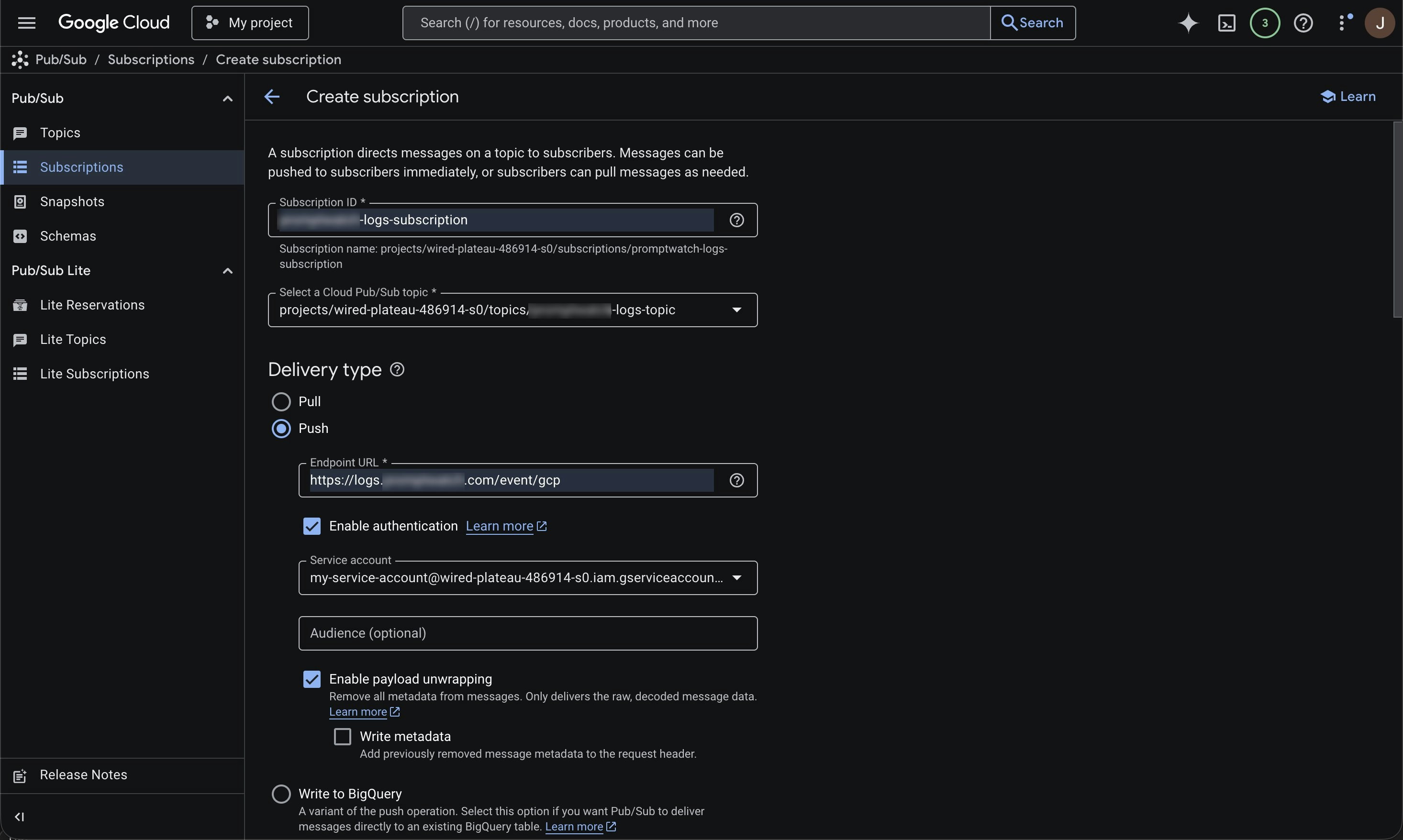
- Navigate to Pub/Sub → Subscriptions
- Click Create subscription
- Give your subscription an ID
- Select the topic you created in Step 2
- Set Delivery type to Push
- Set the endpoint URL to:
- Click Enable authentication and select a service account
- Enable payload unwrapping
You can also adjust retention, retry policy, and throughput settings in this setup.
Step 4: Add Message Transform
Add a Pub/Sub message transform to reduce the payload before sending to Promptwatch.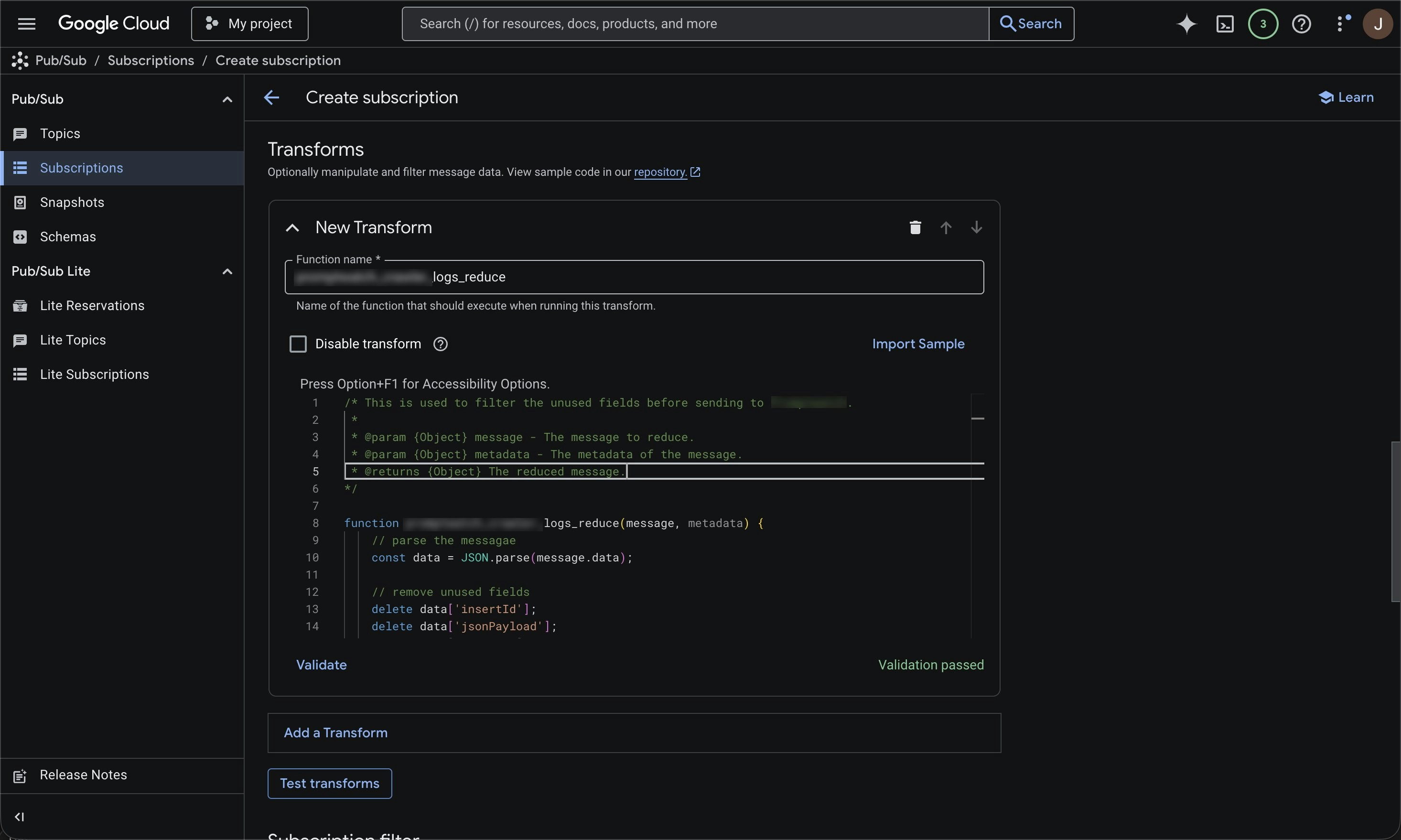
- In your subscription, click Add a transform
- Set the function name to log_reduce
- Paste this function and click Validate:
This transform drops unneeded fields before sending to Promptwatch. It reduces export volume, improves performance, and enhances data security.
Optional: Filter on known AI Crawler user agents
Promptwatch identifies AI crawlers automatically and only stores AI crawler visits, all other traffic is discarded. You can safely send all your server logs without worrying about non-crawler data being retained. If you prefer to only forward AI crawler traffic, you can use the user agents listed below to pre-filter on your side. Keep in mind that you’ll need to maintain this list yourself as new crawlers emerge.OpenAI (4)
OpenAI (4)
Anthropic (4)
Anthropic (4)
Google (3)
Google (3)
Perplexity (2)
Perplexity (2)
Cohere (1)
Cohere (1)
Mistral (2)
Mistral (2)
DeepSeek (1)
DeepSeek (1)
xAI / Grok (3)
xAI / Grok (3)
Step 5: Create Log Router Sink
Create a Log Router sink to export the HTTP Load Balancer logs into your Pub/Sub topic.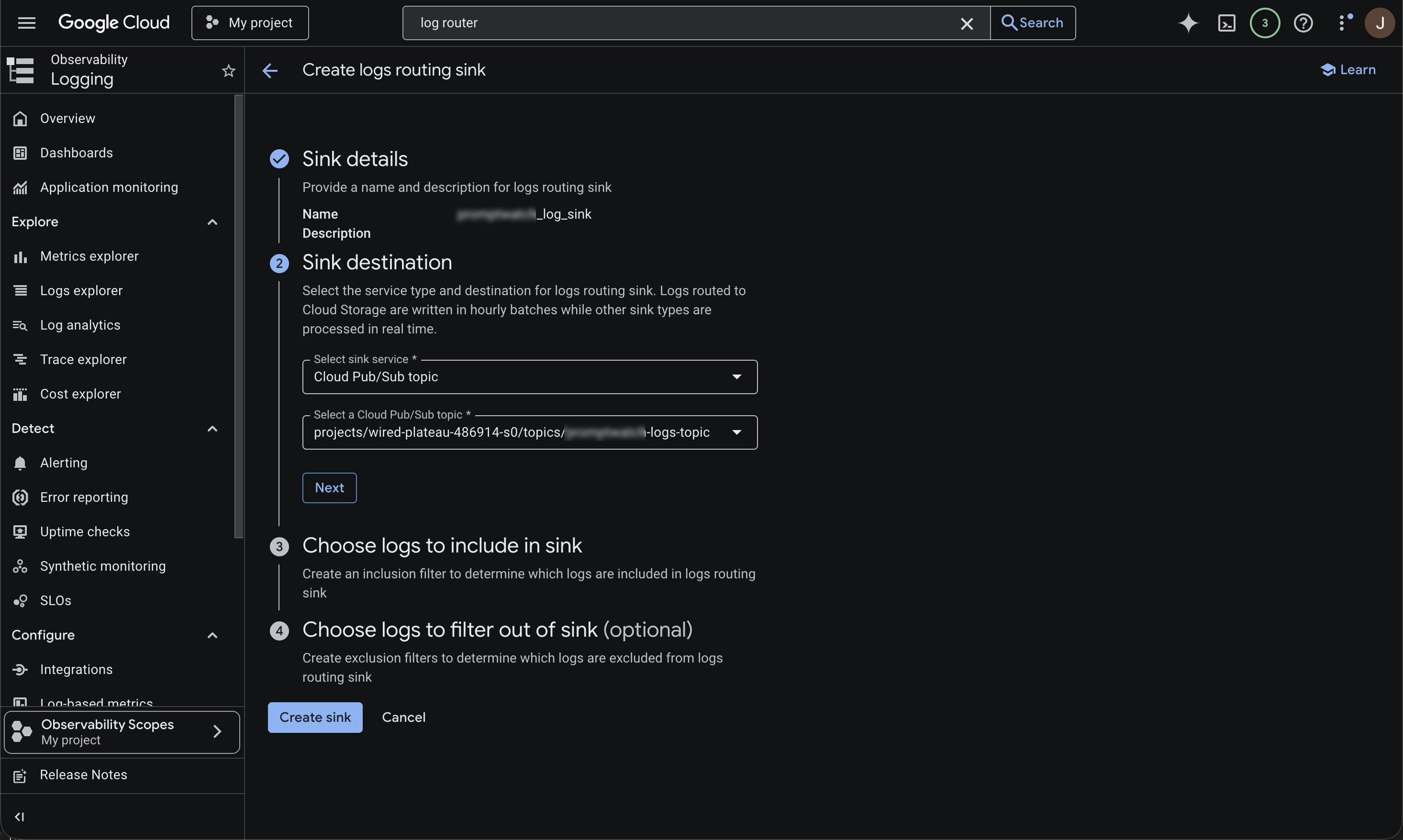
- Search for Log Router (or go to Logging → Log Router)
- Click Create sink
- Give your sink a name
- For destination, choose Cloud Pub/Sub topic and select the topic from Step 2
- Add a filter similar to the following:
Step 6: Save Service Account in Promptwatch
In Promptwatch, navigate to Crawler Logs → Settings, click the Google Cloud button, and enter the service account email you selected when creating the push subscription in Step 3.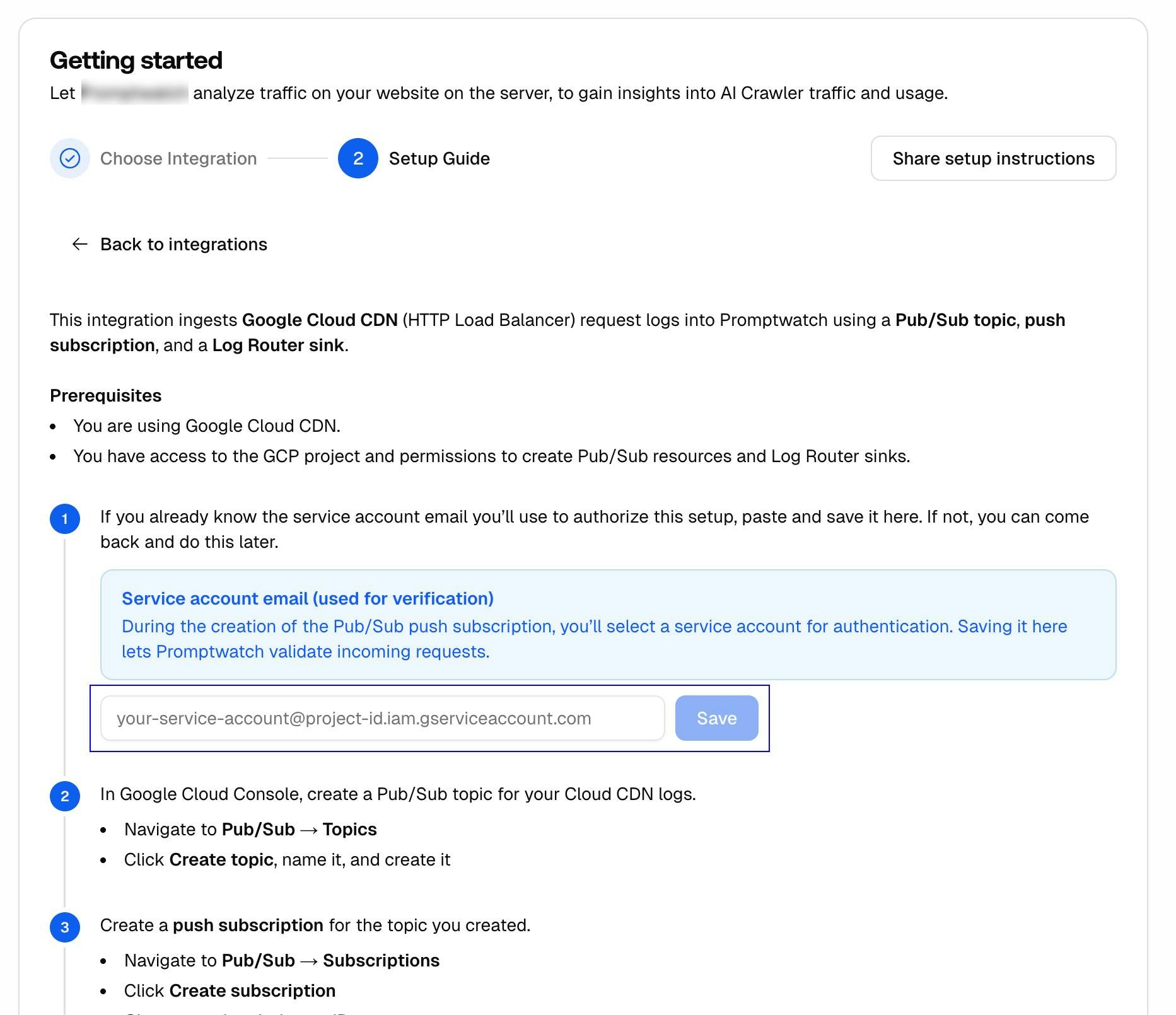
For a full list of API response codes, see API Response Codes.