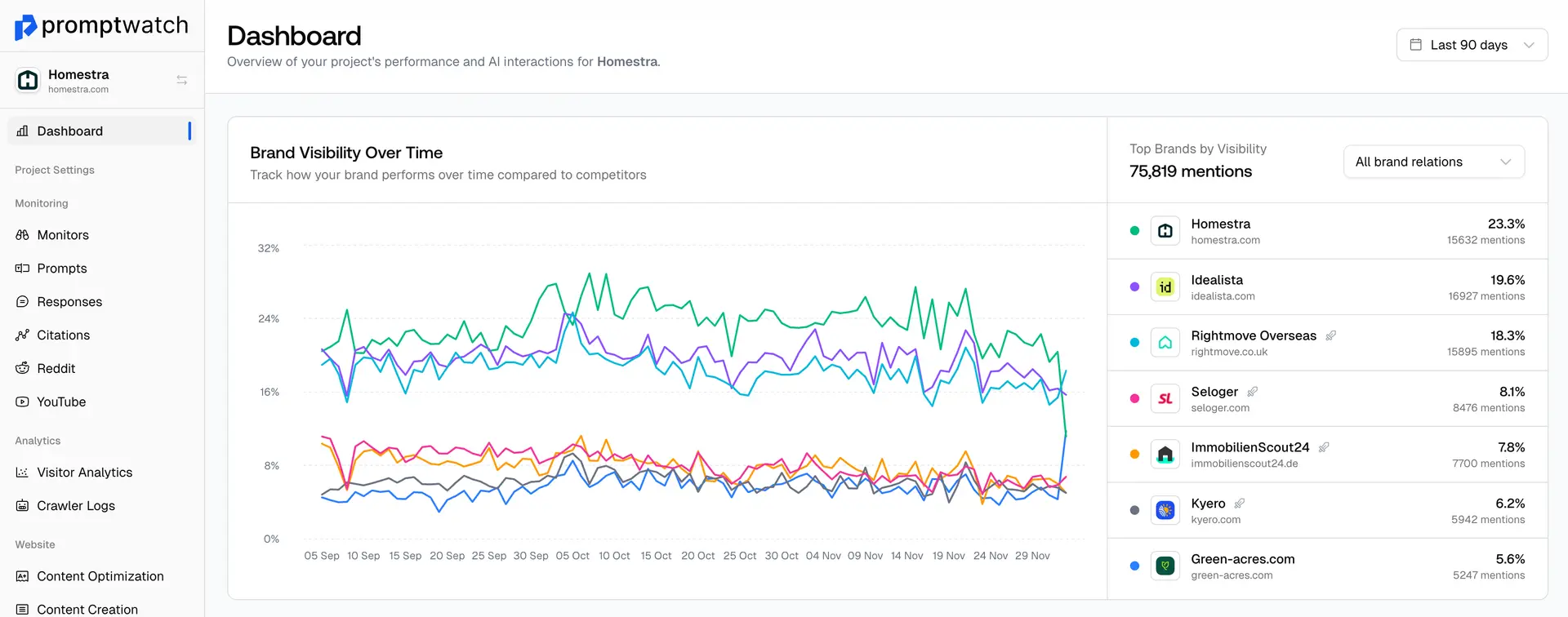
If you have multiple projects and want to delete one of them, you can do so easily.
Important note: You cannot delete a project while you are currently active in it. To delete a project, you must first switch to a different one. Please also note that deletion will remove all associated data, including monitors, prompts, responses, and analytics.
Step 1: Open the project menu
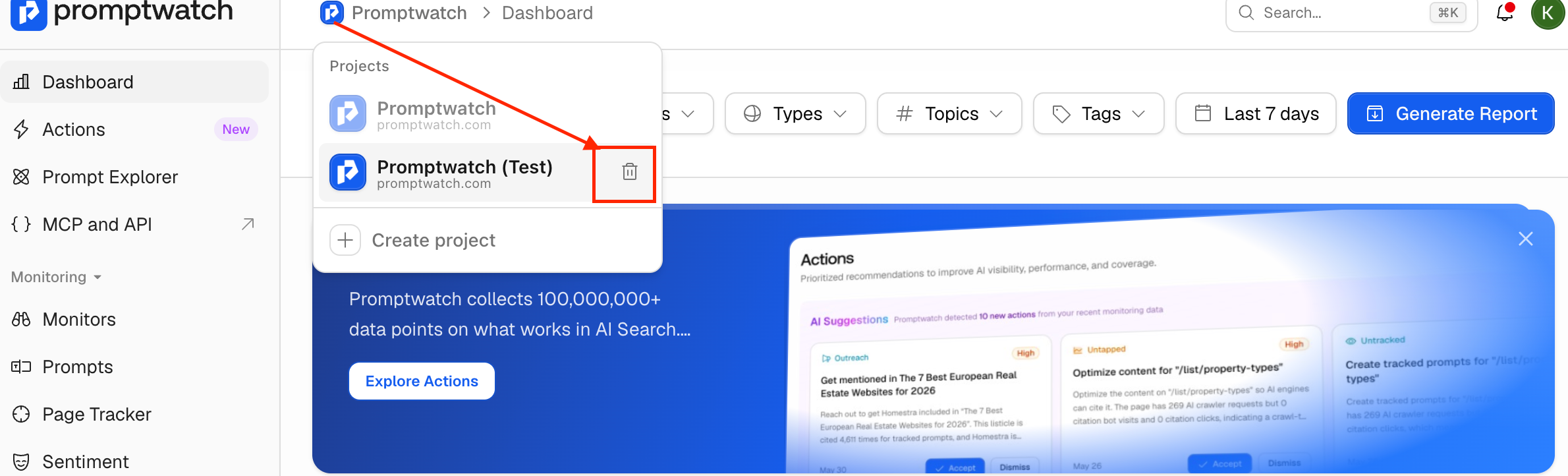
Click the project dropdown in the top-left corner of your dashboard, next to the Promptwatch logo. This will display all projects linked to your account.
Step 2: Switch to another project
If you are currently inside the project you want to delete, select a different project from the list to switch over.
For example, if you want to delete “Promptwatch (Test)”, first switch to the main “Promptwatch” project or any other available project.
Step 3: Delete the project
Hover over the project you want to remove and click the trash can icon that appears next to its name.
Step 4: Confirm deletion
When you click the delete icon, a confirmation page will appear.
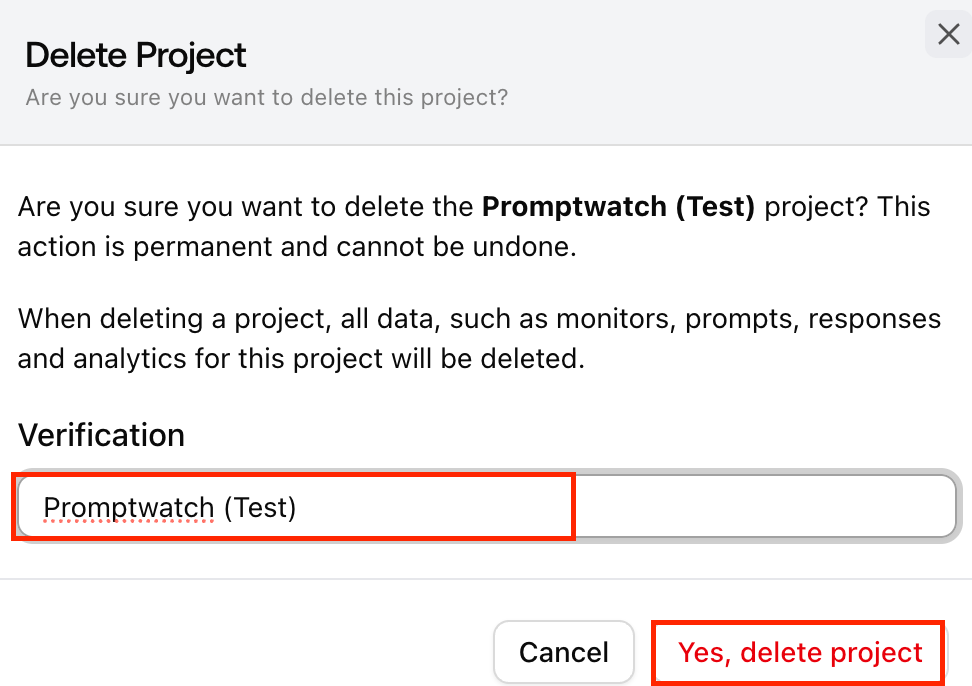
- Enter the exact project name [e.g.,“Promptwatch (Test)”] in the confirmation field.
- Once confirmed, Click on the Yes, delete project button