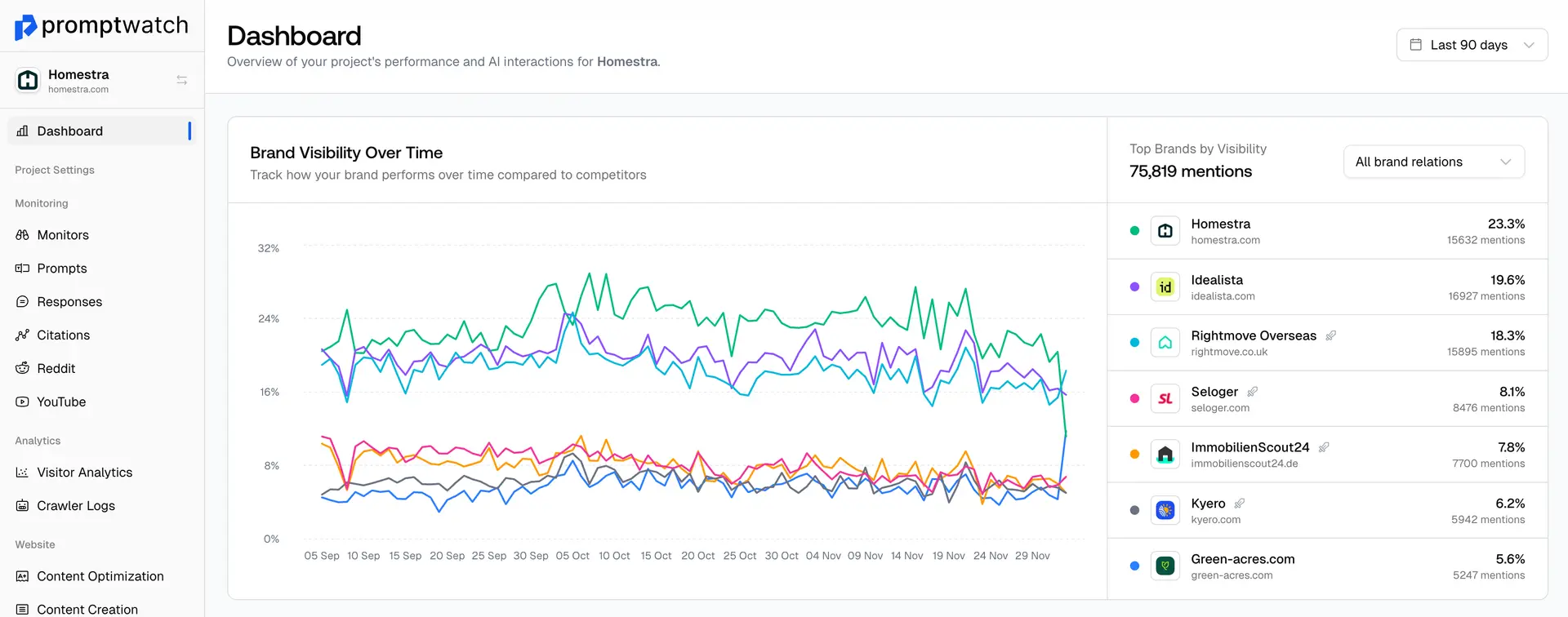
Importance of monitors in tracking your AI Visibility
Monitors allow you to group prompts that you want to track based on any or all of these factors:
- Language & Region
- Intent level
- Branded or Non-Branded
Once your monitors are set up properly, you can see a clear overview for your visibility based on what you are tracking
Promptwatch allows you to track up to 50 prompts in a single monitor
How to add an additional monitor to your account
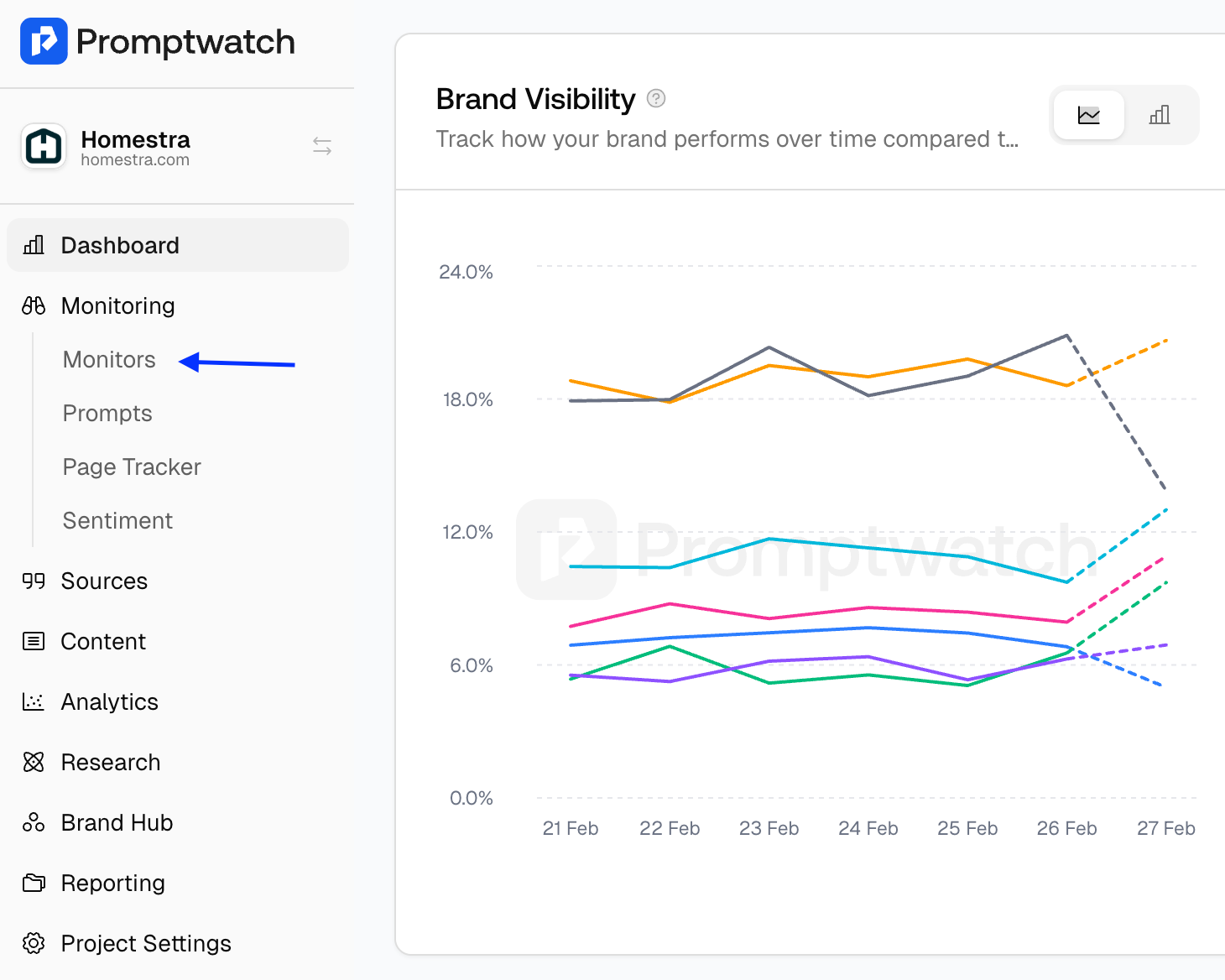
Step 1: On the side bar, select Monitors
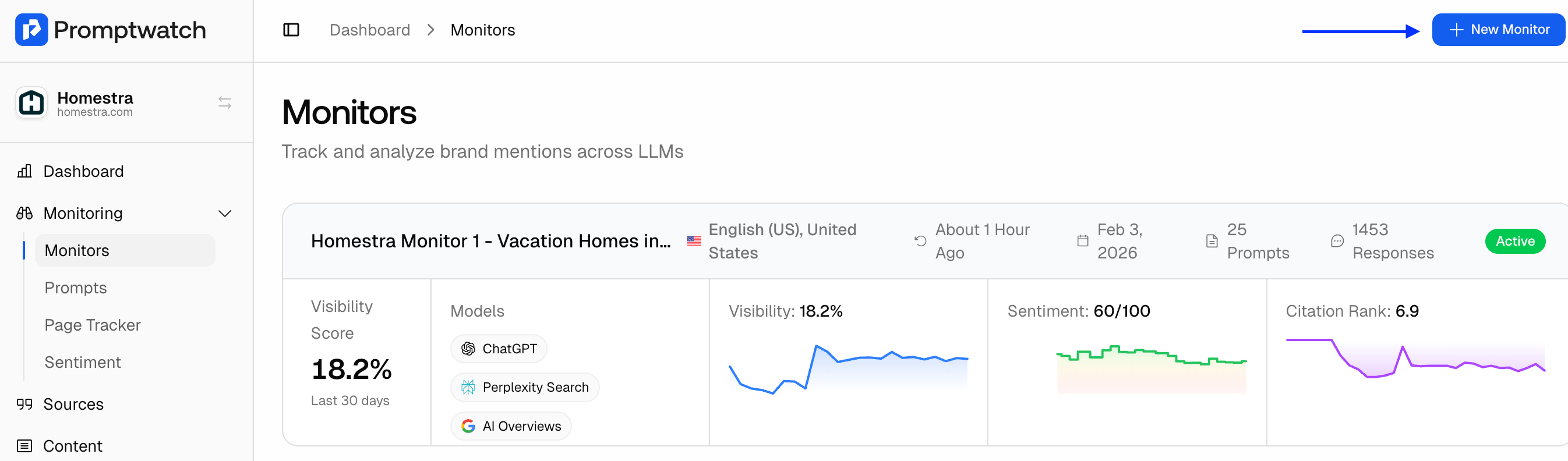
Step 2: Go to the top right corner and click on New Monitor
Step 3: Once you click on New Monitor, a pop-up template will appear with the fields listed below. Please fill in all sections with the correct information.
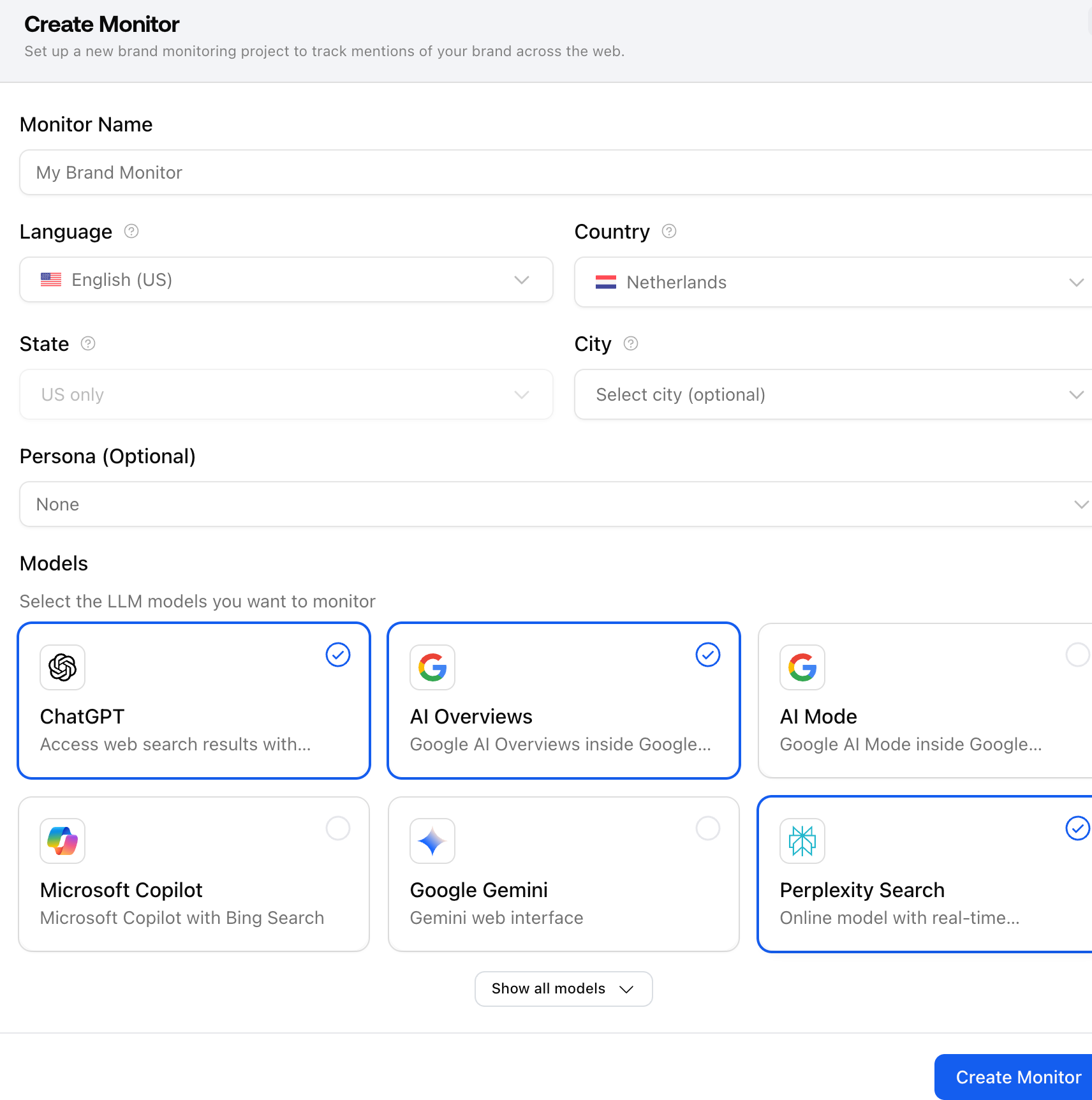
Monitor Name: Give your monitor a descriptive name.
Language: Select the language for the Prompts.
Country: Select the country you want to monitor.
State & City (Optional): Add if needed.
Persona: Add the persona you want to track.
Models: Select the top models you want to monitor.
Step 4: Once you have your monitor set up, select “Next” and add the prompts you would like to track.