

What 360 Insights is
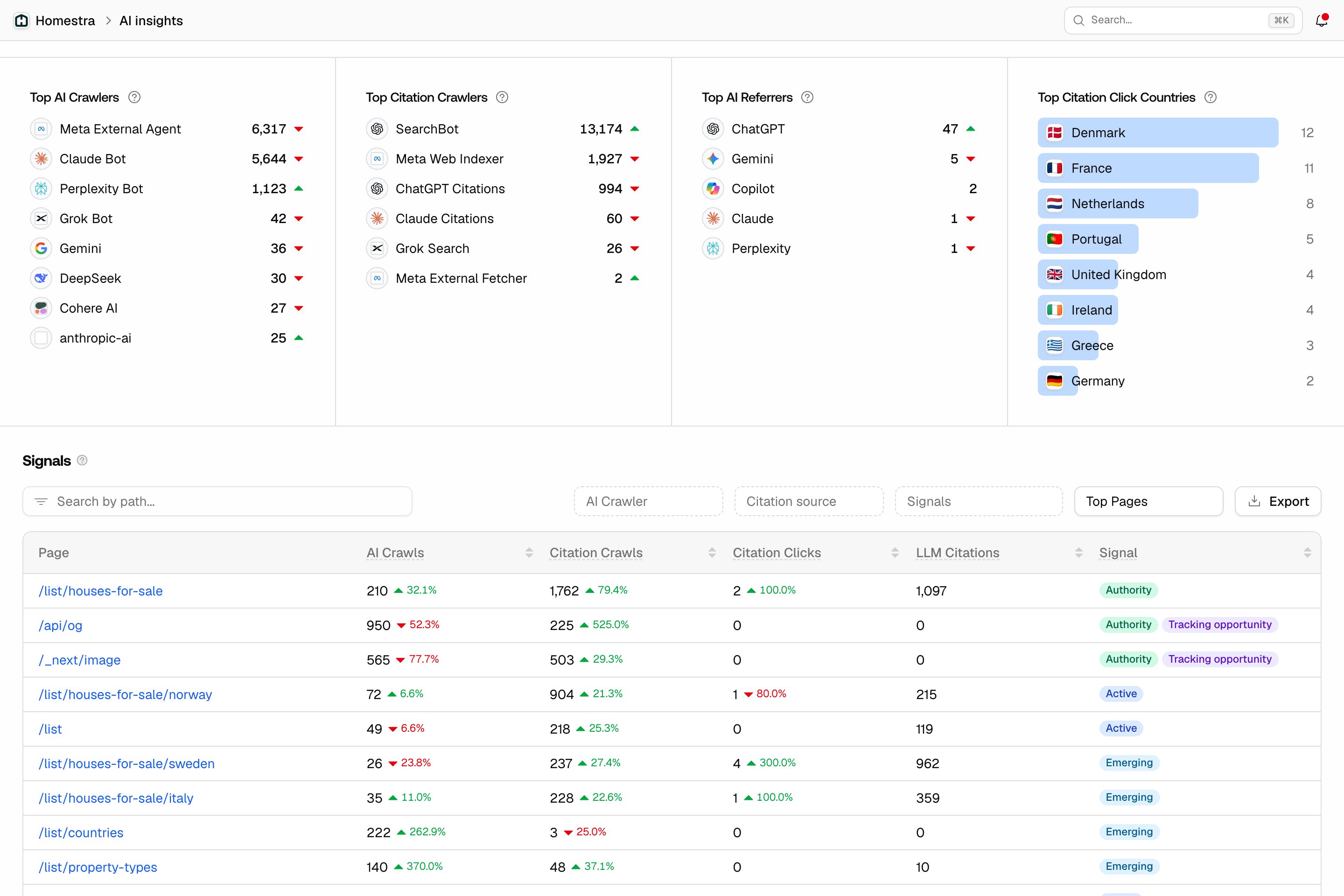
Most of your AI data lives in separate places: crawler logs show which bots fetched which pages, visitor analytics show which visits came from AI answers, and citations show which pages models used as sources. 360 Insights puts all three on the same axis, the page, so you can see a single URL’s full story at once. In the app it is a unified view of crawler logs and citation clicks with geography and trend context. It is not one page but three, all under the Analytics rail tile (hover the tile for the flyout, or click it and use the inner navigation):- AI Insights: project totals, the crawl and citation activity chart, the top crawlers, referrers and countries, and the per-page Signals table.
- Topic Insights: your pages grouped by theme, with the themes that earn AI activity and the ones that underdeliver for their footprint.
- Search Insights: your Google and Bing search traffic next to AI crawls, citations and clicks on the same pages.
AI Insights: every signal for a URL in one row
The AI Insights page opens with five overview cards: Active Pages, AI Crawls, AI Citations, Citation Clicks and Citation Ratio. Active Pages counts the pages with any activity, with the share of your known pages underneath (over 100% means bots or visitors hit URLs that your sitemap and Search Console don’t know about). Citation Ratio is the share of crawled pages that also got a citation-bot request or a citation click, so it tells you how much of what models read they actually use. Below the cards, the AI Crawl & Citation Activity chart plots AI crawls and citation crawls against citation clicks, then four cards show the period leaders: Top AI Crawlers, Top Citation Crawlers, Top AI Referrers and Top Citation Click Countries. The Signals table at the bottom is the point of the whole feature, with a row per page and these columns:- AI Crawls: fetches from indexing and ingestion bots such as GPTBot and ClaudeBot, the crawlers building the models’ knowledge. This excludes answer-fetch bots.
- Citation Crawls: fetches from answer-fetch bots such as ChatGPT-User, Perplexity-User and Claude-User, which pull a page in the moment to cite it in an answer.
- Citation Clicks: the AI-referred visits that actually landed on the page.
- LLM Citations: how many times the page was cited across your tracked prompts. This is a different number from the AI Citations overview card, which counts citation-bot requests.
- Authority: high AI crawl activity and strong engagement from AI surfaces. These pages are already working.
- Emerging: notable recent growth in crawls or engagement, or content that resonates when it is surfaced despite limited crawl visibility.
- Untapped: indexing crawlers visit often, but citation crawls and citation clicks stay low. Models read the page without using it.
- Active: some AI activity, but not enough to qualify for one of the states above.
- Low Signal: very little activity and a weak footprint.
- Dormant: essentially no crawls or engagement. Check that the page is reachable: robots.txt, the sitemap, and internal links.
Topic Insights: which themes AI crawls and cites
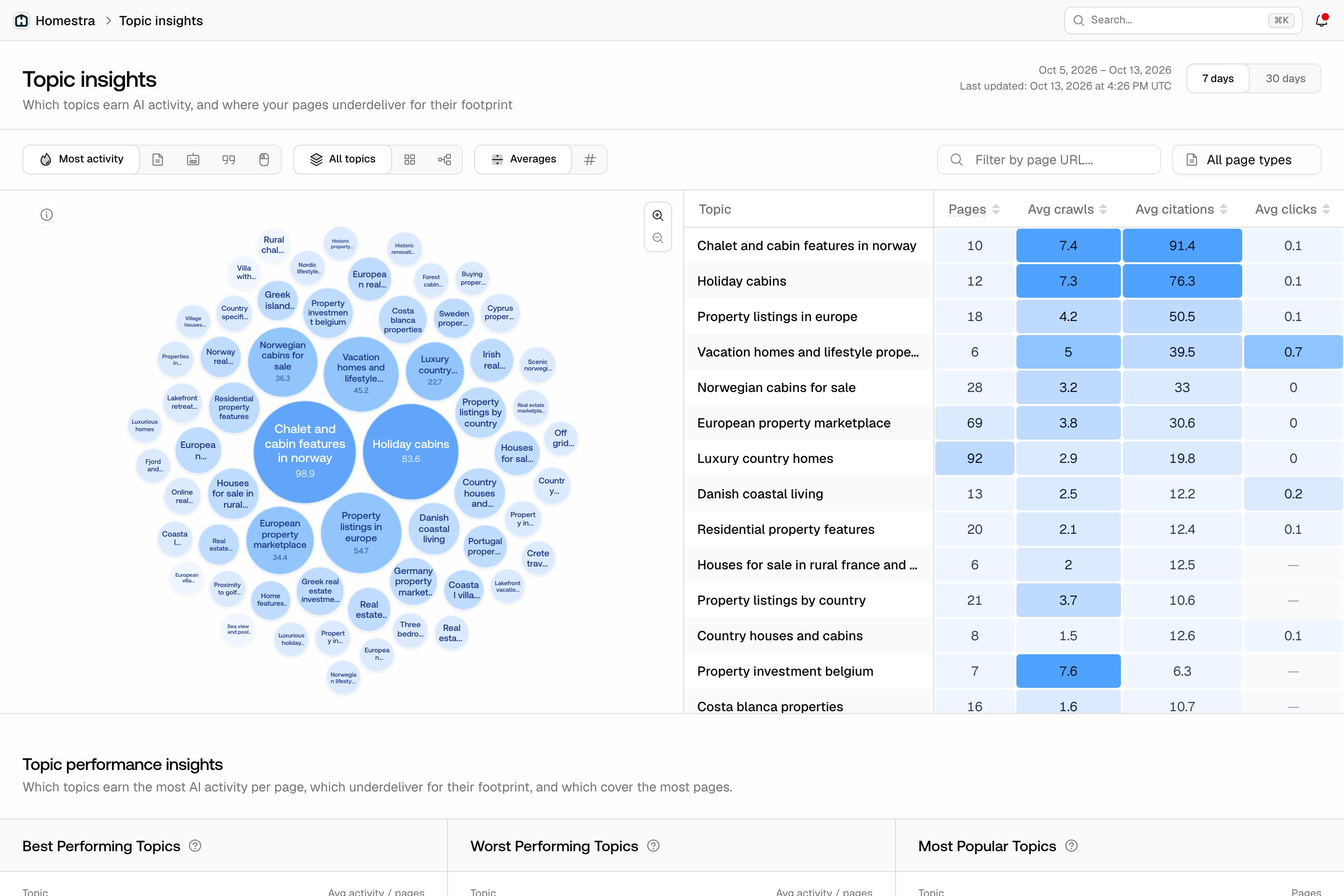
The Topic Insights page groups your sitemap pages by theme, so you can see performance a level up from individual URLs. The explorer at the top is a bubble plot plus a table. It sorts by Most activity, Most pages, Most crawls, Most citations or Most clicks, switches between Averages and Absolute numbers, and zooms between All topics, Topic Groups and Subtopics. A Page type select and a path filter narrow it further. Clicking a topic opens a side sheet with its page types, top pages and subtopics. Below the explorer, Topic performance insights ranks the themes into three cards:- Best Performing Topics: the themes AI rewards most.
- Worst Performing Topics: themes with at least as many pages as the median, whose activity per page is below the median. A theme that covers many pages but earns little is a content area AI notices but does not reward, which is where to look first.
- Most Popular Topics: the themes with the most pages and activity.
Search Insights: overlaying Google and Bing
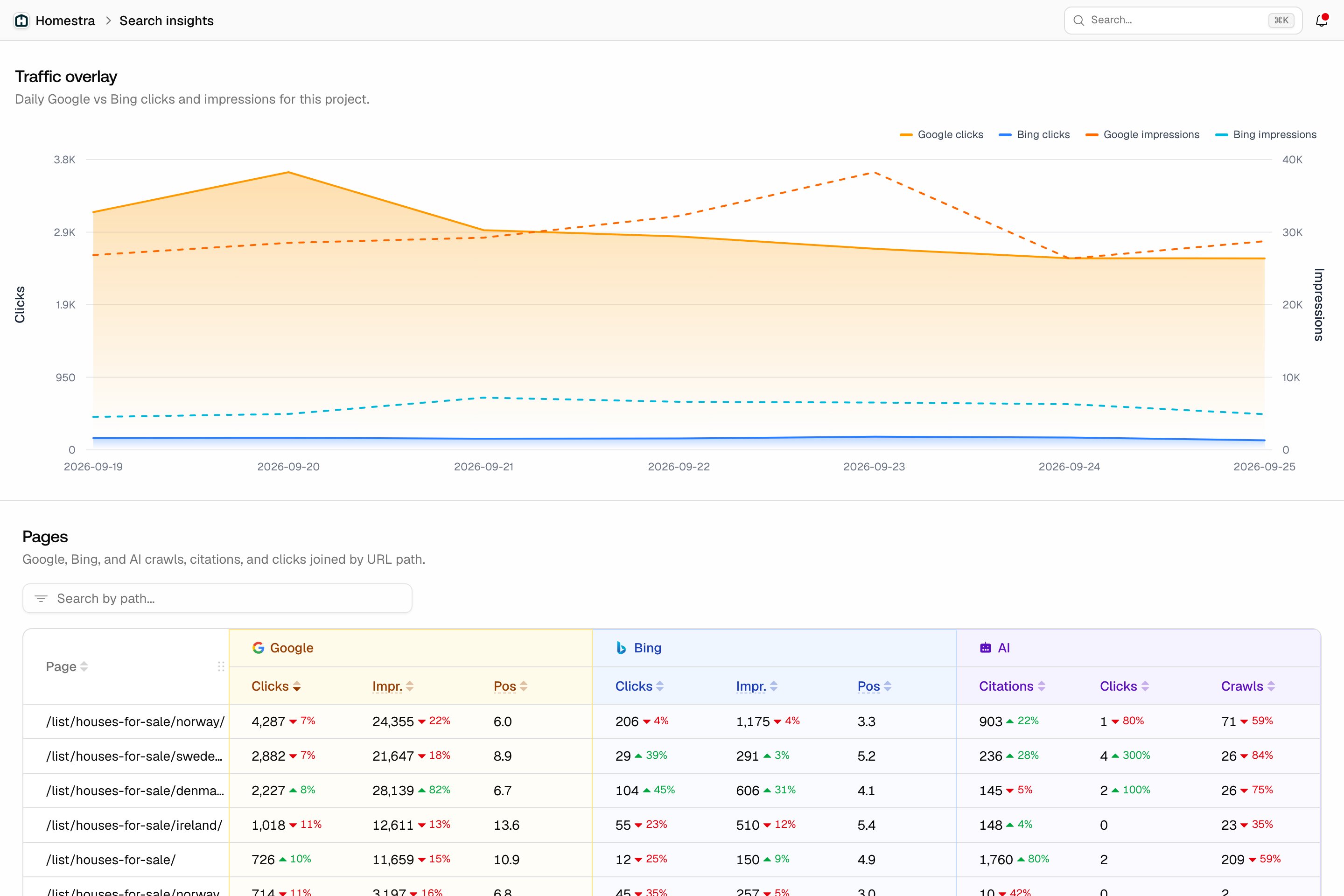
The Search Insights page puts your traditional search traffic next to your AI activity on the same pages. It answers a question the other pages cannot: are the pages winning in AI answers the same ones winning in classic search, or are they pulling apart? From top to bottom:- Sync engine dates: a banner with a switch that aligns both engines to Bing’s latest complete weekly report, so you compare the same days.
- Stat strip: clicks, impressions and CTR, in total and per engine.
- Traffic overlay chart: daily Google and Bing clicks and impressions. The chart compares the two engines; the AI numbers sit in the table below.
- Pages table: joined by URL path, with Google and Bing clicks, impressions and position next to AI citations, clicks and crawls for the same page. Search by path to find one.
- Top queries: your top Google and Bing queries, with an All / Branded / Non-branded split.
Connect Google Search Console
Open the Settings tile at the bottom of the rail, then under Integrations choose Search Console and connect one or more Google accounts. Then, under Project settings, choose Search Console and pick the right property for each project. The full walkthrough, with screenshots, is in Google Search Console.Connect Bing Webmaster
Bing works the same way: Settings, then Integrations, then Bing Webmaster to connect the account, and Project settings, then Bing Webmaster to choose the matching verified site for each project. The full walkthrough, with screenshots, is in Bing Webmaster. Once either source is connected and a site is attached, Search Insights fills in; until then it shows a card with Connect Google Search Console and Connect Bing Webmaster buttons, and if only one is connected, an alert for the other. The daily Bing totals include Copilot, news, image and video alongside classic web results, so the chart doubles as a read on one more AI surface. The Pages and top-queries tables are a separate weekly, web-only feed.What each page needs
- AI Insights: crawler log data (any AI crawl or citation-bot crawl in the last 30 days). Without it the page shows a setup card with Setup crawler logs and Setup visitor analytics buttons. Visitor analytics is not required to unlock the page, but it is what fills Citation Clicks, Top AI Referrers and Top Citation Click Countries. See log ingestion and visitor analytics.
- Topic Insights: a sitemap with URLs or crawled pages, plus crawler log data.
- Search Insights: a Google Search Console property or a Bing Webmaster site attached to the project.
- All three: a plan that includes 360 Insights. Viewers see a restricted-access card instead of the setup cards.