In Review first mode, every draft the Content Agent generates stops in your review inbox and waits for a decision. Nothing publishes without an accept, so the review step is where you keep editorial control while the agent does the writing.

Where drafts wait

Open Content Agent → Content and select the Needs review filter tab; the count on the tab tells you how many drafts are waiting. You also get an in-app notification when a new draft lands. Click a draft to open its detail sheet.

What you see per draft

The sheet is built to answer “should this go out?” without leaving it:
  • Title and status, plus a note (“Needs your approval to publish”).
  • Scheduled time and generate-by time, in your schedule timezone.
  • Why this was prioritized: the planning agent’s explanation of the audience question, why you’re missing from AI answers there, and the upside of winning it. This is your context for judging relevance, not just quality.
  • The configuration: content type, length, tone, and persona the piece was written with.
  • The full draft, rendered as formatted text so you read it the way a visitor would.
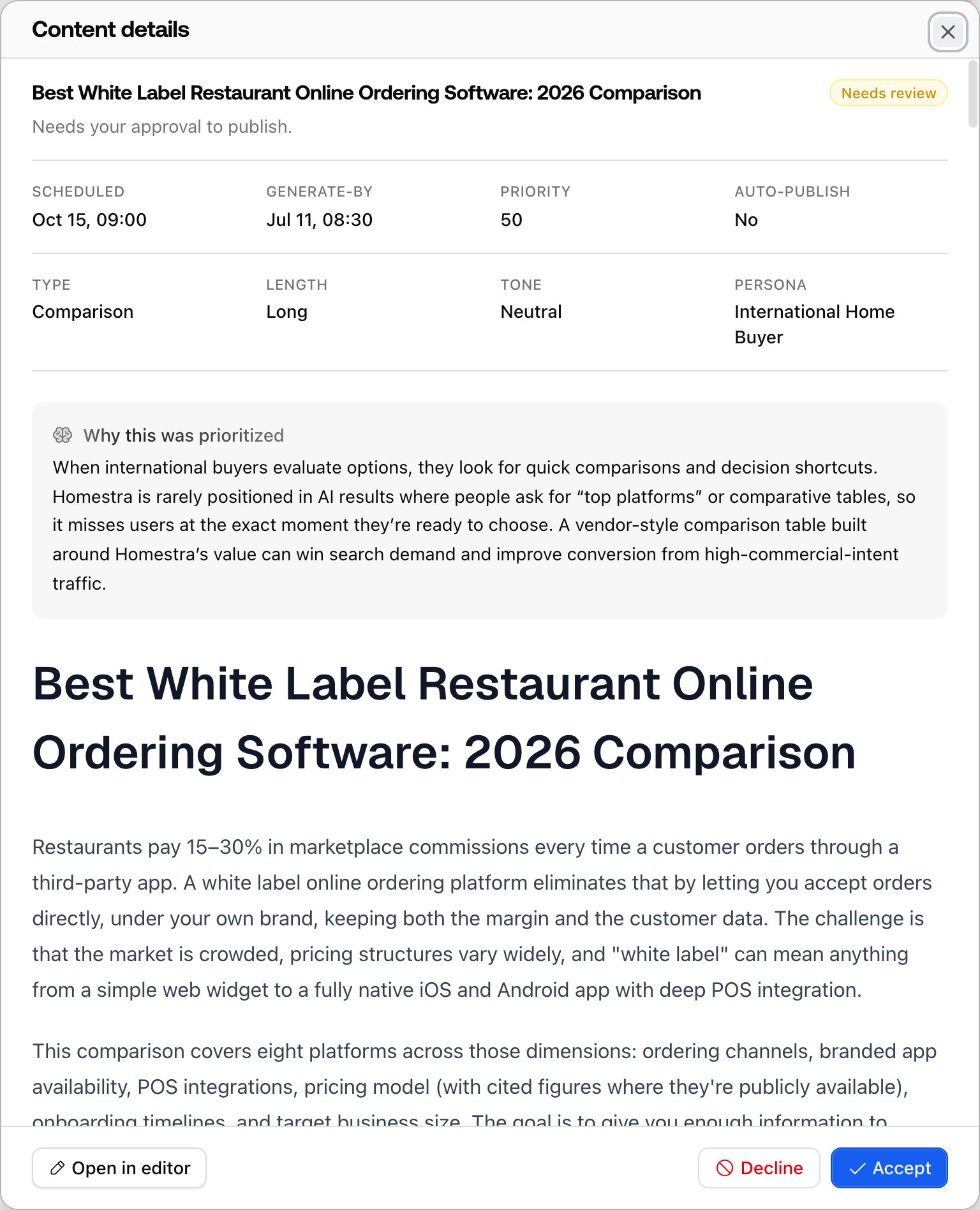
A Promptwatch Content Agent draft sheet in Needs review, with why it was prioritized, the draft preview, and Accept and Decline in the footer.

Your three options

  • Accept: approves the draft. It moves to Scheduled. If a CMS is connected, it publishes at its slot (or immediately, if publish timing is set to immediate on approval); with manual export, it stays on the schedule until you publish it yourself. If the scheduled time has already passed while the draft sat in review, a dialog asks whether to publish now or reschedule to the next available slot, so nothing silently backdates.
  • Decline: asks for a reason, then suppresses the piece. It will not publish, and the reason stays on the record, which helps you spot patterns in what the planner gets wrong.
  • Open in editor: opens the draft in the Create Content editor for changes before you decide.
Accepted pieces move to Scheduled, where you can still decline them (cancel before publish) or Publish now to override the schedule; publishing now asks for confirmation and tells you the destination: live on your CMS, a CMS draft, or marked published for manual export.

Editing before approval

Open in editor is the path for “good draft, wrong details”. You get the full document editor: rewrite sections, fix product claims, adjust headings, and insert or replace images. The document is the same one the slot publishes, so your edits are what goes out; there is no separate approved copy. Come back to the sheet and accept when it’s ready. If a draft repeatedly needs the same fixes, treat that as a settings problem, not a review problem: tighten the tone of voice and defaults in Brand Book → AI Agent, and add the missing source material to your Knowledge Base so the next drafts start closer to done.

What review looks like in Auto-publish mode

With autonomy set to Auto-publish, drafts skip the inbox, self-approve, and publish at their slot, labeled Auto-approved in the detail sheet for the audit trail. A quality gate is in place for later checks; today it only blocks empty drafts, which stop in Needs review. Combine Auto-publish with the CMS draft publish state and your CMS remains a final checkpoint. See Settings.

What happens next

After you accept, the piece waits for its slot. With a CMS connected it’s pushed live or as a CMS draft, depending on your publish state; a live URL is added to the Page Tracker so you can watch it earn citations. With manual export, you publish it yourself and record the URL. See Publishing and tracking results for that last leg.