Check and reduce the models on a monitor
If you are close to your limit, keep only the models your audience actually uses on each monitor.- Click Prompts in the left rail, then Monitors, and open a monitor.
- Open its Settings.
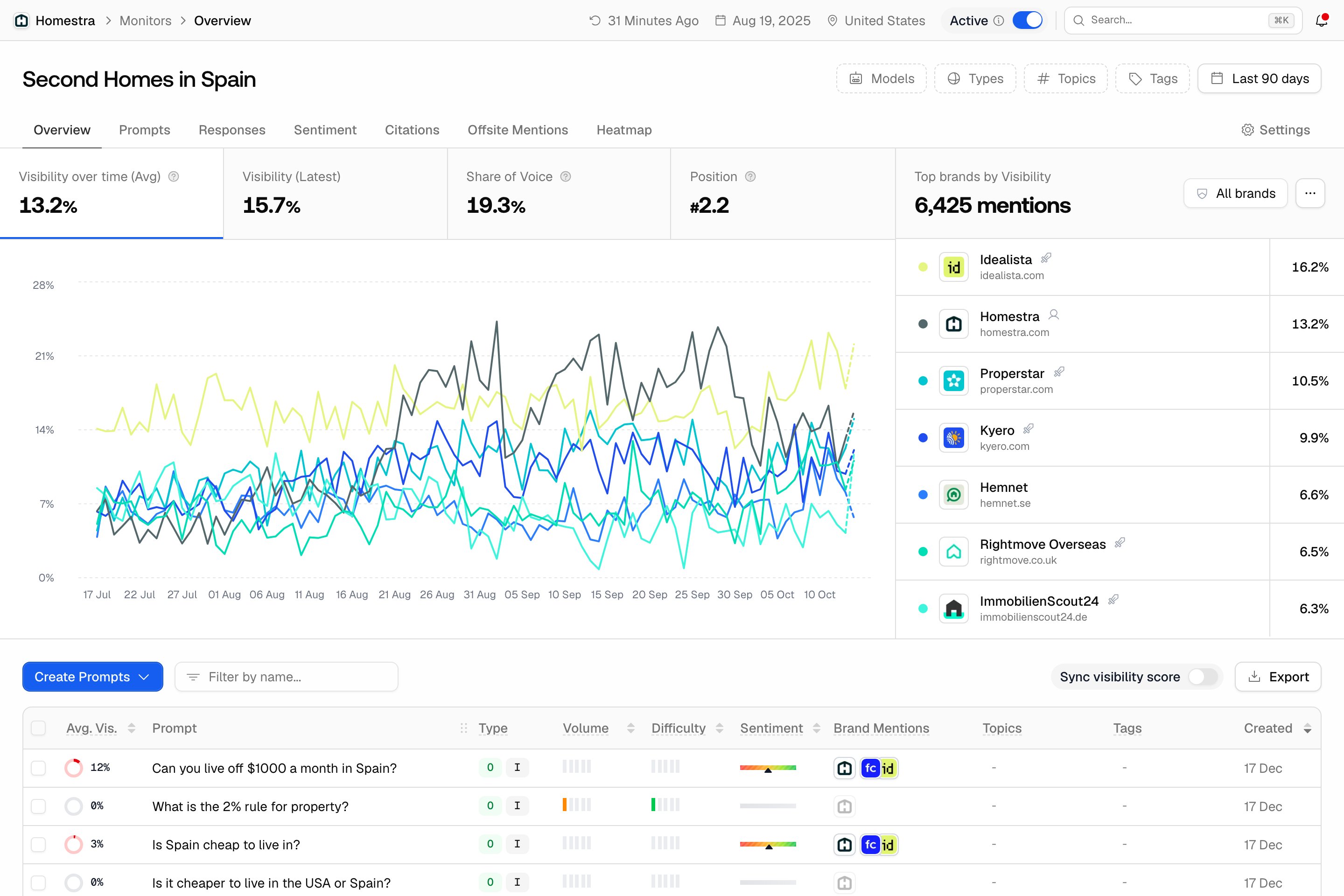
- Review the list of selected models.
- Untick any model you don’t need. At least one model must stay selected.

How is the response limit calculated?
Each time a monitor runs, it creates one response per prompt per model. Over a usage period (your billing period), that adds up to: Prompts × Models × Runs A monitor that runs daily has about 30 runs per period. Other tracking frequencies (every 2 days, weekly, monthly) have fewer runs, and the count follows your usage period. For example, 50 prompts on 4 models running daily creates 50 × 4 × 30 = 6,000 responses per month. If you select more models, your usage rises in proportion and you reach your limit sooner. When your active monitors need more responses than your limit allows, the Usage card on the Billing page shows an alert, “You need about N responses per month”, with a way to upgrade. Once the limit is reached, no further responses are generated and monitoring pauses until your usage resets or you raise the limit.Where to see your usage
- Owners: click Settings (the gear tile at the bottom of the left rail), then Billing in the Organization settings group, then the Usage card. Prompt Responses shows current usage against the limit, a status (“N% used”, “Approaching limit” from 90%, “Limit reached”) and a “Runs out ~date” estimate.
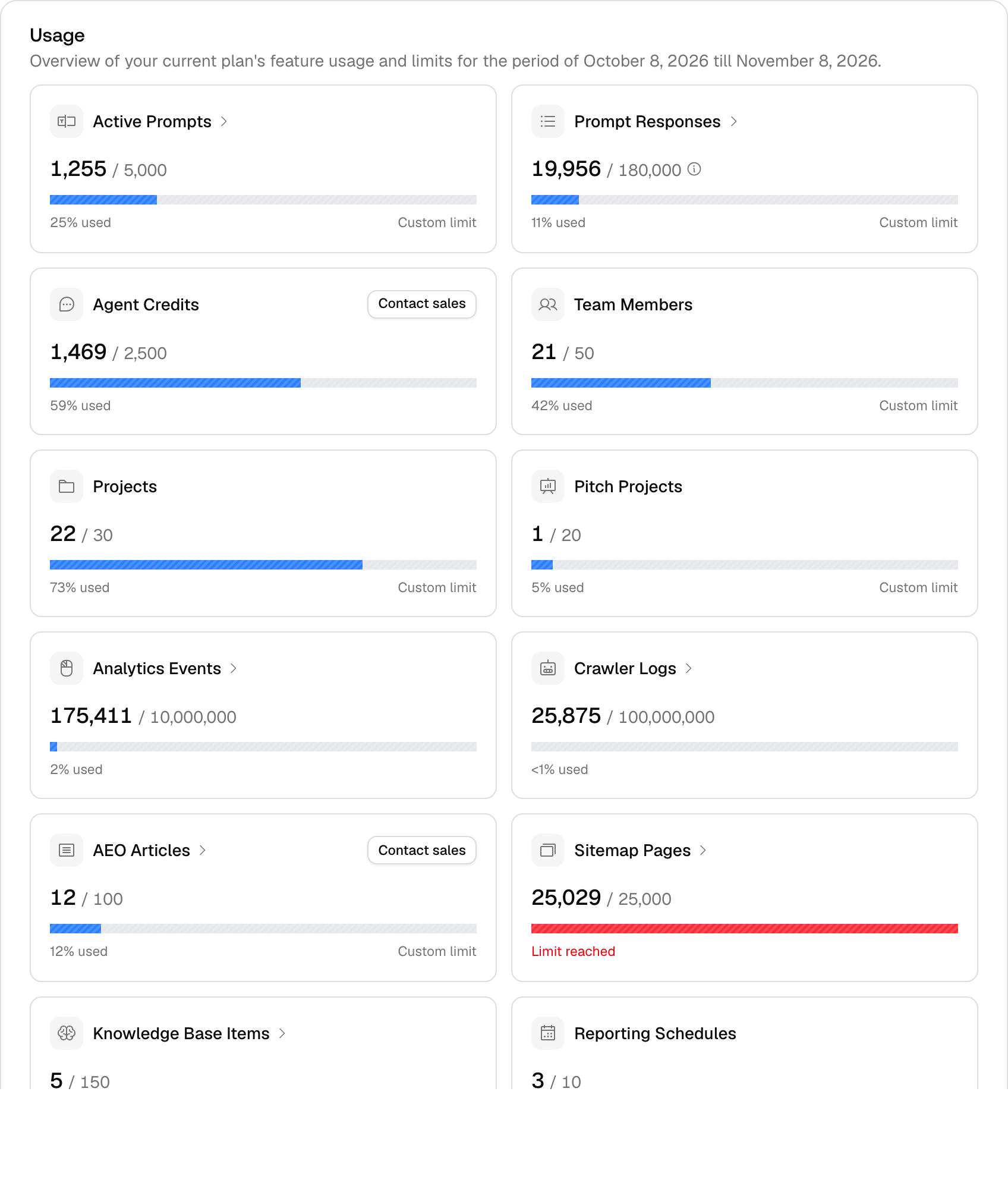
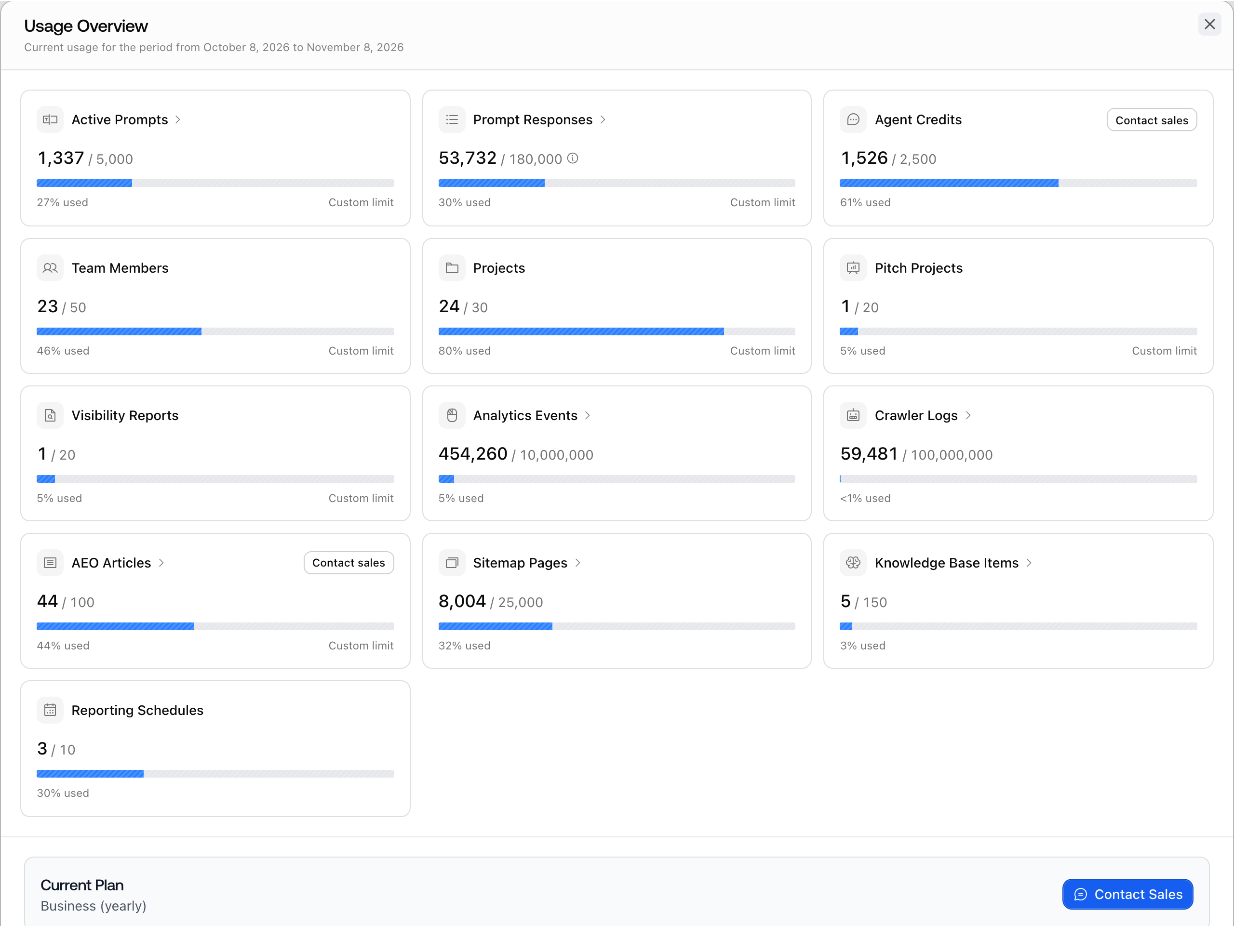
- Everyone else: open the Usage Overview modal from the usage bars in the footer of most inner navigations, or press cmd+K (Ctrl+K on Windows) and choose Usage Overview. It shows the same usage per feature for the current period.