

What a persona is
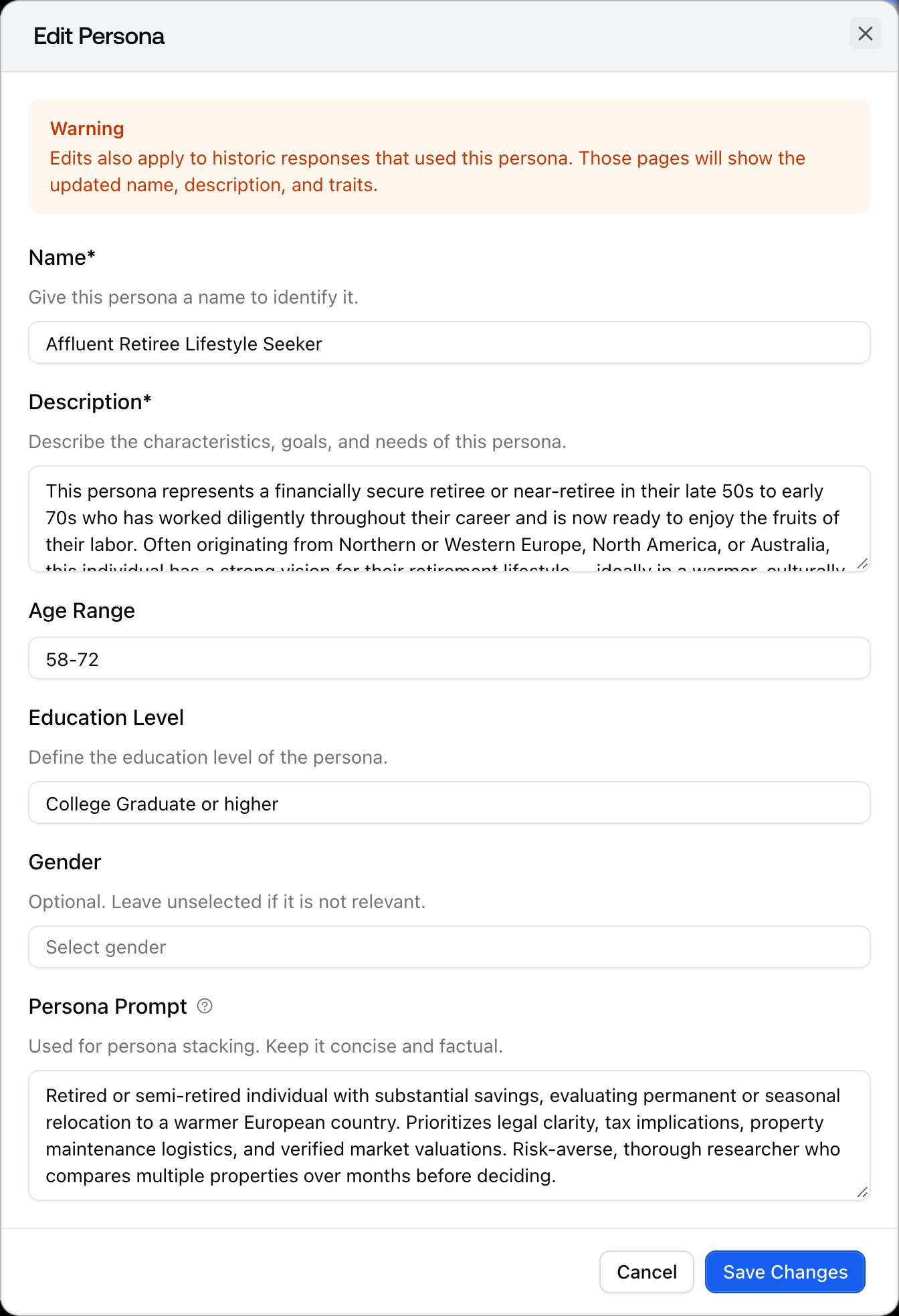
A persona is a saved audience profile: a name, a short description, optional age range, education level, and gender, and a persona prompt that describes who this person is and how they decide. Personas live on the Personas page under Brand in the left rail and belong to the project, so every monitor in the project can reuse the same set. A persona does two separate things, and it helps to keep them apart:- Tailored suggestions: when you pick a persona while setting up a monitor, the starting prompts Promptwatch suggests are written for that audience rather than a generic searcher.
- Persona stacking: the persona prompt is applied to every tracked prompt on every collection. This is the part that runs continuously, and it is the reason personas earn a place in your setup.
What persona stacking does
Persona stacking wraps the persona prompt around each tracked prompt at run time, so the model answers as it would for a known user with history and context, not for an anonymous searcher. The prompt text you track never changes. “Best CRM for a small team” stays “best CRM for a small team.” What changes is the context the model sees around it: with stacking on, the monitor asks that same question as if a specific buyer were asking it, so the answer reflects the sources, comparisons, and priorities that buyer would get. A monitor with stacking off asks the question plainly, and that is your default, general-audience answer. One persona attaches to one monitor, which is deliberate. It mirrors the one-context-per-monitor rule that keeps a monitor’s time series clean: to compare two audiences on the same prompts, run two monitors, one per persona, and read them side by side.How to write a persona prompt
The persona prompt is the field that powers stacking, so it is worth getting right. Keep it concise and factual: describe the person’s role, situation, constraints, priorities, and the factors they weigh when judging an answer. It needs at least 30 characters before stacking can be turned on. A few rules keep the persona from distorting the answer:- Describe the person, not stage directions: write who they are and what they are trying to accomplish, not “act as” instructions.
- Leave your brand out: naming your brand or products biases the answer toward you and defeats the measurement.
- Do not script the response: you want the model’s natural answer for this audience, not prescribed wording.
How to enable persona stacking on a monitor
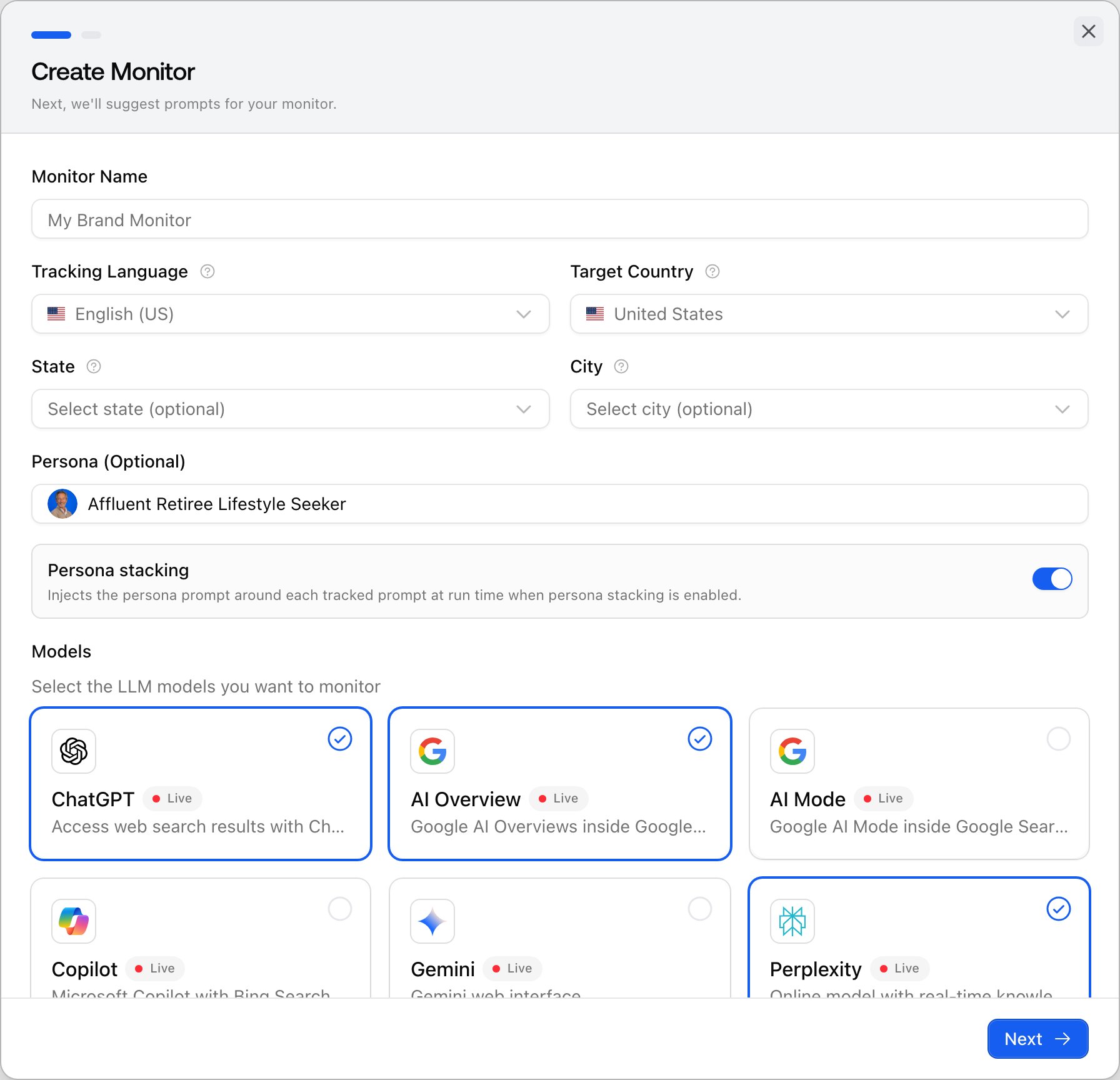
Persona stacking is set per monitor, either when you create it or later in its settings.When you create the monitor
- On the first step of the Create Monitor dialog, open the Persona (Optional) selector and pick a persona, or choose Create new to make one without leaving the flow.
- A Persona stacking toggle appears once a persona is selected. Turn it on to inject the persona prompt around each tracked prompt.
- If the toggle is disabled, the selected persona has no usable persona prompt yet. Add at least 30 characters to its persona prompt, then enable it.
On an existing monitor
Open the monitor’s Settings to change its persona or toggle stacking on and off. Changing the persona on a running monitor mixes two setups in one chart, the same way changing its country would, so for a meaningful switch use Copy to new monitor and let the old series stay clean. Managing monitors covers the full settings walkthrough and the caveat that the persona is not carried over by Copy to new monitor.How to read persona answers against your default
Every response collected with stacking on is stamped with the persona that shaped it. Open any such response and you will see a Persona card with the persona’s name and traits; hovering it shows the persona’s current prompt, not a snapshot from collection time. A response from a monitor with stacking off carries no persona, so the two are easy to tell apart. Understanding responses shows where this sits on the response detail. Read them as a pair. The default monitor tells you how models answer the category for everyone; the persona monitor tells you how they answer it for the buyer you care about. A brand that shows up for the general question but disappears for the persona has an audience gap, not a category gap, and that points at different work: content and sources aimed at that specific audience.Protections for personas in use
Because a persona can be attached to live monitors and stamped on past responses, Promptwatch guards it:- In use: a persona that has produced responses cannot be deleted. It stays attached so those past answers keep their context.
- Edits reach history: changes to the name, description, traits, or persona prompt also apply to the responses that already used the persona, so those pages show the current version.
- Last persona: you cannot delete the last persona in a project. Keep at least one.
- Deletion stops stacking: deleting an unused persona turns off stacking on any monitor still pointing at it, so a monitor never runs with a persona that no longer exists. You confirm the removal first.