

Copying prompts to another monitor
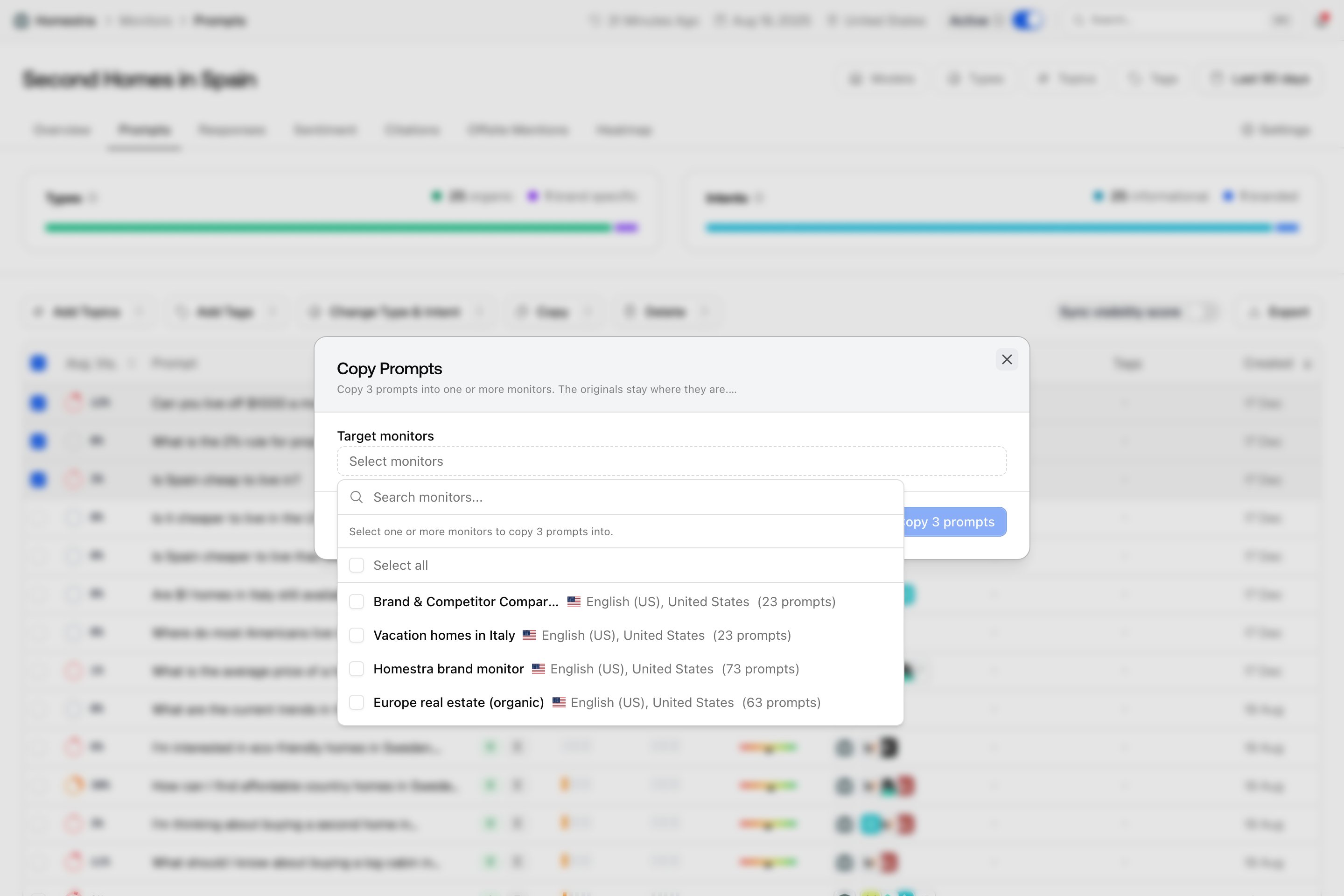
A prompt belongs to exactly one monitor, so copying is how you run the same question in another context without retyping it:- Select the prompts and click Copy.
- In the “Copy Prompts” dialog, open Target monitors and pick one or more monitors. Each option shows the monitor’s name, flag, language and country, and its current prompt count. Once you have picked, a line under the list projects the result: how many prompts it creates across how many monitors and, when usage data is available, how many of your active prompts that uses.
- Click the confirm button, which shows the count, for example Copy 3 prompts.
- Attributes travel: the copy keeps the prompt text, language, type, intent, active flag, keywords, tags and topics, so your labels stay intact in the target monitor.
- History stays behind: the copy is a new prompt with zero responses. It is queued on the target monitor right away so its first responses arrive soon; if that fast-track fails, it falls back to the monitor’s normal cadence. The original keeps running on the source monitor until you delete it.
- Duplicates are skipped: a prompt that is already active in the target monitor with the same text (ignoring case and extra spaces) is not created twice. The success toast reports how many were skipped.
- Same language and country only: a target must match the source monitor’s language and country, because responses are only comparable within one locale (state and city do not matter here). Monitors that don’t match appear grayed out, and hovering shows the reason: their language and country differ from the source monitor’s, and prompts can only be copied to monitors sharing the source locale.
- Active targets only: inactive monitors and the source monitor itself are not offered. If nothing qualifies, the list reads “No other monitors available.”
- One source monitor per copy: if your selection spans several monitors, the Copy button is disabled with “Cannot copy prompts from different monitors at once”. This matters on the project-level Prompts page, which lists prompts from every monitor; narrow it with the Monitors filter or work from a monitor’s Prompts tab. A selection with no monitor at all shows “Select prompts that belong to a monitor to copy them”.
- Copies count against your plan: every copy that lands active draws on your plan’s active prompt limit. If the copy would exceed it, the button is disabled and the dialog says “N prompts would exceed your plan’s Y active prompts.” Deactivated prompts do not consume allowance. See plans and billing for your limit.
Moving a prompt, without a Move button
Relocating a prompt is a copy followed by a delete: copy it into the right monitor, confirm the copy is there, then select the original and delete it. The copy starts collecting responses on the new monitor from its first run, and the original’s history disappears with the original. That is the trade to weigh. If the prompt has months of responses you still compare against, keep the original where it is; the clean time series is worth more than a tidy monitor list. If it is a recent prompt, a duplicate, or one whose history you don’t need, copy and delete is quick and harmless. For how to lay out monitors so prompts land in the right place from the start, see organizing with monitors, tags and topics.Deleting prompts
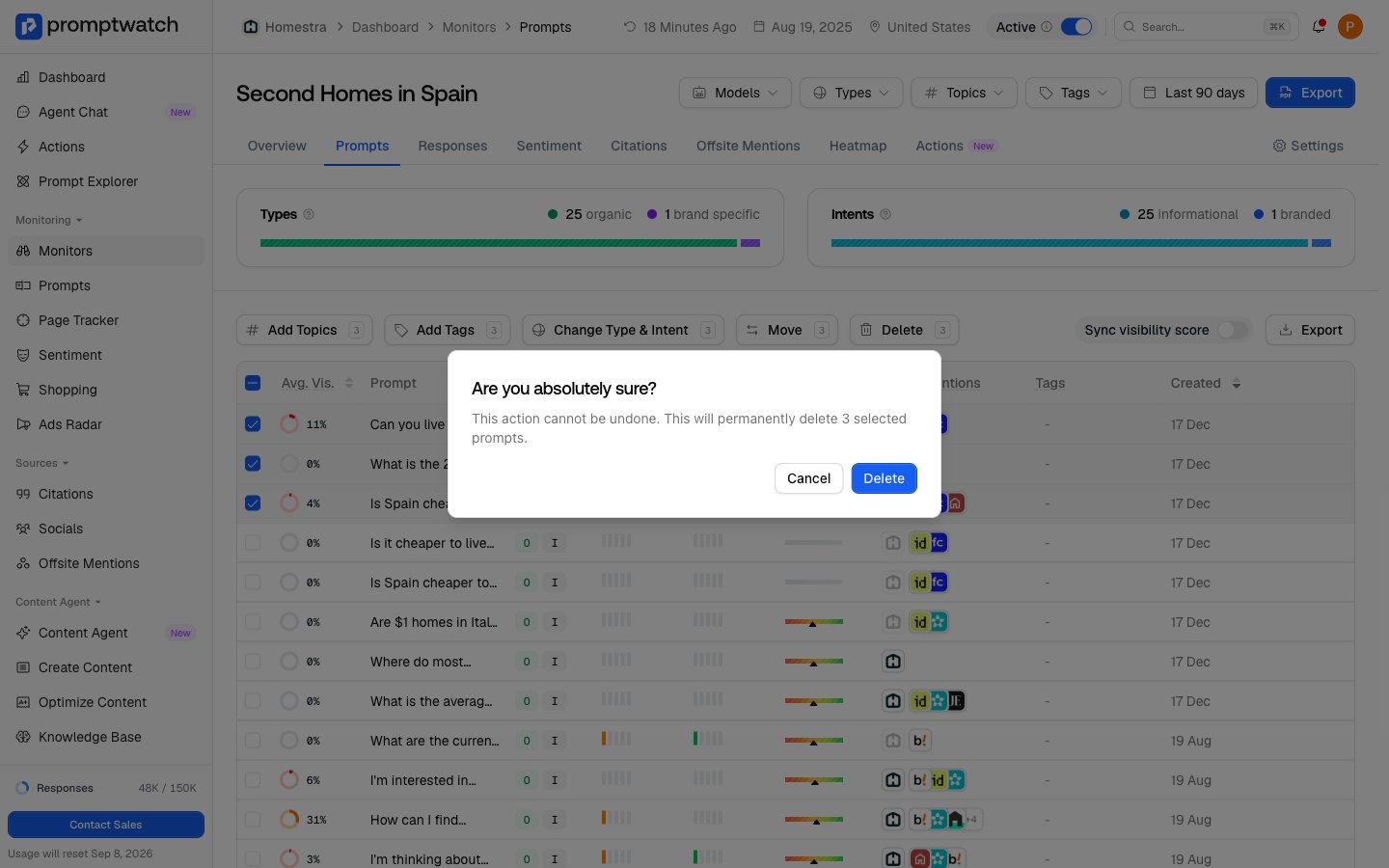
- Select the prompts and click Delete.
- Confirm in the “Are you absolutely sure?” dialog, which warns: “This action cannot be undone. This will permanently delete N selected prompts.” Click Delete to confirm, or Cancel.
- Wrong monitor? Copy it to the right one first, and only delete the original if you can live without its history.
- Wrong label? Use Change Type & Intent in the same toolbar, or retag it with Manage Tags; see working with prompts.
- Pausing a whole market or campaign? Set the monitor to Inactive with the switch in its header instead of deleting its prompts; the data stays and comes back when you reactivate. See managing monitors.