

Add products with a CSV
Prepare the file
The CSV needs anid column and a name column; a description column is optional. Column headers are case-insensitive, and there’s a Download template link in the upload dialog if you want a starting point. The limits, checked before anything is imported:
- 5,000 products per CSV
- 5 MB file size
idup to 255 characters,nameup to 500,descriptionup to 2,000
Upload it
- Click Upload CSV.
- Drop your file in. The dialog parses it immediately and lists every problem at once, with row numbers, so you can fix the file in one pass instead of resubmitting per error. Duplicate IDs inside the file are flagged too.
- Click Import.
Add a single product
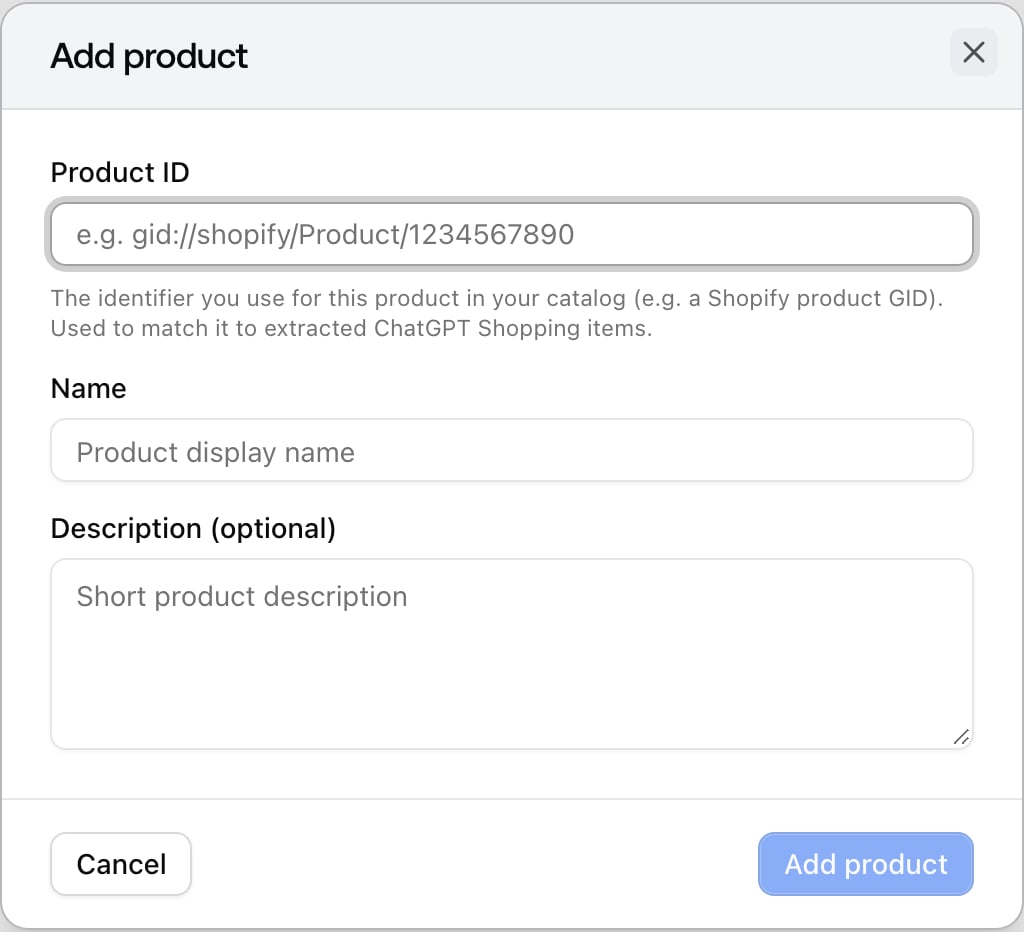
Click Add product and fill in:- Product ID: the identifier from your catalog, for example
gid://shopify/Product/1234567890. This is what gets matched against the product IDs AI platforms use, so use the same ID scheme your feed exposes to them. - Name: the display name.
- Description (optional): a short description. This also feeds prompt generation, so a line about what the product is helps there.
How matching works
A tracked product matches when its ID exactly equals the ID of a product extracted from an AI shopping response. Matching runs at upload time and again in the background afterwards, so a product you upload today still matches automatically when it first appears in a shopping response next week. The Match status filter splits the table into matched and unmatched, which is the practical to-do list: unmatched products either haven’t appeared in AI shopping results yet or appear under a different ID than the one you uploaded.Edit and remove
- Edit: name and description are editable. The Product ID is not, because changing it would break the match; remove the product and add it with the new ID instead.
- Remove: stops tracking the product across AI shopping results. Nothing else is deleted, and you can add it again later.