Editing a monitor
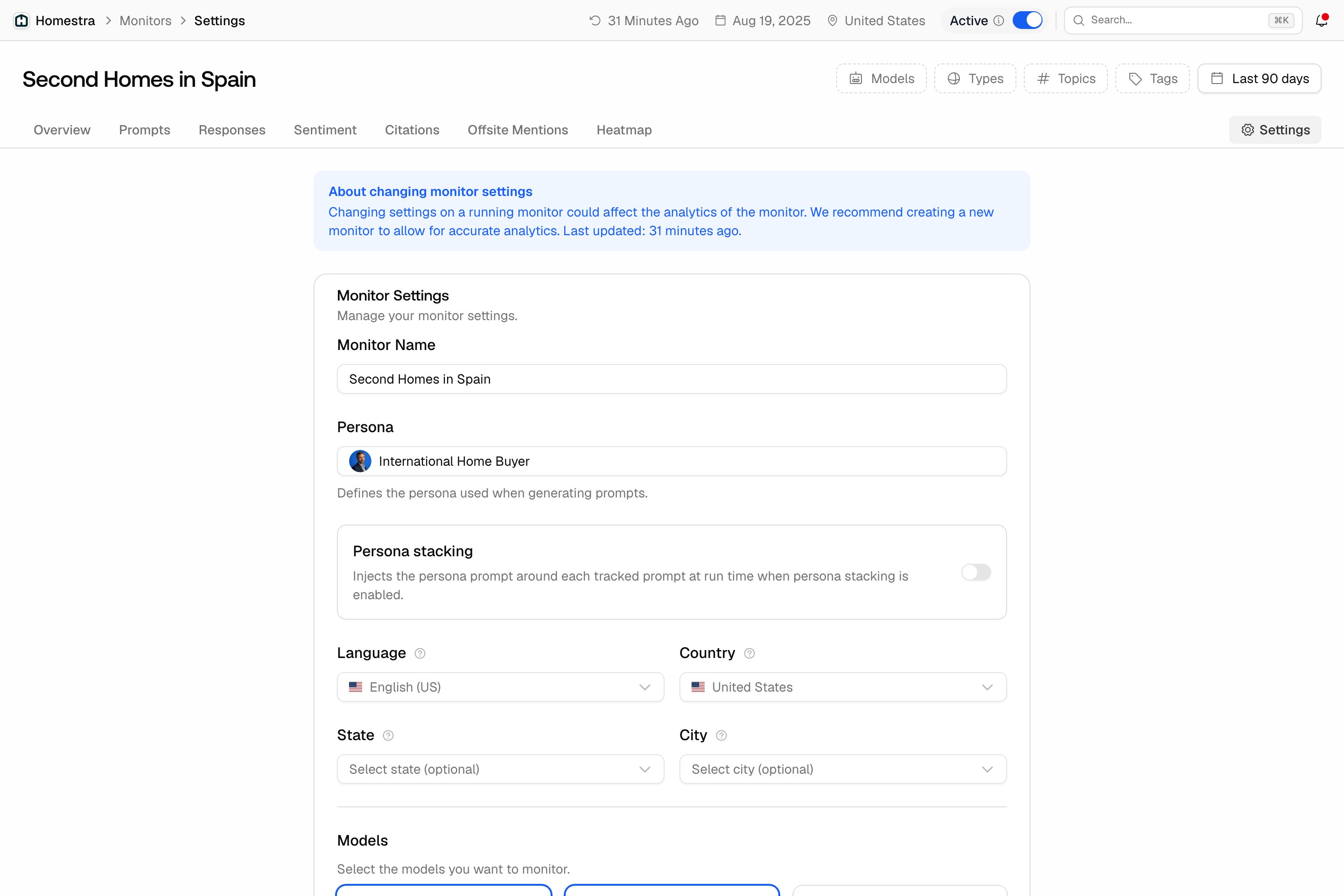
Open Prompts in the left rail, then Monitors, click the monitor, and open its Settings tab. You can change:- Monitor Name: cosmetic only, so rename freely.
- Persona and Persona stacking: which persona is used when generating prompts, and whether the persona prompt is injected around each tracked prompt at run time, so the same prompt can be asked from your buyer’s perspective.
- Language and Country: the locale your prompts run in, so answers reflect the market you’re tracking. Country-level tracking is available on every paid plan. The optional State (US only) and City fields are plan-gated.
- Tracking frequency: how often the monitor checks the models for new responses. The field only appears when custom frequency is enabled for your organization (arranged through sales, not a standard plan feature); options are Daily, Every 2 days, Weekly, and Monthly, plus a default that inherits your organization’s cadence. See data freshness.
- Models: which AI models every prompt in the monitor runs against, so adding a model widens coverage for every prompt at once. See choosing your models.
Pausing a monitor
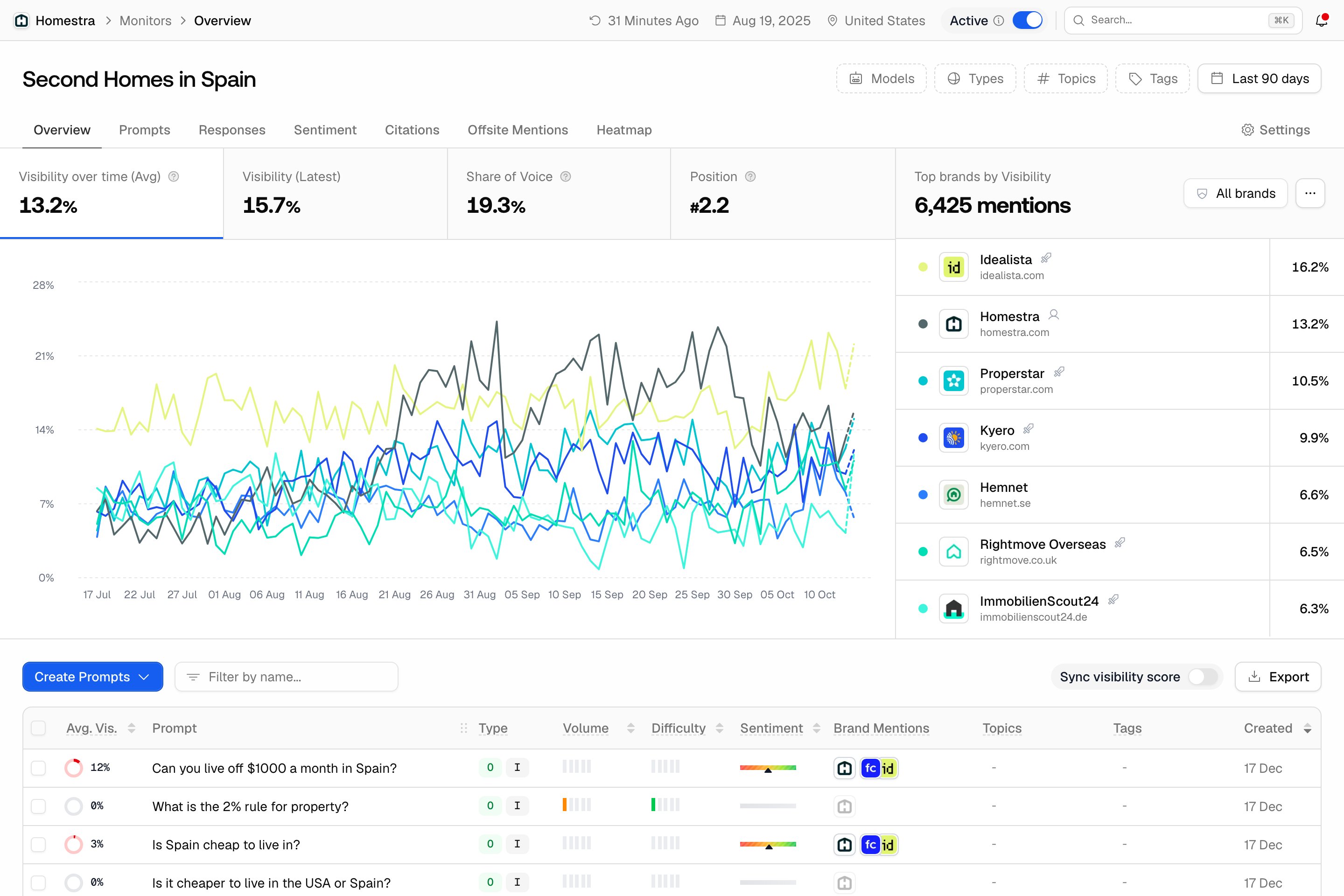
Every monitor page shows a pill in the top-right corner reading Active or Inactive, with a toggle next to it. Switch the toggle off to pause the monitor:- Tracking stops: the monitor no longer runs its prompts against the models.
- Its data leaves your dashboard: responses from an inactive monitor are excluded from your visibility analytics while it’s paused. Nothing is deleted; the history comes back the moment you reactivate.
- Its prompts stop counting against your plan: the active prompt quota only counts prompts inside active monitors, so pausing frees room for prompts elsewhere.
Deleting a monitor
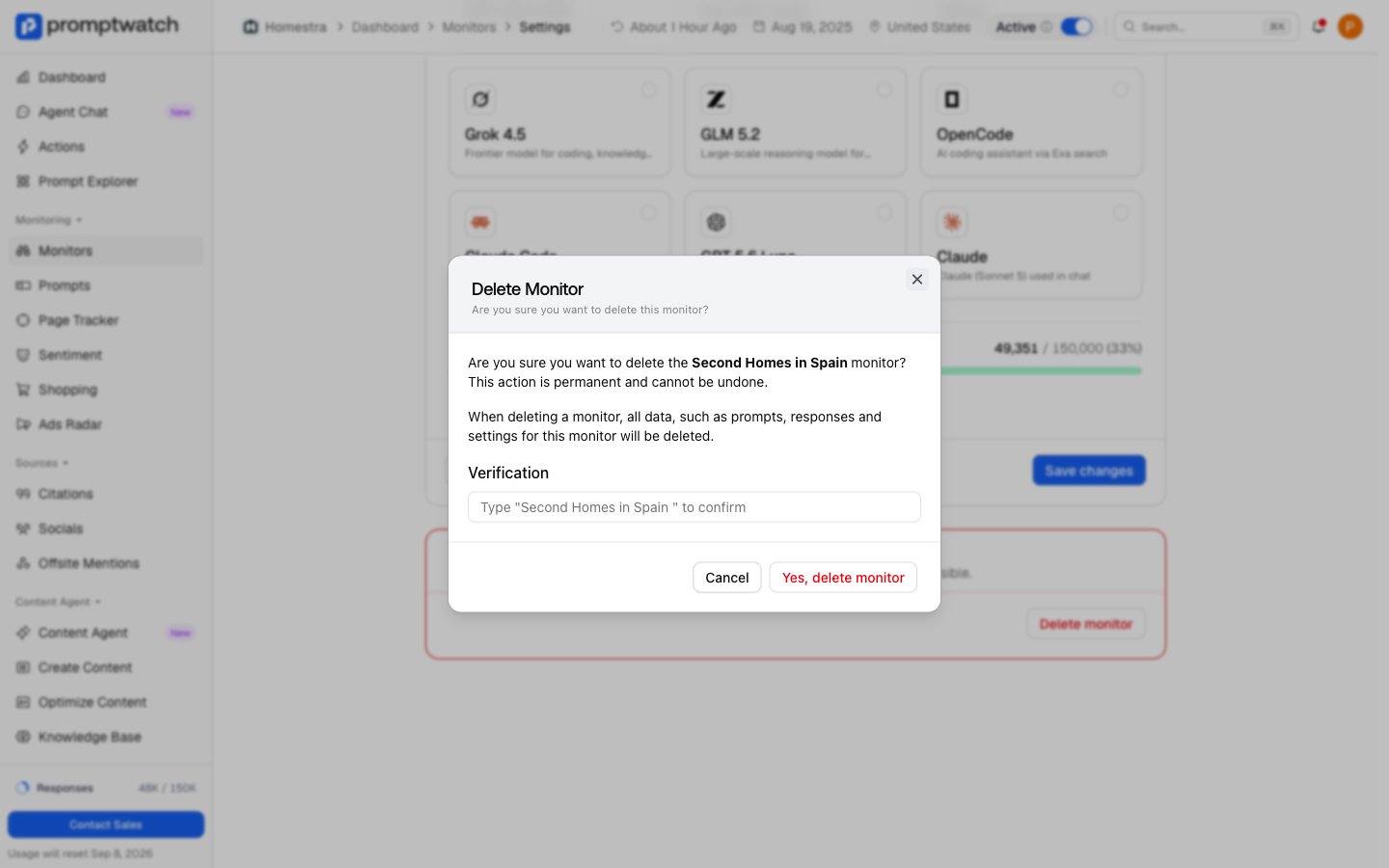
Deletion lives at the bottom of the Settings tab, in the Delete Monitor card:- Open the monitor and go to Settings.
- Scroll to the Delete Monitor card and click Delete monitor.
- Type the monitor’s name to confirm, then click Yes, delete monitor.