What is the Page Tracker?
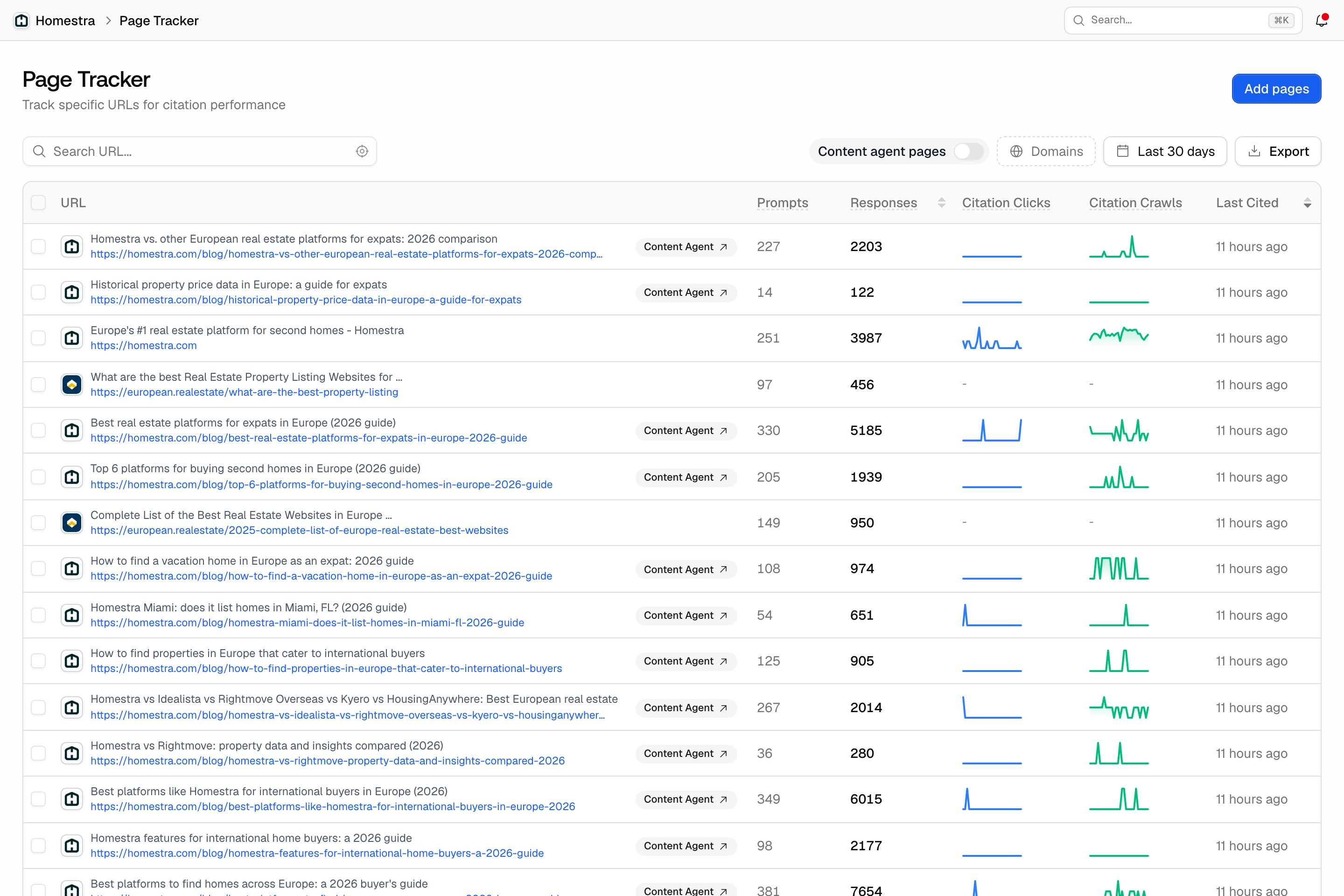
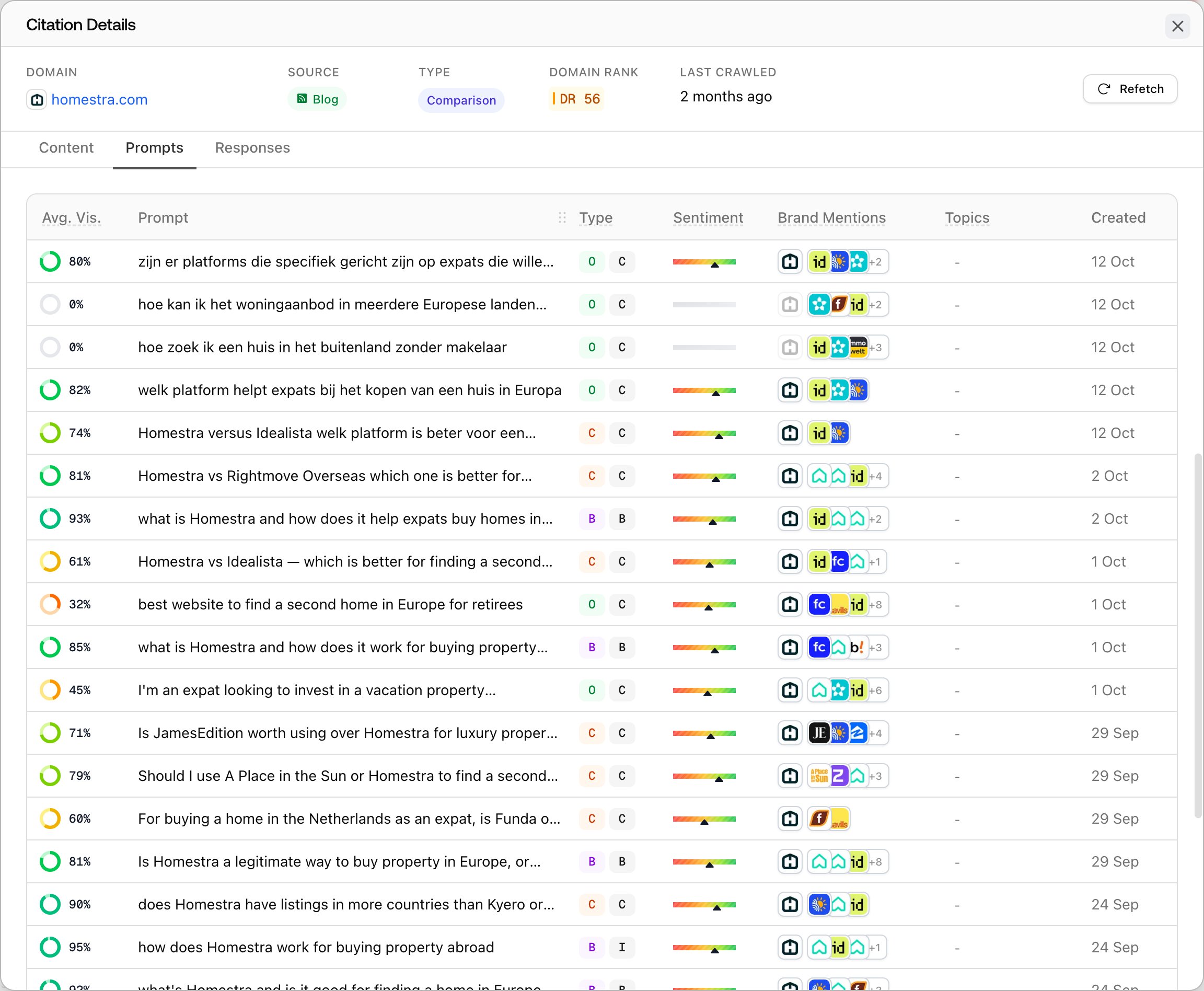
The Page Tracker is a watchlist for individual URLs. You add the pages you care about, and Promptwatch shows, per page, how many AI responses cite it, how many distinct prompts those citations come from, when it was last cited, and, for pages on your project website, the AI crawler visits and AI click-throughs it receives. The rest of the citations section answers “which pages get cited?” across everything AI models reference. The Page Tracker flips the question to “how is this specific page doing?”, which is the question you actually have after publishing a piece, migrating a URL, or watching a competitor’s comparison page win your prompts. You can track any URL: your own pages, competitor pages, or third-party pages like review sites. Pages on your own subdomains can be tracked too; domains and subdomains explains which columns fill in for them. You’ll find it under Prompts in the left rail, then Page Tracker.How to add pages
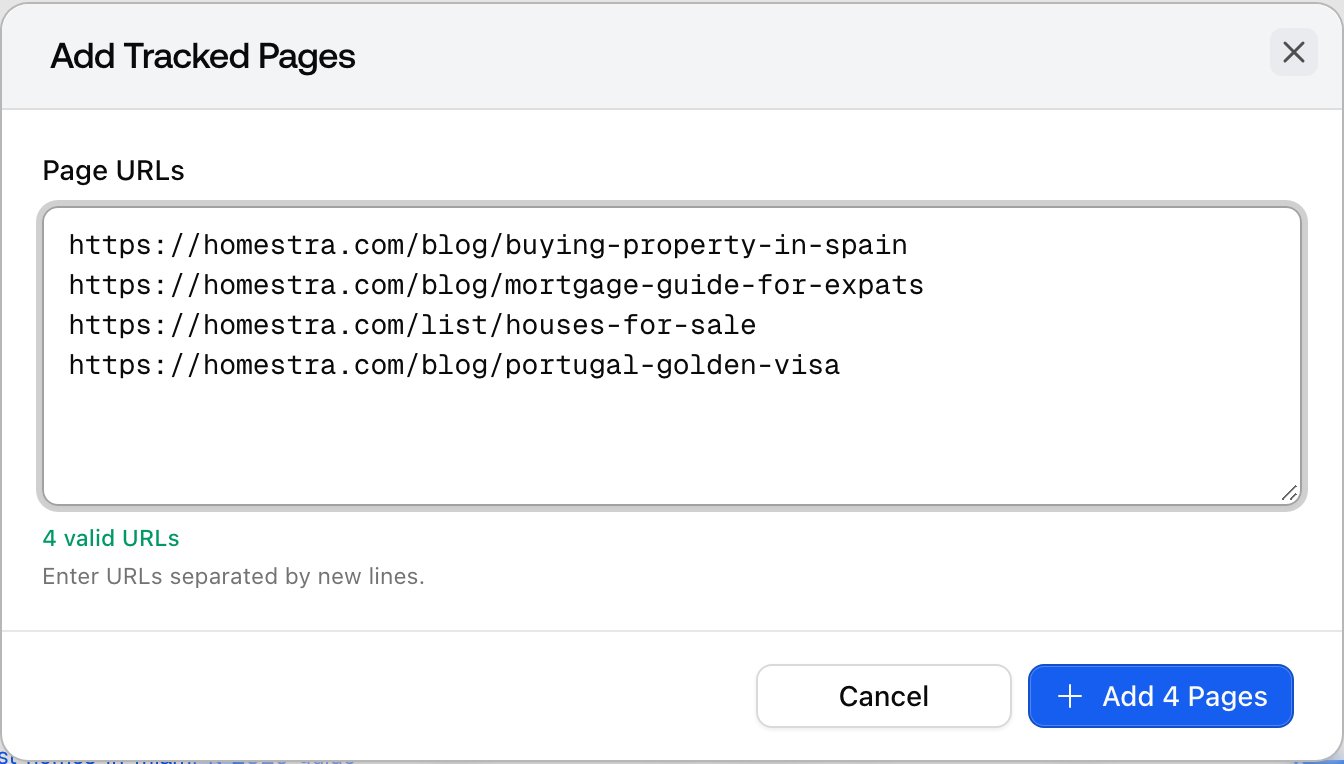
- Open Page Tracker and click Add pages.
- Paste URLs into the text area, one per line, up to 100 per batch. The dialog validates as you type and flags invalid lines.
- Click Add pages.
What you’ll see in each row
- URL: the page with its title and favicon. A Content Agent badge appears when the page was published from a Promptwatch content draft, linking back to that document.
- Prompts: how many distinct tracked prompts cited this URL in at least one response during the selected date range, so you can tell one lucky citation apart from broad relevance.
- Responses: how many times the URL appeared as a source in AI responses during the range. This is the citation volume number, and the column you’ll sort by most.
- Citation Clicks: a sparkline of visits to that page from AI platforms during the range. Shown for pages on your project website itself, not its subdomains, once visitor analytics is set up; click it to open the filtered analytics view.
- Citation Crawls: a sparkline of requests for that page from the bots that fetch pages to cite them in answers (ChatGPT-User, OAI-SearchBot, Perplexity-User and similar) during the range. Shown for pages on your project website itself, not its subdomains, once crawler logs are connected; click it to open the filtered crawler view.
- Last Cited: how long ago the page last appeared as a source within the range. “Never” means no citation in that range.