What fact check answers
Brand narrative shows what AI says about your brand, claim by claim. Fact check answers the next question: is it right, and if not, where is it coming from? AI models learn about your brand from your own site and from the pages they cite. An old blog post, a retired pricing page, or a review site with outdated information keeps feeding them the wrong facts, and they repeat those facts to everyone who asks about you. Fact check takes a claim, reads your site and the cited pages for passages that state it or the opposite, and shows you the exact sentences it found. That turns “AI says we have no free plan” into “the 2022 pricing post on our blog says we retired it”. You’ll find the page under Visibility in the left rail, in the Brand perception group, then Fact check. It is included on the Business, Scale (agency) and Enterprise plans. On other plans the page shows sample results behind an upgrade overlay.Before you start
- Set your own brand: fact check only works on claims about your own brand, so the project needs one in the Brand Book. Competitor claims appear in Brand narrative but can’t be checked.
- Make sure your site is crawled: checks search the pages Promptwatch has crawled from your website. A project without crawled pages can’t be checked; see Sitemap or Google Search Console.
- Credits: each check uses Agent Credits, the same allowance as Agent Chat. The run button shows an estimate before you start, based on your recent checks. Viewers can read results but can’t mark claims or run checks.
The workflow
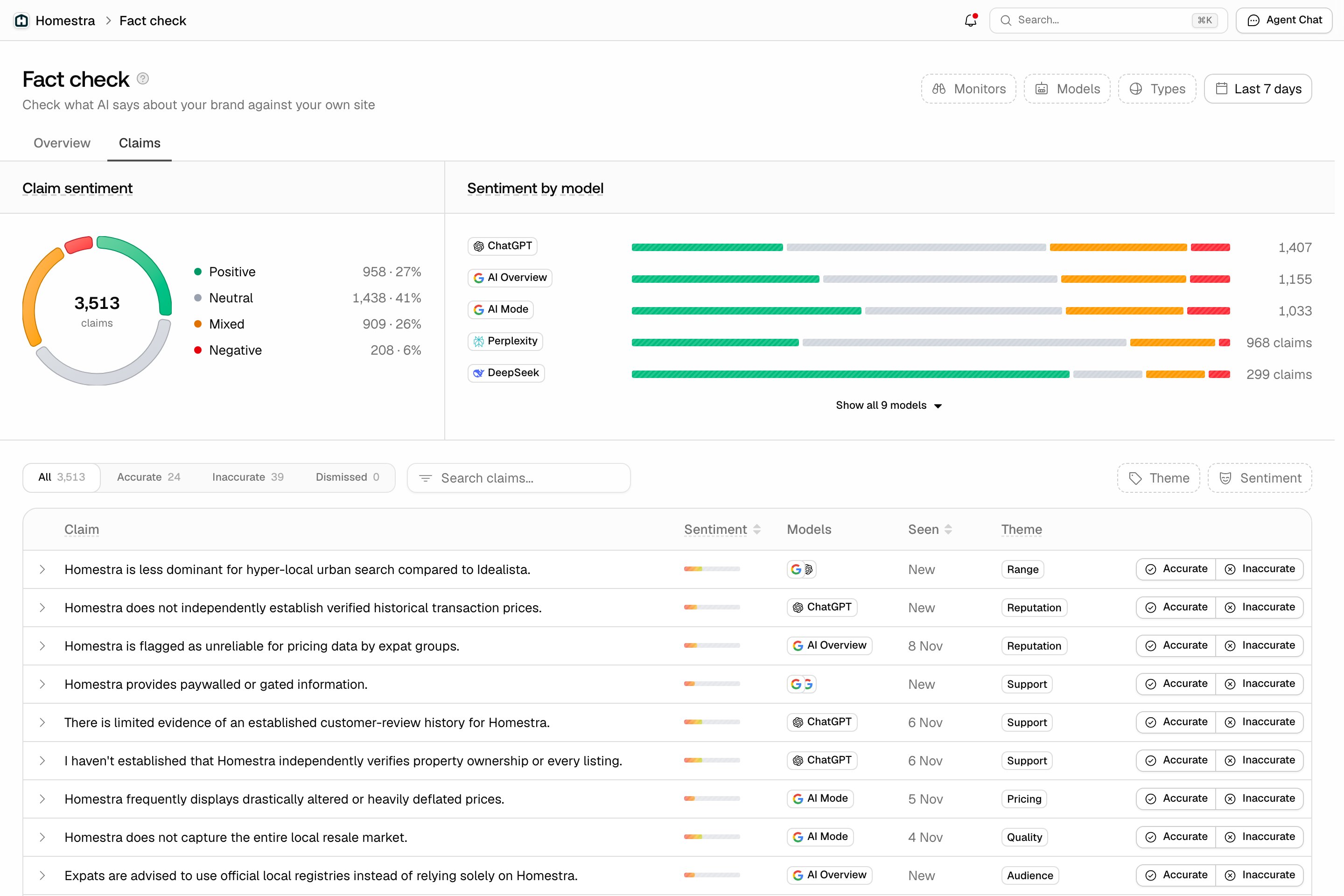
- Review a claim. Open the Claims tab and mark a claim Accurate or Inaccurate with the toggle on its row. Claims that don’t matter can be dismissed from the claim’s detail view, which hides them from every list and count; restore them from the Dismissed tab.
- Let the check run. The first time you mark a claim, a fact check is queued automatically when your plan and credits allow it. You can also start one from the claim’s detail view with Run fact check, or Re-run fact check after you’ve changed your site. Switching a mark between Accurate and Inaccurate doesn’t start a new check. A check usually takes one to two minutes.
- Read the result. Finished checks move to the Overview tab, grouped by outcome. Open a claim to see the pages and sentences behind the result.
- Fix what’s wrong. Update the pages on your site the check flagged, or hand them to the content agent (see below). For cited pages on other sites, reach out to the publisher.
Reading a check
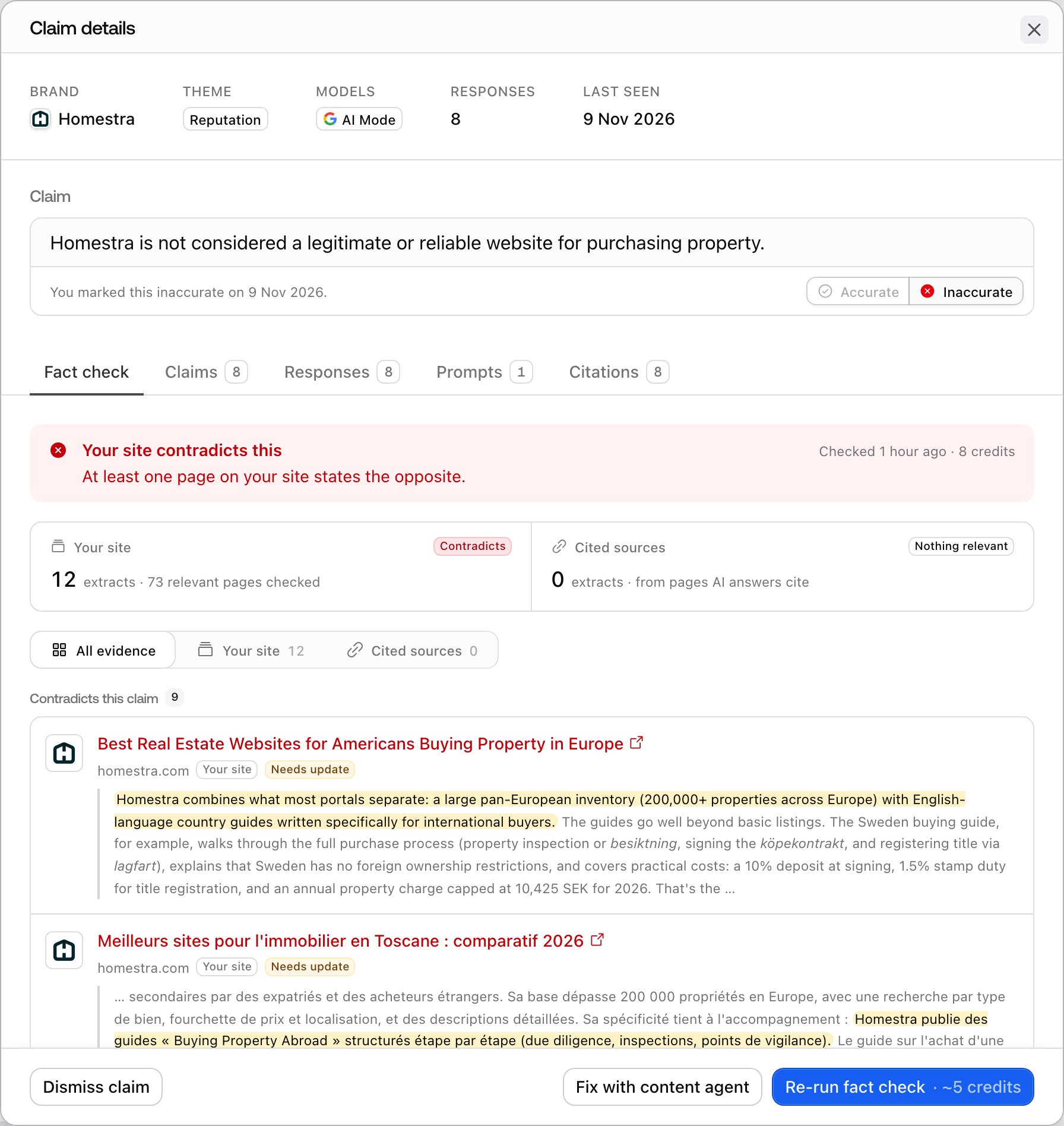
Open a claim and its Fact check tab shows the latest result. The banner at the top gives the verdict and says what it rests on: your site, the pages AI cites, or both. “Your site confirms this”, “Cited sources contradict this” and “Your website contains conflicting information” are typical results. The banner also shows when the check ran and how many credits it used. Below the banner, two boxes summarize what each source said:- Your site: how many relevant pages on your site were checked, how many sentences were quoted, and whether they Support the claim, Contradict it, are Mixed, are Related only, or found Nothing relevant.
- Cited sources: the same for the third-party pages AI answers cited alongside the claim. A check reads up to 50 of the most-cited pages.
Outcomes
Each checked claim gets one outcome, shown as a badge in the tables and as tabs on the Overview:- Confirmed: at least one page on your site, or a page AI cites, states the claim.
- Leans confirmed: related pages lean toward the claim without stating it outright.
- Conflicting: a page states the opposite, or some pages state the claim and others the opposite. A claim you marked Inaccurate also lands here when your site states it, because your own page is the source.
- Leans conflicting: related pages lean against the claim without stating the opposite.
- Inconclusive: none of the pages checked state the claim or the opposite.
- Not checked: no check has finished yet.
What to do with each result
- Accurate, but nothing on your site says it: add it to a page so AI can cite you as the source.
- Inaccurate, and your site states it: your own page is where AI is getting it. Update that page.
- Inaccurate, and your site already says the opposite: the cited sources are the likely origin. Ask those sites for a correction, and make sure the page that states the truth is easy to find.
- Pages that disagree: an old blog post next to a current pricing page is a common case. Update or remove the outdated page so AI sees one answer.
- Your site only hints at the fact: state it in plain words on the related page. AI repeats what pages say outright.
Fix with content agent
When a check flags pages on your own site, the claim’s detail view offers Fix with content agent. It opens a content refresh with the flagged pages listed, each with the sentences to rewrite already attached; every page you keep selected gets its own refresh. Claims you marked Inaccurate get the button even without a flagged page, and then you pick the page to refresh yourself. A required What’s actually true? field (up to 250 characters) tells the agent the correct fact; for a claim you marked Inaccurate, it’s also saved on the claim. The agent is told to remove the wrong claim and never repeat it, not even to deny it, because a page that says “we don’t lack a free plan” still puts the wrong idea in front of AI models. Only pages on your site can be fixed this way; cited pages belong to other sites. Each refreshed page uses an AEO article from your quota, the same as Content Refresh.The Overview tab
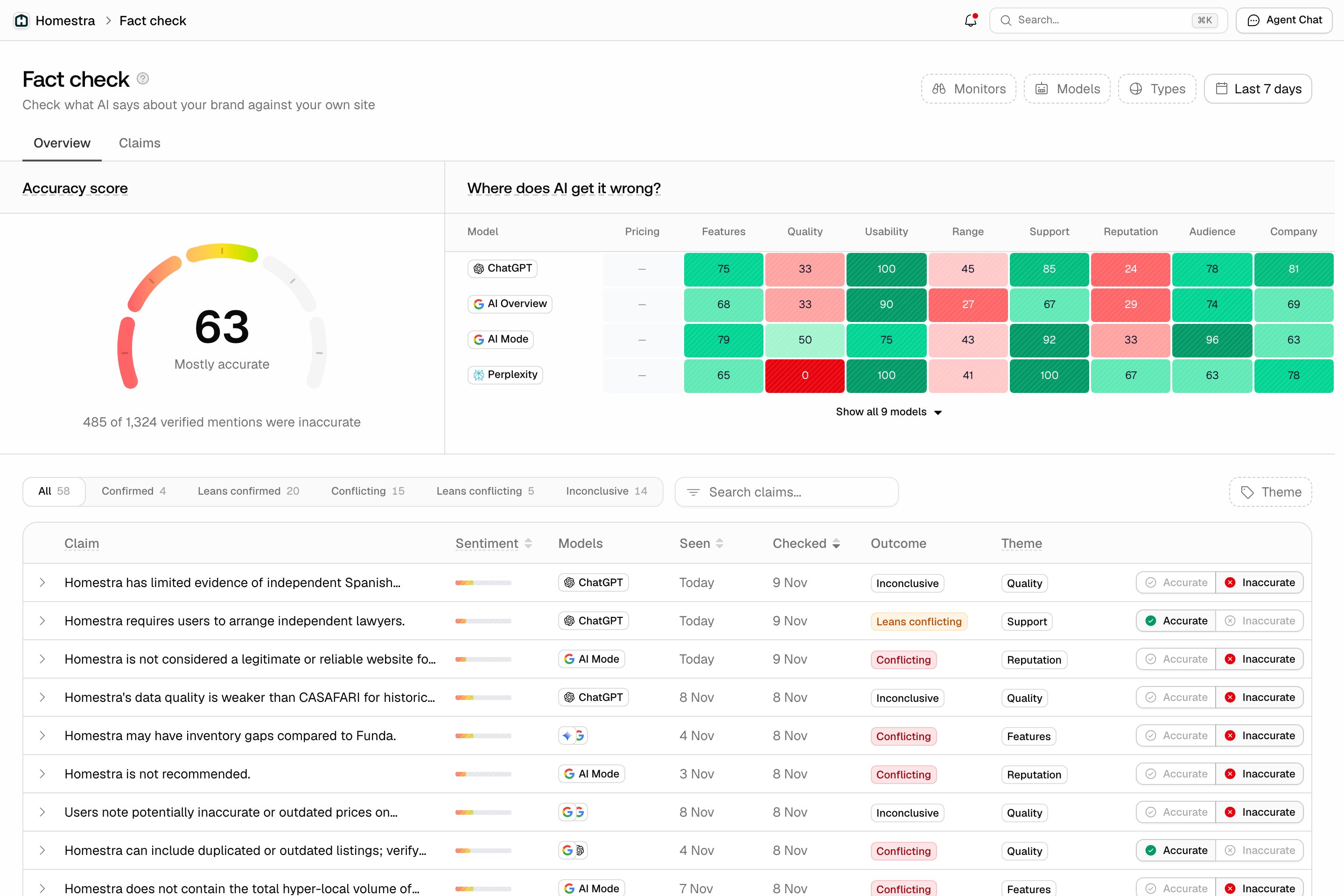
The Overview tab is where you measure progress.- Accuracy score: the share of your brand’s checked mentions that are accurate, from 0 to 100. Every time AI repeats a claim counts as a mention, so a wrong claim AI repeats daily weighs more than one it said once. Your mark wins; for claims you haven’t marked, the latest finished check decides, leans included. Inconclusive and unchecked claims don’t count. The gauge labels the score from Mostly wrong through Mixed to Accurate.
- Where does AI get it wrong?: the same score per model and theme as a heatmap. Red cells show which model repeats inaccurate claims, and about what.
- The checks table: every checked claim with its outcome and check date, latest first. The tabs filter by outcome.
The Claims tab
The Claims tab lists every claim about your own brand, with the unmarked ones first so you can work through them. At the top, Claim sentiment splits your brand’s claims into positive, neutral, mixed and negative, and Sentiment by model shows that split per AI model.