What is the Action Board?
The Action Board is a kanban board of concrete GEO tasks, generated from your project’s data. Promptwatch monitors how AI represents your brand across responses, citations, content gap scores, sentiment, Reddit threads, offsite mentions, and AI crawler activity, and a GEO action agent cross-references those signals to surface the highest-impact things to do. Instead of digging through raw data, you work a short, prioritized list. Open it by clicking Actions (the lightning-bolt icon) in the left icon rail. The page is titled Actions, and the help icon next to the title opens the How do Actions work? explainer if you want the short version of this article inside the app.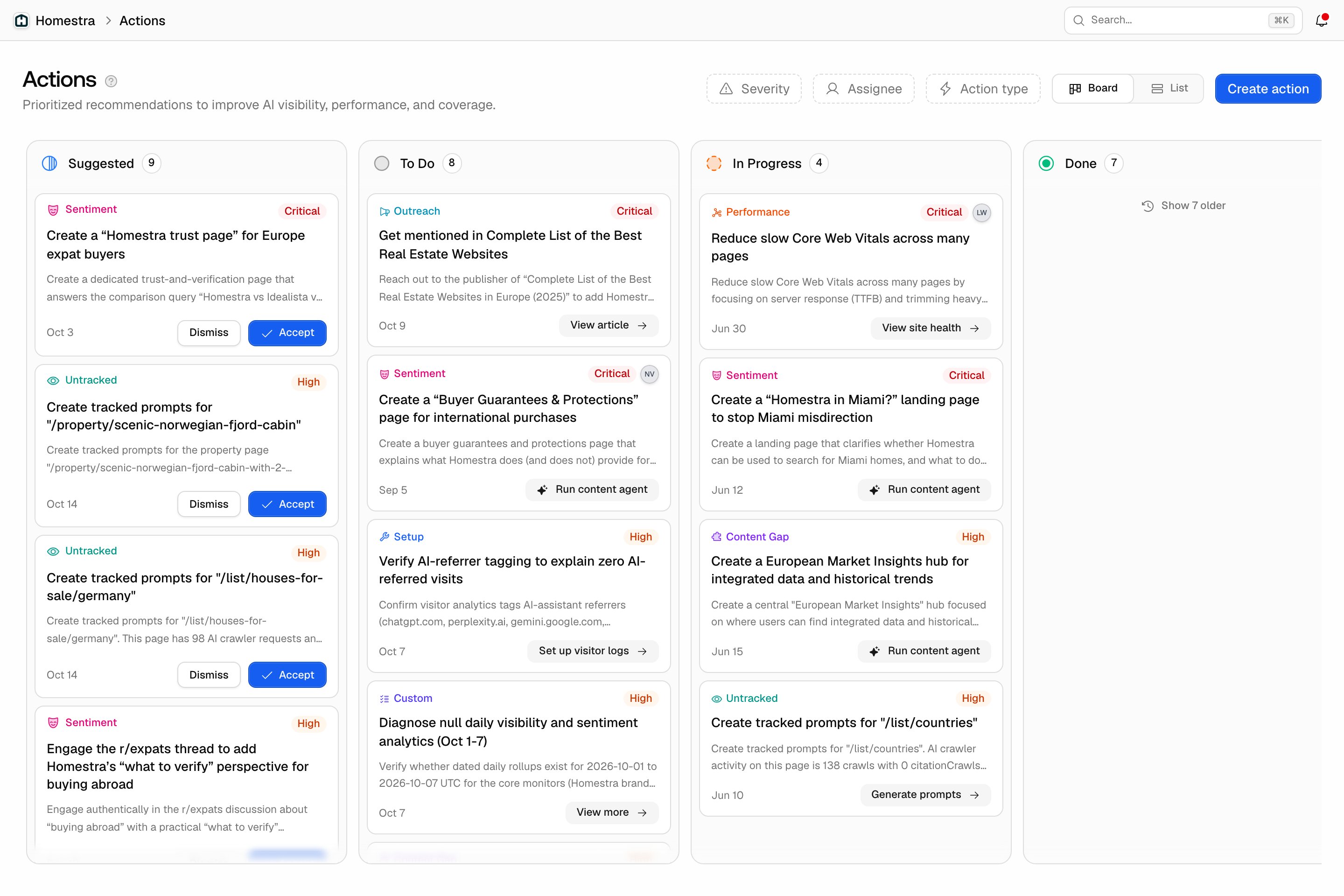
The five columns
The board view is the default. Its columns run left to right in the order an action moves:- Suggested: recommendations detected from recent monitoring data. This is the agent’s inbox, so everything here is waiting for your Accept or Dismiss.
- To Do: accepted actions ready to start.
- In Progress: actions currently being worked on.
- Done: completed actions. The column shows the last 14 days of completions, and Show N older reveals the rest, so a long-running project doesn’t end with a column of ancient wins.
- Dismissed: suggestions dismissed in the last two weeks. It is collapsed by default, so it stays out of the way, but nothing is lost: expand it and press Restore on a card to bring it back.
Filtering the board
Three multi-select filters sit in the page header, next to the view toggle. They appear once the project has at least one action, and they apply to every column at once:- Severity: Critical, High, Medium, Low, or All severities. Actions without a severity always stay visible, so a custom action you created without one never disappears from a filtered view.
- Assignee: Unassigned plus the project’s members, searchable with Search members…. Viewers are not listed, because they cannot be assigned.
- Action type: Performance, Site Health, Content Gap, Sentiment, Reddit, Setup, Untracked, Untapped, Outreach, or Custom, or All types.
Where actions come from
Three sources feed the board, and knowing which one produced an action tells you how much scrutiny it earned:- The discovery agent: an agent investigates your data on a weekly schedule, one focus per day: content gaps, page signals (Untracked and Untapped pages), Reddit, offsite mentions, and sentiment. It works evidence-first: it pulls your current board state, gathers fresh data with tools, drafts candidates, deduplicates against what is already on the board, and only saves actions the data justifies, capped at 5 new suggestions per run so the board stays workable. These land in Suggested for you to accept or dismiss. The agent only runs for projects with a website configured and an active or trialing subscription. Content Gap suggestions are not created while the Content Agent’s automation is on, because that pipeline already turns gaps into drafts; see Content Agent overview. The schedule and the types are in How actions are prioritized.
- Setup actions: when a core integration is missing, a check creates a setup action programmatically, no AI involved: Upload your sitemap, Set up Crawler Logs, Set up Visitor Logs, and Connect Google Search Console. They are created when a project is set up and again at the start of each scheduled agent run, but never duplicated while one is still open. They first land directly in To Do at High severity, because everything else the agent does works better with those data sources connected. See Sitemap or GSC connection, Log ingestion, Visitor analytics, and Google Search Console.
- You: the Create action button opens the Create custom action dialog with a Title, a Description, an optional Severity (Critical, High, Medium, or Low), and an optional Assignee with an Assign to me shortcut. There is no status field: a custom action always lands in To Do, with the type Custom. Title and description stay editable in place on custom actions only, using the Edit title and Edit description pencils in the detail dialog; severity, assignee, and status are editable on every action. The button is hidden for viewers, see Team and roles. Agent Chat and the MCP server can also create actions when you ask, either typed like the agent’s own or a free-form custom action when nothing fits, and both land in To Do. See Asking Agent Chat.
What’s on a card
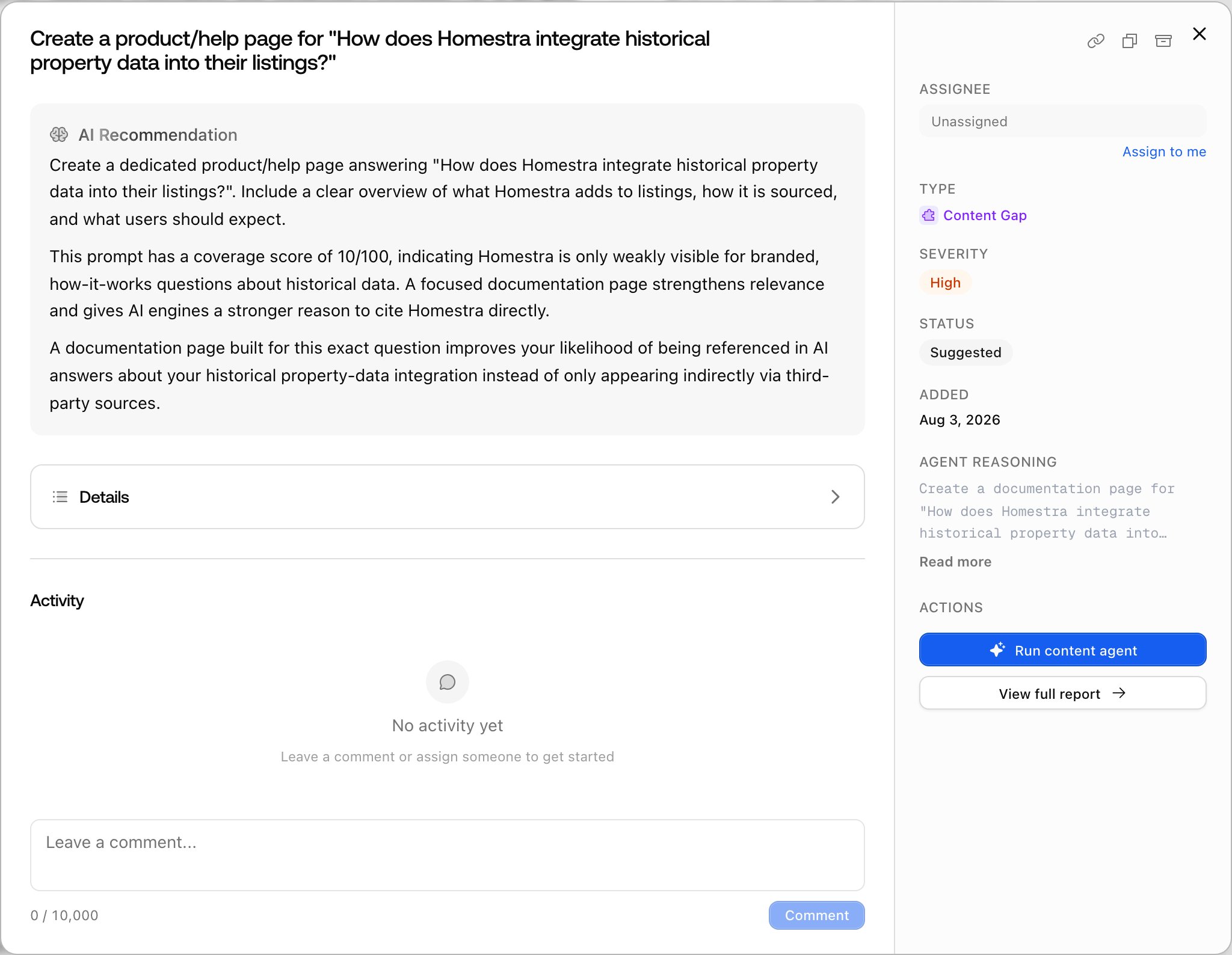
Every card carries what you need to triage without opening it:- Type and severity: the type icon and label, plus a severity badge (Critical, High, Medium, or Low). A custom action created without a severity has no badge.
- Title and description: the concrete fix and why it matters. The description is clamped to two lines on the card; agent-written descriptions run three paragraphs (what to do, why it matters, the GEO impact), so open the card for the full argument.
- Created date: the month and day the action was added.
- Buttons that depend on the column: Suggested cards carry Accept and Dismiss, Dismissed cards carry Restore. To Do, In Progress, and Done cards show the assignee’s avatar and a call-to-action button whose label depends on the type: Run content agent on a Content Gap action, View Reddit post on a Reddit action, Generate prompts on an Untracked action, View more on a custom action, and so on. Some of these open a dialog in place rather than navigate, so you can act without leaving the board.