

The in-app notification bell
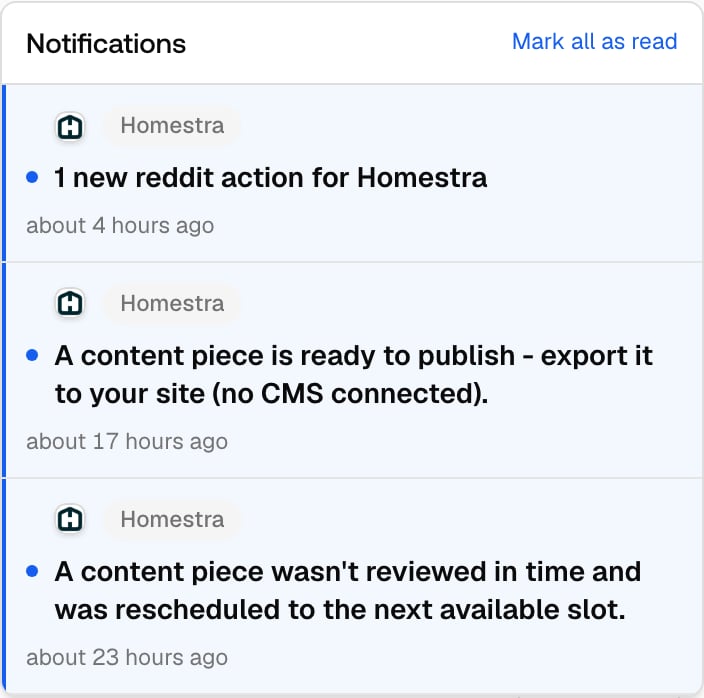
The bell icon in the header bar collects event notifications, with a red dot when something is unread. Clicking a notification takes you to the page it refers to and marks it read; “Mark all as read” marks everything as read, and the items stay in the list. Notifications are scoped per organization, so if you belong to several organizations you only see the current one’s items. What shows up there:- New action items: when new actions land on your Action Board, members with edit access to that project get a bell notification, deduplicated per project per day so a busy board doesn’t flood the bell (setup actions can still send a separate notice the same day).
- Content Agent events: updates from automated content generation, such as drafts ready for review.
- Scheduled Agent Chat results: the one-line headline of a scheduled chat run when the result changed; quiet runs stay silent.
- Prompt import results: when a bulk prompt import finishes or fails, the importing user is notified with the saved and skipped counts.
Email notifications
How to change your email settings
- Click your avatar at the bottom of the left rail, then click User Settings.
- Scroll to Email notifications.
- Toggle the emails you want and click Save changes.
What you can toggle
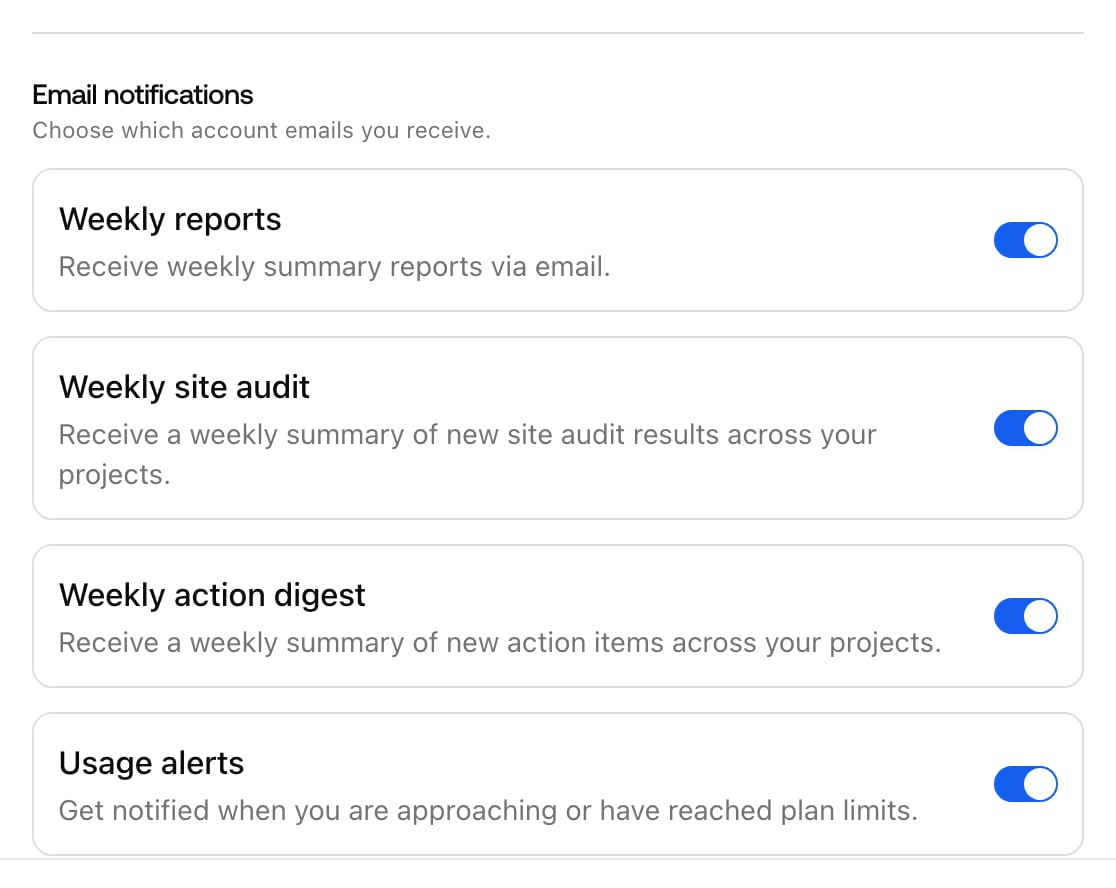
Which toggles you see depends on your role:- Weekly reports: a weekly summary of your AI visibility performance per organization, so you get a pulse without opening the dashboard. On by default for everyone.
- Weekly action digest: a weekly summary of new action items across your projects, sent on Mondays to organization owners. Hidden for view-only users.
- Usage alerts: warnings when your organization approaches or reaches a plan limit. Only organization owners see this toggle, because usage and billing are owner concerns, and it is switched on automatically when someone becomes an owner.
How usage alerts work
Usage alerts cover three metered quotas: prompt responses, visitor analytics events, and crawler log events. Promptwatch checks usage every 30 minutes and emails you when a quota crosses a threshold:- At 80% of a quota you get a warning email, so there is time to trim usage or upgrade before anything stops.
- At 100% you get a limit-reached email. Hitting the prompt-response limit pauses monitoring until the period resets or the limit is raised, see How to manage your response limit. Hitting the other two locks new insights until the period resets; collection itself doesn’t stop.