Why the competitor list matters
Competitors in Promptwatch are the brands you’re measured against. The list is set once at the project level and applies to every monitor, and it feeds three things directly:- Share of Voice: every competitor’s mentions join the denominator, so adding one changes your share even if nothing else moved. See Share of Voice.
- The Heatmap: when Brands are the rows, it shows the top detected brands. Switch the filter to “My brands” to keep your own brand and your direct competitors. See Heatmap.
- Detection accuracy: direct competitors’ names and aliases are passed into the analysis of every response, the same way your own brand is, so their mentions are tracked as reliably as yours.
Where competitors live
Open Brand in the left rail, then Competitors. The page has three tabs:- Direct Competitors: the brands in your comparison set.
- Ignored: brands you’ve excluded, like publishers, marketplaces, or irrelevant names the models keep bringing up.
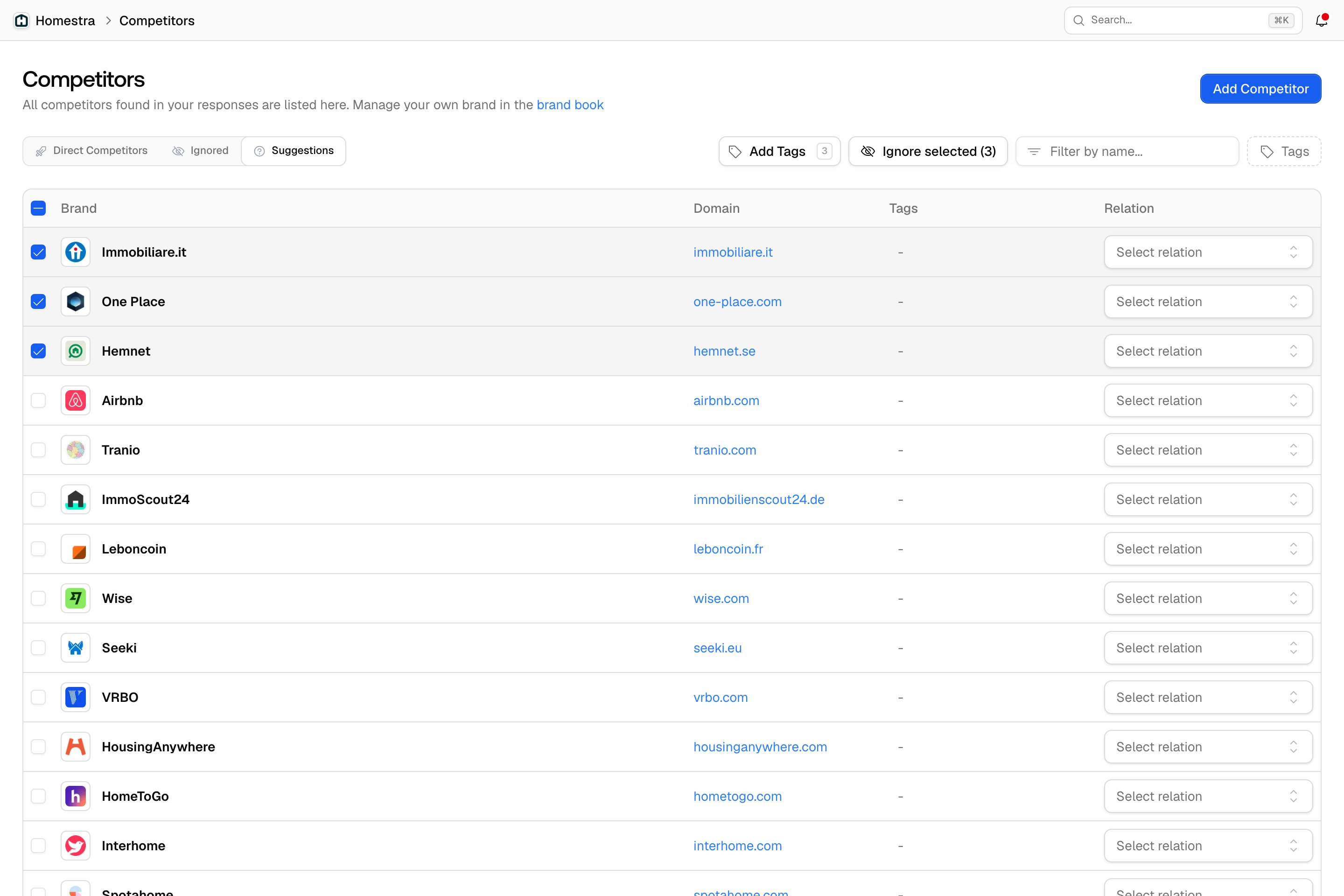
- Suggestions: brands Promptwatch detected in your responses over the last 90 days that you haven’t classified yet. This is where new rivals surface on their own.
Suggested vs. manual competitors
Your first competitor set is suggested during setup from your website analysis. After that, the Suggestions tab does the ongoing work: every brand that shows up in your responses lands there until you decide what it is. This is worth checking regularly, because the brands AI models recommend instead of you are, by definition, your competitors in this channel, whether or not you think of them that way.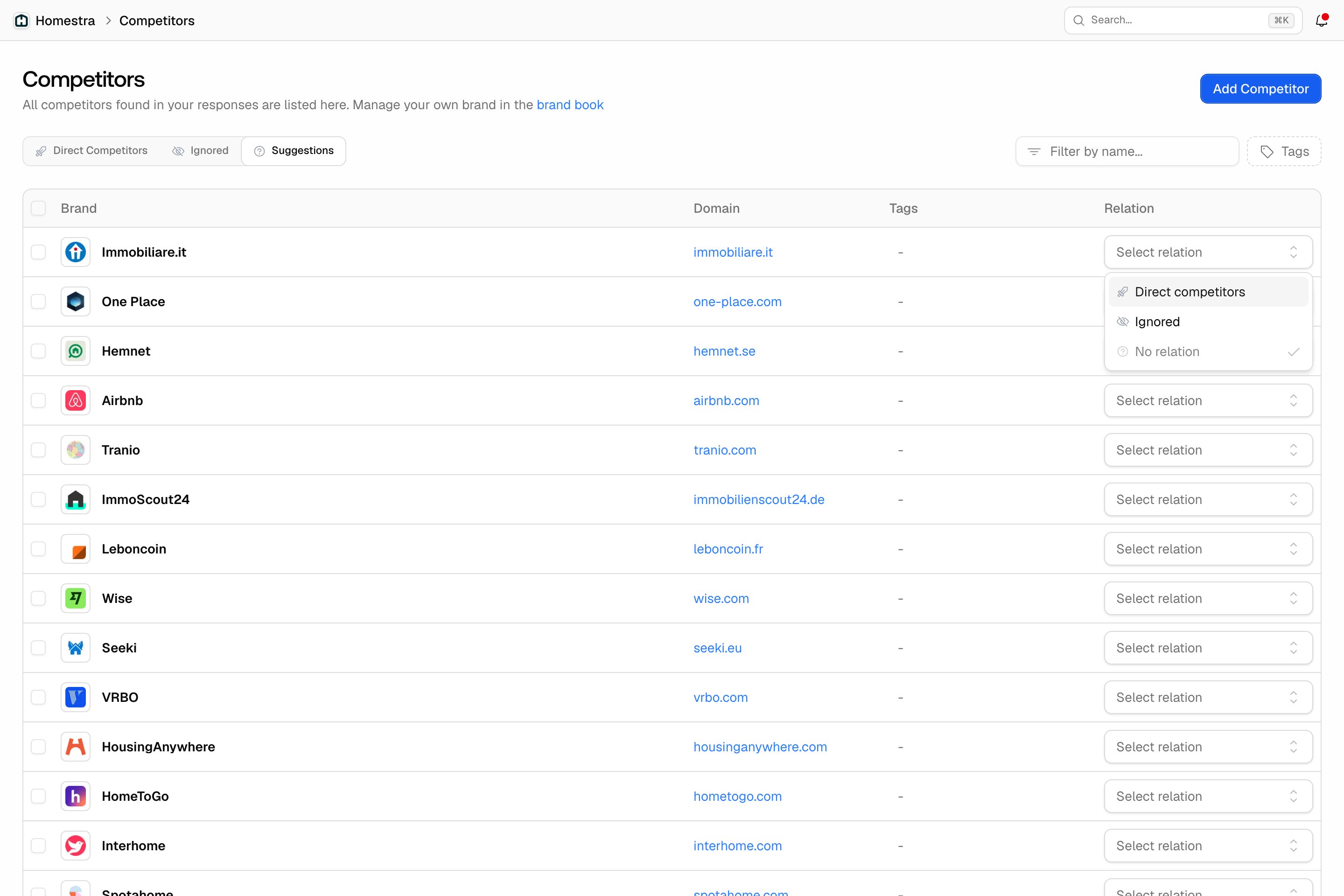
- Promote a suggestion: open the relation dropdown on its row and pick “Direct competitors”. It joins your comparison set from that point on.
- Dismiss noise: select rows and use “Ignore selected”, or set the row to “Ignored”. Ignored brands stay out of your charts.
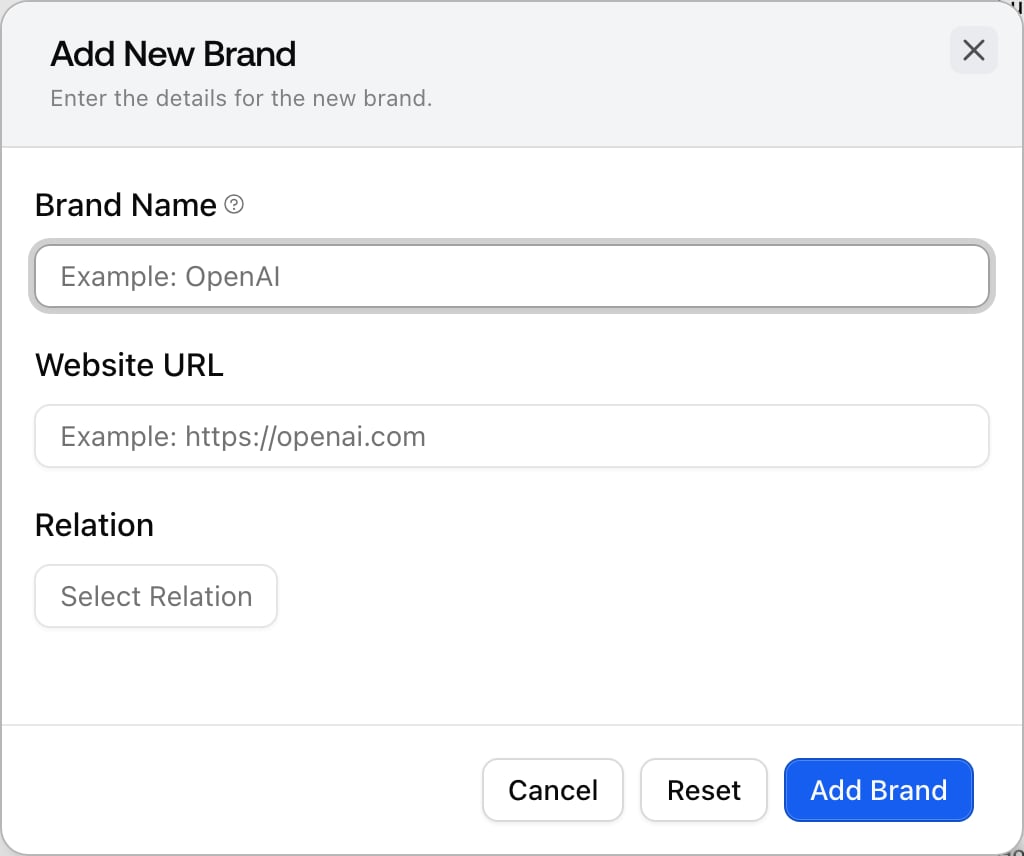
- Add one manually: click Add Competitor and enter the brand name, website URL, and relation (Direct Competitor or Ignore). Use this for competitors that haven’t appeared in your responses yet, which is itself a signal worth tracking: if they start getting mentioned, you’ll see it.
Managing competitors: status and removal
There is no delete button for competitors, and that’s deliberate: a brand you remove can start showing up in your responses again tomorrow, and its mention history stays useful. Instead of deleting, you change a brand’s relation, which controls whether it counts in your metrics.Changing a single brand’s status
- Open Brand in the left rail, then Competitors, and find the brand on any of the three tabs.
- Click the dropdown in the Relation column of its row.
- Pick Direct competitors, Ignored, or No relation.
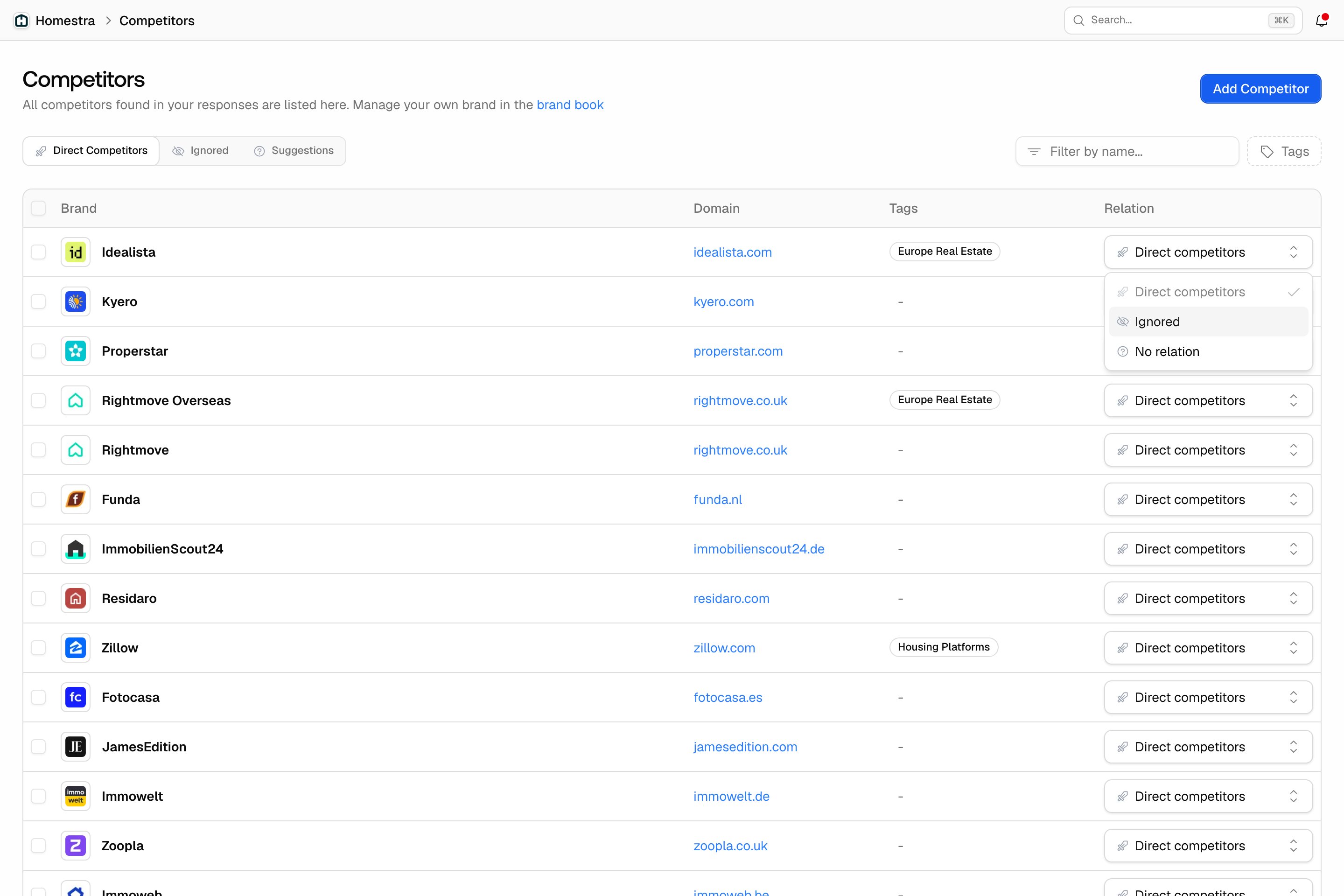
- Direct competitors: the brand joins your comparison set. It counts in Share of Voice and appears in your competitive charts.
- Ignored: the brand is excluded from your charts and competitive analysis. This is the closest thing to deleting, and the right choice for publishers, marketplaces, and irrelevant names.
- No relation: the brand returns to the Suggestions tab, unclassified. It drops out of the default Share of Voice comparison (your brand plus direct competitors) but can still appear on the Heatmap when the Heatmap filter is set to All brands.
Removing several suggestions at once
On the Suggestions tab, select rows with the checkboxes and click Ignore selected (N). A confirmation dialog lists the brands about to be marked as ignored; confirm to move them all out of Suggestions in one step. This is the fast way to clear a backlog of publishers and noise after your first weeks of data.