

Install the plugin on your WordPress site
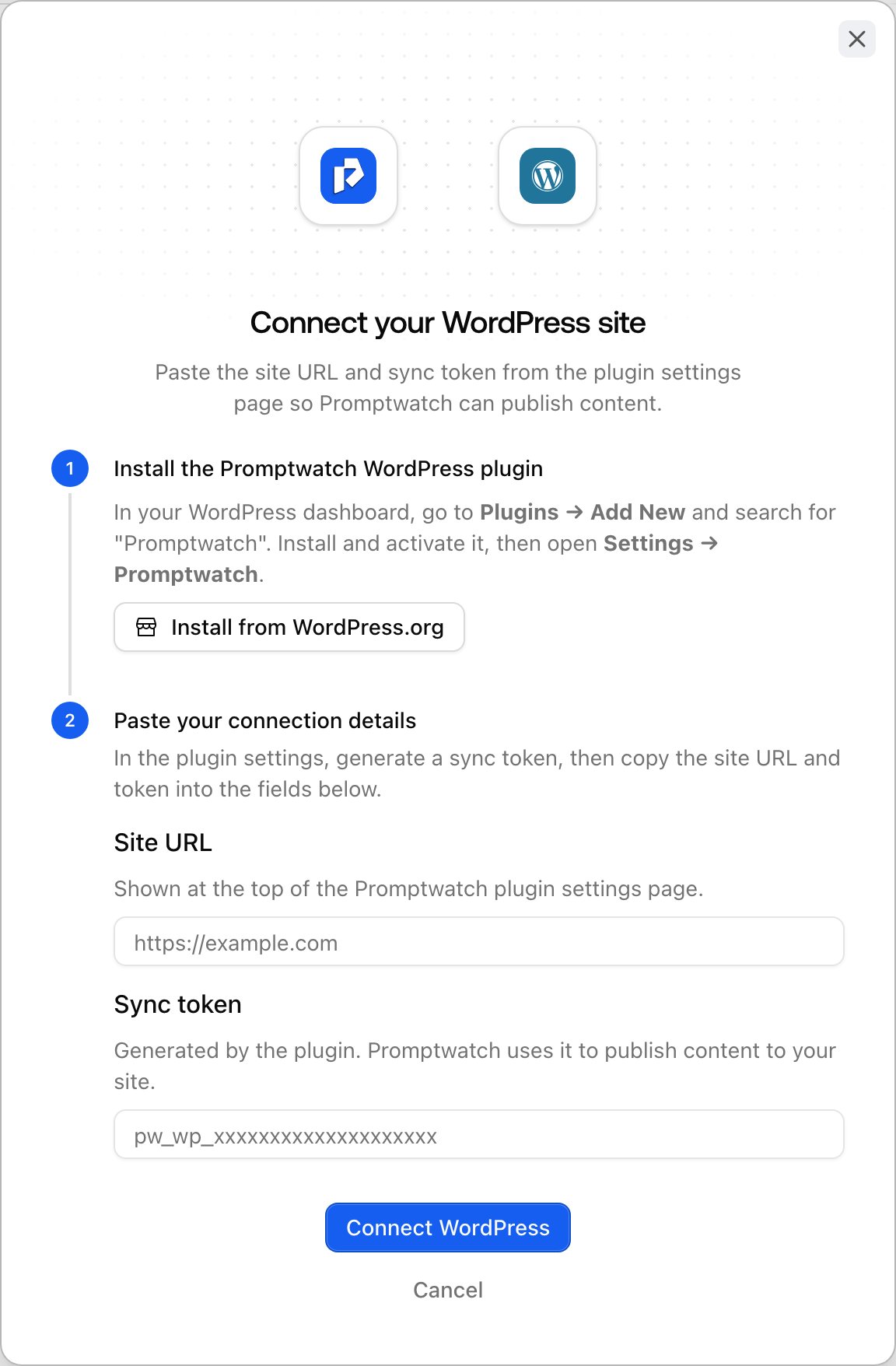
The plugin requires WordPress 6.0 or newer and PHP 7.4 or newer.- In Promptwatch, click Settings at the bottom of the left rail, open CMS Integrations under Project settings, and click Connect on the WordPress card. The connect dialog’s first step, “Install the Promptwatch WordPress plugin”, has an Install from WordPress.org button that takes you to the plugin listing. You can also install it from WordPress: go to Plugins → Add New and search for “Promptwatch”.
- Install and activate the plugin on your WordPress site.
- Open Settings → Promptwatch in wp-admin.
Connect the site to Promptwatch
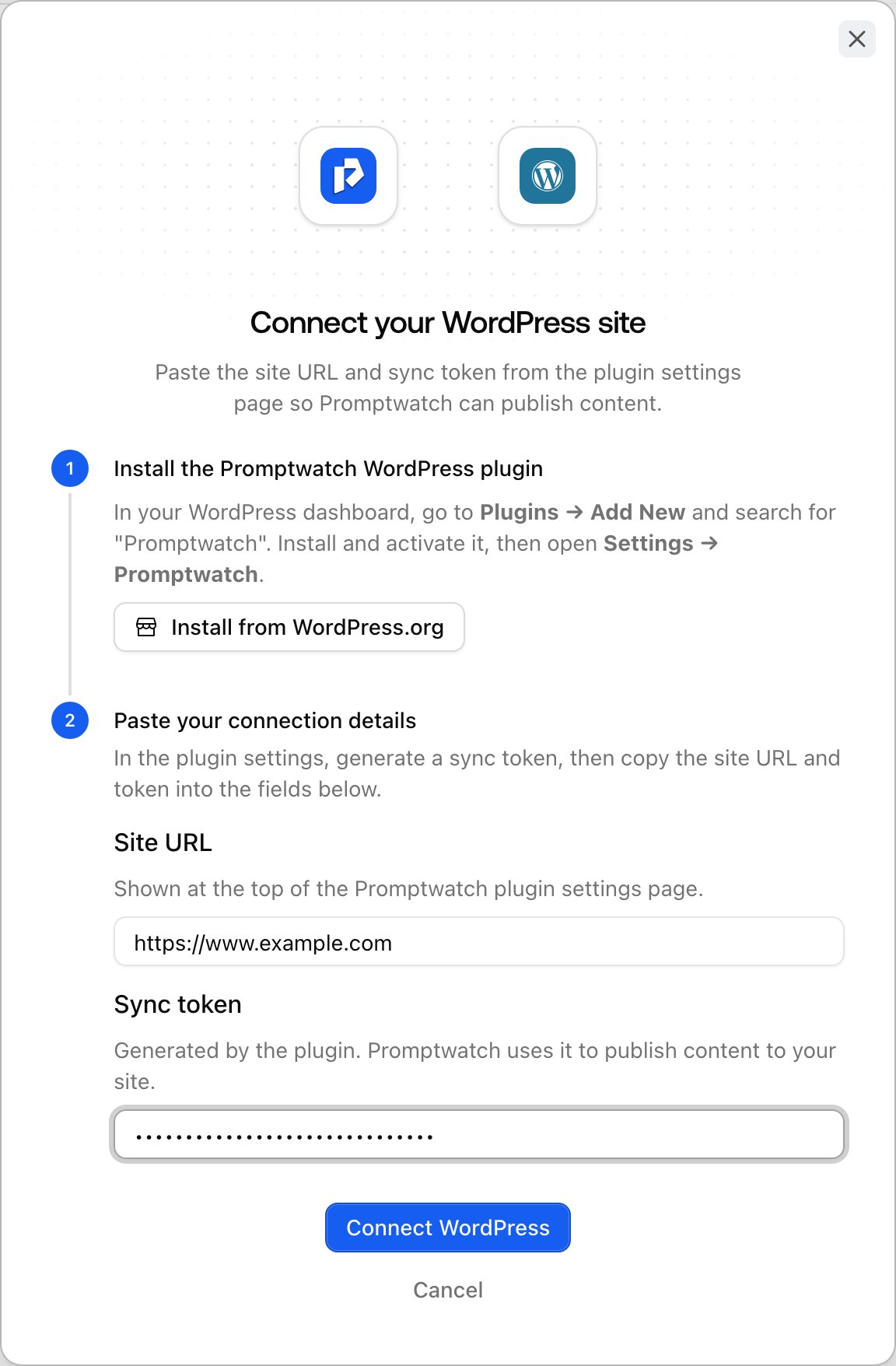
The plugin settings page shows your Site URL with a copy button and a Generate token button. Generate a token and copy it. Regenerating later disconnects the site until you paste the new token into Promptwatch, and the plugin warns you about exactly that before it does it. Back in the connect dialog, the second step, “Paste your connection details”, takes two fields:Site URL
Your site’s address, as shown at the top of the plugin settings page. It must be a public HTTPS address.Sync token
The token from the plugin, starting withpw_wp_. Promptwatch uses it to publish content to your site.
Click Connect WordPress. Promptwatch probes the site before saving, so a wrong token or an unreachable site fails immediately with a specific error instead of at publish time. On success you see “WordPress connected” with the site and plugin version, plus a Re-test connection button.
WordPress on a different host than your website
Some sites run WordPress on a separate address from the public website, for example a headless setup where WordPress lives atcms.example.com but the site your audience visits is example.com. When the two hosts differ, Promptwatch publishes through the CMS host but tracks the content on your project website.
In that case the WordPress connection settings ask Where does published content appear on your website? Type the path where your posts live, like /blog, or paste the folder URL from your website. Each published post is then tracked on your project website at that path, like example.com/blog/your-content-title, so Page Tracker and citations point at the live page instead of the CMS host. Leave the field empty if your posts live at the root of your website.
What publishing creates
Every document becomes one standard WordPress post, tracked so that re-publishing updates the same post instead of creating duplicates:- Title becomes the post title, and the slug you set on the publication card becomes the post’s URL slug.
- The document body lands in a managed region of the post content.
- The description becomes the post excerpt.
- A leading image becomes the featured image: if the document starts with a standalone image, the plugin downloads it into your media library, sets it as the post’s featured image, and removes it from the body so themes that render featured images don’t show it twice.
- The author is the WordPress user you pick under Author in the WordPress connection settings, and it is set every time Promptwatch publishes. With the default, Let WordPress choose (first administrator), new posts get the first administrator and updates keep the post’s current author. Picking an author needs the latest plugin version.
post.
Push a draft
Open a document in the content editor and find the Publication card; it shows WordPress and your site URL as the destination. Publish as CMS draft creates the post as a WordPress draft: it exists in wp-admin but is not live, so your team can review it in the WordPress editor first. If you edit the document in Promptwatch afterwards, Update CMS draft pushes the changes. WordPress drafts have no public preview URL, so review staged drafts in wp-admin; the publication card’s View content link takes you straight to the post’s edit screen. For what to check before a draft goes anywhere, see Reviewing drafts.Publish live
Publish live promotes the draft to a published post. It changes only the post’s status, and re-publishing later keeps the original publish date, so your post dates stay stable. Publishing one document never touches the rest of your site, the same per-item behavior as Webflow and unlike Framer, where going live redeploys the whole site. Pushing an update to a live post keeps it live; Promptwatch never downgrades a published post back to draft. Once the live post and the document are in sync, Update CMS draft is disabled with “Already in sync — make changes to enable.” until you edit the document again. The Content Agent can publish to the connection too: pick WordPress in the CMS Integration field of the Content Agent settings and choose between Publish as draft and Publish live as the publish state.If the connection breaks
The sync token becomes invalid if you regenerate it in the plugin or if your site’s WordPress security keys rotate (the plugin settings screen then shows “WordPress security keys changed”). When that happens, the publication card shows “WordPress connection expired” and offers Reconnect WordPress: generate a new token in Settings → Promptwatch and paste it into the reconnect dialog. This updates the existing connection, so your publish history is kept. If you toggle the integration off on the CMS Integrations page, the publication card replaces its publish buttons with a notice that WordPress is disabled and a Manage integrations link pointing you back there to re-enable it.Optional: analytics and crawler logs from the plugin
The plugin can do two more things, both off by default. Publishing does not need either.- Visitor analytics: “Enable visitor analytics script” adds the Promptwatch analytics script to your site, so AI-referred visits show up in visitor analytics without editing your theme. “Disable analytics for logged-in admins” is on by default, so your own browsing doesn’t pollute the data.
- Crawler log forwarding: “Enable crawler log forwarding” forwards public requests that reach WordPress to Promptwatch, which classifies the crawlers. Most sites are cached, so requests served from a cache or CDN never reach WordPress; expect partial coverage compared to server-level log ingestion. It needs a separate Promptwatch API key, not the sync token. For setup steps, see the WordPress crawler logs guide.