

What a monitor groups
A monitor is a panel of prompts that runs on a repeating schedule against the models you pick. Every prompt inside it shares the monitor’s settings:- Tracking language: the language the prompts are asked in.
- Target country, plus an optional state and city: where the model is told the user is.
- Persona: an optional description of who is asking, so answers reflect that audience.
- Models: which AI models answer the prompts.
How many prompts a monitor can hold
There is no per-monitor cap. The limit is the number of active prompts your plan allows, shared across all projects in your organization. The number per plan is on the pricing page. The wizard checks this limit when it suggests starting prompts, and again whenever you add prompts later. See response limits for how prompts translate into responses.How to create a monitor
Project viewers cannot create monitors; you need an editor role.Open the Monitors page
Click Prompts in the left rail, then Monitors. Hover the tile for a moment to get the flyout, or use the list on the left once you are inside the section. The page is titled Monitors.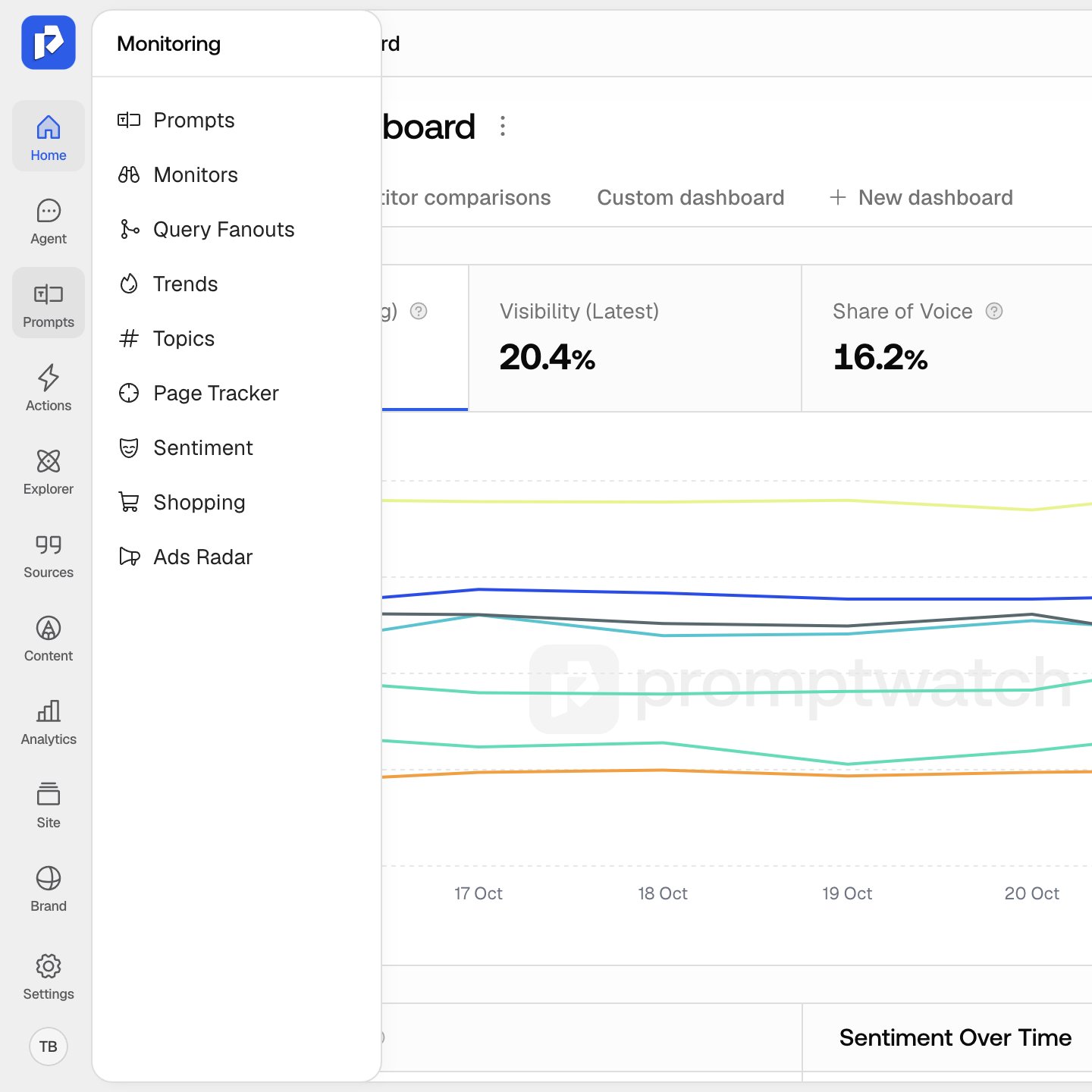
Click New Monitor
Click New Monitor at the top right. If the project has no monitors yet, the empty state shows “Create your first monitor” with a Create Monitor button instead.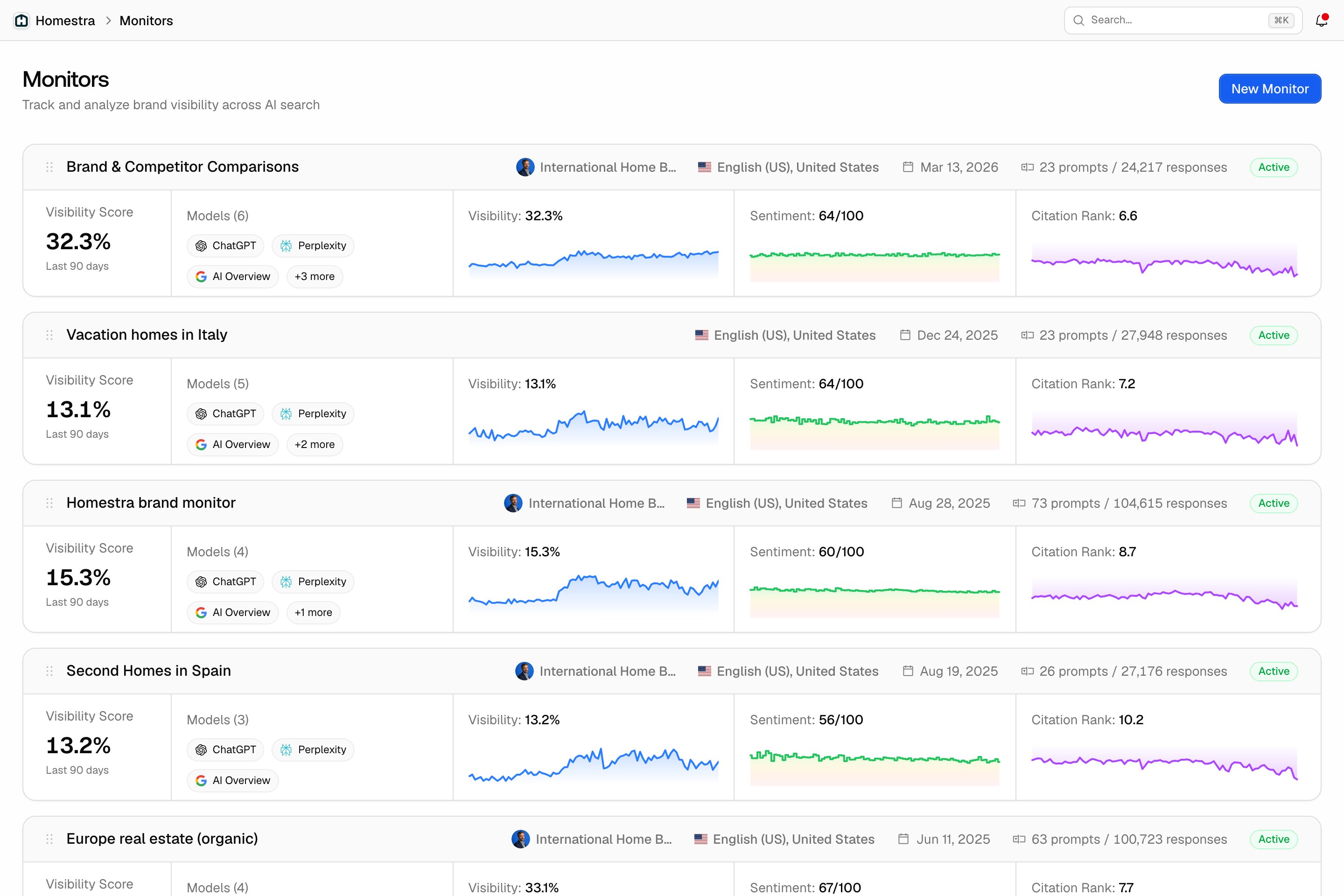
Step 1 of 2: Create Monitor
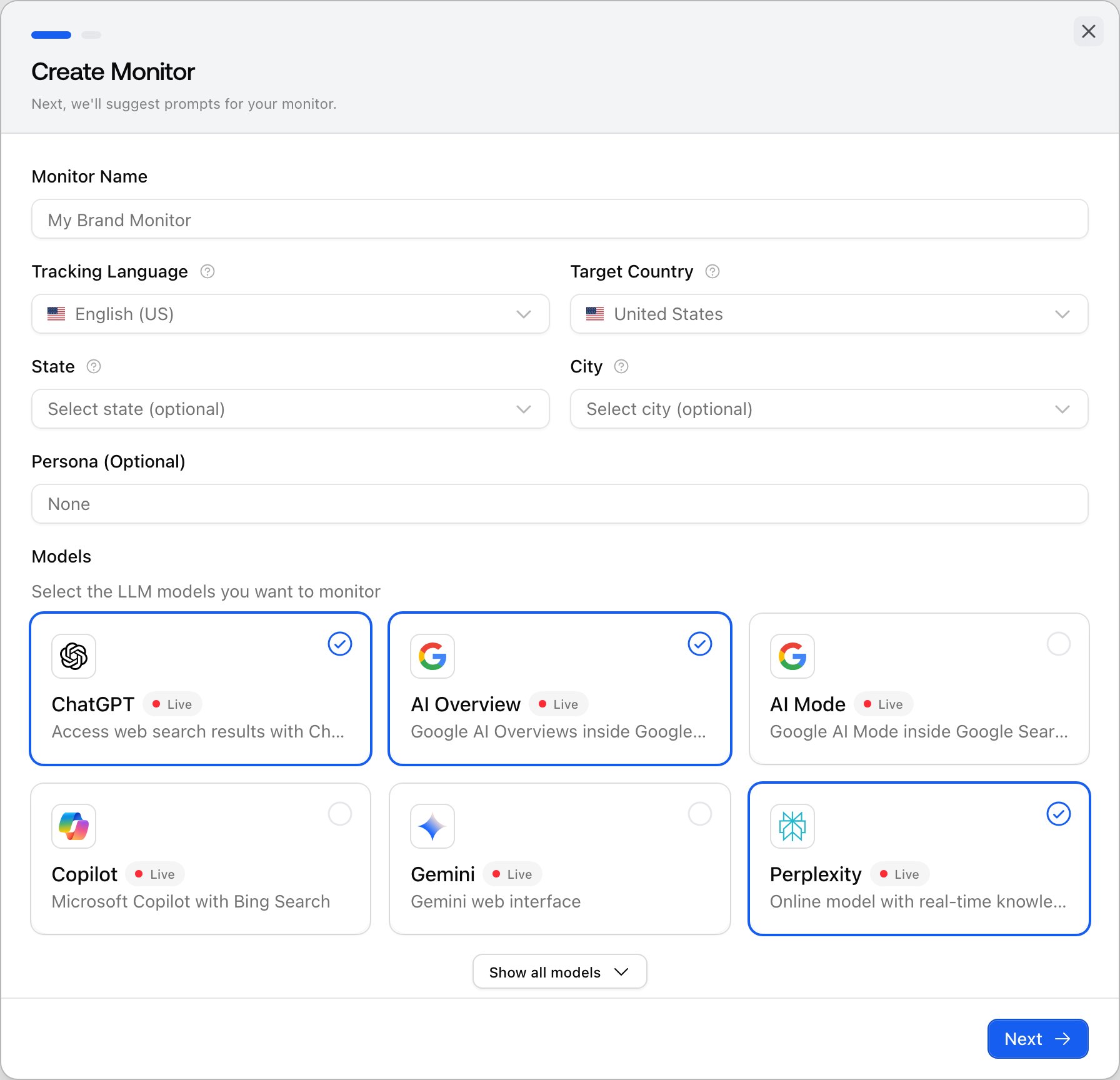
The Create Monitor dialog is the first of two steps (the progress bar shows both). Fill in the context the prompts will run in:- Monitor Name: required. Pick a name that says what the panel covers, like “US - English”.
- Tracking Language: the language your target audience uses with the model. Prefilled from the project language.
- Target Country: the country users are expected to be in. Prefilled from the project country. Choosing a country other than the default needs the country-level tracking feature, which is locked on Explore and available from Essential up.
- State and City: two separate optional fields. State only works when the target country is the United States (the placeholder reads “US only” otherwise). Both are plan-locked below Business. Changing the country clears both fields.
- Persona (Optional): pick None, one of your project’s personas, or Create new to add one without leaving the wizard. When a persona is chosen, a Persona stacking switch appears: it wraps each tracked prompt in the persona’s prompt at run time, so the model answers as if that person asked. The persona needs a usable stackable prompt for this; otherwise the wizard shows an error. See personas.
- Models: the models that will answer. The list shows ChatGPT, AI Overview, AI Mode, Copilot, Gemini and Perplexity, with ChatGPT, Perplexity and AI Overview ticked by default. Click Show all models to reveal the rest. A model reads “Not available in this region” when the chosen country does not support it, and models outside your plan are disabled with an “Upgrade” pill (Explore gets ChatGPT only). At least one model is required. See choosing your models.
Step 2 of 2: Starting prompts
Promptwatch generates up to 10 suggested prompts from the monitor name, the location and the persona, so the panel starts with something to track. If you have fewer than 10 active prompts left on your plan, a banner tells you how many it will suggest instead. Each suggestion is a row with the prompt text, its type and intent, and Topics and Tags fields. From here you can:- Edit any row, or remove it with the trash icon (the last remaining row can’t be removed).
- Click Add prompt to add one of your own.
- Click Topic all prompts or Tag all prompts to label the whole batch at once.
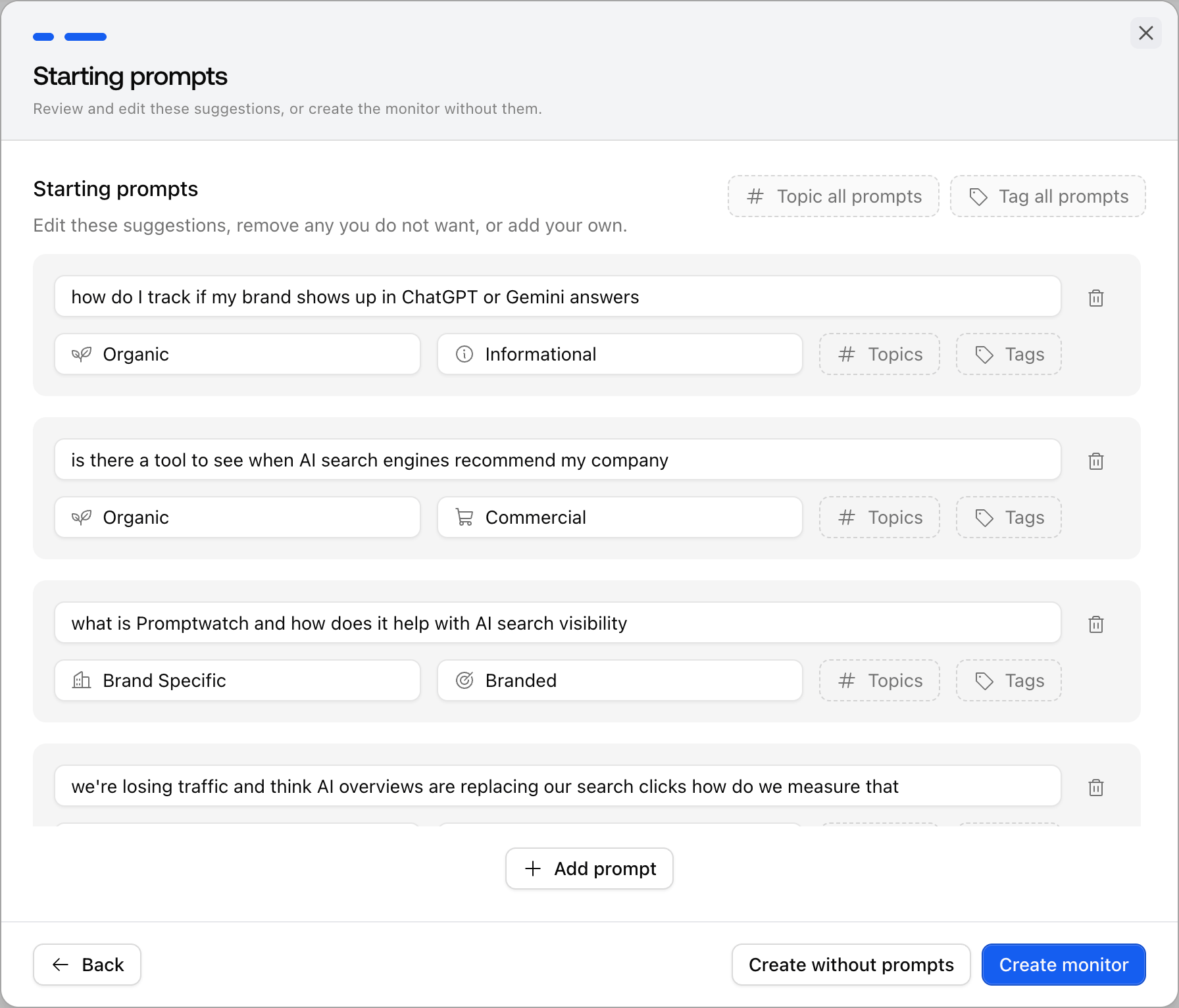
- Create monitor to save the monitor with the prompts shown. Empty rows are skipped. The button stays disabled when no row has text or the batch exceeds your remaining capacity.
- Create without prompts to save an empty monitor and add prompts later.
- Back to change the settings from step 1.