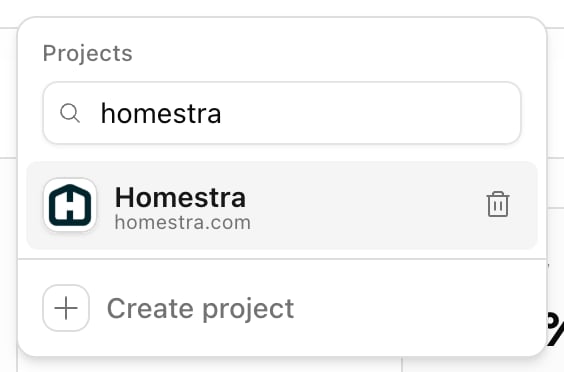
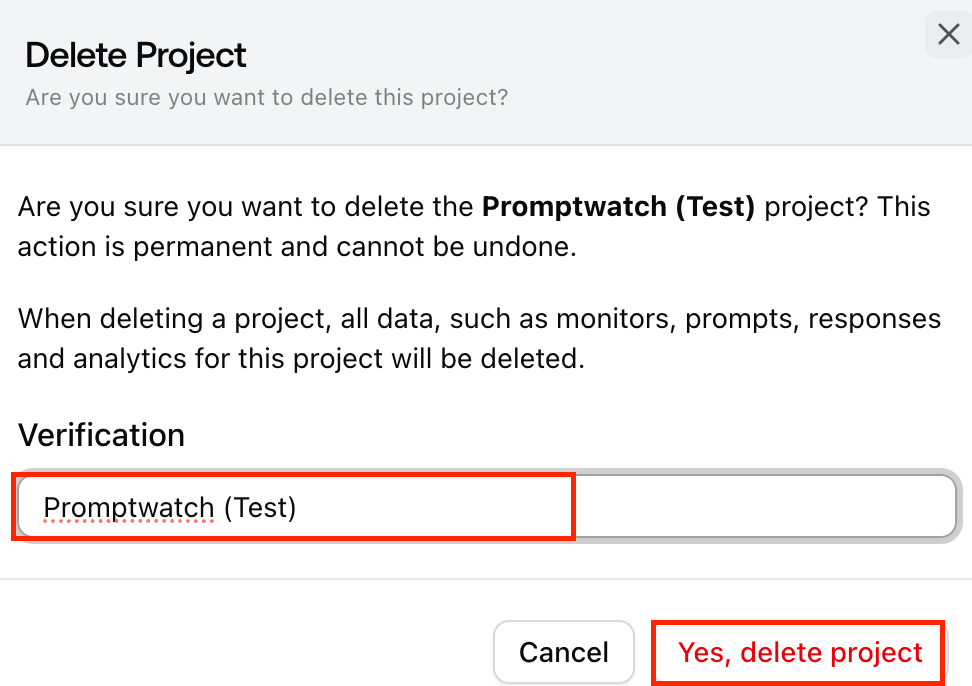
If you have multiple projects and want to delete one of them, you can do so easily. Important note: You cannot delete a project while you are currently active in it, and the last project in an organization can’t be deleted at all. To delete a project, you must first switch to a different one. A deleted project’s monitors stop running and it no longer collects data. You can restore it later. Step 1: Open the project menu Click the project switcher in the header, top left of the page (it shows the current project’s avatar and name). This will display all projects linked to your account. How can I delete a project when I have multiple projects? Step 2: Switch to another project If you are currently inside the project you want to delete, select a different project from the list to switch over. For example, if you want to delete “Promptwatch (Test)”, first switch to the main “Promptwatch” project or any other available project. Step 3: Delete the project Hover over the project you want to remove and click the trash can icon that appears next to its name. You can also delete from Settings: click the gear tile at the bottom of the left rail, open Projects under Organization settings, click the three-dot menu at the end of the project’s row and choose Delete project. Step 4: Confirm deletion Either route opens the Delete Project dialog. How can I delete a project when I have multiple projects?
  • Enter the exact project name [e.g.,“Promptwatch (Test)”] in the Verification field.
  • Click Yes, delete project.

Restore a deleted project

Deleted projects are listed on the same page. Click the gear tile at the bottom of the left rail, open Projects under Organization settings, scroll to Deleted projects, and click Restore next to the project, then confirm Restore project. The project’s monitors stay off after a restore, so switch on the ones you want to run again. Restoring counts against your plan’s project limit, so you may need a free slot first; see creating a project.