What is a project?
A project is the workspace for a single brand. Your brand profile, competitor set, monitors, prompts, and site data all live inside it, and every metric you see is scoped to it. One brand per project is the rule. Different markets or languages don’t need separate projects: those are handled by monitors inside one project, each with its own country and language. The same goes for subdomains of your site, like a docs or shop subdomain: see domains and subdomains. Agencies create a project per client, which keeps each client’s data, competitors, and reports cleanly separated.Your first project
If you just signed up, the onboarding wizard creates your first project for you, along with your organization and first monitor. Its steps (Welcome, About you, Brand Hub, Competitors, Prompts to Monitor) differ from the project wizard below; the Quickstart walks that flow end to end. This page covers the flow you’ll use after that: a second brand, or a new client.How to create a new project
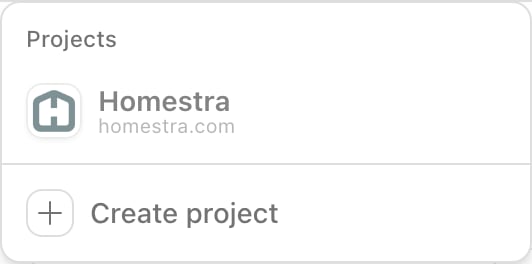
Three routes open the same wizard:- Project switcher: click the current project’s avatar and name in the header, top left of the page, and choose Create project at the bottom of the list. The item is hidden for viewers and for members restricted to specific projects.
- Settings: click the gear tile at the bottom of the left rail. It lands on the Project settings group first, so pick Projects in the Organization settings group, then click Create new Project. The Projects page is hidden for members restricted to specific projects.
- Command menu: press ⌘K (Ctrl+K on Windows) and choose Create Project.
Project quotas and pitch projects
Projects are a plan quota; the number per plan is on the pricing page, and your own limit is on the Billing page, see plans and billing. If you have no slots left, every route above opens an upgrade prompt (“Please upgrade to continue creating projects.”) instead of the wizard. Restoring a deleted project counts against the same limit. Agency tiers also include pitch projects, short-lived projects for a prospect; brand plans and Enterprise have none unless Promptwatch enables them for your organization. When pitch projects are enabled, an owner whose normal slots are full can still open the wizard: step 1 shows the alert “You’re out of normal project slots” and Next stays disabled until you turn on Is this a pitch project?. You can set a Monitor end date (optional) at the same time. See GEO for agencies for how pitch projects fit into client work.The wizard
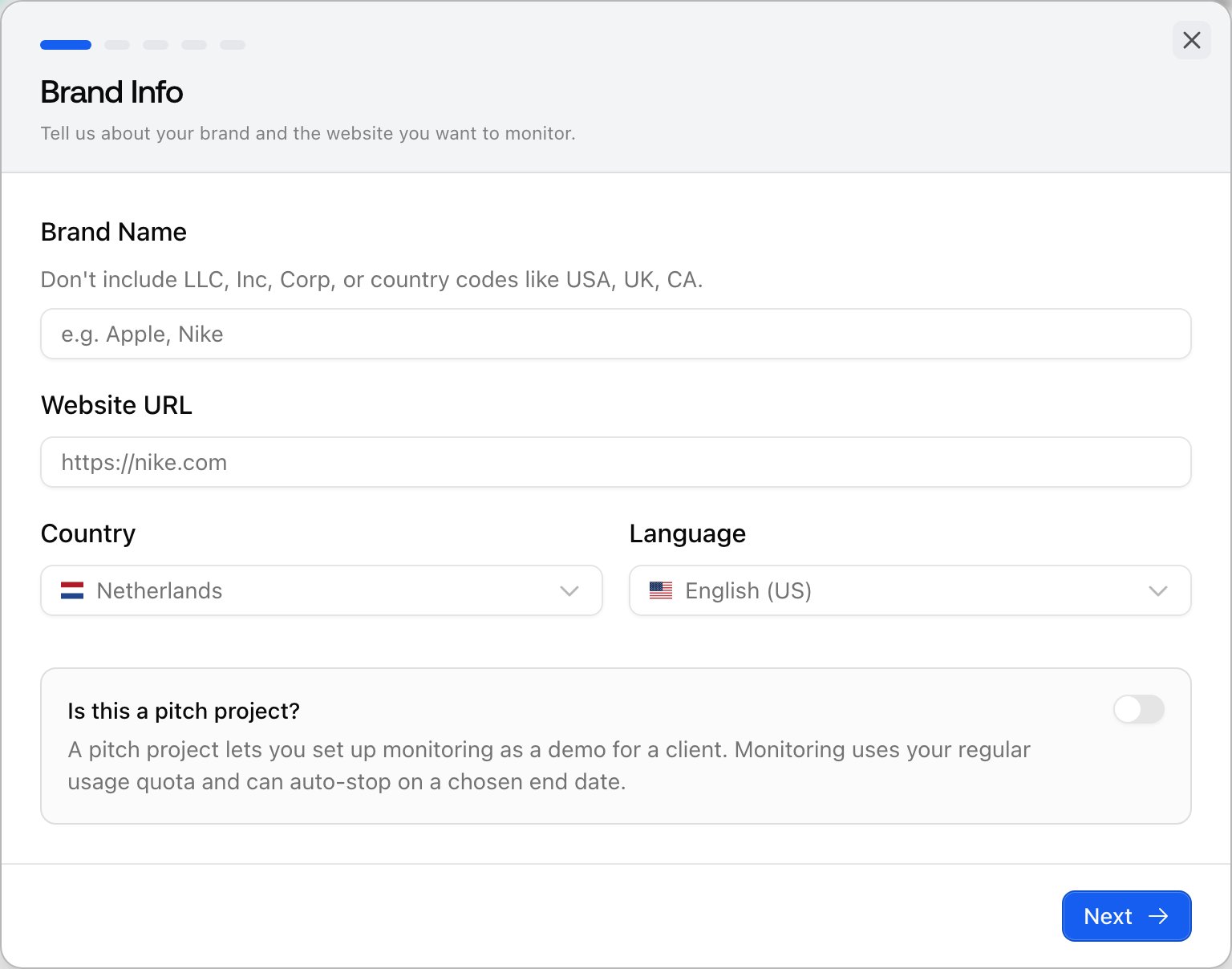
The wizard is a dialog with a progress bar and Back and Next buttons. Site analysis starts as soon as you click Next on step 1, and prompt generation runs in the background from that moment, so steps 2 and 5 are usually ready by the time you reach them.Step 1: Brand Info
Brand Name, Website URL, Country, and Language. The brand name needs at least 2 characters, and the hint under it says “Don’t include LLC, Inc, Corp, or country codes like USA, UK, CA.” because the name is what Promptwatch looks for in AI answers. Country and language default from your browser (language from the browser setting, country from the timezone), but they set the market your prompts run from, so set them for where this brand’s customers are. They become the defaults for new monitors in this project; individual monitors can override them later.