

Who can invite, and how many seats you have
Only organization Owners can invite. Members don’t see the Team item at all, and opening the page by direct link shows a restricted message. If you need someone added, ask an Owner. Seats are a plan limit (the number per plan is on the pricing page), and every pending invitation counts toward it just like an accepted member. Inviting past the limit opens an upgrade prompt: “Please upgrade to continue inviting users.”, or, when revoking a pending invite would free a seat, “You’ve reached your team limit! Revoke a pending invite or upgrade for more seats.” See plans and billing for where to check your own limits and Team members and roles for what Owners, Members and project access levels can do.How to invite
- Click Settings, the gear tile at the bottom of the left rail, and choose Team in the Organization settings group. The shortcut is the avatar at the bottom of the rail, then Invite Team Member, which opens the same page. The page is titled Team Members.
- Scroll past the members table to the Invite New Member card. Type an email address into the field (placeholder “name@example.com”) or paste a list separated by commas or new lines; up to 50 addresses go in one batch. An address that isn’t valid has to be removed before you can send.
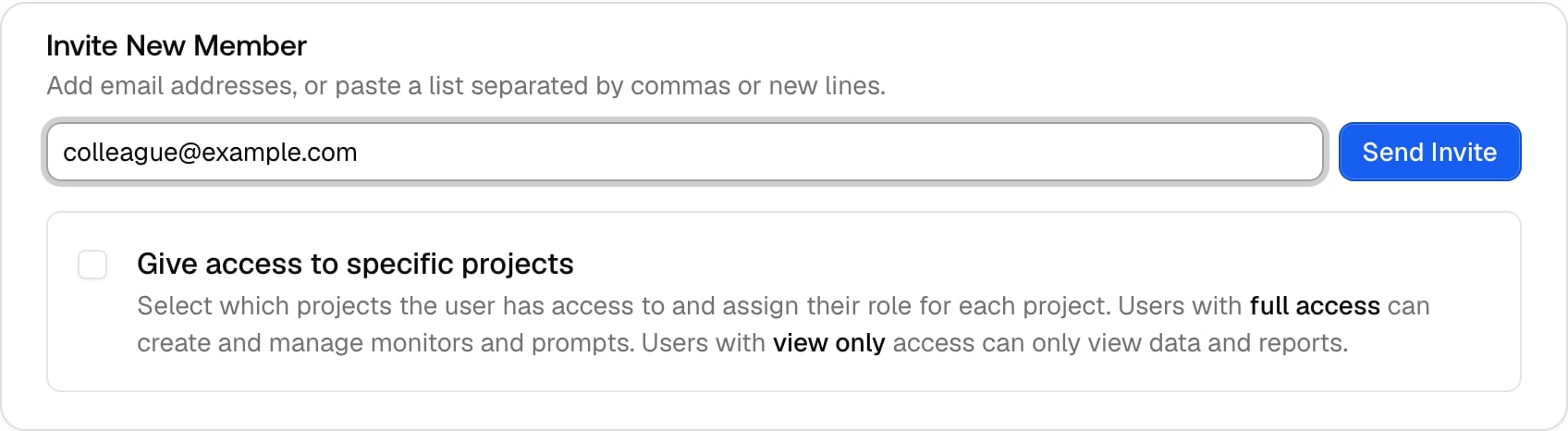
- Decide on project access. Leave Give access to specific projects unchecked and the person gets full access to every project in the organization. Tick it to restrict them: search the project list, tick each project they should see, and pick a level per project in the dropdown next to its name. View only is the default and can view data and reports but cannot make changes; Full access can also create and manage monitors, prompts, and project settings. If you tick the box, you must select at least one project.
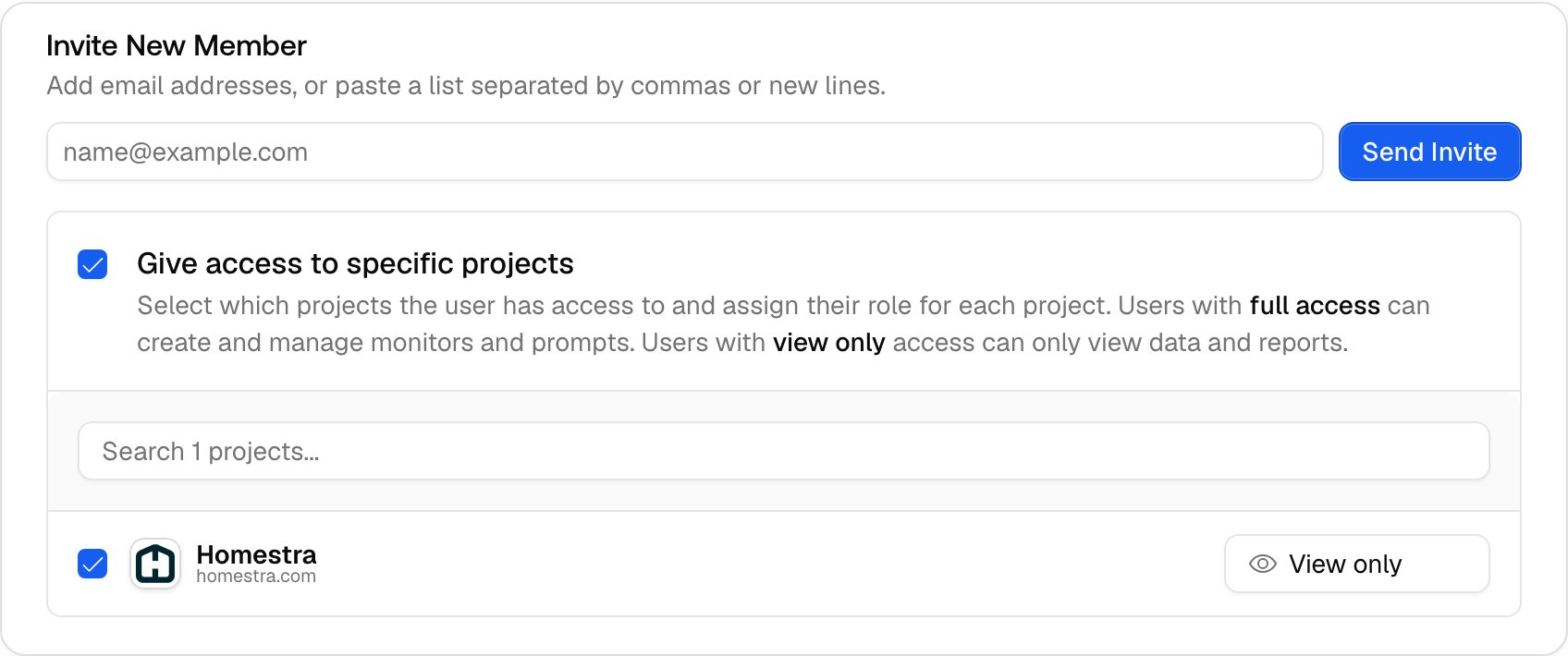
- Click Send Invite (Send Invites for several addresses), to the right of the email field. A toast confirms (“Invitation sent successfully!” or “N invitations sent.”), and the address appears under Pending Invitations with the status Pending. An address that can’t be invited, for example because it already belongs to a member or already has a pending invite, gets its own error toast.