

What a scheduled chat is
A scheduled chat is an Agent Chat ask set to run on its own cadence. Instead of opening the chat and retyping the same question every Monday, you save the question once, pick how often it should run, and the agent runs it, compares the new answer to the last one, and tells you what changed. You reach it from the Scheduled button above the chat list: click Agent in the left rail first. Scheduled runs are always read-only: unlike an interactive chat, where the agent can create, update, and delete on your say-so, an unattended scheduled run gets no write tools, so it only analyzes and reports. Chat, and with it the Scheduled view, is not available on white-label organizations. Schedules are project-wide: everyone in the project sees and can edit them, while the bell notifications go to the person who created the schedule.How to create a scheduled chat
There are three ways in.From the Scheduled view
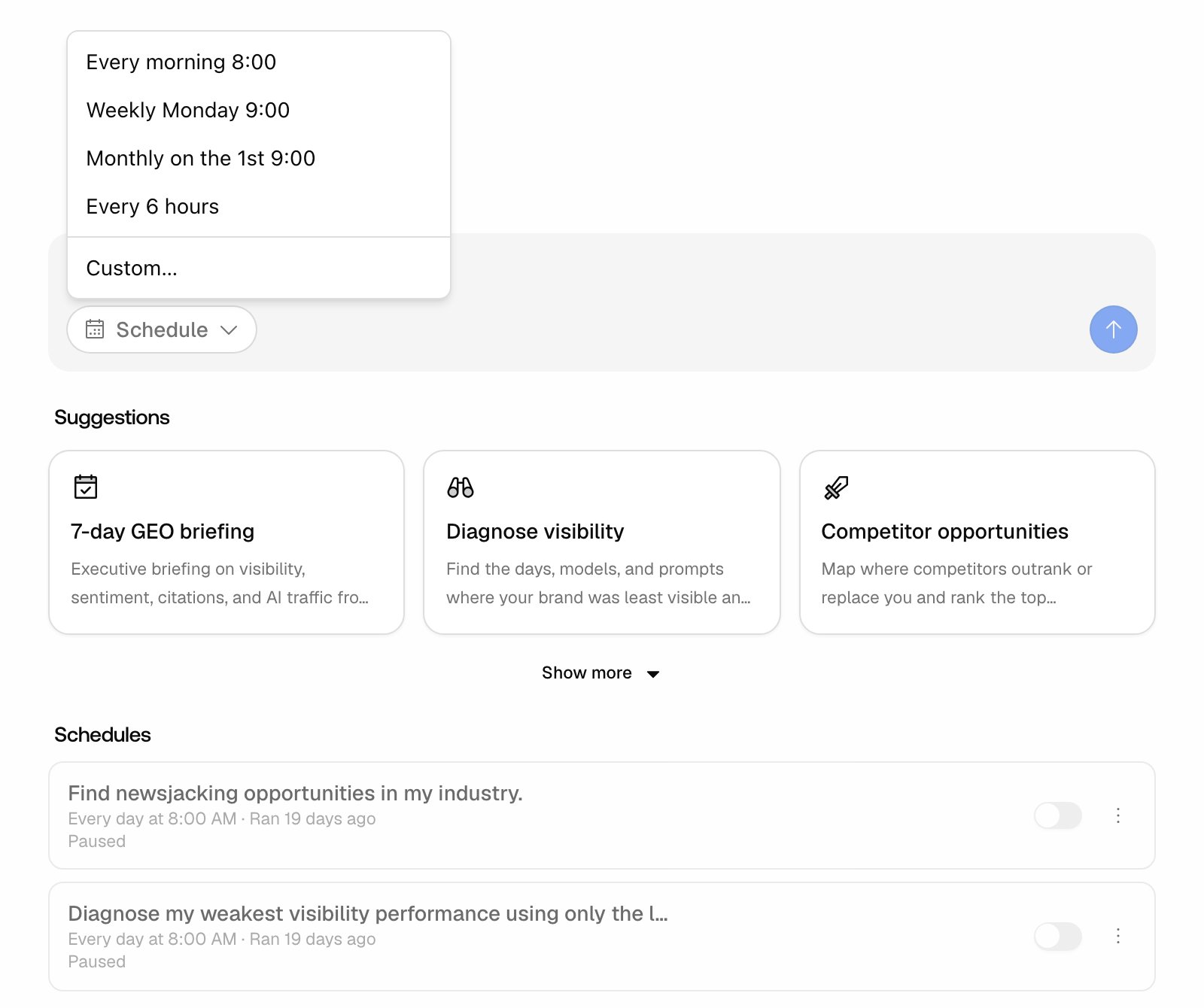
- Click Agent in the left rail, then Scheduled above the chat list. The page opens with the Schedule recurring tasks composer at the top, then Suggestions, then the Schedules list.
- Type the ask in the box (“Schedule an ask…”), for example, “Which prompts did we lose visibility on this week, and why?”.
- Click Schedule and pick a cadence: a preset like Every morning 8:00, Weekly Monday 9:00, Monthly on the 1st 9:00 or Every 6 hours, or Custom… for full control. The button then shows the cadence in words, such as “Every day at 8:00 AM”. A preset faster than your plan allows is hidden, so Every 6 hours only shows on plans that unlock it (see below).
- Check the line under the composer: it shows the next run time, how many runs fit in the current period, and the credits they are expected to cost.
- Click the arrow to create the schedule. A confirmation strip appears: the schedule is saved, with a Run it once now button so the first scheduled run has something to compare against.
From an existing chat
If you already have a chat you want to repeat, open its options menu and choose Schedule this agent. That prefills the composer with the chat’s first message, model, and tool settings, so you only set the cadence.From a suggestion or a skill
The quickest starting point is the Suggestions list under the composer. Each suggestion pairs a ready-made ask with a sensible cadence: 7-day GEO briefing, Diagnose visibility, and Competitor opportunities are visible, and Show more reveals Newsjacking, Content gap sprint, and Refresh decaying pages. Clicking one fills in the prompt, the cadence, and the tools that ask needs. Agent Skill cards on a new chat work the same way: cards with a timer icon (Schedule this skill) jump to this view with the ask and cadence prefilled.Setting the cadence
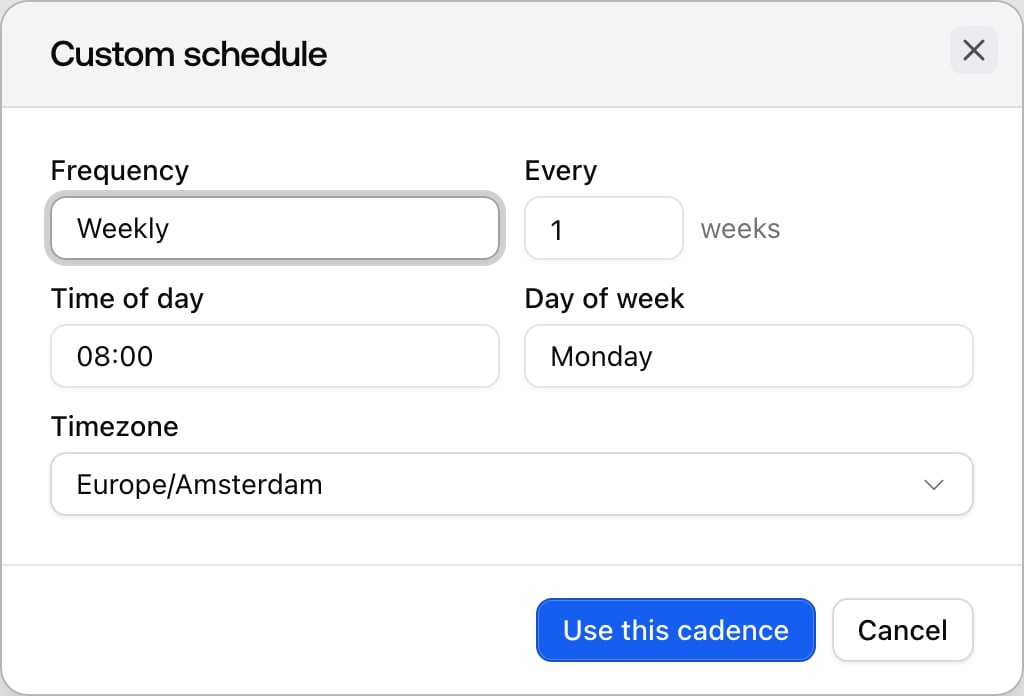
Presets cover the common rhythms. Custom… opens the Custom schedule dialog, where you set:- Frequency: Hourly, Daily, Weekly, or Monthly.
- Every: the interval, so “every 2 weeks” or “every 3 days.” Hourly runs have a floor of every 6 hours.
- Time of day (Starting at for Hourly): the hour the run starts.
- Day of week: which weekday a weekly schedule runs (Weekly only).
- Day of month: which day a monthly schedule runs, from 1 to 28 (Monthly only).
- Timezone: the run fires in the timezone you choose, adjusting for daylight saving on its own.
Getting told only what changed
By default a schedule stays quiet when nothing is new. In a schedule’s Edit schedule dialog, the switch Only notify me when the answer changed controls this. When it is on, each run loads the previous run’s answer, the agent leads with what changed since then, and a comparison decides whether the change is material. A run with a real change is delivered; a quiet run delivers nothing and simply records itself in the run history. The very first run always counts as changed, so the baseline run gets you one notification. Turn the switch off to be notified on every run. This is what makes a daily schedule bearable: most mornings you get silence, and the mornings you get a notification are the ones worth reading.Managing schedules
The Schedules list shows each schedule’s name, its cadence in words, the next and last run, a pause switch, and a menu with Run now, Edit, and Delete. Edit schedule holds the name, the ask, the cadence picker, the notify-on-change switch, and the Slack switch described below. Inside a chat produced by a run, a pill with the schedule’s name and cadence opens the same dialog.Reading run history
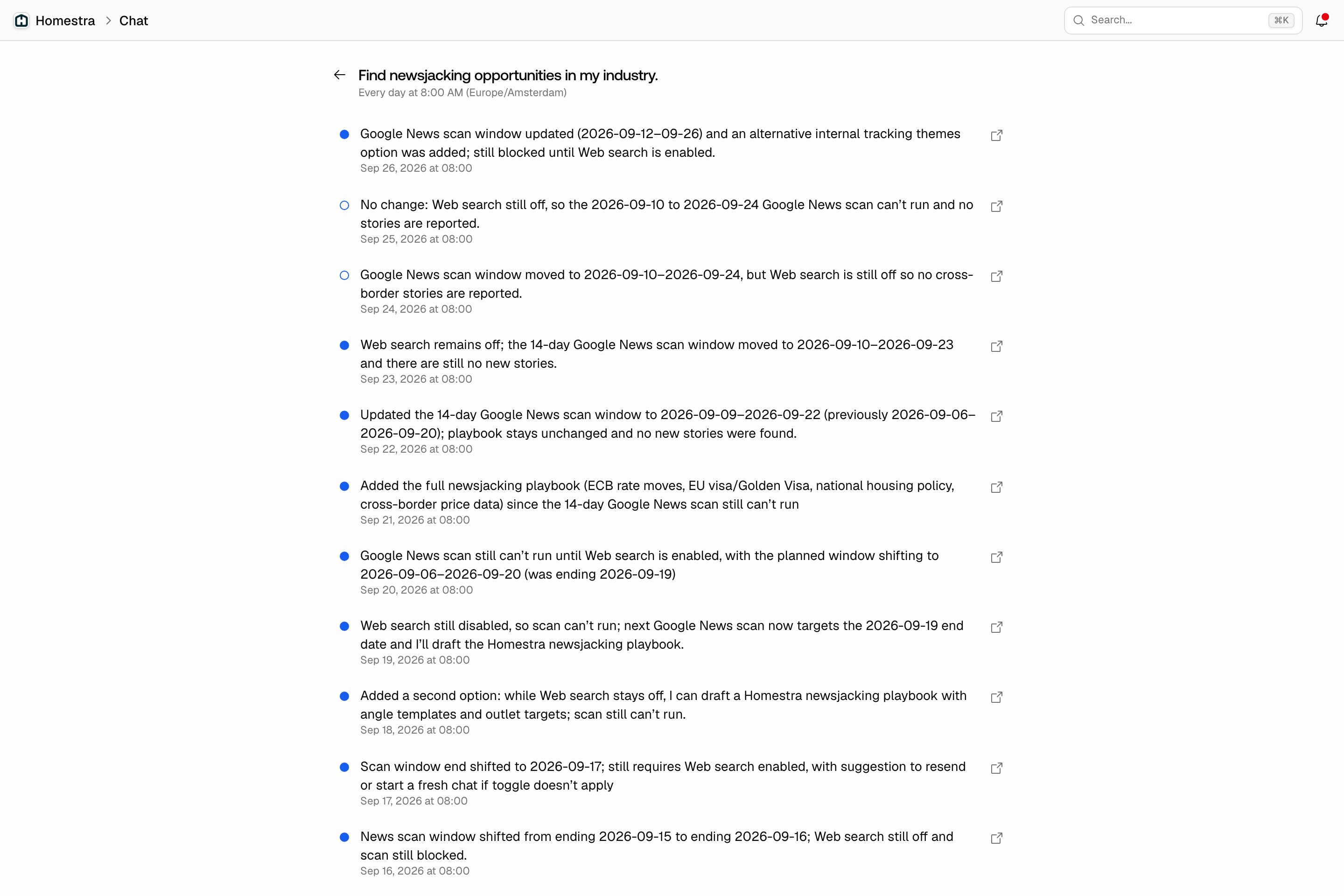
Click a schedule in the list to see its runs, newest first, 20 at a time with Load more. The header shows the cadence with its timezone and the next run time; each row shows a marker, how the run ended, and a one-line summary:- A completed run shows the headline of what changed (filled dot), or Nothing material changed (hollow dot) for a quiet run.
- A skipped run (dashed marker) shows why it did not execute (see below).
- A failed run (red marker) shows the error, or Run failed.
- Running now and Queued mark runs still in flight.
Delivering to Slack
A schedule can post its result to Slack in addition to the in-app bell notification. Slack is connected once for the whole organization, then pointed at projects.- An organization owner clicks Settings at the bottom of the left rail, opens Slack under Integrations and clicks Add to Slack to connect the workspace. Only organization owners can connect and configure Slack, and it is not available on white-label organizations.
- Under Channel project mappings, pick a Slack channel and the Promptwatch project it should serve, then Add mapping. Delivery needs this explicit mapping per project: the Default project only decides which project the agent answers for when you chat from an unmapped channel, it does not deliver schedules.
- Back in a schedule’s Edit schedule dialog, a switch Also post to #channel appears once its project has a mapped channel. It is off by default; turn it on.