

Where the data comes from
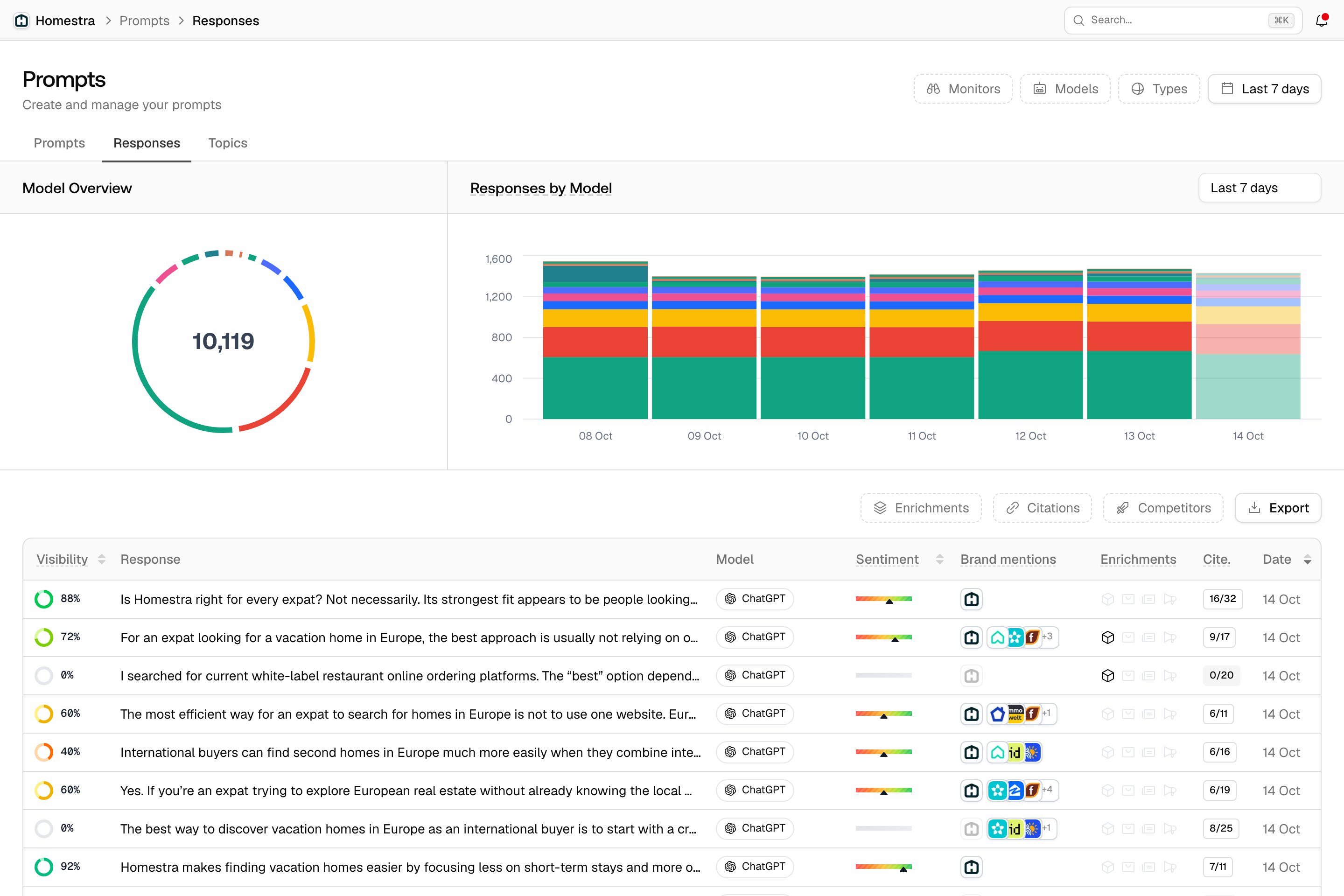
An export takes the filters you have set on the page, so the fastest way to get the right rows is to filter the table first and export second.- Click Prompts in the left rail and open the Responses tab.
- Set the filters in the page header (Monitors, Models, Types, and the date range) and in the table’s filter row (Enrichments, Citations, Competitors). The export inherits all of them.
- Click Export at the right end of the table’s filter row.
The Export Responses dialog
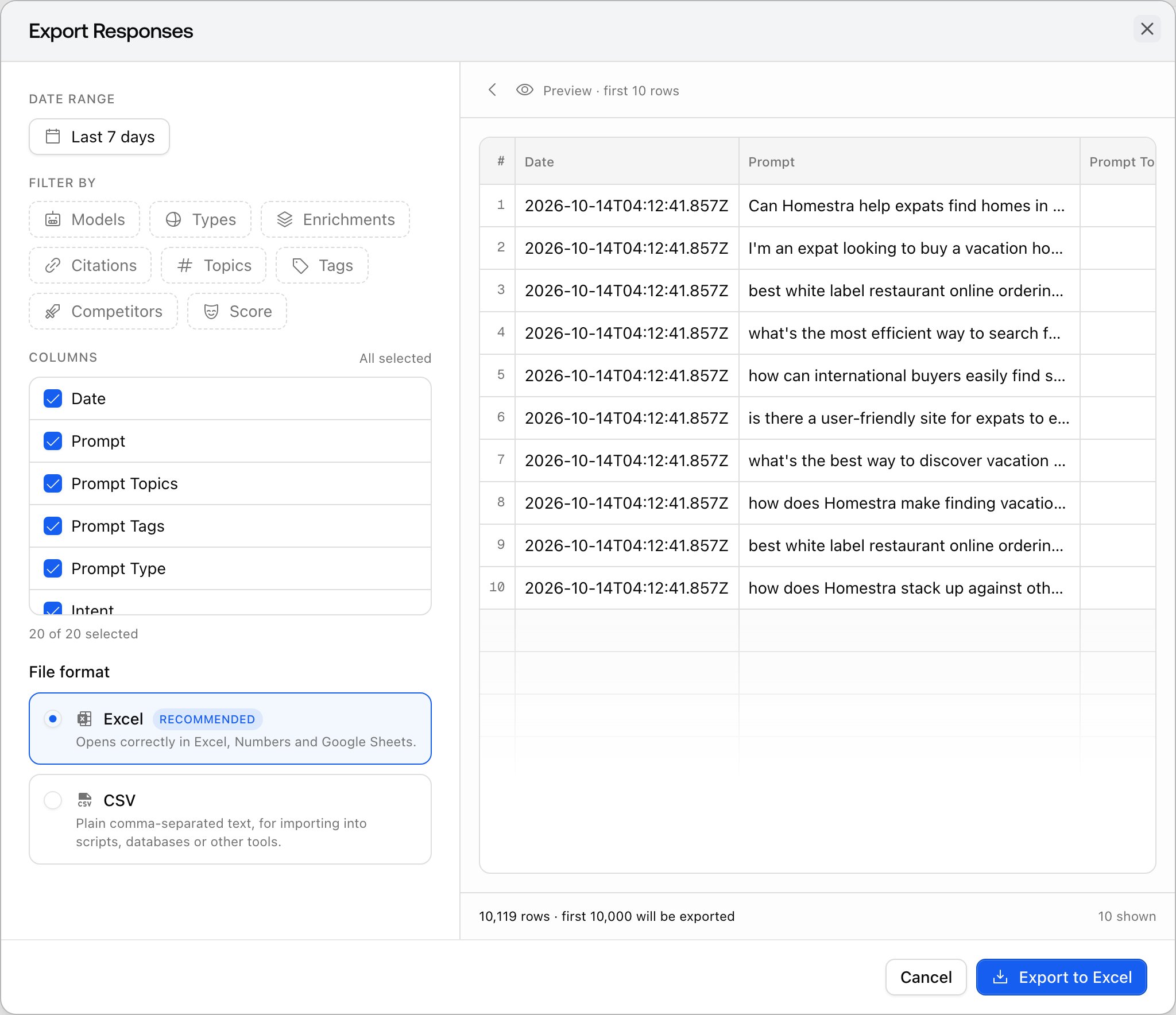
The dialog has two panes: settings on the left, a live preview on the right. The preview shows the first 10 rows that match and a total row count in its footer, so you know what you are about to download before you click. If nothing matches, it says “No rows match these filters.” The preview pane only shows on wider screens, and the caret button toggles between “Hide export settings” and “Show export settings”.Date Range
The date range from the Responses page, which you can change here.Filter by
The filter buttons, pre-filled from what you selected on the page:- Models: which AI models’ responses to include.
- Types: prompt types and intent types.
- Enrichments: responses carrying a given enrichment.
- Citations: responses that have citations, or a self-citation.
- Topics and Tags: the prompt’s topics and tags.
- Competitors: responses that mention a given competitor.
- Score: a sentiment score range (”< 30”, “30 - 50”, “50 - 75”, “75 - 100”).
Columns
A checkbox list of the 20 available columns, with Select all and a “N of M selected” count. At least one column must stay selected. The columns: Date, Prompt, Prompt Topics, Prompt Tags, Prompt Type, Intent, Monitor, Visibility Score, Response, Model, Sentiment Score, Sentiment, Enrichments, Brand Mentions, Competitor Mentions, Total Citations, Has Self Citation, Self Cited URLs, All Citation URLs, and Response URL. See Understanding responses for what the scores and enrichments mean.File format
- Excel (Recommended): “Opens correctly in Excel, Numbers and Google Sheets.” This is the default.
- CSV: “Plain comma-separated text, for importing into scripts, databases or other tools.”
After you click Export
The dialog closes and a toast shows the export in progress, for example “Responses export (XLSX) in progress”. When it finishes, the browser downloads the file automatically and the toast reads, for example, “Responses export (XLSX) complete!” with a View reports button. You don’t have to stay on the page. Past exports live on the Reports page: press Cmd+K (Ctrl+K on Windows and Linux), search for Reports, and open the Exports tab. Each row shows a status icon, the type, the format (Excel or CSV), the filters it was created with, when it was created, and a Download button. PDF reports share this page on their own tab, see Creating a PDF report.Limits
- Row cap: a responses export holds up to 10,000 rows. When more rows match, the preview footer says so (“N rows · first 10,000 will be exported”); narrow the date range or filters, or export in batches. Other export types cap at 100,000 rows.
- Three at a time: each project can have up to 3 exports running at once, and the same type and format can’t be queued twice while one is running.
- Plan availability: exports need Professional or above, not Explore or Essential. The dialog and preview still open on those plans, but clicking export opens an upgrade prompt. See Plans and billing.
- Roles: members with the Viewer role can export tables, unlike PDF reports.