

Promptwatch condenses every AI answer into a small set of metrics. Each one answers a different question, and most confusion comes from reading one metric when you needed another. This page gives you the one-line version of each, says where it lives in the app, and links to the full explanation.
The two building blocks: mentions and citations
Everything starts with the distinction between your brand being talked about and your content being used. A mention is your brand named in the text of an answer. A citation is a URL the AI attached as a source. They are recorded independently and improve through different work: mentions through reputation, citations through content on your own domain. If you read one page from this group, make it Citations vs. mentions.Presence and prominence
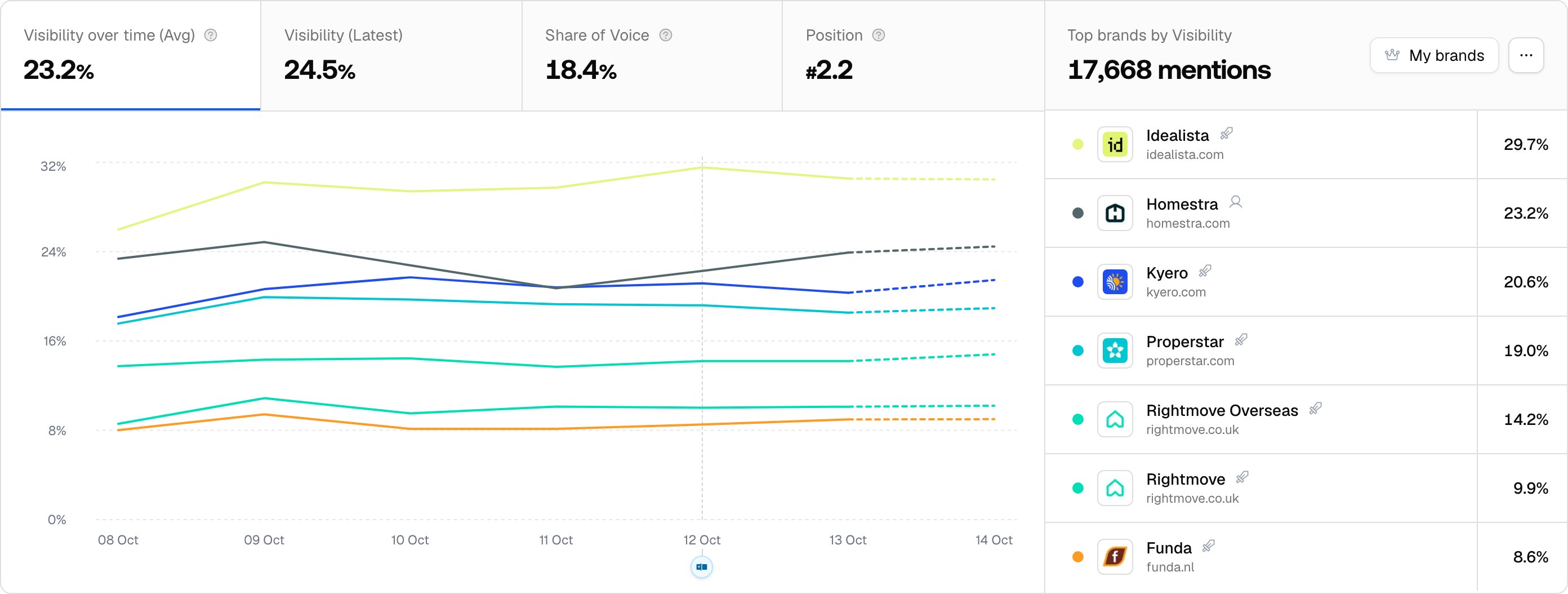
- Visibility Score: how prominently your brand appears when AI answers your tracked prompts, 0-100. Each response is scored on placement, share of attention, and depth, then averaged, with responses that don’t mention you counting as zero. It is the single number that reflects both coverage and quality of presence. The chart shows it two ways: Visibility over time (Avg) averages the daily scores across the selected date range, and Visibility (Latest) shows the most recent day only. See Visibility Score.
- Share of Voice: your slice of all brand mentions in the current filters, counted as one mention per response per brand. The denominator is the mentions of the brands the chart shows: the top 7 in the current brand scope by default, or more with Number of brands. That is why the number changes when you switch between My brands and All brands (more on that below) or change the number of brands. Presence only: a footnote mention counts the same as the headline recommendation. Read it next to the Visibility Score to separate “we don’t appear” problems from “we appear badly” problems. See Share of Voice.
- Position: where your brand lands in the order of brands within a single answer, counted from 1 and read top to bottom from the first qualifying mention of each brand. The number you see is the average rank across the responses that mention you, so “#1.4” means you are usually first. Lower is better, and answers that leave you out are not counted against you. Being the first name in a recommendation list is worth far more than being the ninth, and this metric tracks exactly that. See Position in answer.
Tone
- Sentiment score: how positively AI answers describe your brand, on a 0-100 scale where around 50 is neutral. Scored independently of visibility, so a highly visible brand can still carry negative sentiment, and vice versa. A mention too thin to judge gets no score rather than a neutral 50, so it does not drag your average toward the middle. See Sentiment score.
Sources
- Citation rank: when an answer cites your own domain (or one of its subdomains), where in the source list that citation lands, counted from 1. Sources listed first tend to shape the answer most, so a lower rank (closer to 1) means your content is becoming a primary source rather than a supporting one. See Citation rank.
- Self-citation rate: the share of all citations that point at your own domain instead of third-party pages. It tells you whether AI models build their answers from your content or from what others write about you. It is not a labelled metric in the app: you read it as your own domain’s percentage in the Citation share list, where your domain always appears. See Self-citation rate.
How to read them together
The metrics form a funnel, and the combination locates your problem:- Low Share of Voice, high Visibility Score: the answers that include you treat you well. Your problem is coverage: get into more answers.
- High Share of Voice, low Visibility Score or late position: you appear often but as an afterthought. Your problem is prominence.
- Mentions without self-citations: models know your brand from third-party sources, but your own content isn’t feeding the answers. Your problem is content and crawlability.
- Good scores, weak sentiment: you are visible but framed negatively. Your problem is reputation, and the Sentiment page shows which responses are doing the damage.
Where to see them
Visibility, Share of Voice and Position share one chart: the brand visibility chart, which is the Brand visibility over time widget on your dashboard (Home in the rail). The same chart sits on each monitor’s Overview tab (rail tile Prompts, then Monitors, then open a monitor) and on each prompt’s page. It has four tabs in this order: Visibility over time (Avg), Visibility (Latest), Share of Voice, Position. Each tab card shows the current value, and the help icon on a tab opens the in-app explainer. To the right, the Top brands by Visibility (or Share of Voice, or Position) list ranks the brands in scope, with the total mention count in its header and per-brand counts on the Share of Voice tab. Two controls on that chart change what the numbers mean, so check them before comparing two pages:- Brand scope: My brands is your brand plus your direct competitors; All brands is every brand detected in the responses. The dashboard widget defaults to My brands, the monitor Overview tab defaults to All brands, so Share of Voice for the same period can read differently on the two pages. Edit brands opens the Competitors page; see identifying your competitors.
- The ”…” menu: Compare previous adds a delta against the previous period to each tab card, and Number of brands sets how many brands the chart draws (7 by default, up to 28; the Position tab always shows 7).
- Side by side per monitor: the monitor cards on the Monitors page (rail tile Prompts, then Monitors) show Visibility Score, the models, a visibility sparkline, a sentiment sparkline and Citation Rank in one row. It is the quickest read of all of them at once.
- Sentiment: rail tile Prompts, then Sentiment. The page is titled Sentiment Analysis and has By Prompt, By Topic, By Competitor and Responses tabs.
- Citation rank: the Citation Rank stat on each monitor card. For per-URL detail (any domain, not only yours), rail tile Sources, then Citations, then the URL Positions tab.
- Self-citation: rail tile Sources, then Citations, then the All Citations tab, and read your domain’s row in the Citation share list. See understanding sources.