

When to use this
A project is built around one brand, and the number of projects is a plan limit: the smallest plans include a single project, so there is no room for a second brand next to the first. The last project in an organization can’t be deleted either, so on those plans the way to track a new brand is to repurpose the project you have. The same applies to any organization that has used up its project quota; the limits per plan are in plans and billing. If your plan has room for another project, don’t do this: create a new project instead, which keeps the old brand’s data intact. See multiple projects for working with several. Repurposing overwrites your current setup. The old brand’s history stays attached to its monitors unless you delete them, and the brand profile is replaced by the new brand’s. Any team member except a viewer can do this; viewers see a view-only banner and disabled fields on the Brand Book.Step 1: Delete the old monitors (optional)
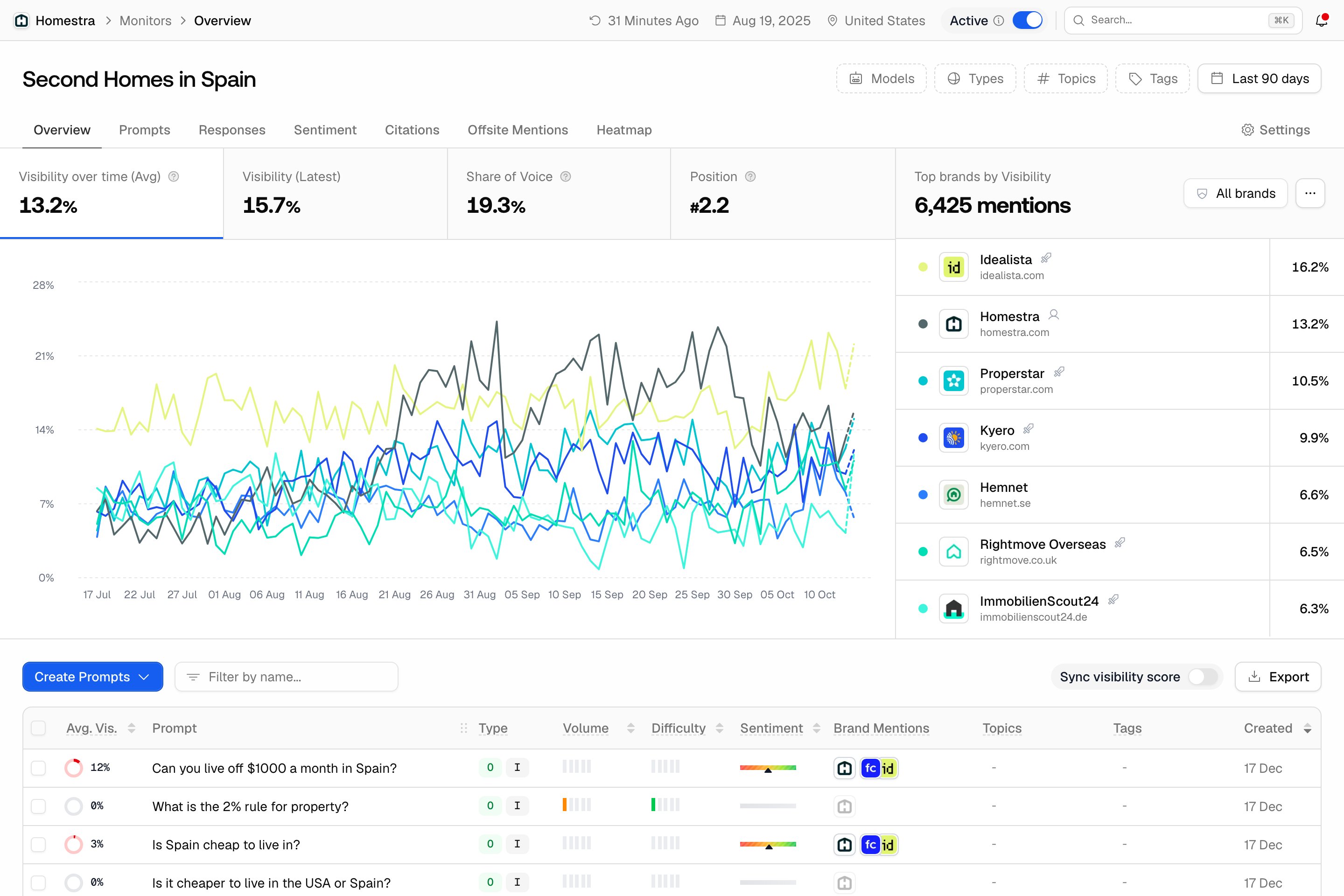
Nothing forces you to delete the old monitors, but it removes all responses, prompts and history of the old brand so they don’t mix with the new one.- Click the Prompts tile in the left rail. It lands on the Prompts page, so pick Monitors in the inner navigation (or in the flyout that opens when you hover the tile).
- Open the monitor, then click Settings, the gear button at the right end of the tab row.
- Scroll to the Delete Monitor card at the bottom and click Delete monitor. The card warns that this action is irreversible. The Delete Monitor dialog then asks you to type the monitor name in the Verification field and confirm with Yes, delete monitor; the monitor and all its prompts, responses and settings are deleted permanently.
Step 2: Open the Brand Book
Click the Brand tile in the left rail. It lands directly on Brand Book, the page with your brand identity, aliases, and how AI engines should describe you. The rest of the brand pages (AI Settings, Personas, Competitors, Social channels) are in the same inner navigation.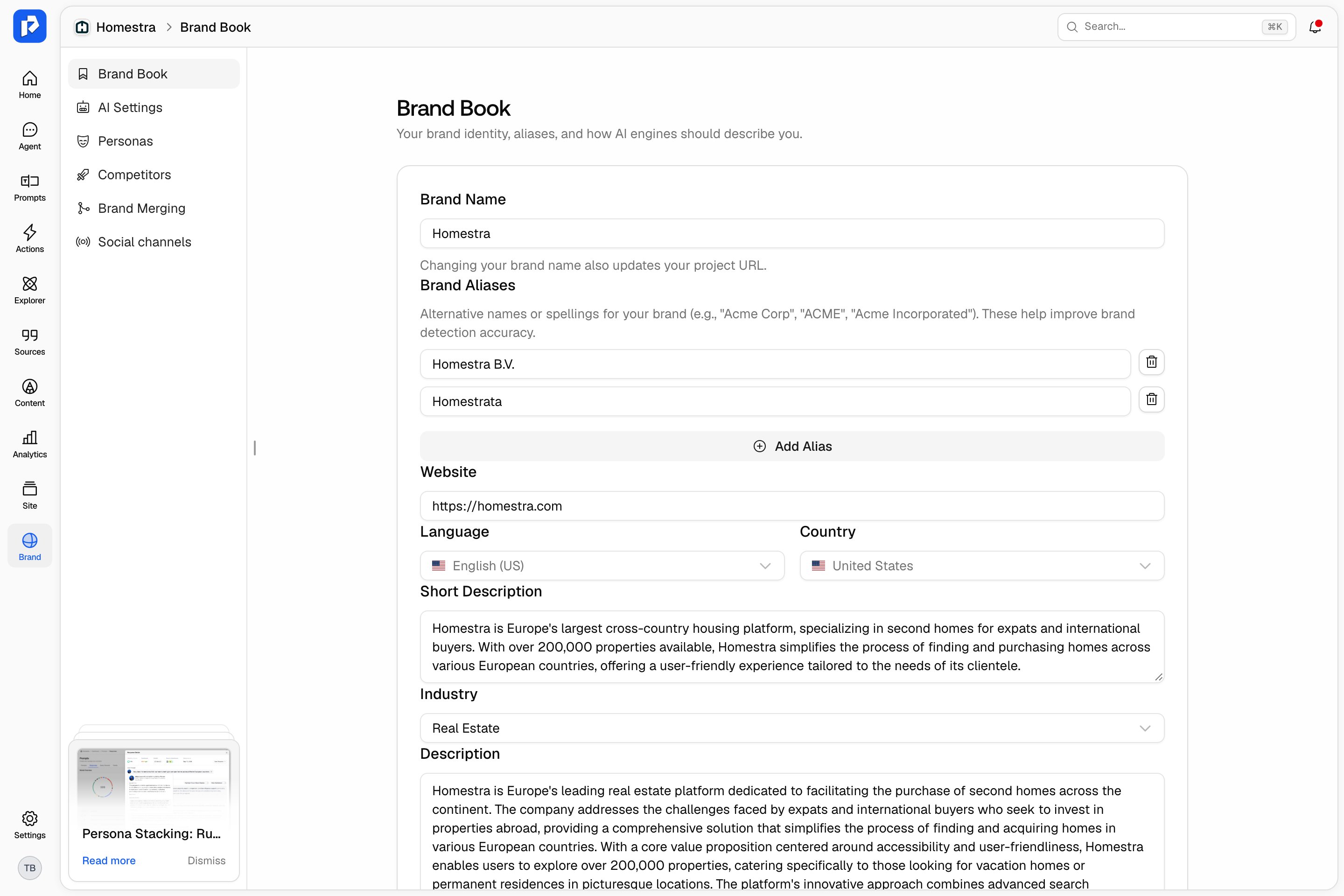
Step 3: Update the brand details
Change the fields that describe who the brand is; Your brand profile explains what each one does.- Brand Name: the name Promptwatch looks for in AI answers. Changing it also changes the project URL, so the page reloads at the new address and old bookmarks stop working.
- Brand Aliases: remove the old brand’s aliases and add the new ones with Add Alias. Aliases drive mention detection, so leftover aliases from the old brand produce false mentions.
- Website: the new brand’s site. Regeneration in step 4 reads from this URL.
- Language and Country: two separate selects. Changing them shows the note “Only applies to new monitors”, since existing monitors keep their own settings.
Step 4: Save, then regenerate
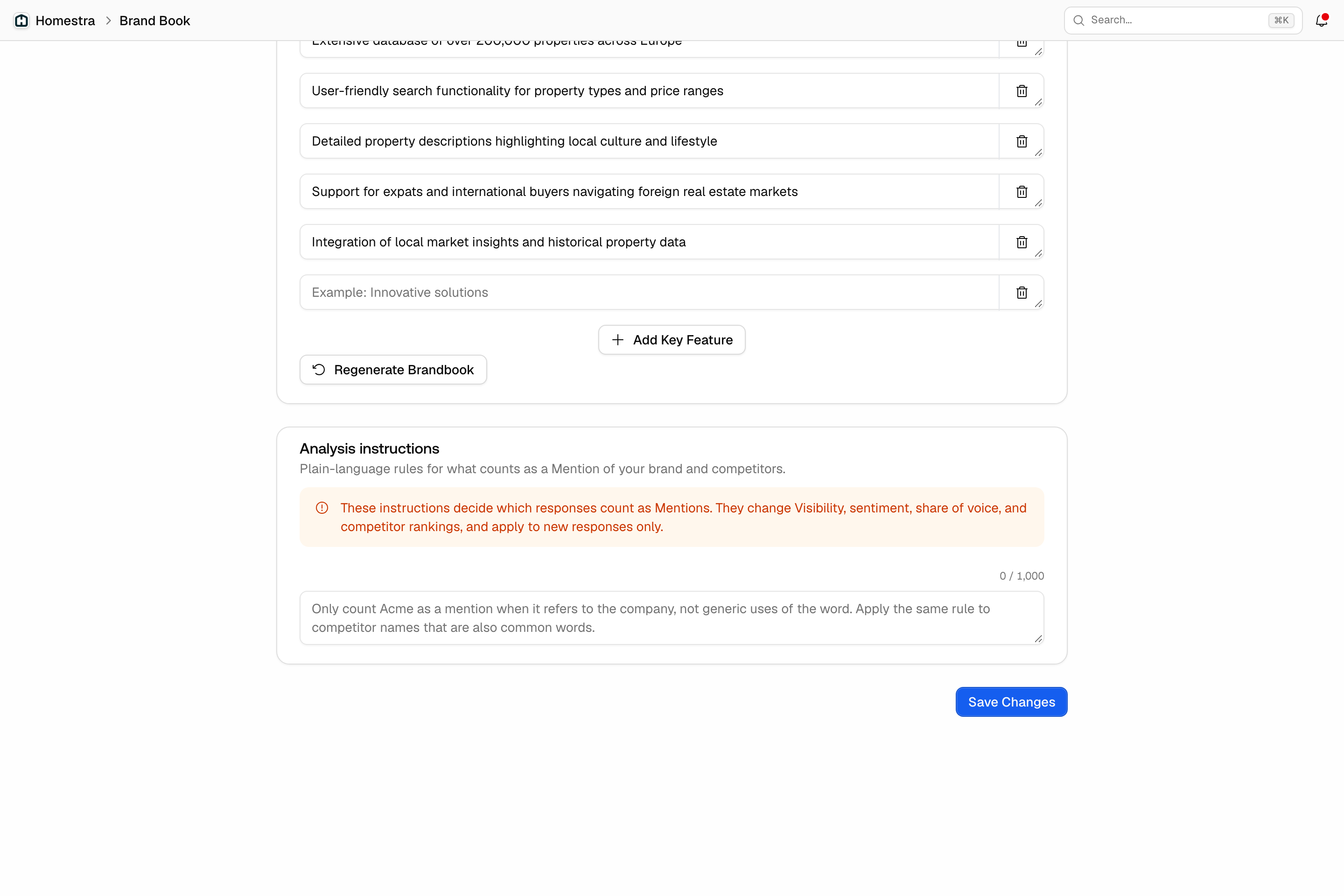
- Click Save Changes at the bottom right. The toast “Project settings updated successfully” confirms it. Saving is required first: clicking Regenerate with unsaved edits shows “Please save unsaved changes before regenerating.”
- Click Regenerate Brandbook, below the key features on the left of the form. A dialog asks “Are you sure you want to do this? Making changes can impact analytics and may overwrite your current brand information with data extracted from your website.” Click Continue.
What does not change on its own
Everything outside the regenerated fields still describes the old brand until you redo it by hand:- Competitors: Brand > Competitors. The old competitor set applies to every monitor, see identifying your competitors.
- Personas: Brand > Personas, see personas.
- Tone of voice: Brand > AI Settings, see AI settings.
- Analysis instructions: the card at the bottom of the Brand Book with plain-language rules for what counts as a mention. They apply to new responses only, and rules written for the old brand would misclassify the new one.
- Sitemap and Search Console: Settings (the gear tile at the bottom of the rail) > Project settings > Sitemap and Search Console, see changing your sitemap.
- Tags, topics and knowledge base items: created for the old brand’s content.