

What you need before the first run
- A project website and at least one URL in the inventory: the inventory is filled by a synced sitemap and, optionally, by Google Search Console. Until it has URLs, the page shows “No audit run yet”: “Audits run weekly. The first one starts once your sitemap has synced, and its results land here.”
- A plan that includes audits: the Explore plan has no site audits; every paid plan has them. See Plans and billing.
- Standard scraping: projects that use static IP scraping get no audits yet: no scheduled audits run, and Run audit returns “Site audits are not yet available for projects using static IP scraping.”
What the page shows
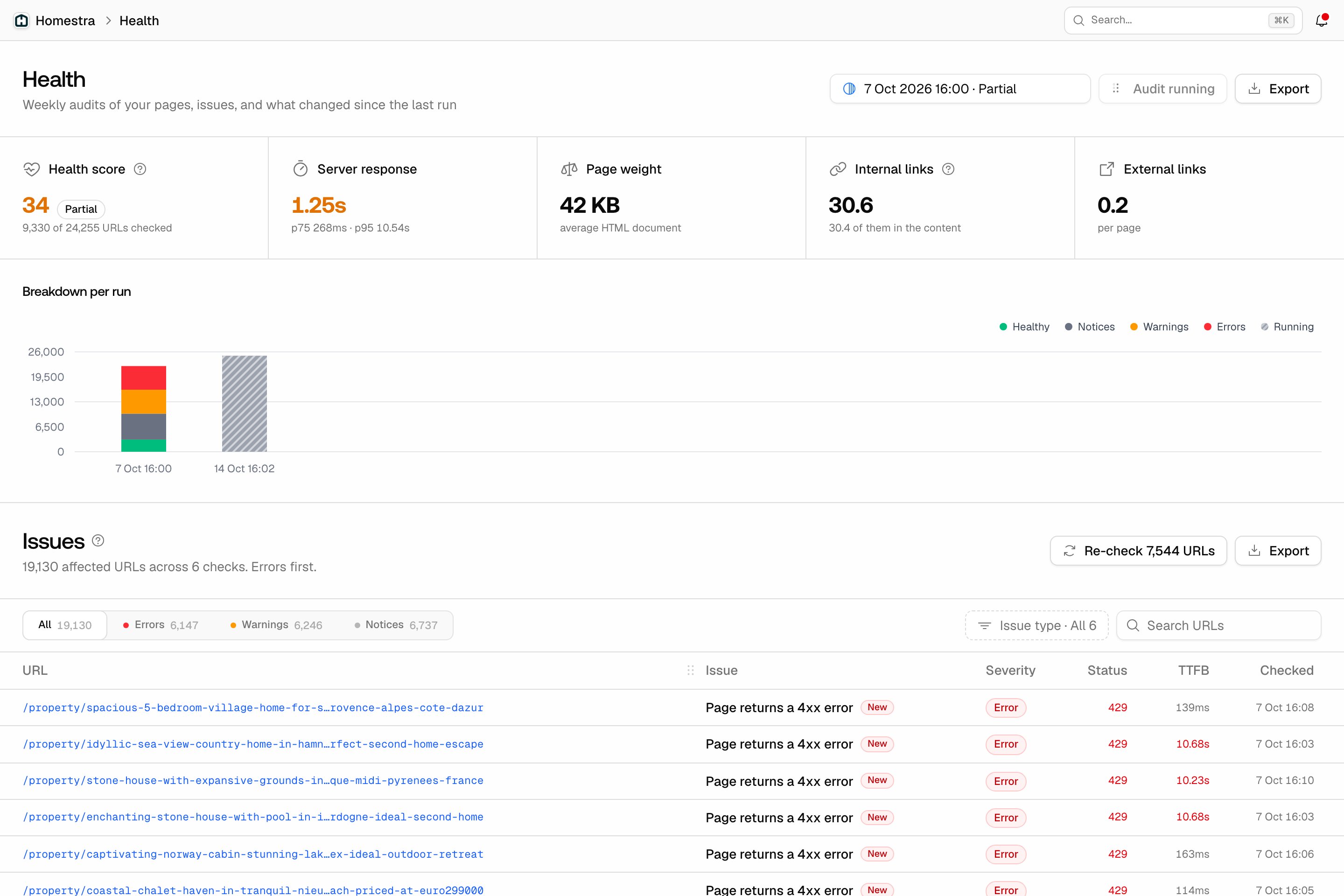
From top to bottom:- The run picker, Run audit and Export: the header has a picker labelled “Audit run” that lists every run as a date and time plus its state (Completed, Partial, Running and so on), so you can open an older run. Run audit starts a manual run now (it reads “Audit running” while one is in progress, and viewers do not see it). Export opens the export dialog for the Sitemap Health export, which lists your pages with their crawl state, response times, HTML size, links and SEO issues; see Exporting your data. The Issues section has its own Export for the rows in its current view.
- Health score: the percentage of checked URLs with no error, with the change against the previous scored run and “N of M URLs checked” underneath. The tooltip “How the score works” gives the same definition.
- Server response: the average time to first byte across checked pages, with “p75 X · p95 Y” below it. The percentiles matter more than the average: a good average with a bad p95 means a handful of pages are very slow.
- Page weight: the average HTML document size in KB.
- Internal links and External links: the average number of each per page, and for internal links how many of them sit in the content rather than in navigation.
- Breakdown per run: a stacked bar per run with Healthy, Notices, Warnings and Errors (plus Running for a run still in progress), so you can see whether the issue mix is shrinking week over week.
- Issues: the table of every URL that failed a check, described below.
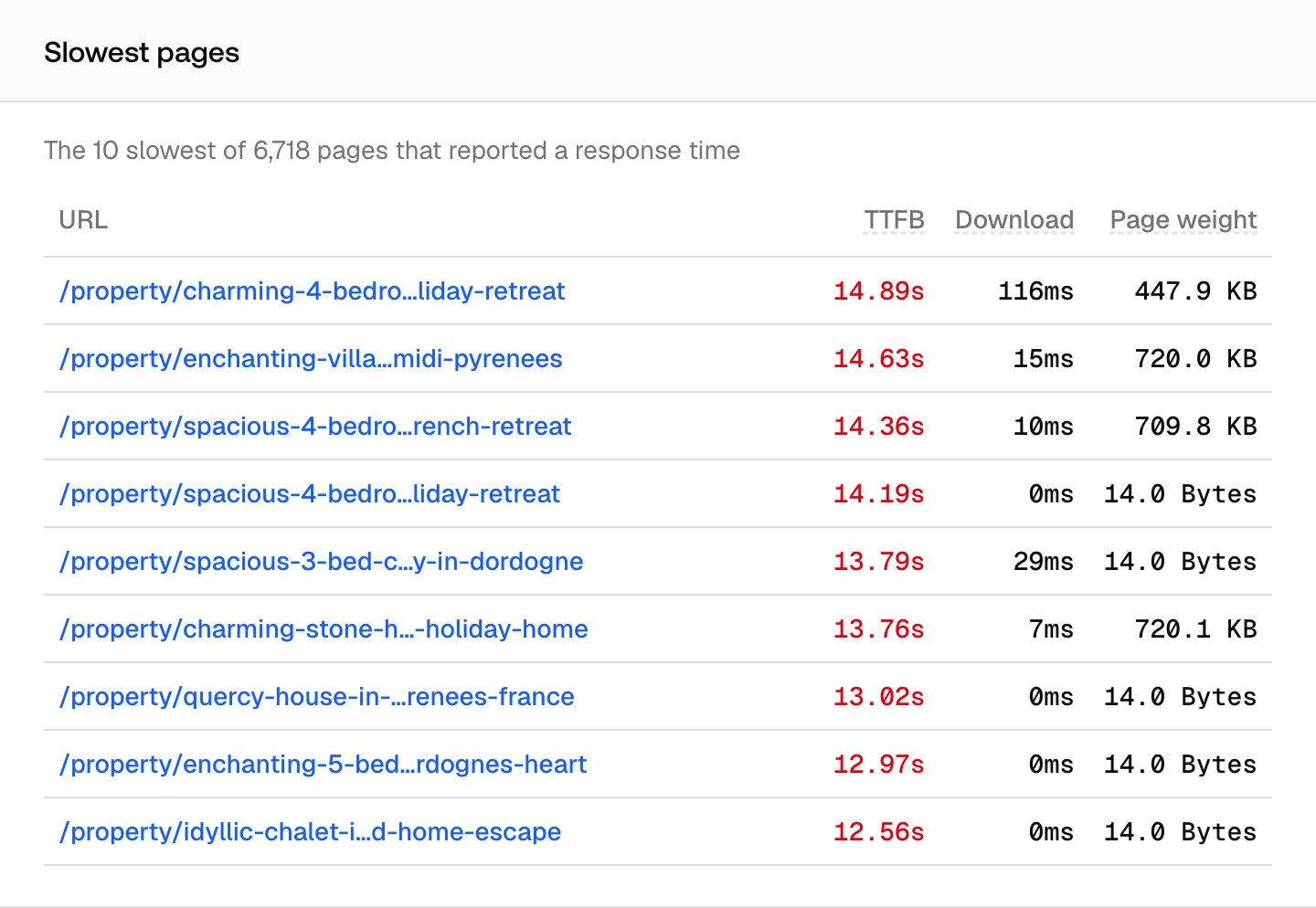
- Responses: “Which URLs failed this run, which pages answered slowest, and which sitemap URLs redirected.” Failing URLs and Slowest pages sit side by side. Failing URLs has columns URL, Status and Runs failed; the subtitle counts how many URLs “answered 4xx, 5xx or nothing at all”. Slowest pages has columns URL, TTFB, Download and Page weight; the subtitle reads “The N slowest of M pages that reported a response time”. Redirecting URLs is a full-width row underneath, with columns URL, Redirects to and Final status; the subtitle counts how many sitemap URLs “redirected to another page”.
How the score is computed
The score is the share of scored URLs that have no error: (scored URLs minus failing URLs) divided by scored URLs, times 100, rounded. A URL is failing when it has at least one Error-severity issue. Warnings and notices do not move the score at all. That is a deliberate choice. Errors are the checks where an AI crawler cannot fetch or read the page, so the score answers one question: what fraction of your site can a crawler actually use? A page with a long title and a missing meta description is still readable, so it stays a healthy URL in the score, even though it shows up in the Issues table as work to do. The score number is coloured by band (red at the low end, then amber, blue and green), but the colour is the only signal; there is no label attached to it. The change against the previous run next to the score is the quickest way to spot a regression.The 21 checks
Every URL in the run goes through these checks. The labels are the ones you’ll see in the Issues table.
The severities follow the tooltip on the Issues section: “Errors: AI crawlers cannot fetch or read the page. Warnings: the page is harder to read and cite. Notices: minor cleanup.”
One check deserves a note. Content needs JavaScript to appear means the HTML a crawler receives is a shell, and the content only appears once JavaScript runs. A page like that can look fine in a browser and still give a crawler nothing to read. Crawlability covers what to do about it.
The Issues table
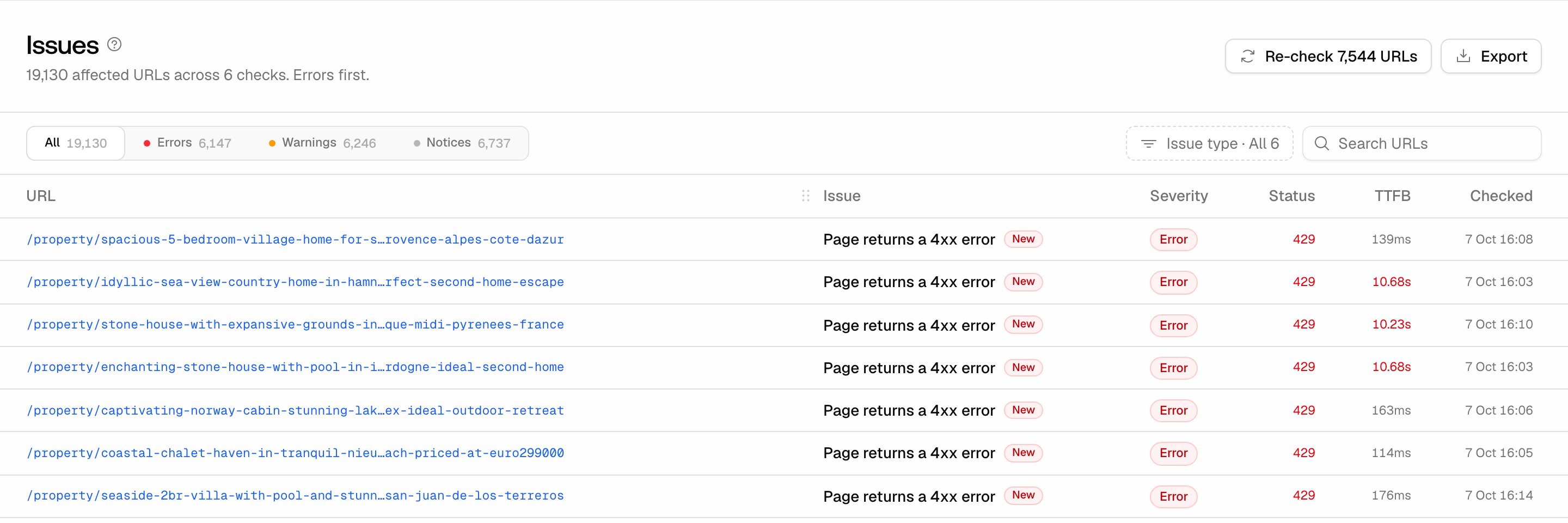
The Issues section lists one row per URL and failed check, with columns URL, Issue, Severity, Status, TTFB and Checked. Three controls narrow it down:- Severity tabs: All, Errors, Warnings and Notices, each with its count.
- Issue type: a multi-select (it reads “Issue type · All N” when nothing is selected, with an “All checks” option, and a “Search checks…” box once the list is long) to focus on one or more specific checks.
- Search URLs: a text box to find a path or section of the site.
What to work first
- Errors first: these are pages a crawler cannot fetch or read, so no amount of content work helps until they are fixed. Start with the 4xx and 5xx pages in Failing URLs (the Runs failed column tells you whether a URL has been failing for several runs or just this one), then broken internal links, redirect chains, missing titles and H1s, and certificate problems.
- Then warnings on pages that matter: cross-reference with your most crawled pages from AI crawler insights. A heavily crawled page with thin content, or one whose content needs JavaScript, is attention being wasted. For speed, work Slow server response (>1000 ms) and the Slowest pages card from the top.
- Notices last: title length, external canonicals, near-duplicates and navigation-only links are cleanup. They do not affect the score, so schedule them after the rest.
- Watch the New badge and the score delta every week: they separate a site that is slowly improving from one where fixes and regressions cancel out.
How to confirm a fix
You do not have to wait a week to see whether a fix worked. There are two ways to check sooner, and one thing that looks like a check but isn’t.Re-check the affected URLs
In the header of the Issues section, beside the export button, sits an outline button that reads Re-check N URLs. It re-checks the checks that can be re-checked within the active severity tab or the issue types you selected, and N is the number of affected URLs across them. When nothing in the current view can be re-checked, the button is hidden. Click it, and a dialog titled “Re-check ” opens with Cancel and Re-check. The footnote reads “Five re-checks a day per project.” A re-check fetches only those pages again inside the same run and recalculates that run’s score and issue counts. No new run is created, so the history stays clean: the week’s run gets corrected. Limits: five re-checks per project per UTC day, up to 5,000 URLs per re-check, only the latest run can be re-checked, and one re-check at a time. Viewers do not see the button. Re-checks work for the page-level checks plus Broken internal link on page and Near-duplicate of another page. Three checks cannot be re-checked because other pages’ links decide them: Orphan page (no internal links), Linked only from site-wide navigation and Linked but not in sitemap. Only a full run can change those.Run a full audit
Run audit at the top of the page starts a new run for the whole inventory. The toast reads “Audit started for N pages. Results appear here when it finishes.” You get one manual run per project per UTC day; a second attempt gets “You already started an audit run today. The next manual run is available tomorrow.” It is also blocked while another run is in progress. Scheduled runs happen on their own: every hour Promptwatch looks for projects with no non-failed run in the last 7 days and opens one. A failed run does not use up the week, so a project is never stuck waiting because of an error. A run is capped at 23 hours.What a page recrawl does not do
A page’s Performance Insights page has a footer button Recrawl page (a page that was never crawled also shows a Crawl page now button), with a toast saying “Re-crawl queued successfully. Recrawling can take up to 48 hours.” That recrawl updates the page index behind Site → Pages, which is the content Content Gap searches. It does not change the audit. To update the audit, use a re-check or a full run. The same goes for the “recrawled every 7 days” note on that page: it describes the content crawl, which is a separate process from the weekly audit.Partial runs and the plan ceiling
The number of pages per run is capped at your plan’s Sitemap Pages limit. URLs from your sitemap and other sources are filled first, then URLs discovered through links; anything above the limit is skipped and the run is marked Partial. A Partial badge next to the score explains why: “N URLs were left out by your plan’s per-run limit”, or, when the run did not hear back from some pages, “N URLs never reported back. The next run picks them up.” See Plans and billing for the per-plan limits, and How to change your sitemap for what counts as a sitemap page.Content and Linking
The audit’s findings fan out into the two sibling pages, so you do not have to mine the Issues table for patterns:- Content (Site → Content) covers “Page length, titles, descriptions, headings, duplicates, and content freshness”: URLs by word count, title and meta description setup and length distributions (optimal title length is 15-70 characters, meta description 100-160), H1 and canonical setup, duplicate titles, thin pages, near-duplicates, and changed and stale pages. Content freshness appears after two audit runs, and a page counts as stale when it has been unchanged for 90 days or more.
- Linking (Site → Linking) covers “Broken links, pages your sitemap misses, and pages that only your navigation reaches”: click depth, broken internal links, pages linked but not in the sitemap, orphan pages, and pages linked only from navigation.